Ans: Mail may not update automatically if push notifications are disabled, fetch settings are incorrect, or background app refresh is turned off.
iPhone Mail Not Updating? Here’s Why & How to Fix It

Updated On March 17, 2026
If your iPhone mail not updating, it typically indicates there has been a failure with communication between the Mail app on your iPhone and your mail server.
When you lose important data on an iPhone, you can use dedicated iPhone data recovery software, but what do you do when you are unable to get new emails or your iPhone mail is not updating? The purpose of this article is to inform you why your emails are not being updated and how to resolve the issue quickly.
How Email Syncing Works on iPhone
iPhone email synchronization is when your iPhone communicates with your email service provider’s server to keep your inbox in sync with what’s on the server. Here’s how it works:
- IMAP, POP3, or Exchange are the three email protocols that iPhones typically use to retrieve email.
- Both IMAP and Exchange provide real-time synchronization across all devices. So, if you delete or read an email on your iPhone, that action alerts the mail server, which in turn alerts all other devices connected to that same email account.
- In contrast, POP3 typically downloads email from a server to your iPhone. If you read or delete an email on the iPhone, that action is not recorded and does not reflect on other devices that may share the same email account.
The iPhone retrieves email from the server on a “push” or “fetch” basis.
- Push email means new mail arrives in your inbox as soon as it’s delivered.
- Fetch email means the iPhone retrieves new mail according to a schedule you define in email settings.
What “Updating” or “Refreshing” Means
When your Mail application is updating or refreshing, this means that your iPhone is attempting to update the information in your inbox with any changes to that information that may have been made on the server since you last retrieved a new email.
- To force the inbox to refresh manually, pull down on your inbox to activate the refresh.
- When completing the refresh, your iPhone will download any new emails and update their status (eg, whether they have been read/deleted, etc.).
This helps ensure that your inbox contains the most current information.
Why This Matters
- It allows you to receive emails without constantly checking your inbox for new messages.
- It ensures that your email will remain consistent across all devices using the same email account or accounts.
- You will receive important emails quickly.
- It helps you avoid missing out on important updates or experiencing delays from missed or delayed messages.
Also Read: Phone Not Ringing? Common Reasons, Fixes, and When to Get Help
Common Symptoms of Email Not Updating on iPhone
Usually, when there are issues with email sync on your iPhone, there will be very visible alerts signaling that the issue is present. The issues you may have recognized here are what may be the cause of iPhones not updating their new message.
Here are some examples of what issues can cause your email on an iPhone to not work:
- Unable to see new messages in your iPhone mail as expected.
- Email on iPhone is not syncing from multiple accounts.
- Email on iPhone does not refresh unless checked manually.
- After an update to the latest iOS version, emails on your iPhone stop updating.
- The inbox timestamps in the mail app are not accurate.
- Delayed notifications or no notifications on your iPhone email.
If you encounter these problems with your iPhone email, it’s not that your iPhone touch screen is not working; it’s an internal issue that can be resolved easily. It’ll be mentioned further in the write-up.
Why Are My Emails Not Updating on My iPhone?
If your email is not updating on the iPhone, there can be several causes for it. Below, you can see the most common factors that stop your email from updating. This includes:
Why is My iPhone Mail Not Updating Automatically?
Two of the major reasons why your iPhone is not updating manually are:
- Incorrect fetch setting: Sometimes your iPhone might be set to manual or hourly, which delays the email from coming into the inbox.
- Background Refresh: Many users often keep background refresh disabled, so until and unless you open the mail app, you won’t get any new emails.
Why Are My Emails Not Coming Through on iPhone?
If emails are not coming through on iPhone, it could be because your internet connection keeps dropping, or the server is not in sync with the email app.
If the Wi-Fi or cellular network is not working properly, emails might not come or go through.
Why is Email on iPhone Not Working After the Update?
Even if you updated the email app, it might still not work. This is because:
- iOS Update Glitch: Sometimes, even after the update, you might not get a new email; instead, you’ll be met with “Cannot Get Mail.” This is just an iOS glitch.
- Mail App Bug: It’s quite common for apps to get bugs right after the update on iPhone, and the same can happen to mail.
Why Am I Not Getting Emails on My iPhone?
If you are not getting emails on your iPhone, it might be because:
- Incorrect Credentials: Your iPhone Mail app must log in to the email server using the correct username and password. If the credentials are outdated or incorrect, the server blocks access.
- Blocked by Security App: Some security apps, VPNs, or firewall apps can block the Mail app from connecting to the email server.
Also Read: Spots on Phone Screen: Causes, Fixes, and When to Repair It
Quick Fixes for iPhone Mail Not Updating
Simple troubleshooting measures can typically resolve most email syncing issues associated with iPhones. Before moving on to more advanced solutions, be sure to commence your attempts at resolving the problem with one or more of these quick fixes.
Make sure that you have your iPhone connected to a stable source of internet before attempting any of these fixes.
1. Check Internet Connection
In order for the Mail app to sync email, you must first have a stable connection to the internet.
To troubleshoot your current internet connection:
- Switch back and forth between Wi-Fi and cellular data.
- Perform a quick speed test by going to an Internet speed test website.
- Turn on Airplane Mode and then turn it back off again.
Connecting to Wi-Fi or a cellular network may resolve the issue of iPhones not syncing emails.
2. Restart Mail App
Restarting the Mail application will refresh the email server connection.
To restart the mail application:
- From the home screen, swipe up from the bottom of the screen.
- Locate the preview for the Mail application.
- Swipe up on the Mail application preview to close the app.
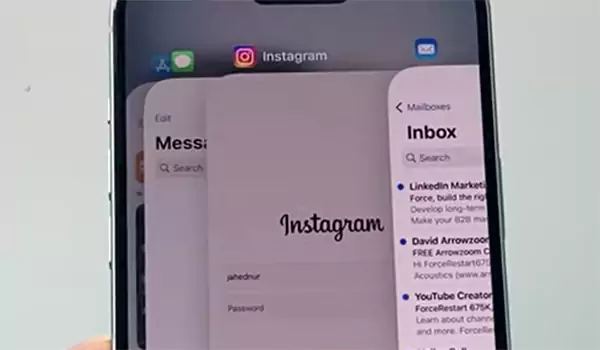
- Open the Mail application again.
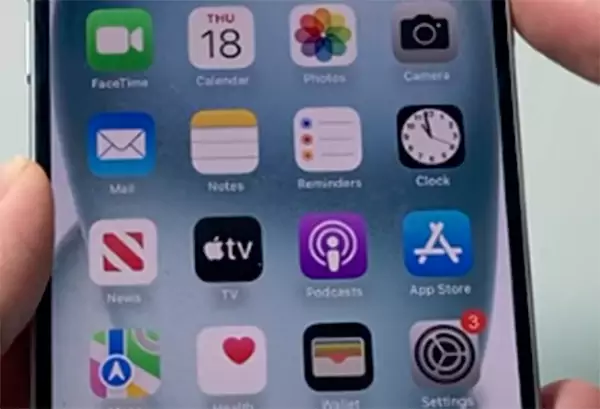
After restarting the Mail application, if you are still experiencing issues with your iPhone not refreshing email, proceed to the next step.
3. Force Restart iPhone
Performing a force, or hard, restart may help eliminate minor software-related issues that are preventing iPhone emails from syncing with the email server.
To accomplish a force restart on your iPhone, do the following:
- Press and quickly release the volume-up button.
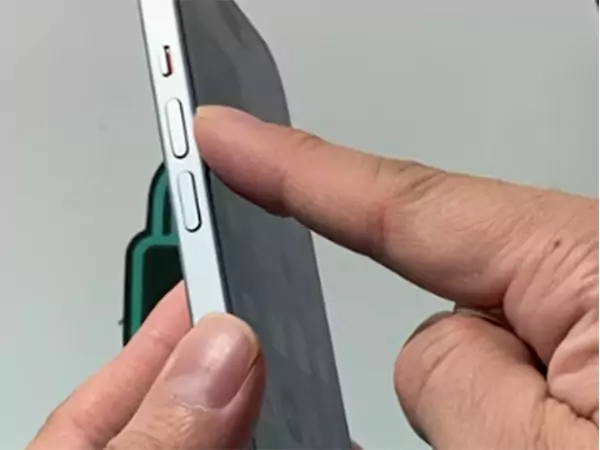
- Press and quickly release the volume down button.
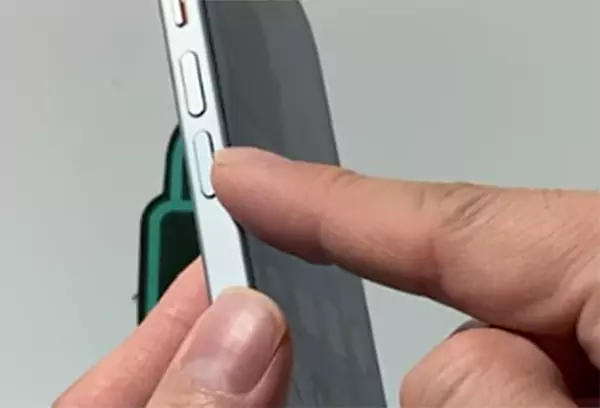
- Press and hold the power button until the Apple logo shows on the screen.
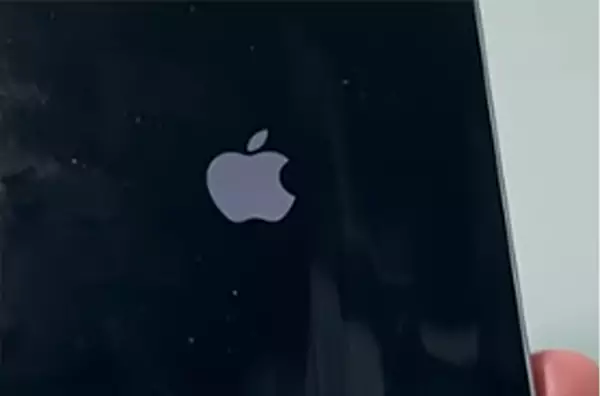
After completing the above steps, check to determine whether or not the issue of the iPhone not updating email has been resolved.
4. Check Mail Fetch & Push
Review your fetch and push mail settings. One possible reason you may have trouble getting new emails automatically on your iPhone is that your fetch settings are wrong.
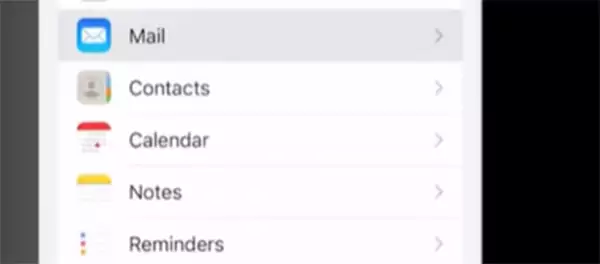
Open the settings app on your iPhone
- Open the mail app.
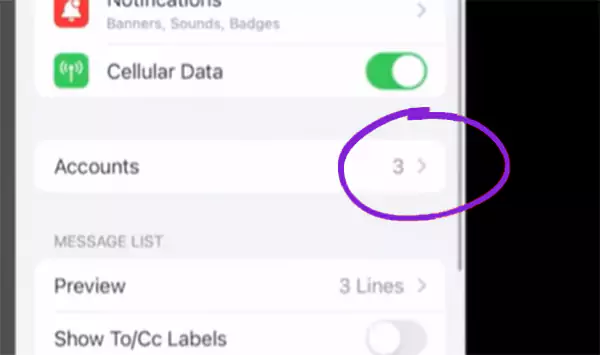
- Press on Accounts.
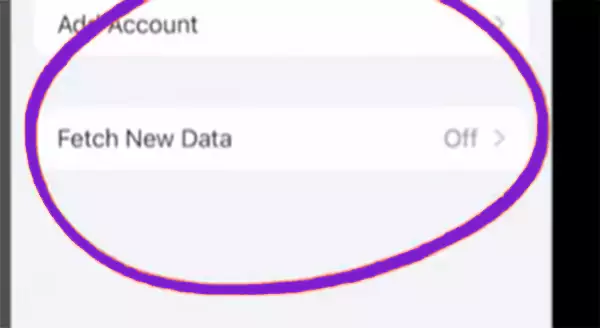
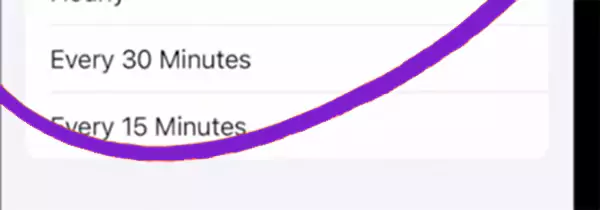
- Press on Fetch New Data.
Verify that:
- Push is enabled.
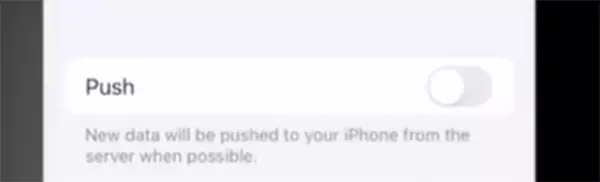
- The fetch interval is set to every 15 minutes.
5. Check Mail Server Status
Mail providers sometimes have outages. If you cannot access your email on your iPhone, check your mail service provider’s service status page:
- Gmail
- Outlook
- iCloud
Server downtime causes email to be delayed in coming into your device.
Advanced Troubleshooting
If basic fixes don’t solve your email problem, you may need to do some deeper troubleshooting. The solutions below will help you troubleshoot account-level problems with your email account and system-level problems causing your email to not update on your iPhone.
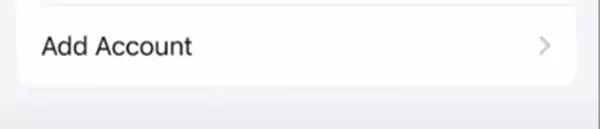
1. Remove and Re-add Email Account
By removing and re-adding your email account, you’re forcing an update of your account’s server settings.
Here’s how:
- Go to Settings.
- Tap on Mail, then tap on Mail Accounts.
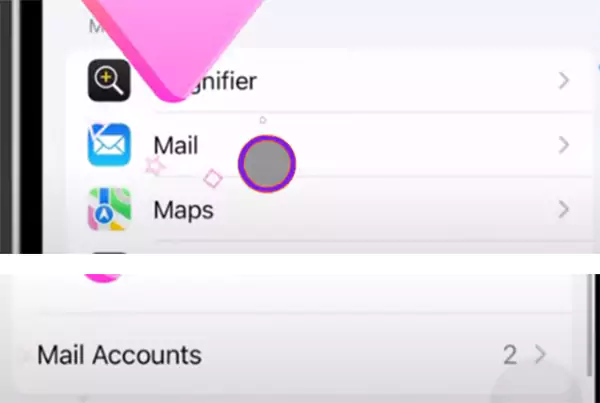
- Select the email account that needs to be removed.
- Tap on Delete Account.
- Add the email account again.
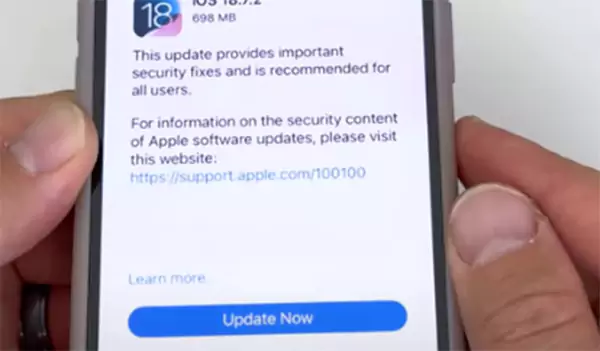
2. Update iOS to the latest version
Updating to the latest version will fix any bugs in your software that may be causing your email to not update after an update.
Here’s how:
- Open Settings.
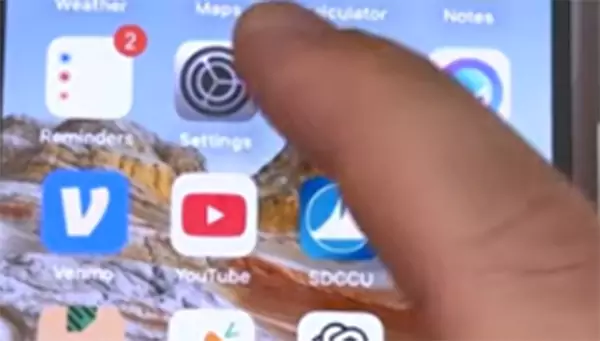
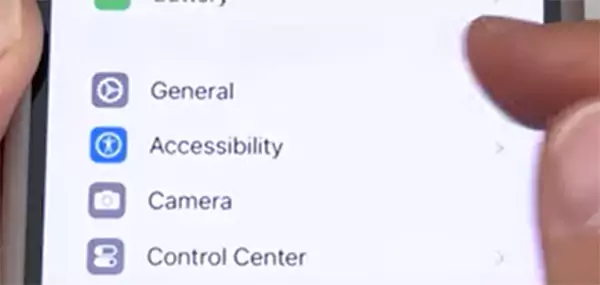
- Tap on General, then Software Update.
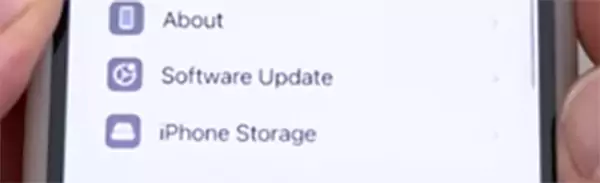
- Install the latest version of iOS if one is available.
3. Reset Network Settings
Some network errors can cause issues when your email is trying to sync with the email server.
Here’s how:
- Go to Settings.
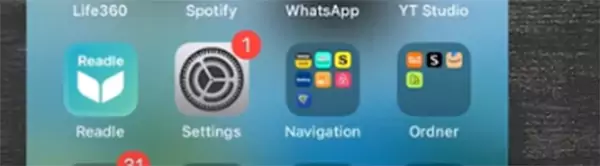
- Tap on General.

- Tap on Transfer or Reset iPhone.
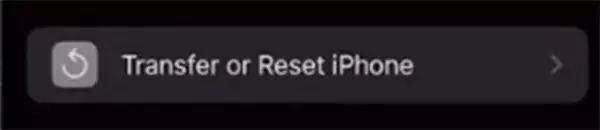
- Tap on Reset Network Settings.

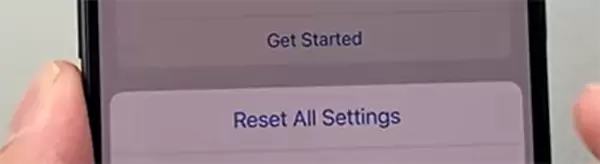
4. Reset All Settings (last resort)
If resetting your network settings doesn’t solve the problem, resetting all of your iPhone’s system settings may correct any persistent email syncing errors.
Here’s how:
- Open Settings.
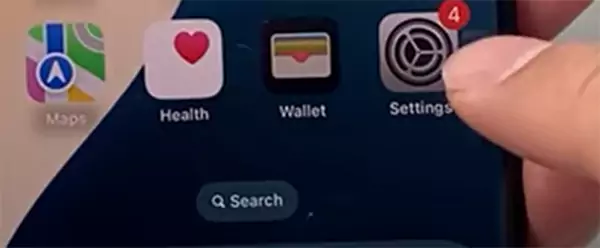
- Tap on General.
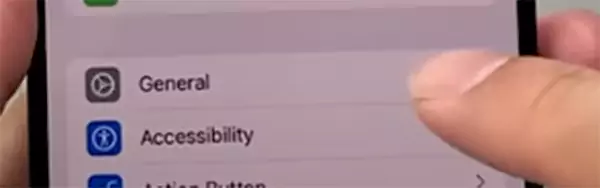
- Tap on Reset.

- Tap on Reset All Settings.
5. Contact Email Provider Support
If the email still fails to sync, contact your email provider’s technical support or visit Apple’s support site.
Also Read: Phone Not Ringing? Common Reasons, Fixes, and When to Get Help
Device & App Specific Causes
There are certain conditions that have to exist for certain problems to happen. Identifying these conditions could help to explain the problem of email not updating on an iPhone.
1. iPhone Mail Not Updating After iOS Update
The issue of an iPhone not syncing emails after an iOS update could be due to the fact that when iOS is updated, it sometimes causes temporary disruptions or interruptions to email syncing. Usually, restarting at least one of the devices or re-adding the email account(s) should solve this issue.
2. iPhone Email Not Refreshing in Lock Screen
When email is not refreshing on an iPhone when locked, it could be that either the iPhone does not have background refreshing or push notifications enabled.
3. iPhone Mail Not Syncing Gmail/Outlook
Some providers require either special security settings or app passwords to allow email to sync successfully with an iPhone.
How to Test If Email Sync Works?
To verify that the Mail app on your device is functioning as expected, you can perform some email sync testing.
Please follow these steps:
- Send yourself a test email.
- Verify that the email has appeared in your inbox right away.
- Compare the timestamps of the messages on each device (eg, computer versus tablet).
- Manually refresh the Mail app.
If you receive test messages instantly after following all of these instructions, then the iPhone email not updating issue has been resolved on your device.
When It’s Not an iPhone Problem
In some cases, an email account issue rather than the phone is at fault.
This includes:
- Blocked ISP/firewall
- Mailbox full
- Two-factor authentication issues
- Suspicious log-in activity
These are all reasons why you are not receiving e-mails on your iPhone, even though it is working correctly.
Conclusion
If your iPhone’s mail isn’t updating, your “sync settings,” “internet connectivity,” or “account configuration” are involved. In addition to checking the above, you may also have to take more drastic measures to fix more persistent issues, such as not being able to sync emails on your iPhone, which may require removing and re-adding email accounts or updating iOS.
If you have tried all of these fixes and your email account(s) still do not sync, then you should contact your email provider or Apple support.
FAQ
Q: Why does my mail not update on my iPhone automatically?
Q: Why isn’t my email refreshing on my iPhone lock screen?
Ans: Email may not refresh on the lock screen if push notifications or background app refresh are disabled in iPhone settings.
Q: Why are new messages not showing in iPhone email?
Ans: New messages may not appear due to server sync issues, incorrect email settings, poor internet connection, or disabled push notifications.
Q: Why is the mail not updating after the iOS update?
Ans: After an iOS update, temporary bugs or syncing glitches may occur. Restarting the device or re-adding the email account often fixes the issue.
SOURCE:
If you can’t receive email on your iPhone or iPad by Apple Support