

Ans: Restart your device. If that doesn’t work, check notifications, remove apps, or inspect hardware buttons.
How Do You Turn Safe Mode Off on an Android? (Step-by-Step Guide)
Android’s safe mode helps to diagnose the device related problems while running your phone on preinstalled apps and restricting background activities. This advanced feature is used to troubleshoot the general and common issues like app crash, freezing of screens and more. Being an Android user for years, switching on safe mode comes in handy, but at the start I also struggled while turning it off.
If you are facing broader device issues beyond Android, you may also want to explore solutions related to game console repair services or smartphone repair solutions for complete troubleshooting support.
This guide will walk you through several methods for how to turn safe mode off on an Android device.
Table of Contents:
- What is Safe Mode on Android?
- Why your Phone is Stuck in Android Safe Mode?
- How do you Turn Safe Mode off on an Android?
- How to Disable Safe Mode Using Advanced Methods?
- How to Turn the Safe Mode Off on Different Android Brands?
- How to Prevent Android Safe Mode from Activating Again?
- Common Problems When Trying to Turn Safety Mode Off
- How DeviceFixes Helps Fix Safe Mode Issues on Android?
- Quick Steps to Turn Off Safe Mode
- Conclusion
- Frequently Asked Questions
What is Safe Mode on Android?
Safe mode for Android Devices allows the user to identify if there is a problem with an app by running the device in ‘safe mode’. This is a diagnostic mode that runs your device only with the basic operating system applications and disables all other applications that you’ve downloaded.
Your device will still run and function as normal. There will be limitations placed on it while in safe mode, which will enable you to diagnose the problem causing your device to crash, freeze, etc.
Safe mode is an excellent way of protecting your Android Device; it also provides a method to diagnose issues. If similar diagnostic problems occur on computers, you can check computer repair services or laptop repair solutions for deeper troubleshooting.
Why your Phone is Stuck in Android Safe Mode?
If your phone keeps restarting into safe mode triggered by something other than the OS, there is always an underlying cause of this problem.
Problematic Third-Party Apps
These types of app problems are one of the most common reasons that lead to a phone being restarted into Safe Mode multiple times. In some cases, users of Samsung phone repair services or OnePlus repair support experience similar app-related issues.
Software Glitches
Sometimes your phone might reboot into Safe Mode because of a software problem that was caused by a temporary glitch or corruption in one or all system files.
Physical Button Issues
When your volume down button is stuck, it will be impossible for your phone to boot back into full working order from Safe Mode.
System Updates or Bugs
When you have a system update or an issue with a previous update, your phone can either boot back into the Safe Mode screen or continue being stuck in the Safe Mode screen after an incomplete update of the Android Latest Version. If software corruption gets severe, data recovery services may help retrieve important files.
Read Next: Phone Not Ringing? Common Reasons, Fixes, and When to Get Help
How do you Turn Safe Mode off on an Android?
If you want to learn how do you turn safe mode off on an android, start by doing these things, they are easy to follow, and would get you out of the safe mode.
Restart Your Android Device
There are a few things easier than restarting your phone when it comes to getting out of safe mode.
Steps:
- Press and hold the power button
- Tap Restart or Reboot
- Wait for the phone to turn back on
If issues persist across devices like gaming systems, you might also need PlayStation repair services or Xbox repair solutions for similar troubleshooting approaches.
Use the Notification Panel
Many Android devices may have the option to turn off Safe Mode via notifications directly from your Device Notification Bar.
Follow these steps:
- Swipe down with your finger starting at the top of your display

- Look for an alert that reads Safe Mode is On

- Tap that alert.
- Select or tap Turn off safe mode
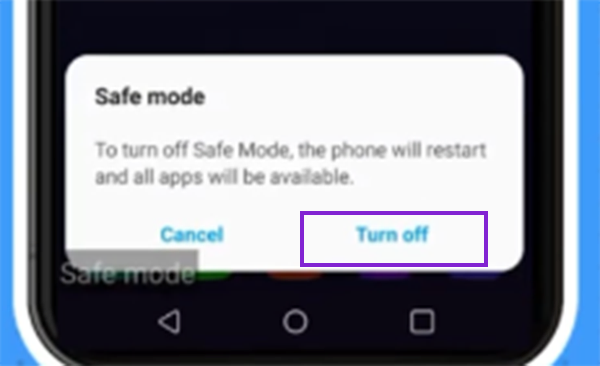
- Your device will reboot automatically, exiting Safe Mode
While this method is not available on every phone model, it is often the fastest way to exit Safe Mode when it works.
Check the Power and Volume Buttons
Your phone could be stuck in the Android safe system mode due to hardware problems.
To resolve this, follow these steps:
- Inspect the buttons on your device (volume buttons) to determine if any of them are stuck or pressed down.
- If so, take the case from the phone and turn it off by pressing and holding the power button for 10 seconds to restart the device.
- In case the volume down button is stuck, when you reboot your phone it will keep entering into the safe system mode each time.
Hardware-related issues are also common in tablet repair services and iPad repair solutions, where physical buttons can malfunction.
Remove Recently Installed Apps
An app may have caused safe mode to be turned on. In this case, if the app has been uninstalled, then the safe mode should be disabled.
Follow these steps to uninstall apps:
- Open the Settings app.
- Select the Apps option.
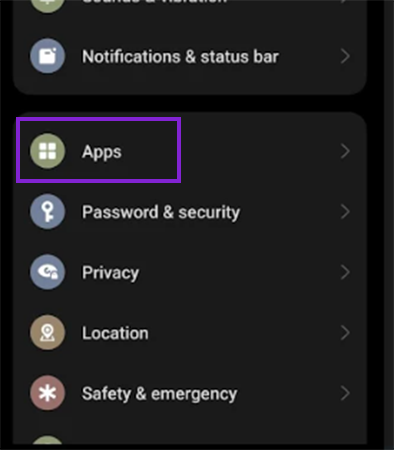
- Find the most recently installed apps.

- Select the Uninstall option.
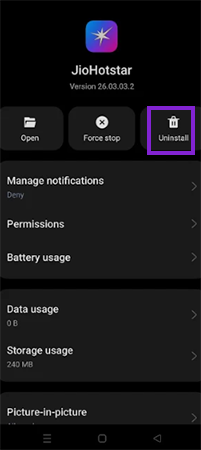
- Restart your device.
Users of Google Pixel repair services and Motorola phone repair often resolve issues by removing faulty apps.
Suggested Read: Spots on Phone Screen: Causes, Fixes, and When to Repair It
How to Disable Safe Mode Using Advanced Methods?
If the basic methods do not resolve your issue, you may have to do a deeper troubleshooting process to disable Safe Mode.
Clear Cache Partition
The cache partition contains temporary system files that could be causing problems for your phone, so clearing the cache can resolve them.
To clear the cache partition, follow these instructions:
- Power off the phone.
- Hold down both the Power button and the Volume Up button simultaneously (or the device specific key combination).
- Select Recovery Mode.
- Select Wipe Cache Partition.
- Select Reboot System Now.
This does not delete any data from your phone. By clearing the cache, it helps fix system errors and will help disable Safe Mode.
Factory Reset (Last Option)
Should all other options fail, then restoring your phone back to its original state (factory reset) may also be done to turn off safe mode.
To perform this:
- Open settings.
- Tap on Additional settings.
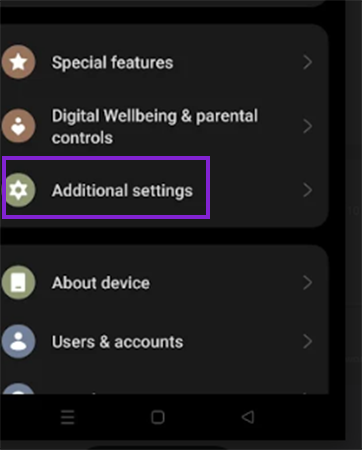
- Navigate to back up and reset.
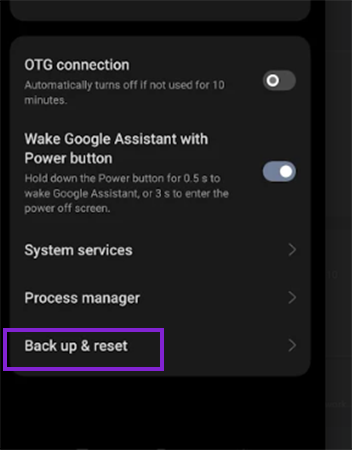
- Choose Reset phone.
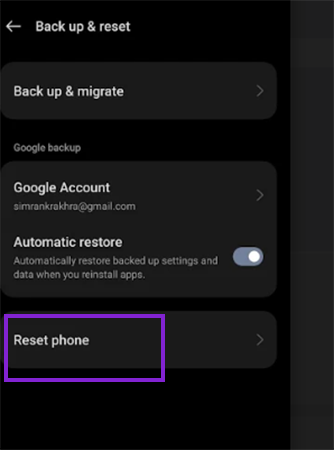
- Tap on Erase all data.
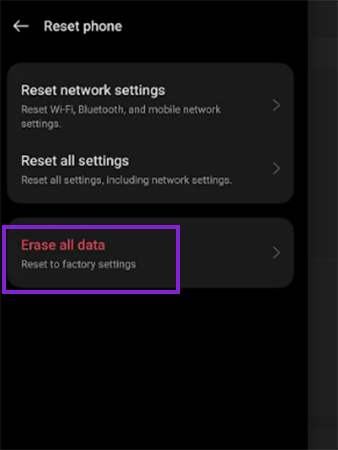
- Enter the lockscreen password and confirm.
Once you’ve done this, all data will be deleted from your phone, so please be sure to save anything important before proceeding with this option, since it should only be used when absolutely necessary and all other methods have been tried first.
How to Turn the Safe Mode Off on Different Android Brands?
Various brands sometimes take similar, yet not identical, approaches to turning off safe mode.
Samsung Devices
If you own a Samsung phone, it will typically prompt you to disable safe mode, which can be turned off via a simple restart or using the notification panel.
Google Pixel Phones
Most Google Pixel devices will exit safe mode simply by restarting the phone. If this does not work, check your apps or check for system updates.
OnePlus and Other Android Phones
People using an Android device typically use the same methods indicated above, which include restarting the phone, uninstalling any recently downloaded apps, or checking the functionality of their hardware buttons.
While the specific details may vary slightly from one device to another, the basic troubleshooting steps are the same on all devices.
How to Prevent Android Safe Mode from Activating Again?
After you have resolved the issue, you can take steps to help ensure that the device does not revert to safe mode again.
Some things you can do to help:
- Regularly update apps on the device
- Install apps only from trusted sources
- Look for any physical damage to any hardware on the power and volume buttons
- Maintain current software and firmware updates
- Delete apps that are unneeded or suspicious
If you follow these tips, your device will maintain its stability and reduce the chances of experiencing issues returning to Android safe mode.
Common Problems When Trying to Turn Safety Mode Off
Users can face challenges turning off safe mode on their devices.
- Restarting Device
If you’ve attempted to restart your device and it has not worked, then the problem may be a faulty piece of hardware or a corrupted application.
- Frequent Safe Mode Restarts
If your phone is entering safe mode multiple times, this likely indicates a malfunctioning application or a stuck hardware button on your phone.
- Hardware Buttons
If your device’s hardware/service buttons are damaged or stuck, they may force your device into safe mode each time you attempt to reboot the device.
- Software Corruption
If the system files on your device have become corrupted, the only way to resolve this will be to clear the cache or factory reset your phone.
Understanding the root cause behind persistent safe mode issues will be the best solution.
How DeviceFixes Helps Fix Safe Mode Issues on Android?
If you are still having trouble turning off the safe mode, DeviceFixes may be able to assist you in discovering other problems.
DeviceFixes can:
- Determine which apps are causing the safe mode to become enabled
- Provide an analysis of any system-related problems you may have
- Identify potential hardware-related problems
- Help restore your phone to its normal operating conditions
DeviceFixes will provide you with a structured process to use to resolve difficult Android issues without confusion.
Quick Steps to Turn Off Safe Mode
Here’s a quick checklist to follow if you need to quickly turn your phone into Safe mode.
- Restart your phone.
- Check your notification panel.
- Remove any recently downloaded apps.
- Verify your volume and power buttons are working properly.
- See if there’s a System Software Update available, and check if there is a Cache Partition available.
This will cover most of the situations where users would like to quickly turn off Safe mode.
Conclusion
Typically, there are ways on how to turn off safe mode on android (by restarting, uninstalling apps, or running system checks), and if those basic options are ineffective, clearing the cache or updating the software may resolve your issue.
While safe mode itself is not a problem, it is an important part of the operating system that can help you keep your device safe and troubleshoot issues. If all else fails, there are tools (like DeviceFixes) that can assist you in your recovery efforts and get your phone back to the way you want it.
Frequently Asked Questions
Q. How do you turn safe mode off on an Android?
Q. How can I take safe mode off my phone?
Ans: You can take safe mode off by restarting your phone or uninstalling problematic apps causing the issue.
Q. Why is my phone stuck in Android safe mode?
Ans: It could be due to faulty apps, stuck buttons, software bugs, or incomplete system updates.
Q. How do I disable safe mode on Android?
Ans: Disable safe mode by restarting your device, clearing cache, updating software, or performing a factory reset if needed.
Source:
How to remove safe mode from Android phone display by Google Help