Ans: By using Command (⌘) + C to copy and Command (⌘) + V to paste.
How to Copy and Paste on Mac? 8 Must-Use Methods for Mac Users

Updated On March 9, 2026
If you want to know about how to copy and paste on Mac, Command (⌘)+C will copy anything selected, and Command (⌘)+V will paste anything copied from anywhere to almost anywhere (through all apps, including Finder, Safari, and Notes).
It does not matter if you are using a laptop, desktop, or external keyboard. If you ever run into hardware issues while practicing these shortcuts, professional pc laptop repair services can help resolve stuck keys or unresponsive boards. Apart from Command (⌘)+C and Command (⌘)+V, there are other methods that you can follow to copy and paste things on mac and they’ll be mentioned in this write-up.
Table of Contents:
- What Does Copy, Cut, and Paste Mean on a Mac?
- How to Copy and Paste on Mac Using Keyboard Shortcuts?
- How to Copy and Paste on a MacBook (Laptop Users)?
- How to Copy and Paste on Mac Using Mouse or Trackpad?
- How to Cut and Paste on a Mac Computer?
- How to Copy and Paste Files and Folders on Mac?
- Copy and Paste Shortcuts Table (Quick Reference)
- How to Copy and Paste Without Formatting on Mac?
- Why Copy & Paste May Not Work on Mac (Quick Fixes)?
- Final Tips for Faster Copy & Paste on Mac
- Frequently Asked Questions (FAQ)
What Does Copy, Cut, and Paste Mean on a Mac?
Copy, cut, and paste are essential Mac functions used to duplicate or move content from one location to another, whether it’s text, files, folders, images, etc., all across macOS. Keeping your system running smoothly is just as important as knowing these basics; for instance, specialized laptop repair experts can ensure your trackpad and keyboard remain in peak condition.
Here’s what each function does:
- The copy function will make a copy of the highlighted content, but it will not remove it from the original location.
- The cut function will remove the highlighted content and get it ready to be placed somewhere else.
- The paste function will take the content that you either copied or cut and insert it at a different location.
Where Copied Content Goes (Clipboard Basics)
When you copy something on a Mac, it is stored temporarily in the clipboard. If you accidentally delete a file before pasting it, you might need professional data recovery repair to retrieve that lost information.
Clipboard Traits:
- It can only store one copied item at a time.
- Offers flexibility to work across any app.
- Gets replaced when a new item is copied.
- Instant pasting anywhere is supported.
The official macOS support says macOS uses a clipboard system to temporarily store copied data until pasted elsewhere.
Also Read: Spots on Phone Screen: Causes, Fixes, and When to Repair It
How to Copy and Paste on Mac Using Keyboard Shortcuts?
The fastest way to copy and paste on Mac is by using keyboard shortcuts with the Command (⌘) key. These shortcuts work on all apps and Finder. If your shortcuts aren’t responding, it could indicate a need for computer repair to check your internal connections.
Copy on Mac: Command (⌘) + C
- Choose any text, file, or image.
- Press Command (⌘) + C.
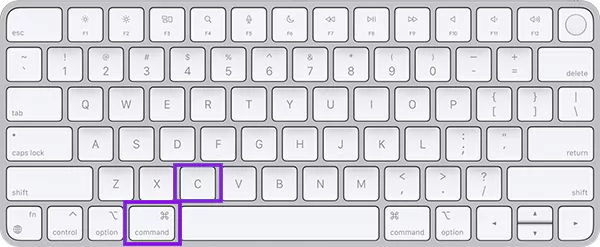
- It is now copied to the clipboard. This is a standard feature on every mac repair specialists
Use cases:
- Copy text from websites or documents
- Copy files in Finder
- Copy images from the preview
Paste on Mac: Command (⌘) + V
- Place your cursor wherever you want to paste.
- Press Command (⌘) + V.
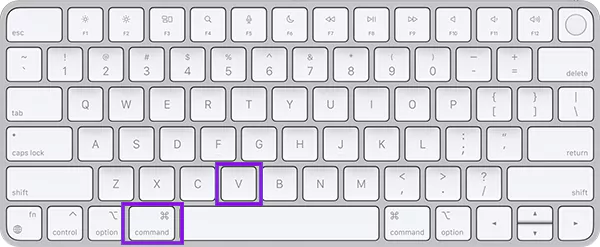
- The content will appear instantly. This simple action is vital when syncing data from your smartphone repair logs or backup files.
Works in:
- Documents
- Browser
- Finder folders
Cut on Mac: Command (⌘) + X
- Select the text or image you want to remove.
- Press Command (⌘) + X.
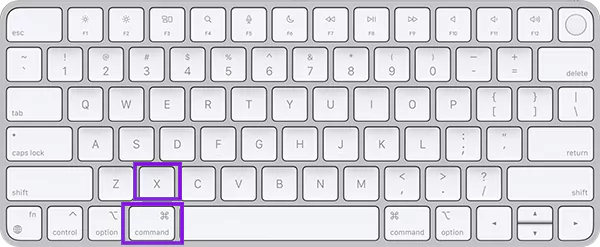
- It would be prepared to move.
Important note:
- Usually works on text
- Files require a different method (explained later)
How to Copy and Paste on a MacBook (Laptop Users)?
Copying and pasting on a MacBook works the same as any other Mac computer. You use the command shortcuts and trackpad for selection. If your screen is cracked while trying to select text, you should look into iphone repair or MacBook screen services to restore visibility.
Use these universal shortcuts:
- Copy: Command (⌘) + C
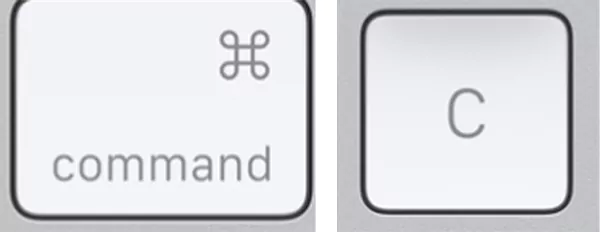
- Paste: Command (⌘) + V
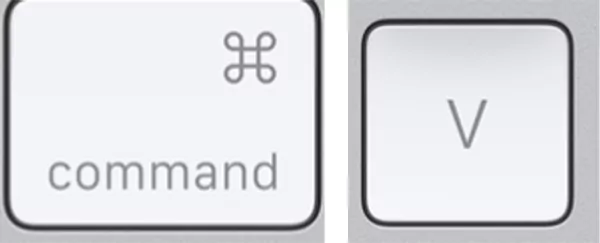
- Cut: Command (⌘) + X

These shortcuts work on:
- MacBook Air
- MacBook Pro
- External keyboards connected to the MacBook
Trackpad Selection Tips
- Double-tap or secondary-click on a word to select using the trackpad
- Click and drag to select multiple words
- Use three-finger drag for precise selection (only if enabled)
This way, you can copy things without needing an external mouse, which is a common fix discussed in tablet repair forums when touch interfaces fail.
Also Read: How Much Does It Cost to Repair a Phone Screen? Average Repair & Replacement Costs
How to Copy and Paste on Mac Using Mouse or Trackpad?
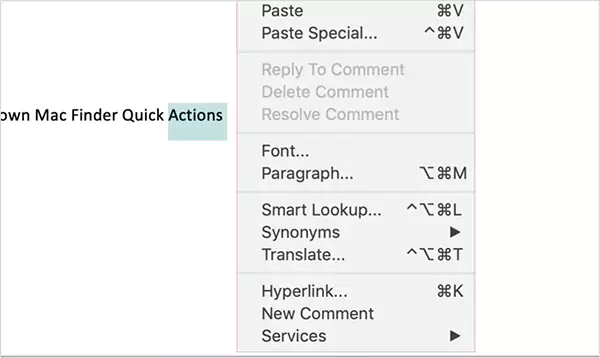
You can copy and paste on Mac using right-click, trackpad gestures, or the menu bar without keyboard shortcuts.
1. Right-Click Method
- Select text or file.
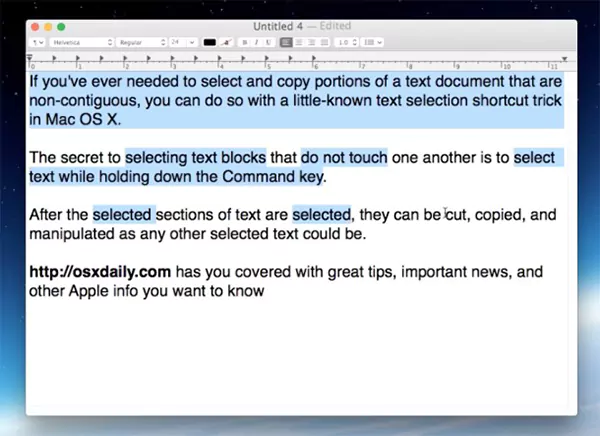
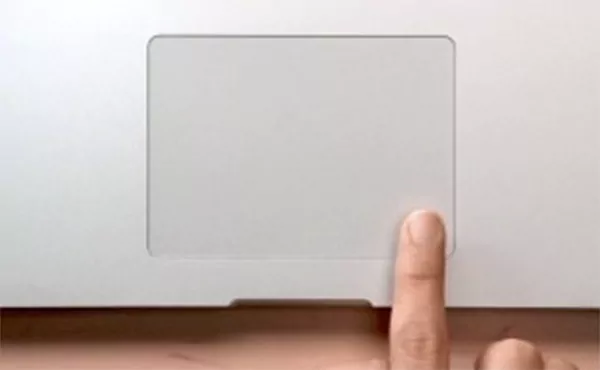
- Right-click on the trackpad or mouse.
- Click “copy.”
- Move to wherever you want to paste.
- Right-click again and click “paste.”
2. Two-Finger Tap on Trackpad
- Select content.
- Tap the trackpad with two fingers.
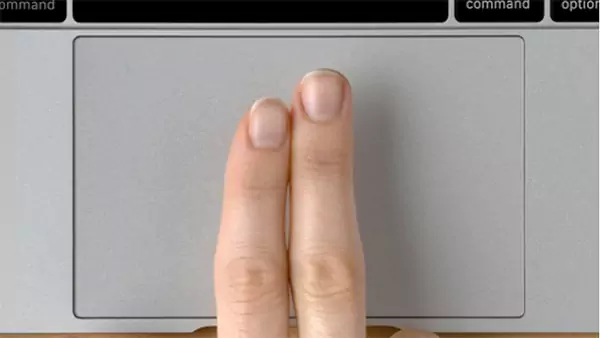
- Click “copy.”
- Navigate to the location.
- Tap two fingers again on the trackpad.
- Click “paste.”
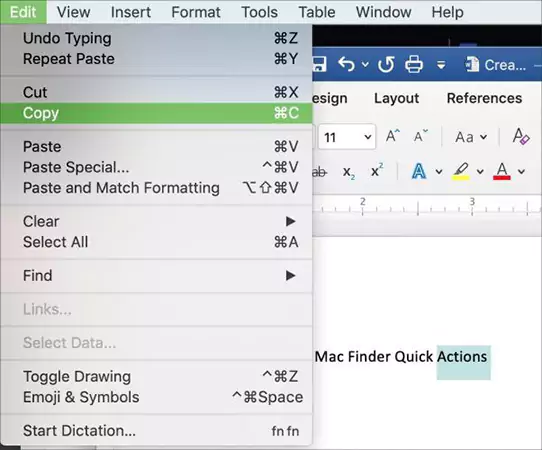
3. Menu Bar Method
- Select content.
- Click “edit” in the top menu.
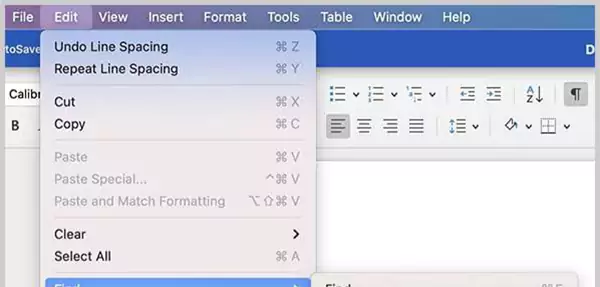
- Select “copy.”
- Navigate to the destination.
- Click edit and then paste.
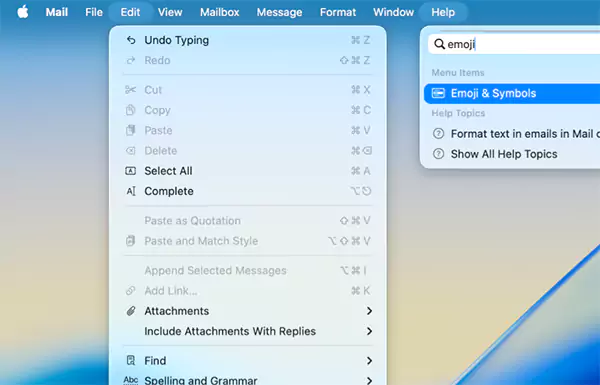
This method works across all apps.
How to Cut and Paste on a Mac Computer?
To cut and paste on Mac, use Command + X for text or Command + Option + V to move files. Cut and copy make things easier, especially when moving media from a samsung repair device to your desktop.
When to Use Cut vs Copy?
Use “cut” when:
- Move text permanently
- Reorganizing documents
- Editing content
Use “copy” when:
- Creating duplicates
- Backing up files
- Reusing content
File Cut-Paste Trick (Command + Option + V)
Mac uses a special method to move files:
Steps:
- Select file.
- Press Command (⌘) + C.
- Go to the destination folder.
- Press Command (⌘) + Option + V.
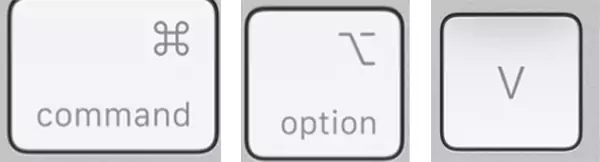
This moves the file instead of copying, which is helpful when organizing captures after a game console repair session.
How to Copy and Paste Files and Folders on Mac?
You can copy and paste files on Mac using Finder, keyboard shortcuts, and drag and drop. This process is very similar to how you might manage apps on an ipad repair technician’s diagnostic tool.
1. Finder Method
Steps:
- Open Finder.
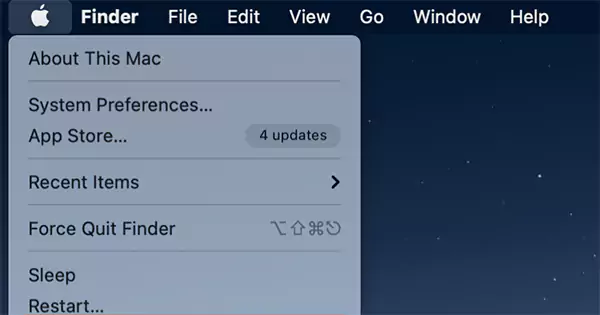
- Select a file or folder.
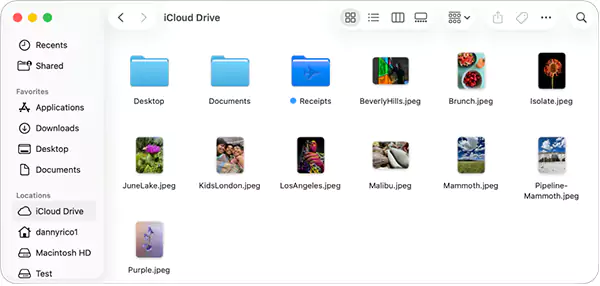
- Press Command + C.
- Navigate to the destination.
- Press Command + V.
2. Keyboard Method
Steps:
- Select file.
- Press Command + C.
- Open the destination folder.
- Press Command + V.
Copy and Paste Shortcuts Table (Quick Reference)
Here’s a quick table consisting of all the shortcuts for copy and paste on Mac.
| Action | Shortcut |
| Copy | ⌘ + C |
| Paste | ⌘ + V |
| Cut | ⌘ + X |
| Paste without formatting | ⌘ + Shift + V |
| Move file | ⌘ + Option + V |
How to Copy and Paste Without Formatting on Mac?
In order to paste without formatting on Mac, use Command + Shift + V to remove original styling. This is perfect for cleaning up text copied from google pixel repair guides or technical manuals.
This is useful when copying from:
- Websites
- Emails
- Documents
- PDFs
Advantages:
- Removes fonts
- Removes colors
- Matches destination formatting
Works in apps like:
- Notes
- Safari
- Chrome
Why Copy & Paste May Not Work on Mac (Quick Fixes)?
Sometimes, copy-paste might stop working due to system glitches, Finder issues, or clipboard errors. If your console is experiencing similar software lags, an xbox repair might be required for the internal drive.
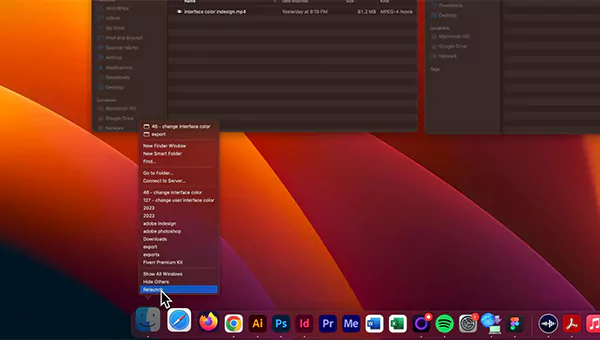
Fix 1: Restart Finder
Steps:
- Press Command + Option + Escape.

- Select Finder.
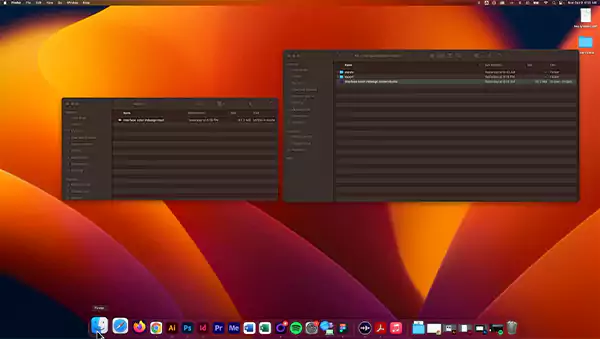
- Click Relaunch.
Fix 2: Restart Your Mac
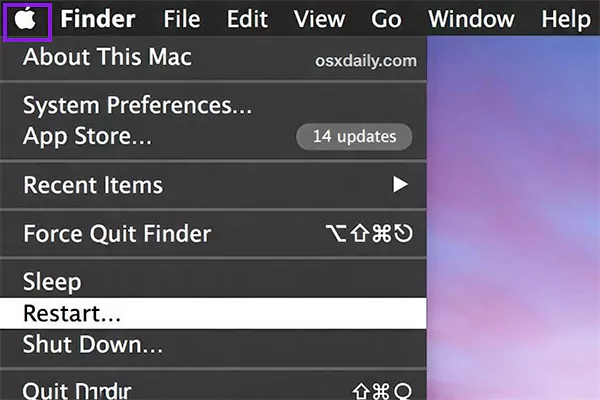
Steps:
- Click on the Apple logo.
- Click on the Restart.
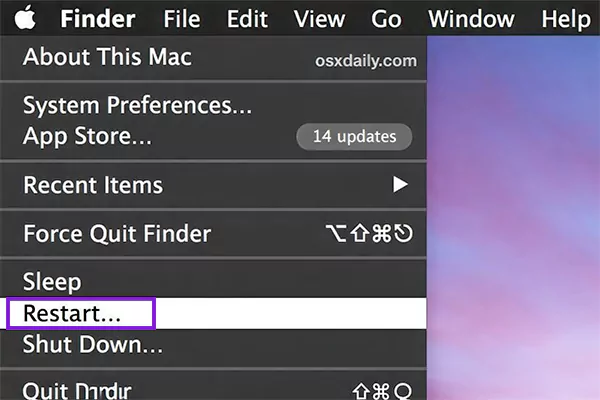
This is the easiest fix and works nearly every time.
Fix 3: Check Keyboard
Make sure:
- The command key works.
- There is no hardware damage.
- The keyboard is connected.
Fix 4: Update macOS
Steps:
- Open System Settings.
- Click on General.
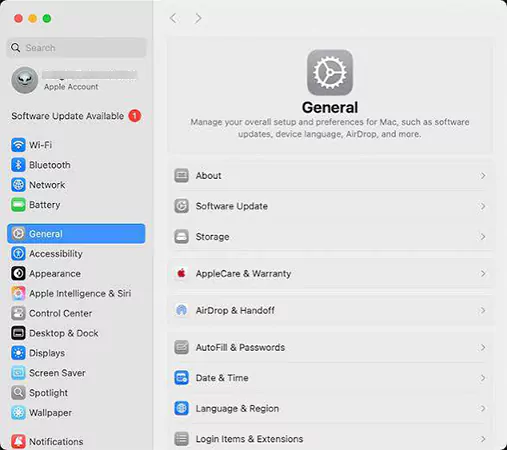
- Click on Software Update.
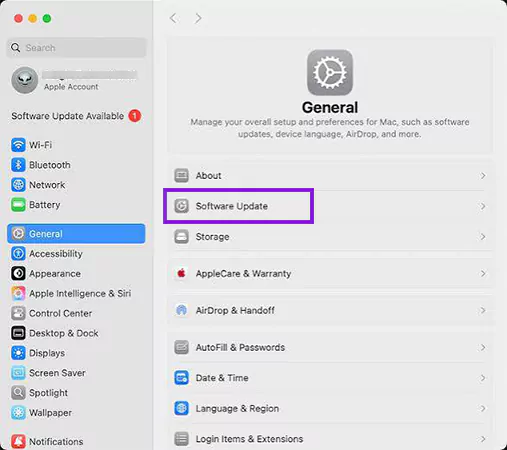
If there’s an update available, install it right away. If copy-paste issues continue due to keyboard, trackpad, or macOS bugs, DeviceFixes offers fast MacBook diagnostics and repair support.
Final Tips for Faster Copy & Paste on Mac
By using shortcuts, you can make copy-paste faster and more efficient on Mac. These tips improve productivity significantly, whether you are a professional or a gamer needing playstation repair for your hardware setup.
- Learn keyboard shortcuts
- Use trackpad gestures
- Keep macOS updated
- Use the clipboard manager tools
- Practice Finder file movement
These tips improve productivity significantly.
Also Read: iPhone Touch Screen Not Working? Step-by-Step Troubleshooting Guide
Frequently Asked Questions (FAQ)
Q: How do I copy and paste with my keyboard?
Q: How to use Ctrl+C and Ctrl+V on Mac?
Ans: Ctrl+C is used for copy and Ctrl+V for paste. This is the easiest way to do copy and paste on Mac.
Q: How can I do copy and paste?
Ans: Select content > Press Command + C > Go to destination > Press Command + V.
Q: How do you copy and paste on a non-Mac keyboard?
Ans: If you are using Windows, use CTRL + C for copy and CTRL + V for paste.
Q: Why does Ctrl+C not work on Mac?
Ans: Mac uses the Command key instead of Ctrl. The Ctrl key has different functions.
Q: What is Ctrl+B on Mac?
Ans: Command + B is used for bold formatting in apps like Pages and Notes.
Sources:
Copy and paste on Mac: Apple Support
How to copy and paste on Mac: Apple Support