Ans: Your phone might not be ringing for many reasons. Check whether your phone is on silent or vibration.
Phone Not Ringing? Common Reasons, Fixes, and When to Get Help

Updated On March 3, 2026
The majority of cases with your phone not ringing due to missed calls can be fixed by checking ringer volume, checking Do Not Disturb/Focus mode (on newer phones), checking Bluetooth routing, and/or fixing a small software issue.
Most people search “Why my phone not ringing?” think it is because their phone was damaged. It is actually due to a setting or some other type of network behavior for most of us. Below, I will provide quick fixes for both Android and iOS devices.
Quick Answer:
The most common causes are:
- Low ringer volume
- Silent switch enabled (iPhone)
- Do Not Disturb / Focus active
- Bluetooth connected
- Blocked contact
- SIM or network issue
- Speaker malfunction
Table of Contents:
- What Does “Phone Not Ringing” Actually Mean?
- Check the Basics First (Quick Fixes)
- Why Is My Phone Not Ringing?
- Why Isn’t My Phone Ringing When I Call Someone?
- Phone Not Ringing on Specific Brands
- When Ringer Settings Look Fine, but Phone Still Won’t Ring
- Hardware vs Software: How to Tell the Difference
- Can You Fix a Phone Not Ringing Issue at Home?
- When Professional Diagnosis Is the Smart Option?
- How Experts Diagnose Phone Ringing Issues?
- FAQs
What Does “Phone Not Ringing” Actually Mean?
If you are experiencing a phone not ringing issue but receiving calls, then there is likely an issue with how your phone rings (or beeps) when it receives a call. This can include if your screen lights up, vibrates, or shows that you have a missed call, but makes no sound when you receive a call.
This could include:
- The phone appears to ring on your screen, but there is no audio.
- Your calls all go directly to voicemail.
- Only certain contacts do not cause your phone to make a ringing/beeping sound.
- If you tell someone, “Please ring my phone so I can test it,” you hear nothing.
Identifying which of these scenarios best describes what is happening will help figure out the problem much quicker.
Check the Basics First (Quick Fixes)
The majority of phone no ring issues are created due to an incorrect setting. Check your media volume and ringer volume in order to check if you have an issue with the ringer volume before checking for further issues.
1. Increase the Volume
To increase the volume of your phone, whether it is an iPhone or an Android, press or hold the volume up key on the sides of your phone.
2. Disable Silent Mode and Focus / Do Not Disturb
If you are wondering why your phone is not ringing, this could be caused by DND, silent, or focus mode on your phone. Make sure these are turned off.
3. Turn Off Bluetooth
When Bluetooth is turned on in order to connect to a car or headphones, you will hear the ringtone there instead of on your phone.
Disable Bluetooth temporarily while testing to resolve most “why won’t my phone ring” issues right away.
Why Is My Phone Not Ringing?
I have seen many reasons as to why there is no ring coming from my cell phone. In most cases, it is one of four possible areas of concern; that being software issues, incorrect ringtone sound settings, contact blocking, or an issue with the networks.
Most times, this is a software issue rather than a problem with the actual device. The first thing we need to do is understand what each of these options are so we can take the correct steps to resolve the problem.
Now let’s go over all of these options.
1. Temporary System Bug
There are times when temporary system glitches will occur that will cause a disruption to the ringtone process. These types of glitches are common after you receive a software update or when the operating system has frozen due to some background services.
If you’re sitting here asking yourself, “Why isn’t my phone ringing?” Everything seems fine,” simply restarting your phone could possibly reset the audio service, thus fixing the issue.
2. Incorrect Ringtone Settings or Muted Ringtone
The ringtone setting for a particular contact may be set to None, resulting in you seeing that they are calling but hearing nothing. Check to see if you have any contact-specific tone overrides, and check to see if you have disabled notification channels on your Android.
3. Blocked Contacts & Call Forwarding
If only certain callers are unable to reach you, check your blocked contacts list. Sometimes by accident, you can forward calls to another number and as a result those calls are sent directly to voicemail without ever ringing.
4. Network or SIM Card Related Issues
If your signal strength is weak, or the SIM card is misplaced or not aligned properly, or if there are issues with your carrier, it can disrupt call alert functions. Simply removing the SIM card and putting it back into the phone typically resolves the issue and allows you to hear your phone ring again.
Why Isn’t My Phone Ringing When I Call Someone?
When calling someone on your cell phone, their phone rings. But if there is a delayed dial tone or complete silence while dialing, this could be an indication of a problem with your carrier’s networks.
If you are having trouble with the above-described issue, you might want to consider the possible causes as listed below;
- Weak signal from your carrier (network)
- The carrier is congested
- You have disabled call waiting
- Your carrier has temporarily lost service in your area
Before thinking that your cell phone device is faulty, restart your phone and make sure the signal bars appear on your screen.
Phone Not Ringing on Specific Brands
Issues with phones not ringing most of the time stem from brand-specific features that govern the way devices handle sound.
The way each device handles its own volumes (ringtone, notifications, etc.) is quite different for Samsung, stock Android, or an iPhone; therefore, sometimes users get confused about their volume level even if they believe it should be turned up.
Below is how each platform manages this issue in relation to your mobile phone not ringing.
1. Samsung Mobile Phone Not Ringing
Most of the time, if you’re experiencing a Samsung mobile phone not ringing issue, it is due to separate volume controls for ringtones, notifications, and system sounds.
For many Samsung users who raise their notification volume, it seems to be easy to forget about raising the ringtone volume slider.
Check:
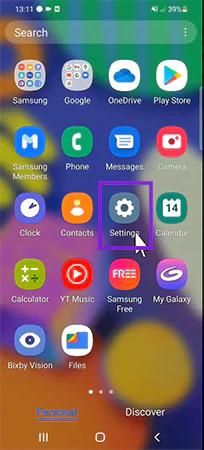
1. Open Settings on your phone.
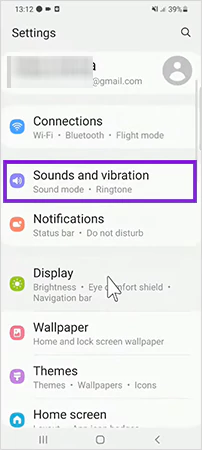
2. Navigate to Sounds and Vibration.
3. Tap on the Volume.
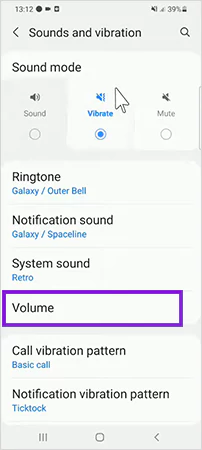
4. Now just increase the volume.
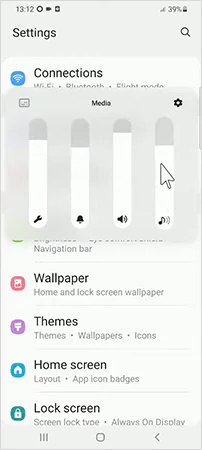
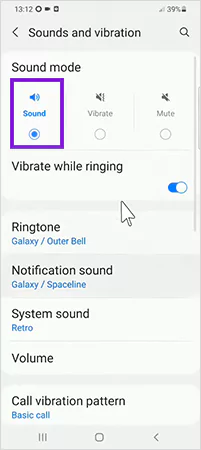
Also verify:
1. Go to the Settings.
2. Open the Sounds and Vibration option.
3. Select Sound, not Vibrate or Mute.
2. Android Custom Sound Settings
On most newer Android phones, you can turn off notification channels in apps so that they do not interrupt you during an incoming call.
In modern Android operating systems, you have the ability to separately adjust:
- Call notifications
- App-specific sounds
- Priority conversations
Go to:
1. Open Settings on your Android.
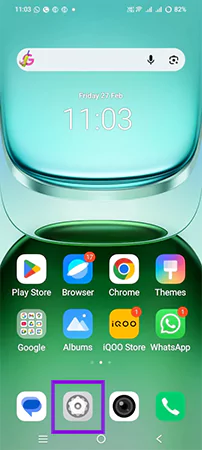
2. Head to the “Apps.”
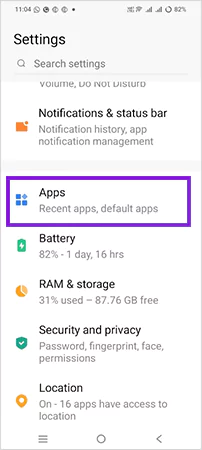
3. Navigate to the “Phone.”
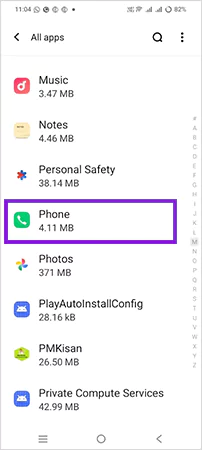
4. Tap on the “Notification.”
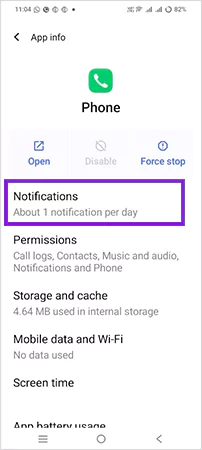
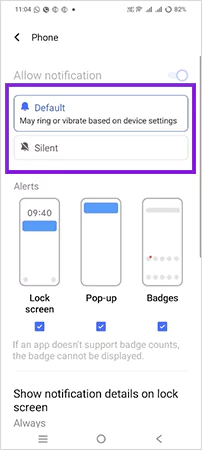
5. Make sure the notifications are set on “Default,” not on “Silent.”
3. iPhone Focus and Silent Switch Issues
The Silent/Do Not Disturb mode on iPhones and the actual physical Silent/Do Not Disturb switch are two of the most common reasons why an iPhone will not ring during an incoming call.
Start with checking to see if the Silent/Do Not Disturb switch on the left-hand side of the iPhone is set to “Ring/Silent” mode. If orange is visible, the phone is muted.
1. Go to the Settings.
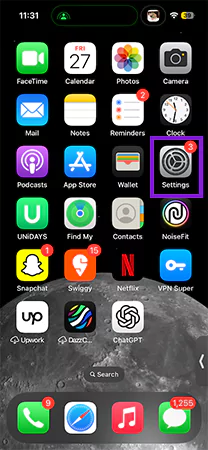
2. Head directly to the Focus.
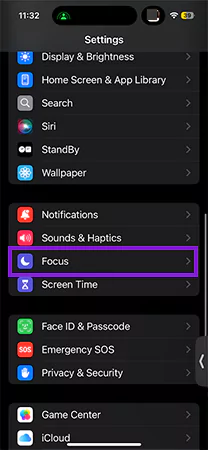
3. Make sure that the Focus Status is Off. If not, turn it off.
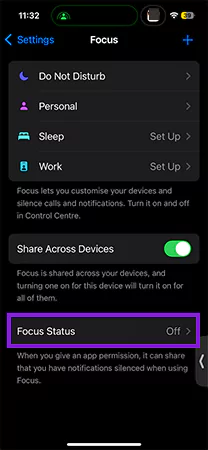
Also, check “Silence Unknown Callers” as the following steps:
1. Navigate to the “Apps.”
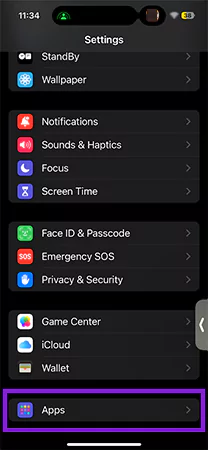
2. Go to the “Phone.”
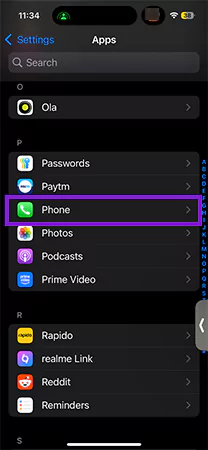
3. Make sure the “Silence Unknown Callers” feature is off.
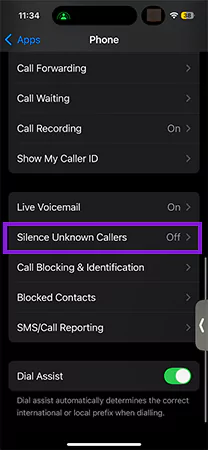
If enabled, unknown numbers will not trigger phone ringing.
When Ringer Settings Look Fine, but Phone Still Won’t Ring
When your ringer volume and sound settings are set properly, yet your phone still will not ring, the problem will likely be beyond simple settings configurations. At that point, users will begin asking, “Why isn’t my ringer working?” or “Why is my phone not ringing?”
At this point, you should investigate possible causes at the system or hardware levels.
1. Damaged System Files
Damaged system files could disrupt how your phone communicates with the operating system for incoming calls and alert you to receive them. The damage usually occurs due to either an incomplete software update or a forced shutdown.
You might experience:
- Calls appear on screen
- Vibrations work
- No ringtone plays
Restarting the device may help temporarily. If the issue started after an update, reinstalling the operating system or performing a controlled reset may be required.
2. App Conflicts
The third-party applications are able to replace standard sound behavior. Some call-blocking applications, some battery-saving applications, and some automation applications will often turn off ringtones when running in the background.
To check for this:
- Boot up your Android device in safe mode.
- Disable any recently installed applications.
- Look at the application’s permissions for Phone and Notification.
If you receive a ring while in safe mode, it is likely due to application conflict.
3. Speaker or Hardware Damage
If you do not have any sound coming from your device (regardless of whether you’re playing media), then there could be a failure with your internal speakers.
Some of the most common symptoms of this include:
- Audible crackling
- Distortion of your sound
- No audible sound whatsoever, regardless of what application you are using.
This type of failure usually occurs after exposure to water, excessive dust build-up or impact on the internal hardware that affects the ability of the device to produce audible sound.
It is recommended that you seek professional assistance to evaluate and diagnose this issue.
Hardware vs Software: How to Tell the Difference
Your phone not ringing could be either a hardware issue or a software issue. So, identifying the issue should be the first approach before going for a repair. Here is a table breakdown of your phone not ringing issue.
| Factor | Software Issue | Hardware Issue |
| When the Problem Started | After the update or a new app install | After a drop, impact, or water exposure |
| Sound Behavior | Ringtone fails, but media works | No sound across calls, media, alarms |
| Safe Mode Test | Phone rings in Safe Mode | Still no ringing in Safe Mode |
| Restart Effect | Restart may temporarily fix it | Restart does not change anything |
| Physical Symptoms | No visible damage | A distorted, crackling, or completely dead speaker |
| Repair Approach | Reset settings or reinstall OS | Speaker replacement or internal repair |
Can You Fix a Phone Not Ringing Issue at Home?
Yes, most of the time, you can resolve the issue of your phone not ringing at home using a step-by-step process to troubleshoot. There are mainly 3 ways to do so, as mentioned below:
1. Restart and Test in Safe Mode
A simple restart refreshes audio services. If the problem still exists:
- Go into Safe Mode (for Android phones)
- Check to see if your phone will ring when you receive an incoming call.
If your phone rings when in Safe Mode, then there is interference from another third-party application.
2. Reset Sound Settings
There is no need to perform a full factory reset. Simply reset all of the sound-related options/settings.
On iPhone:
Settings >> General >> Transfer or Reset >> Reset >> Reset All Settings
On Android:
Reset App Preferences (varies by manufacturer)
3. Why Factory Reset Isn’t Always the Best First Step
When you perform a factory reset, you lose all of your photos, apps, and messages. Therefore, you should only attempt a factory reset once you have attempted a structured testing methodology.
For the vast majority of people who experience issues with their phone not ringing, the reason they experience these issues is due to one of the following factors:
- Incorrectly configured settings
- Focused or Do Not Disturb
- Conflicts between applications
Therefore, a reset should be your last resort—not your first reaction.
When Professional Diagnosis Is the Smart Option?
Once you have properly diagnosed and troubleshooted your smartphone and it still will not make a call, then you are ready to have a professional diagnose it.
1. Internal Speaker Damage
When your smartphone has been dropped or water/moisture has gotten into it, it is possible that the internal speakers on your phone could be damaged. Silence while trying to play music on an MP3 player through the headphone jack or listening to music, videos, etc., could indicate that there is something wrong with your internal speaker(s).
2. Water/Moisture Damage
Small amounts of moisture can destroy the membrane of your internal speaker.
In addition to water exposure, dust accumulation in your internal speaker could prevent you from hearing any sounds coming from your speakers over time.
To properly evaluate and diagnose these issues, it would be best to safely remove the outer casing and look at the internal components of your smartphone.
No Ring Issue Continues After Multiple Updates/Resets
If you experienced no ring issues immediately after you installed a new version of your smartphone’s operating system (major updates) and continue to experience the same problem even after resetting your phone, you may have corrupted firmware.
A trained technician can safely install your original firmware without risking the loss of any of your personal data.
Repair centres that specialize in repairing smartphones typically perform structured diagnostic testing as opposed to “guessing” what parts they think might be the cause of a problem. Using a structured diagnostic process helps to avoid replacing unnecessary parts.
How Experts Diagnose Phone Ringing Issues?
Technical expertise in diagnosing a problem with your phone’s ringing follows an exact sequence of steps.
Experts don’t install parts unless they know that it was the part causing the problem.
1. Speaker Test
The expert runs a series of diagnostic tests on your speakers (audio) to verify how much of the original audio signal comes out of your speakers and if there is any distortion.
This will verify if your speakers are working as designed.
2. Operating System Diagnostic (Software)
The expert examines your phone’s operating system for corrupted files, a corrupted operating system, or corrupted firmware.
If the expert determines that your operating system is corrupt, he can safely remove the corrupt file(s) and/or completely reload/refresh the operating system.
3. Network & Sim Test
The expert checks the functionality of your SIM card and the routes the calls take through your carriers’ networks.
At times, you may have a perfectly good phone, but due to the way the network is configured, you cannot receive incoming calls.
By using this layer-by-layer method, the expert can make a knowledgeable decision about how to fix your phone.
FAQs
Q: Why is my phone not ringing on incoming calls?
Q: Why is your iPhone not ringing?
Ans: Check the ring/silent switch on the side of your iPhone.
Q: How do I get my phone ringing again?
Ans: To get your phone ringing, immediately turn off Do Not Disturb and switch on the Ringer mode.