
Ans: Simply, select the text >> Press Ctrl + C >> Press Ctrl + V.
How to Copy and Paste on Chromebook?
Copying and pasting on your Chromebook is an important skill to use in your daily routine of completing work, such as composing documents, saving pictures, and sending links to others.
But if you are new to Chromebooks, you will find that the shortcuts on your Chromebook do not operate exactly the same way as they would on either Windows or Mac computers. If you have recently switched and are looking for guides on other platforms, you might find our tutorial on how to copy and paste on Mac helpful as well.
If you use a keyboard, touchpad, or touchscreen on your Chromebook, then follow the instructions below for a detailed how to copy and paste on Chromebook. These instructions were designed to help you move items such as text, links, and images quickly and easily.
Quick Answer:
Highlight the text, image, or file >> Press Ctrl + C to copy >> Place your cursor where needed >> Press Ctrl + V to paste
Table of Contents:
- What is Copy and Paste on a Chromebook?
- How to Copy and Paste on Chromebook Using the Keyboard?
- Copy and Paste Using Touchpad & Touchscreen
- How to Copy and Paste Images on Chromebook?
- How to Copy a Link on a Chromebook?
- Copy and Paste Using Touchscreen (If Supported)
- Common Copy-Paste Problems on Chromebook & Fixes
- Chromebook Copy-Paste Shortcuts Cheat Sheet
- When Copy & Paste Stops Working – What to Do
- How Devicefixes Helps Fix Copy and Paste Issues on a Chromebook
- FAQ
What is Copy and Paste on a Chromebook?
Copy and paste on a Chromebook are two simple features that allow users to copy a file, image, link, etc., and then copy and paste it into another area (i.e., create a duplicate). Much like managing files during a laptop setup, these commands help keep your digital workspace organized.
When you copy an item, ChromeOS saves that item to your “clipboard” for temporary use when you wish to paste.
Key Concepts:
- Copy: Makes a copy of selected items.
- Paste: Places copied items into another area.
- Cut: Removes the original item and places it in another area.
Chromebooks run off of ChromeOS, which has slightly different ways of performing right-click and gesture options than Windows and Macs but with practice, copying and pasting on a Chromebook can become very easy and fast.
Quick Explanation Box:
- Select the content
- Copy it to the clipboard
- Move to another location
- Paste the content instantly
This feature assists with transferring material rapidly from document to document or from webpage to email.
Also Read: Phone Not Ringing? Common Reasons, Fixes, and When to Get Help
How to Copy and Paste on Chromebook Using the Keyboard?
One of the most efficient ways to find out how to copy and paste on Chromebook is by learning keyboard shortcuts. While the OS differs from a standard computer environment, the core logic remains similar.
1. Copy Text Using Keyboard
Copy text by following these 5 easy steps:
- Select the text you want to copy with your cursor.
- Use Ctrl + C to copy the selected text to the clipboard.
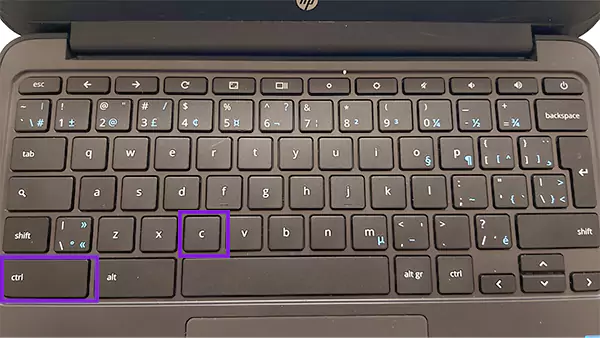
A lot of new users ask, how do I copy and paste on a Chromebook? The answer is easy: select the text you wish to copy and use Ctrl + C to put it into the clipboard; then paste it anywhere you need it.
What Can I Copy?
- Text from Websites
- Content from Documents (Notes)
- Content from Email Messages
- URLs/Links
2. Paste Text Using Keyboard
Once you have copied the content:
- Position your cursor at the location you would like the pasted content to appear.
- Press Ctrl + V.
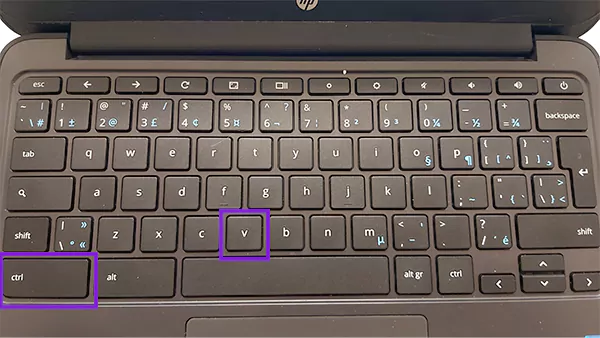
- The pasted content appears immediately.
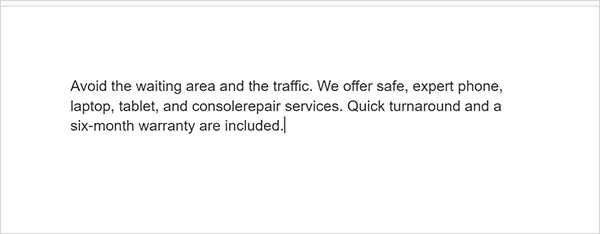
If you’re asking yourself, how do I copy and paste on a Chromebook? The fastest way to copy and paste is through keyboard shortcuts, as they function in nearly all apps running on ChromeOS.
Copy and Paste Using Touchpad & Touchscreen
You may have your preference in that you would rather use the Chromebook’s touchpad or touchscreen versus just using the keyboard shortcuts as well. If you are using a 2-in-1 device that feels more like a tablet repair might be necessary if the screen doesn’t respond to these gestures.
1. Touchpad Method
Steps:
- To highlight the text, you will need to select it.
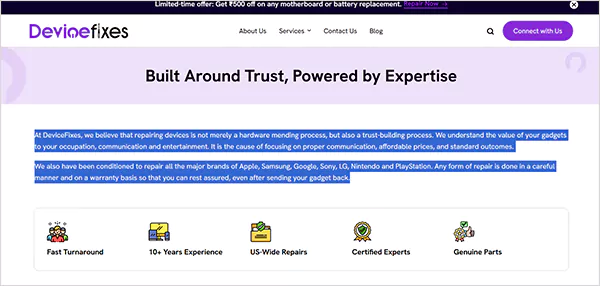
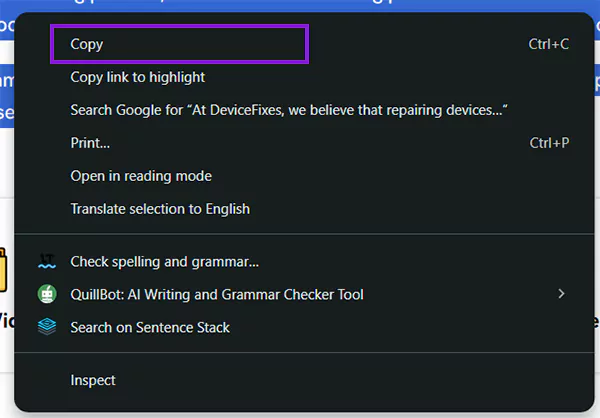
- Tap the touchpad with two fingers and hit the copy option.
- Move the cursor to the desired location.
- Tap the touchpad with two fingers again, and now hit the paste option.
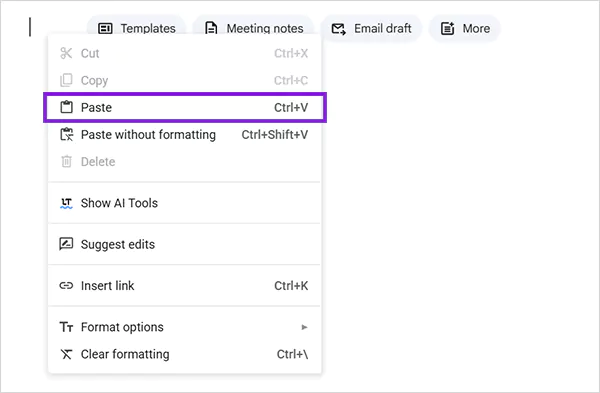
This method can be helpful if you’re getting used to how to copy and paste on Chromebook, but you’d like to see what you’re doing.
2. Touchscreen Method
For those with a touchscreen Chromebook:
- Tap and hold the text you wish to copy until the selection handles appear.
- Slide the selection handles to include all of the text you wish to copy.
- Tap the “Copy” button to copy the text.
- Tap the location in the document where you want to insert the text.
- Tap the “Paste” button.
Since you’ll be able to see the actual gesture you’re performing when you copy and paste on a Chromebook, this makes it much easier to do so on touchscreen devices.
Also Read: Spots on Phone Screen: Causes, Fixes, and When to Repair It
How to Copy and Paste Images on Chromebook?
Copying and pasting images using a Chromebook is helpful in making school projects, presentations, and other documents. Whether you are moving photos of your Samsung device or saving graphics from a site, the process is straightforward.
1. Copy and Paste Pictures from Websites
Follow these steps:
- Right-click on the image (or use the two-finger touch on the trackpad) of the image you want to copy.
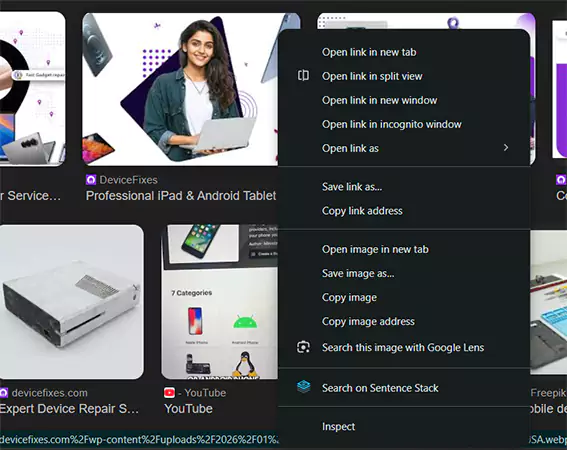
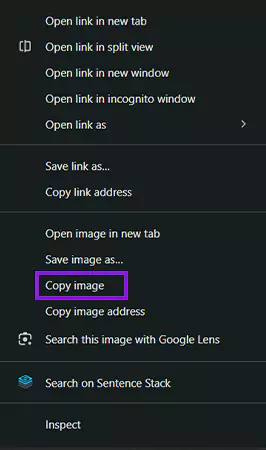
- Select “Copy Image”.
- Open the document where you want to put the image.
- Press “Ctrl + V” or select “Paste.”
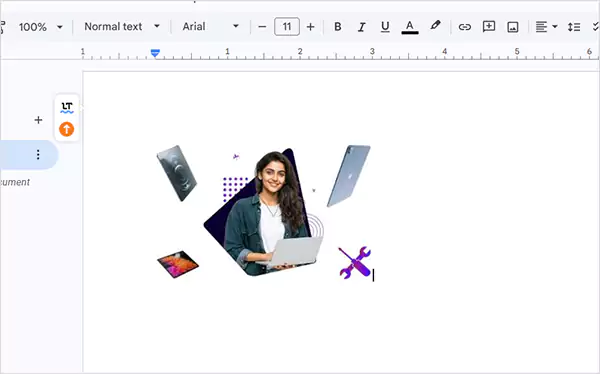
Using this method is the quickest way to copy and paste images on Chromebook, as it allows you to quickly browse through images online.
2. Copy and Paste a Picture from Files App
Step-by-step instructions for copying images saved on your Chromebook:
- Open the Files app.
- Find the image you want to copy.
- Right click on the file.
- Select “Copy”.
- Go to another folder or document.
- Click “Paste”.
If you need to learn how to copy and paste a picture on chromebook, this is one of the best methods for doing so by utilizing local storage. This is particularly useful if you are backing up photos before a data recovery process.
Image Copy Tip Box:
You can copy images from:
• Websites
• Google Docs
• Google Slides
• Files app on Chromebook
• Screenshots
How to Copy a Link on a Chromebook?
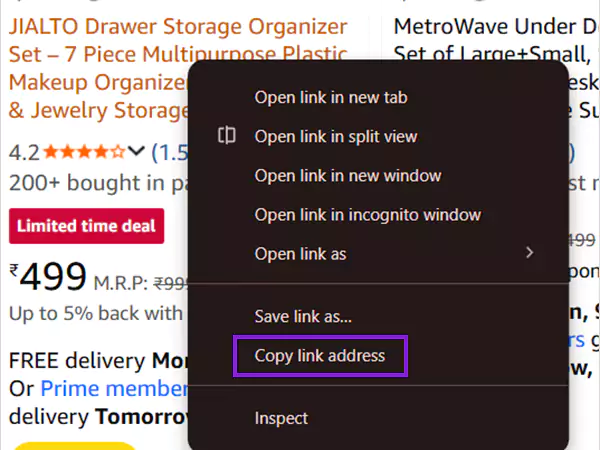
Websites are shared many times using copied URLs. Many people will inquire about how to copy link on Chromebook as they wish to send links of resource information to friends/coworkers. So, here is how to do it.
- Right-click on the link you want to share.
- Select Copy Link Address.
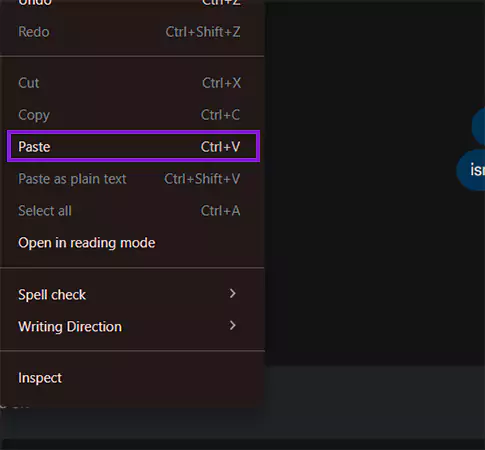
- Go to the location where you want to place the link.
- Press Ctrl + V or right-click and select Paste to paste the link into your destination.
Also Read: How Much Does It Cost to Repair a Phone Screen? Average Repair & Replacement Costs
Copy and Paste Using Touchscreen (If Supported)
Some Chromebooks function as tablets, particularly 2-in-1 devices.
To copy paste using a Chromebook touchscreen:
- Select the text or object you want to copy with a long press of your finger.
- Tap “copy” and move to your destination.
- Select the area where you would like to paste the text with a long press of your finger.
- Tap “paste.”
The use of touch screen gestures makes copying and pasting easier for students and tablet users.
Common Copy-Paste Problems on Chromebook & Fixes
Sometimes users may experience difficulties with their device. While most issues are software-based, some might stem from physical damage. For instance, if you’ve dropped your device, you might need a smartphone or laptop screen check-up. These issues mostly include the following:
| Issue | Quick Fixes |
| Copy not working | Restart Chromebook |
| Paste option missing | Use keyboard shortcut (Ctrl + V) |
| Touchpad not responding | Enable touchpad settings |
Extra Troubleshooting Tips:
- Restart Chrome browser.
- Update ChromeOS.
- Test shortcuts in another app.
- Check keyboard settings.
If your Chromebook is slowing down, it is possible that the issue is caused by a low-performing system. These performance lags can even affect how you interact with your game console repair needs if you use your Chromebook to manage console storage.
The issue can generally be resolved using the same techniques for fixing a slow computer in terms of fixing background processes and improving the speed of your system.
Also Read: iPhone Touch Screen Not Working? Step-by-Step Troubleshooting Guide
Chromebook Copy-Paste Shortcuts Cheat Sheet
| Action | Shortcut |
| Copy | Ctrl + C |
| Paste | Ctrl + V |
| Cut | Ctrl + X |
| Select All | Ctrl + A |
Benefits of Learning Shortcuts:
- Faster editing
- Improved productivity
- Less reliance on menus
- Easier document formatting
Once learned, how do you copy and paste on a Chromebook becomes second nature.
When Copy & Paste Stops Working – What to Do
Sometimes, Chromebooks will simply stop copying and pasting because of a glitch in the hardware, or a software bug that is causing an issue with chromeOS.
Common Issues:
- Bugs in ChromeOS.
- Glitches with the browser.
- Malfunction with the keyboard.
- Problems with the touchpad.
Quick Fix Checklist:
- Reboot your Chromebook.
- Make sure you have the latest version of Chrome OS.
- Quit all open tabs.
- Try using a shortcut in a different program.
- Check the settings for your input devices.
If the issue continues, you can explore troubleshooting tutorials available on Devicefixes that explain Chromebook fixes and common laptop problems.
How Devicefixes Helps Fix Copy and Paste Issues on a Chromebook
The cause of some clipboard issues can be deeper system-wide issues that need to be troubleshooted professionally. Examples include software conflicts, ChromeOS errors, or hardware failures, which could potentially interfere with the functioning of copy and paste on Chromebooks.
Devicefixes provides technical error support resources for users to assist in the identification and correction of their devices’ (e.g., Chromebooks, laptops, etc.) issues, including Chromebook issues, laptop issues, and browser glitch issues.
In addition, DeviceFixes provides technical solutions and guides to assist users in identifying issues such as:
- Failure of keyboard input
- Issues with the clipboard (copy/paste) on ChromeOS
- Poor touchpad responsiveness
- Performance issues with the operating system
If you have experienced copy/paste issues on your Chromebook and would like assistance in restoring the functionality of your device to its normal operation, professional troubleshooting services can be accessed at Devicefixes.
FAQ
Q: How do I copy and paste on a Chromebook?
Q: Can I copy images on my Chromebook?
Ans: Yes. To copy an image on your Chromebook, right click on the image and select “copy image” (this option is located at the bottom of the context menu). You should now be able to use ctrl+v to paste the image.
Q: Why is my copy-paste function is not working on my Chromebook?
Ans: The copy paste function may stop working for several reasons, including, but not limited to, glitchy system behavior, older ChromeOS versions, and/or a malfunction with your keyboard. Most of these problems can be resolved by restarting your computer or updating your version of ChromeOS.
Sources: