
Ans: Yes, a factory reset does remove the installed application from the device, making the television fresh as new.
How to Factory Reset Samsung TV? Tried and Tested Methods that Works in 2026
Factory resetting a Samsung TV is commonly performed when you are experiencing performance issues. Basically, there are two ways you can reset the TV: one is a soft reset, and the other is a hard reset Samsung TV.
Both methods are effective ways to troubleshoot the issue, and all the settings will be restored to default, giving you a new-like performance. Similar troubleshooting techniques are often applied across devices, including PC & Laptop Repair services when software-related issues affect performance.
Let us give you a walkthrough on how to factory reset Samsung TV with just a few remote clicks.
Table of Contents:
How to Factory Reset Samsung TV? – Method 1
A factory reset is often recommended when your television is facing software-related glitches. To factory reset, power on your TV and press the menu button.
- Select “Support” >> “Enter”
- Choose “Self Diagnose” and click “Enter.”
- Select “Reset” and “Enter.”
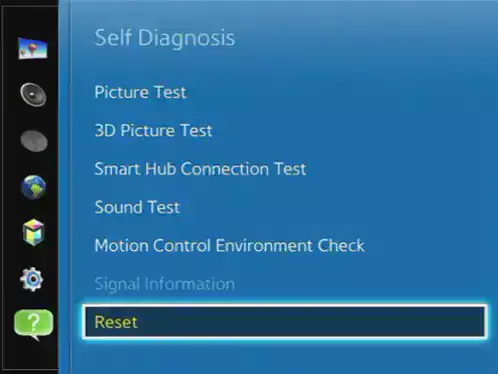
- Then add the default security pin that is “0000.”
Usually, the default password of a Samsung TV is “0000,” but in case you have changed the PIN and are unable to recall it, there’s a workaround too.
- Power off the TV and press “Mute” followed by 8 >> 2 >> 4.
- Turn on the power button, and you will be redirected to the PIN reset section.
What Does a Factory Reset Do?
The main purpose of the factory reset Samsung TV process is to restore the device’s default settings. The reset will remove installed apps, delete all the login accounts, erase Wi-Fi settings, and clear Smart Hub data.
A factory reset should only be incorporated when you notice these underlying issues:
- TV becomes freezing or lagging.
- Apps not opening.
- Wi-Fi or network issue.
- Picture glitches or audio lag.
- Continuous crash while opening an application.
- Preparing to sell the TV and want to remove all the data. Similar precautions are often recommended before using Data Recovery Services to protect important files.
However, if you wish to make a reset without compromising the existing data, there are a few more methods you can comprehend.
Please note that the factory reset won’t really fix hardware issues like dead pixel and spots on the screen.
Other Types of Samsung TV Reset
Apart from a hard factory reset, there are two more ways you can reset your TV to restore its normal functionality. You can either do a software reset that won’t compromise your data or leverage the exclusive Smart Hub reset.
Soft Reset
This is how you can do a soft reset, as it refreshes the software, allowing it to function properly. Similar software-refresh procedures are frequently used during Computer Repair troubleshooting to resolve temporary system glitches.
Here’s how to soft reset a Samsung TV:
- While your TV is turned on, hold the power button until the Samsung logo appears.
- As the Samsung logo appears, let go of the power button.
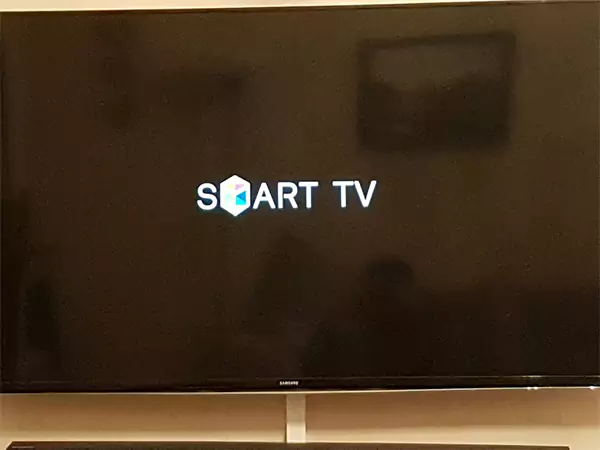
This is how you can do a soft reset, as it refreshes the software, allowing it to function properly. For minor software glitches, you can surely try this method. If you are facing issues related to streaming and app crashes, the next method is just for you.
Smart Hub Reset
Once the Smart Hub has been reset, you may witness that all the apps might have logged you out, and all the cache gets cleared. App-related troubleshooting and cache-clearing techniques are also common on Samsung Smartphones.
Steps to reset Smart Hub:
- Press the “Home” button and navigate to “Settings.”
- Go to “Support” or “General & Privacy.”
- Depending upon the model, choose “Self Diagnosis” or “Device Care.”
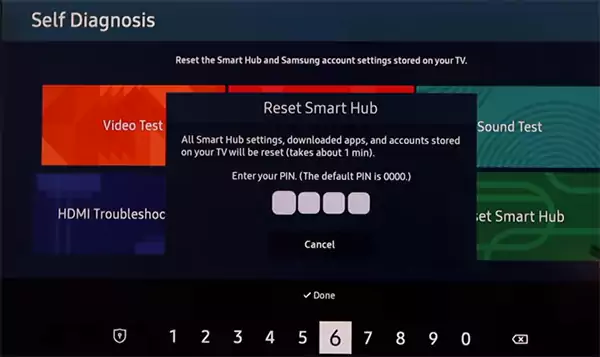
- Select the “Reset Smart Hub” and enter your TV pin, which is the default “0000.”
Once the Smart Hub has been reset, you may witness that all the apps might have logged you out, and all the cache gets cleared. This allows you to experience the smooth functioning of the apps.
However, this reset won’t really fix the:
- Software glitches
- Picture or audio lagging
- Network settings
- General configuration
As of now, all the resetting methods have been discussed in a way that requires a remote, but what if the remote is not functioning at the moment?
How to Factory Reset Samsung TV Without a Remote?
In case your remote is not functioning or missing, there are still ways to perform a Samsung TV reset.
1. TV Buttons
Some older models of Samsung television come with embedded physical buttons. They might be located at the bottom of the screen, at the right side of the screen, or even at the back of the panel.
Just simply locate the menu button and navigate to settings by using the volume or channel button. Move through the menu and locate “Self Diagnosis” and select “Reset.”
Enter the TV pin on a digital number pad. Select “Yes,” and the reset process will be initiated.
2. SmartThing App
Downloading the Samsung SmartThings app is your next hassle-free option that acts like a remote for television. Device management apps are also widely used across Google Pixel devices for seamless connectivity and control.
After downloading, make sure that your TV and smartphone are connected to the same Wi-Fi. Similar wireless setup processes are commonly used for iPhone repairs and troubleshooting.
- After downloading, make sure that your TV and smartphone are connected to the same Wi-Fi.
- Pair with Samsung TV.
- Navigate to settings via phone and follow all the steps mentioned above.
3. Power Reset
A power reset may also help with resetting temporary glitches. Troubleshooting power-related issues is a common step during Laptop Repair when devices become unresponsive.
Leave it for 60 seconds and reconnect your television. This will surely hard reset the Samsung TV.
Hard reset and factory reset are two different concepts, as a hard reset focuses on clearing temporary issues, and a factory reset deletes all the settings.
If you want to fix temporary glitches, a hard reset should be the first thing to try; otherwise, go with a factory reset if no result is noticed.
Model Specific Reset Guides
Every model of Samsung TV has a different method to access the factory reset settings. Users who own multiple Samsung devices may also benefit from support available through Samsung Tablet Repair. For example, the Samsung Smart TV path usually follows like Settings >> General & Privacy >> Reset.
For models that exist before 2019, the pathways go like Setting >> Support >> Self Diagnosis >> Reset.
Tips Before Factory Reset
Disconnect External Devices: Remove external devices such as USB, HDMI, gaming consoles, or external speakers. If you experience issues with connected gaming systems, dedicated support is available for Game Console Repair. To ensure your data remains intact and important settings don’t get lost.
- Note Down Credentials and Password: Once the factory reset has been done your all your applications will be uninstalled, stripped out of Wi-Fi connection, and all the settings will be restored to default. Make sure you write down all the credentials for the login.
- Note Down Calibrated Settings: If you have manually calibrated the TV settings, make sure to note them down before resetting, as they will be erased.
- Try Soft Reset or Hard Reset: Factory reset is the ultimate answer for your problem. Before going towards it, try a soft reset and see if it does the job.
- Update Firmware: In some cases, bugs and lags happen when the firmware hasn’t been updated. Before learning how to reset a Samsung television, check if any updates are pending.
- Disconnect External Devices: Remove external devices such as USB, HDMI, gaming consoles, or external speakers. This prevents external hardware conflicts during the Samsung TV factory reset process.
Troubleshooting Samsung Television
While resetting the television, there might be some cases where the TV might become frozen or inaccessible due to certain reasons.
You can try some troubleshooting methods to fix the issues.
How to Factory Reset Samsung TV Stuck on Logo
While following the factory reset Samsung TV process, if your device is frozen in between and just the Samsung logo is showing up, here’s how you can quickly fix it.
You simply have to drain the excessive power. To do that, plug out your TV and hold the power button for 30-60 seconds. Wait for a minute and plug in your TV once again; this will surely get the job done.
While doing so, make sure all the external devices have been disconnected.
Reset Not Completing
At a point, the process might not get completed, and the screen might just black out, or the device might restart before completion.
One of the major reasons behind this could be poor power outlets, first ensure that you have a stable power outlet.
TV Keeps Restarting
After resetting the TV, you might notice the device turning off and restarting. If the issue appears while using a gaming setup, troubleshooting may also involve checking connected PlayStation consoles, Xbox consoles, or Nintendo devices.
In this case, disconnect all the external connections and perform a hard reset on your Samsung TV. Furthermore, if possible, try to update the firmware; this might also fix the problem.
Conclusion
Being aware of how to factory reset Samsung TV can help resolve lagging and crashing issues. Whether the diagnosis is a hard reset or a complete factory reset, following the correct method can restore smooth functionality.
All the methods and troubleshooting tips should surely fix the underlying issue and make your television smooth as it was earlier. If the issue persists even after performing a reset, it may indicate a deeper hardware problem. In such situations, professional repair solutions for devices like Mac computers, Motorola smartphones, OnePlus smartphones, iPads, and other tablet repair services can help diagnose and resolve underlying faults.
Read Next: Acer Flickering Screen: Causes, Fixes & Complete Troubleshooting Guide
FAQs
Q: Does a factory reset remove apps from the TV?
Q: Will a factory reset fix my lagging issue for sure?
Ans: Yes, factory issues will surely fix the lagging issue and crashes, as it makes the device reset completely and makes it as new as it was out of the box.
Q: How long does it take to factory reset a Samsung TV?
Ans: It takes around 5-10 minutes to get the reset done, depending on the model. If it’s older, the time may have exceeded, so be patient.
Q: Is the internet required for a factory reset?
Ans: No, the internet is not required to execute the basic task. Once the Samsung TV factory reset has commenced to re-install the application, the internet might be required.
Q: Can I cancel the reset in between the progress?
Ans: No, you cannot or should not try to cancel the factory reset in between, as it may cause your firmware to crash and cause serious issues.
Sources:
How to Reset a Samsung TV? – Samsung