
Ans: You can fix it by updating graphics drivers, adjusting refresh rate, removing problematic apps, and checking for hardware issues using external monitors or Safe Mode.
Acer Flickering Screen: Causes, Fixes & Complete Troubleshooting Guide
An Acer flickering screen is a typical issue caused by various reasons (driver problems, improper display settings, and hardware problems). To fix these problems for an Acer laptop that has a flickering or flashing display or an unstable display, try the simple troubleshooting techniques mentioned here.
Reaching out to professionals might not be necessary, as you can do various things, and one of these methods might just stop your Acer screen from flickering. However, if the issue persists, professional PC & Laptop Repair services can help diagnose deeper hardware faults. Let’s get started.
Table of Contents:
- Common Causes of Acer Flickering Screen
- How to Fix an Acer Laptop Flickering Screen?
- How to Identify If the Problem Is Hardware or Software?
- Can Graphics Drivers Cause Acer Screen Flickering?
- Acer Laptop Blinking Screen vs Flashing Screen: What’s the Difference?
- When Should You Replace an Acer Laptop Screen?
- Preventing Acer Screen Flickering Issues
- Conclusion
- FAQs
Common Causes of Acer Flickering Screen
The Acer flickering screen is usually caused by either a system error or by hardware deterioration, same as when your phone speaker stops working or requires attention similar to smartphone repair. The list of reasons below provides an explanation as to what causes an Acer laptop screen to flicker and/or blink.
1. Outdated or Corrupted Graphics Drivers
The driver controls how your display (screen) renders graphics; when the driver is either corrupted or outdated, it cannot perform its duties correctly and, as such, will create instability in your display, resulting in blinking and/or flickering on the Acer notebook computer.
2. Incorrect Refresh Rate Settings
If the refresh rate of your laptop is different from the refresh rate of your display, you will experience visual flicker because of the difference and/or mismatch. This difference will create inconsistent rendering of the visual materials displayed on the Acer notebook computer, which may cause uneasiness for the viewer.
3. Loose or Damaged Display Cable
The LCD display cable connects the physical screen to your computer’s motherboard. If that connection is loose or has become damaged over time, this is one way to cause disruption of the signal between the two.
4. Incompatible or Faulty Apps
Severe conflicts with incompatible applications or even just faulty applications, some that may not have compatibility issues when working properly, could cause a screen-flicker issue on an Acer computer.
5. Overheating Issues
Many internal components within a computer can experience problems due to a lack of cooling.Overheating affects GPU performance. Similar hardware stress issues are seen in game console repair.
6. Hardware Damage (Screen or GPU)
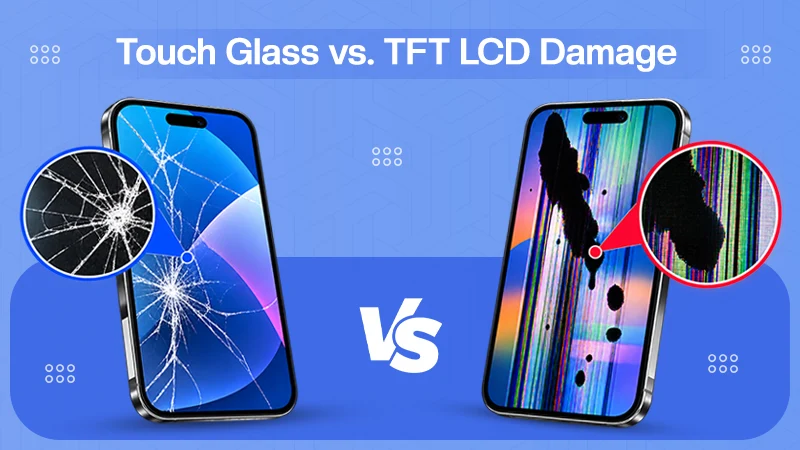
If the LCD display panel (or graphics card) has been physically damaged, in many cases, that will cause constant flickering on the screen. In these circumstances, there is no software fix for this issue; the worsening of this symptom becomes progressively more common after a prolonged period of time. Physical damage may require replacement, similar to solutions offered in Mac repair.
How to Fix an Acer Laptop Flickering Screen?
Acer’s flickering screen can be resolved by restarting the device, updating drivers, or adjusting settings. If software fixes fail, structured diagnostics like those used in data recovery services can help identify deeper issues. Now here’s how to do it:
1. Restart Your Laptop
Simply restarting your laptop can solve the Acer flickering screen issue.
Steps:
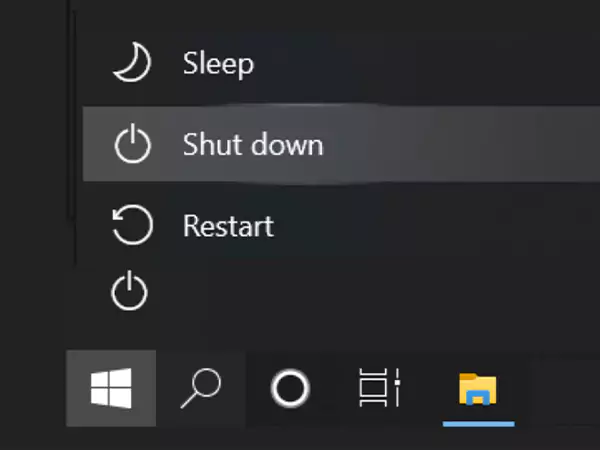
- Click on the Start/Windows button.

- Hover on the Power icon and click on the restart option.
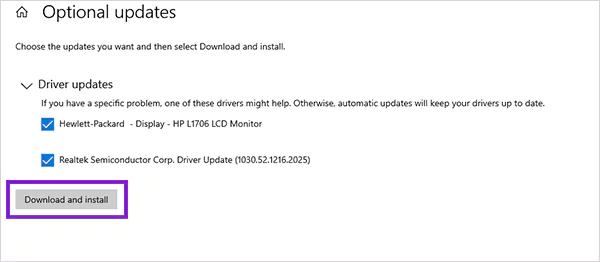
2. Update or Reinstall Graphics Drivers
Updating or reinstalling graphics drivers can stop the Acer flickering screen. Here’s how to do it:
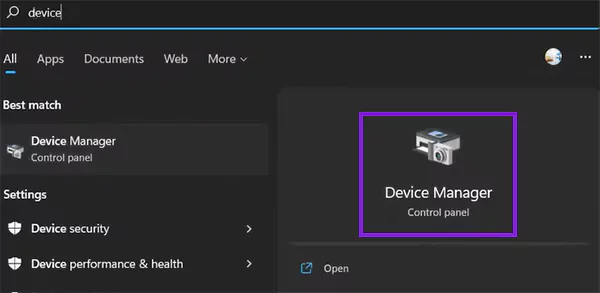
- Open Device Manager.
- Expand Display Adapters.
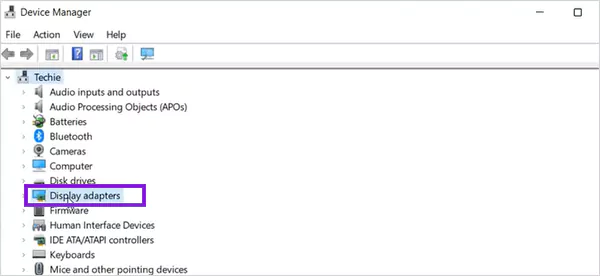
- Right–click your graphics driver.
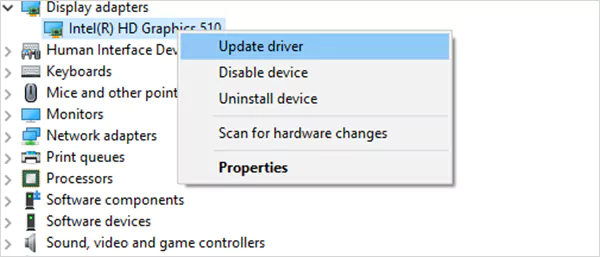
- Select Update Driver.
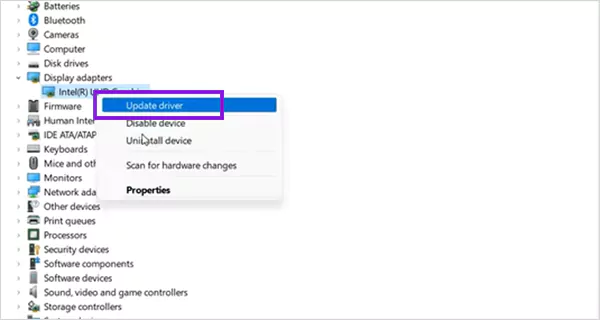
If the issue persists, uninstall and reinstall the driver.
3. How to Uninstall and Reinstall the Driver
Uninstalling and reinstalling the driver can solve the Acer flickering screen; here’s how to do it in a few easy steps.
Uninstall the Driver:
- Open Device Manager.
- Go to Display Adapters.
- Right–click the Graphic Driver.
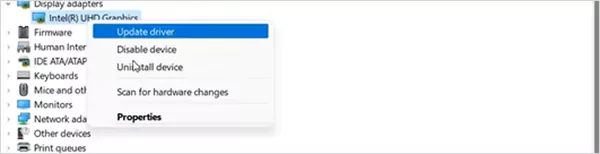
- Select Uninstall Device.
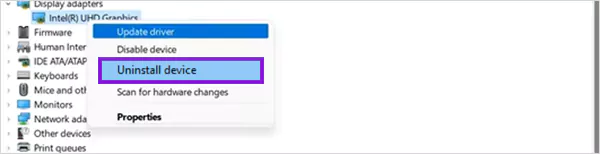
Reinstall the Driver
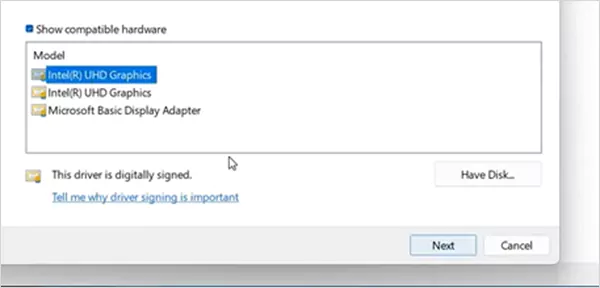
- Right–click and Open Update Driver.
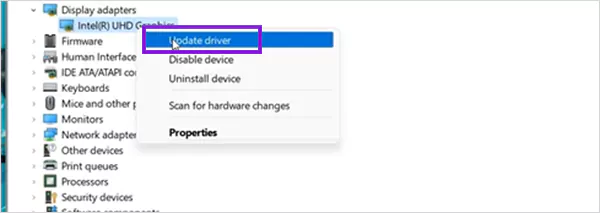
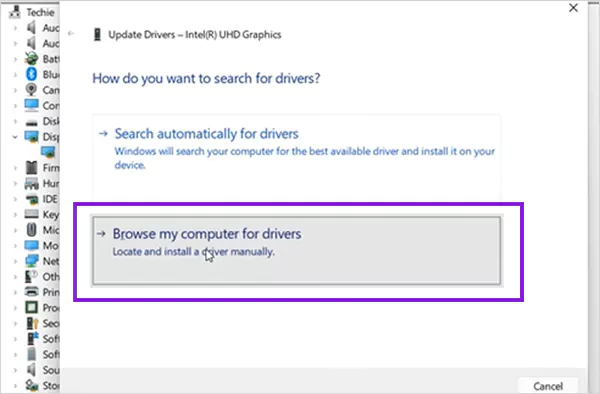
- Select Browse My Computer for Drivers.
- Pick from Available Options.
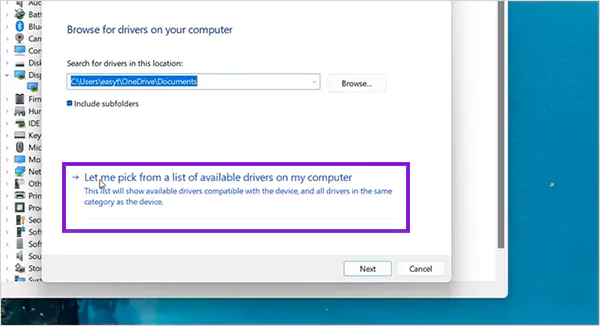
- Try all the Drivers One by One.
4. Adjust Screen Refresh Rate
Sometimes screen refresh rate might be causing the flickering. To resolve this, change the refresh rate.
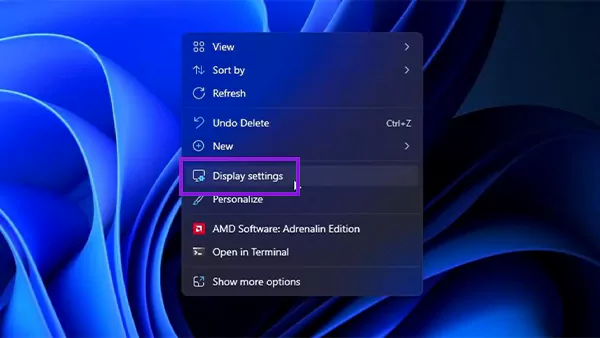
- Right-click on the Desktop to open Display Settings.
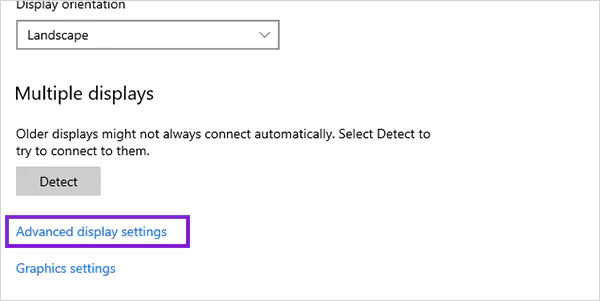
- Scroll Down to Advanced Display Settings.
- Select the correct refresh rate (usually 60Hz or higher).
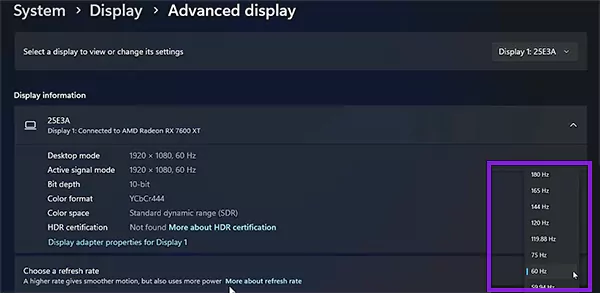
- Apply changes and test.
5. Check for Problematic Applications
Apps can often be the cause of Acer flickering screen issues, but don’t worry; you can check which applications might be causing you the trouble.
- Open Task Manager.
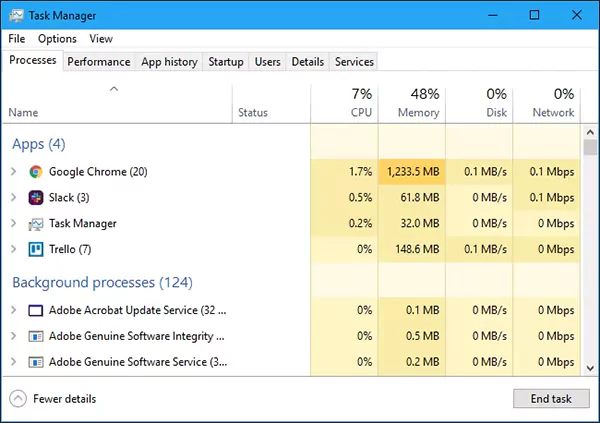
- Look for apps causing high GPU usage.
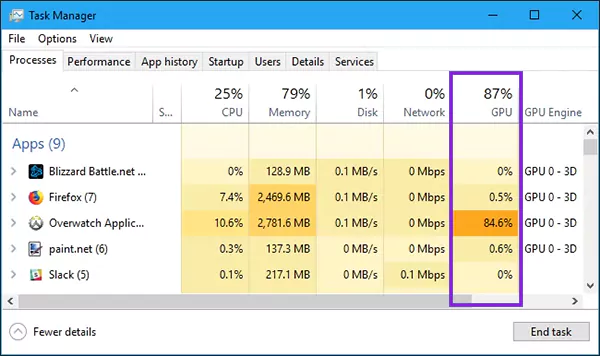
- Uninstall the app with the highest or unusual GPU usage.
- Restart and observe changes.
6. Check Display Connections (Internal & External)
Move your laptop’s screen back and forth gently to see if any changes occur in how your display flickers during this movement. If so, then it could indicate a loose connection on the inside of the notebook itself. Testing with external displays—similar to diagnostics used in tablet repair—can help isolate issues.
You could also try connecting the laptop to an external display. If the external display behaves normally while the internal one does not, then this would help narrow down where to look further into fixing the problem.
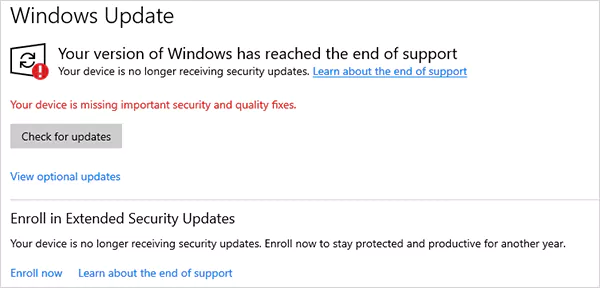
7. Update Windows OS
Sometimes updating the Windows OS can get rid of all the problems.
- Go to Settings.
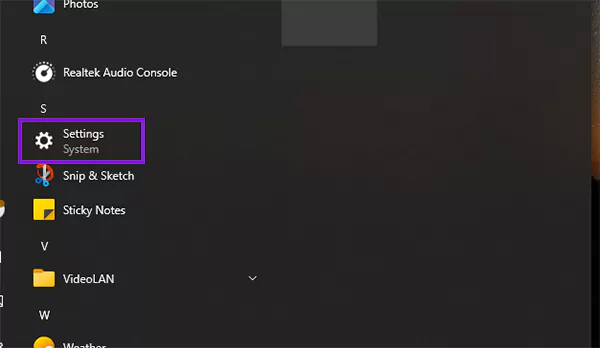
- Search for Update & Security.
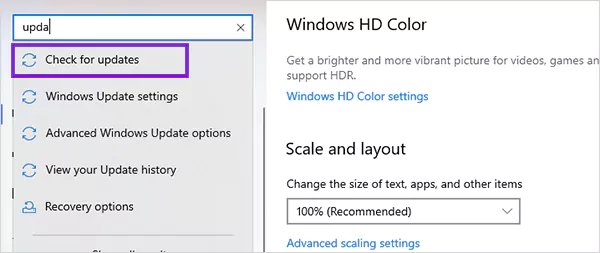
- Install the latest patches.
- Restart the system.
8. Scan for Malware or System Errors
Malware might be interfering with how your system works. To resolve this:
- Use Windows Security or an antivirus.
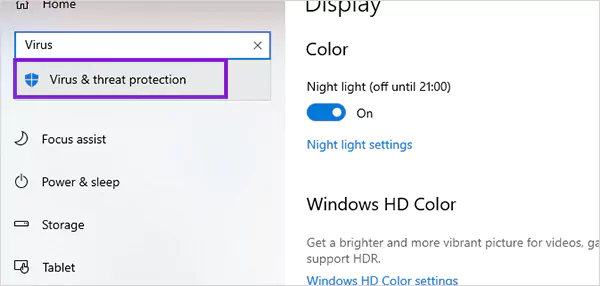
- Run a quick system scan.
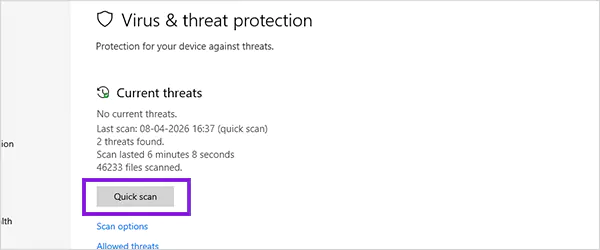
- Fix any detected issues.
ALSO READ: How to Copy and Paste on Mac? 8 Must-Use Methods for Mac Users
How to Identify If the Problem Is Hardware or Software?
Before going to professional repair services, it’s important to check whether the issue lies in hardware or software. Advanced diagnostics similar to PC & laptop services can help confirm the issue.
1. Use Task Manager Flicker Test
There’s a built-in flicker test. To use it:
- Press Ctrl + Shift + Esc
- Observe the Task Manager window
If it flickers, it’s a hardware issue; if it doesn’t, it’s a software issue.
2. Connect to an External Monitor
Use an HDMI or VGA cable to connect your laptop to an external monitor and check the output of the external monitor. If it functions correctly, your laptop’s display likely has a fault. If both displays exhibit flickering, the issue may be a result of your graphics card (GPU).
3. Observe Flickering Patterns
Pay close attention to the flickering pattern to help pinpoint the issue, which might look the same as PC screen lines. If you observe flickering while booting up, then likely there is a hardware issue.
Flickering after you log in indicates that the issue is more than likely related to Windows. Flickering that occurs randomly could be due to either a hardware failure or a software issue.
Can Graphics Drivers Cause Acer Screen Flickering?
Acer users commonly experience flickering screens due to a problem with their graphics driver, which communicates between your system and your display. Any problem with communication has a direct effect on the stability of the screen. Yes, graphics drivers are a common cause. Similar system communication issues are also seen in devices handled under OnePlus repair and Motorola repair.
- An outdated graphics driver does not support newer applications, which could potentially lead to a flickering screen.
- If the graphics driver is corrupted, it will send incorrect signals to the display.
- Reinstallation of your graphics driver resets the communication between your hardware and your software.
Regular updates on your graphics driver will keep the driver’s performance at all times and will also help avoid recurring issues with flickering screens.
Acer Laptop Blinking Screen vs Flashing Screen: What’s the Difference?
Users often think that a flashing screen is the same as a flickering/blinking screen, but it’s not. Flashing occurs due to a software issue, unlike blinking, which could happen due to loose cables. Here are the other differences between these two:
| Feature | Blinking Screen | Flashing Screen |
| Definition | The screen turns on and off repeatedly | The screen rapidly changes brightness, colors, or intensity |
| Common Cause | Refresh rate issues, loose cables, driver conflicts | Software glitches, GPU issues, or app conflicts |
| Behavior | Noticeable pauses between on/off cyclesContinuous rapid visual disturbance | Continuous rapid visual disturbance |
| Severity | Usually less severe and often fixable | Can indicate deeper system or GPU problems |
| When It Occurs | During specific actions or movement | Randomly or during heavy usage |
| Likely Issue Type | Often, hardware or connection-related | Often software or graphics-related |
When Should You Replace an Acer Laptop Screen?
If the issue persists after all fixes, replacement is necessary. Hardware-level failures often require professional servicing similar to Xbox repair solutions. There are some major occurrences when you should consider replacing your Acer flickering screen, including:
- A flickering issue remains despite syncing and/or updating the drivers
- Visible signs of damage, such as visible cracks, lines or discoloration
- The screen goes completely blank or does not respond to input
If the flickering condition sets in and continues to increase over time or heavily degrades the usability, replacement of the screen is the most reliable solution to resolving this issue.
Preventing Acer Screen Flickering Issues
It is easier to prevent than it is to fix an Acer with a flickering screen. Proper maintenance/care will lessen the chance of problems with a display. Optimizing your system will help to ensure you receive the maximum amount of time from your device.
- Keep your system and drivers updated regularly
- Refrain from installing unauthorized or incompatible applications
- Make sure your system has sufficient airflow to prevent overheating.
Be careful when handling your laptop. This will help prevent damage to internal cables as well as the screen.
ALSO READ: iPhone vs Samsung: Which Smartphone Is Better for You?
Conclusion
An Acer laptop screen that flickers can be annoying; fortunately, in most cases, it’s not as serious as you think and can usually be fixed very easily by applying the appropriate resolution.
Verify whether the cause of the flickering screen is related to the drivers installed or the computer settings, or if it’s a hardware issue, and apply the appropriate resolution for whichever cause of this issue you identify. In case the problem is not under control, you can reach out to DeviceFixes.
FAQs
Q: How do I fix an Acer laptop blinking screen?
Q: Why is my Acer screen flickering randomly?
Ans: Random flickering is usually caused by driver issues, overheating, or software conflicts. In some cases, it may also indicate internal hardware problems.
Q: Can graphics drivers cause Acer screen flickering?
Ans: Yes, outdated or corrupted drivers are one of the most common causes. Updating or reinstalling them often resolves the issue.
Q: When should I replace an Acer laptop screen?
Ans: You should replace it if flickering continues after all fixes or if there are visible signs of hardware damage like lines, cracks, or discoloration.
SOURCE:
Acer Community: How to Stop Your Screen from Glitching
Microsoft Support: Troubleshoot screen flickering in Windows