A working indicator light only confirms that the device receives some power. It doesn’t guarantee successful communication with the computer or access to the flash memory. Try another port and computer, then check Device Manager and Disk Management. If the device consistently reports No Media, hardware failure is possible.
How to Fix USB Flash Drive Not Detected

Updated On November 9, 2026
You plug a USB flash drive into your computer, but nothing happens. It doesn’t appear in File Explorer, or Windows displays a message saying the device isn’t recognized. Sometimes, the computer detects the USB drive but refuses to open it.
The good news is that a USB flash drive not detected by your computer isn’t necessarily broken. The problem could involve the USB port, a missing drive letter, outdated drivers, or a damaged file system. The challenge is figuring out which one you’re dealing with before making changes that could affect your files.
Quick Answer: Start by connecting the flash drive to another USB port or computer. If it still doesn’t appear, check Disk Management and Device Manager to see whether Windows can detect it. When the drive is visible but inaccessible, avoid formatting it until you’ve recovered any important files. If the drive reports No Media or zero available capacity, the problem may require professional repair.
Table of Contents:
First, Find Out What Your Computer Can See
When a USB flash drive is not detected in your computer, it’s tempting to assume the device has failed. But Windows manages USB detection in several stages. First, it detects the connected hardware, then accesses the storage device, and finally displays an accessible volume in File Explorer.
A problem at any of these stages can cause similar issues. That is why checking where the drive shows up is more useful than immediately reinstalling drivers or formatting it.
Start with these three Windows tools:
- File Explorer: Press Win + E, open This PC, and check whether your USB drive shows up under Devices and drives.
- Disk Management: Press Win + X > Disk Management. Find your flash drive by its capacity and check its partition status.
- Device Manager: Press Win + X > Device Manager. Open Disk drives and Universal Serial Bus controllers to find your USB device or an error sign.
The results should help you identify the problem with your USB drive.
| What Windows Shows | What It Might Mean | Where to Start |
| USB doesn’t appear anywhere | Connection, port, controller, or hardware issue | Check the USB connection and drivers |
| USB appears in Device Manager only | Windows identifies some hardware, but can’t access usable storage | Check the device status and connection |
| USB appears in Disk Management without a drive letter | Windows detects the storage but hasn’t assigned a letter | Assign a drive letter |
| USB appears as RAW or Unallocated | Windows can’t recognize a working file system or partition | Check the file system and keep your data safe |
| USB shows up in File Explorer but won’t open | File system, permissions, encryption, or access problem | Investigate the exact error |
| USB shows No Media or 0 bytes | Possible controller or flash memory failure | Get professional help |
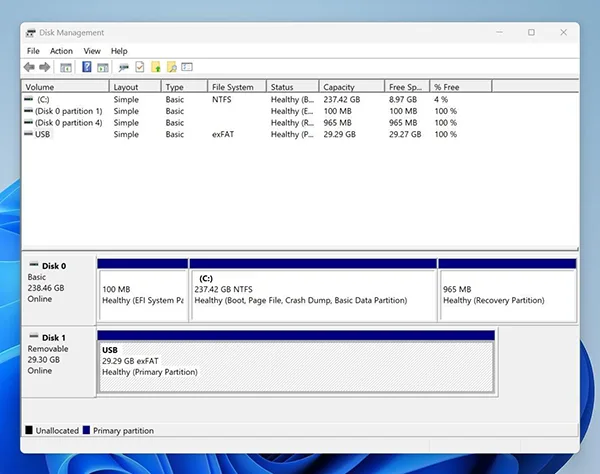
For example, a USB drive may show its correct 29.30 GB capacity and a working exFAT partition in Disk Management but still not appear in File Explorer because it has no drive letter. It is different from a device that Windows cannot detect at all.
Once you know where detection fails, you can choose the correct method to fix the issue rather than trying every method.
Your USB Isn’t Showing Up Anywhere: Start Here
If your computer isn’t detecting your USB drive hardware at all, you should check the connection first before trying software repairs.
At this stage, changing partitions or using disk repair commands won’t solve your problem because Windows hasn’t detected the storage device yet. Start with the simplest checks and move toward driver troubleshooting only if necessary.
Try a Different Port, Hub, or Computer
A faulty USB port or unstable connection can make a perfectly working flash drive seem broken. This is common when the device is connected through an external hub, docking station, or adapter.
Before changing Windows settings, rule out a connection problem:
- Disconnect the USB drive. Remove it from the current port and check the connector for visible damage or dirt.
- Try another USB port. If you’re using a desktop computer, connect the drive directly to a rear motherboard port instead of a front-panel port.
- Bypass USB hubs and adapters. Plug the drive directly into the computer whenever possible.
- Test it on another computer. Check whether the second device recognizes the USB drive and allows you to open its files.
If the flash drive works on another computer, the problem likely involves the original PC’s ports, drivers, or settings.
In case it fails on multiple computers, it is expected that hardware damage. But don’t assume the flash memory has failed until you’ve checked the remaining methods.
Tip: If another computer can show the flash drive, copy important files immediately. Don’t wait until the device fails again.
Restart Windows and Refresh USB Detection
Sometimes Windows fails to identify a USB device because of a temporary communication problem. This can happen after a system update, a sleep cycle, or repeated disconnections.
When you restart Windows and rescan hardware, it helps you establish a connection.
- Disconnect the USB flash drive from your computer.
- Click Start > Power > Restart.
- After Windows loads, reconnect the USB drive and check File Explorer.
- If nothing changes, open Device Manager.
- Select Action > Scan for hardware changes, if the option is available.
Windows will check for connected hardware and try to detect the USB device again.
This is one of the easiest ways to address a temporary detection failure. But always remember that it won’t repair a damaged USB connector, corrupted storage, or failing flash memory.
Reinstall the USB Device Driver
If your USB flash drive is not showing up correctly, Device Manager may display it as an Unknown USB Device or show a yellow warning icon.
Windows might also display an error code. For example, Code 28 generally indicates missing drivers, while Code 43 means Windows stopped a device after it reported a problem. Code 43 can symbolize a hardware issue, so reinstalling a USB driver isn’t guaranteed to resolve issues.
To reinstall the affected device entry:
- Press Win + X and select Device Manager.
- Open Disk drives and Universal Serial Bus controllers.
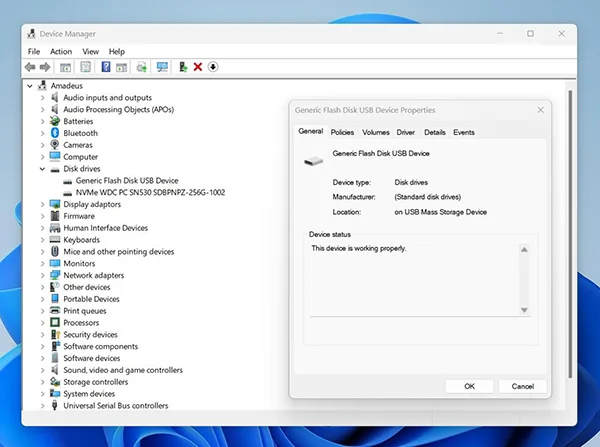
- Find the affected USB device. If you’re unsure which entry belongs to the flash drive, disconnect and reconnect it to identify the matching entry.
- Right-click the device and select Properties.
- Check the Device status field for error messages.
- If it is correct, close Properties, right-click the affected device, and select Uninstall device.
- Disconnect and reconnect the USB drive, or restart Windows to allow the driver to reinstall.
Most USB flash drives use drivers already included with Windows, so you should not download a random third-party driver.
If Device Manager reports that the device is working properly but the flash drive still doesn’t appear in File Explorer, the problem may involve the storage volume rather than the USB driver.
Update or Reinstall USB Controllers
The USB flash drive itself isn’t the only device connected to your computer. It also uses USB host controllers and root hubs to communicate with connected accessories.
When several USB devices stop working, the problem may involve one of these components.
First, check for updates:
- Open Settings > Windows Update.
- Click Check for updates.
- Check Advanced options > Optional updates for relevant driver updates, if available.
- Visit your computer or motherboard manufacturer’s support website to check for updated chipset, motherboard, or USB controller drivers.
If updating doesn’t help and the controller doesn’t work properly, you can try reinstalling the affected controller.
- Open Device Manager.
- Open Universal Serial Bus controllers.
- Identify the controller or USB Root Hub associated with the problem.
- Right-click the affected entry and select Uninstall device.
- Restart Windows so it can reinstall the controller driver.
Be careful with this method. Removing a USB controller may temporarily disconnect your keyboard, mouse, or other USB peripherals.
Don’t uninstall every controller in the list unless you’re following a device-specific troubleshooting procedure. If only one flash drive fails while other USB devices work normally, you should check out the flash drive first.
USB Flash Drive Not Working After Sleep? Check Power Settings
Does your USB drive work at the beginning but disappear after your laptop wakes from sleep? Power management could be involved.
Windows can reduce power consumption by suspending idle USB devices. This normally works without problems, but some devices or drivers may fail to reconnect correctly.
To check the relevant settings:
- Open Device Manager.
- Open Universal Serial Bus controllers.
- Right-click the relevant USB Root Hub or Generic USB Hub and select Properties.
- Open the Power Management tab, if available.
- Note whether Allow the computer to turn off this device to save power is enabled.
- Temporarily disable that option to test whether the USB connection becomes fixed.
If the problem disappears, you’ve identified a possible power-management issue. After testing, Restore the original setting after testing and look for updated drivers or manufacturer-specific fixes.
You may also find USB selective suspend setting under Control Panel > Power Options > Change plan settings > Change advanced power settings, depending on your computer.
Microsoft strongly recommends keeping USB selective suspend enabled because it helps manage power consumption. Treat any change as a temporary diagnostic test, not a permanent fix.
If the drive fails immediately after connection rather than after sleep or inactivity, power settings are less likely to be the cause.
Windows Detects Your USB but Won’t Let You Access It
A different situation occurs when Windows recognizes the USB hardware, but you still can’t open the drive.
You might see the flash drive in Disk Management without a letter, receive a message asking you to format it, or encounter an Access Denied error.
In these cases, reinstalling USB controllers usually isn’t the answer. The connection already exists. The next step is to determine why Windows can’t access the storage volume.
Give the USB Drive a Missing Letter
Windows normally assigns a letter such as D:, E:, or F: to a USB drive. Without one, an otherwise healthy partition may not appear in File Explorer.
If Disk Management shows the correct capacity and a readable partition but no letter, you can assign one manually.
- Press Win + X > Disk Management.
- Locate your USB drive by its size and partition details.
- Right-click its existing volume and select Change Drive Letter and Paths.
- Click Add if no drive letter is assigned.
- Select Assign the following drive letter and choose an unused letter.
- Click OK, then reopen File Explorer.
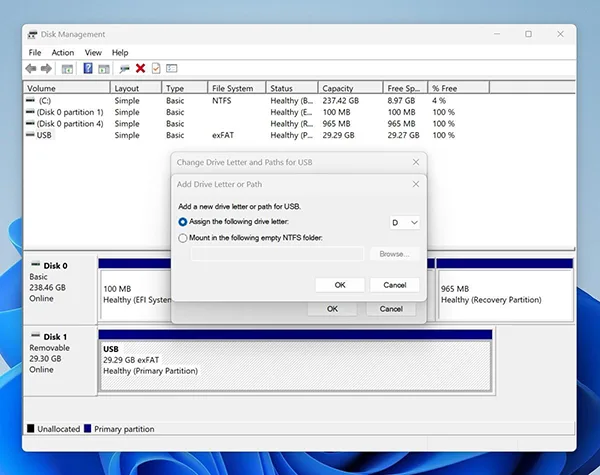
The flash drive should now appear under This PC, provided the file system is readable and no other access problem exists.
A USB drive detected but not accessible in File Explorer may simply be missing a drive letter.
Important: Assigning a letter doesn’t repair a RAW file system or recreate a missing partition. If Disk Management shows RAW or Unallocated space, move to the next section instead.
What to Do With RAW or Unallocated Space
A USB drive may appear in Disk Management but display RAW instead of a recognized file system such as FAT32, exFAT, or NTFS.
RAW generally means Windows can’t recognize a usable file system on that volume. This can happen after an interrupted transfer, an unsafe removal, file system corruption, or another storage problem. In some cases, the drive simply uses a file system Windows doesn’t support.
Unallocated space is different. It means Windows sees disk capacity but doesn’t identify a usable partition occupying that space.
Both situations can prevent access to your files, but neither automatically means the data is gone. Even with RAW flash drives, recovery may still be possible as long as the computer can access the underlying storage.
If the USB previously contained important files:
- Check whether Disk Management reports the drive’s expected capacity.
- Cancel any Windows prompt asking you to format the USB.
- Avoid creating a new partition or initializing the disk.
- Attempt data recovery first if the device remains readable and stable.
Once important files have been recovered or backed up, you can consider formatting the USB to restore normal use.
For a new, empty, or fully backed-up flash drive that shows Unallocated space, Disk Management may let you create a New Simple Volume. However, don’t use this option on a drive containing files you still need.
Initialization is not a universal USB repair method either. Some removable USB drives cannot be initialized in the same way as internal disks.
Handle Access Denied and File System Errors
Sometimes the USB drive appears in File Explorer with a letter, but Windows refuses to open it.
The error message matters because not every access problem involves corruption.
For example:
- Access is denied: The computer may have permission restrictions, security policies, or another access-control issue.
- You need to format the disk before you can use it: Windows may not recognize the file system.
- The file or directory is corrupted and unreadable: File system metadata may be damaged.
- The drive is read-only: The device may have write restrictions, or the storage may be failing.
Start by checking whether the USB works on another computer. If it does, investigate restrictions on the original system.
Also consider file system compatibility. A USB formatted with a Linux file system such as ext4 may not open normally in Windows even when the files are intact.
For recognized NTFS or exFAT volumes with logical file system errors, Windows includes the CHKDSK utility. For example, chkdsk E: /f attempts to repair file system errors on drive E:.
However, don’t run CHKDSK before protecting important files. It can change file system records, potentially complicating recovery. Replace E: with the correct letter only after verifying the drive.
CHKDSK also isn’t a general solution for RAW volumes. If Windows cannot recognize the file system, recovery should come before repair attempts.
The USB Is Detected, but What About Your Files?
Getting Windows to recognize a flash drive and recovering its contents are two separate tasks.
A USB drive may appear in Disk Management with the expected capacity but still contain missing, deleted, or inaccessible files. In other situations, a repair might make the device usable again without restoring the original data.
This distinction matters because some common fixes can reduce your chances of recovering files.
Why Some USB Repairs Can Make Recovery Harder
When a USB drive stops opening, Windows may suggest formatting it. That can seem like the fastest solution, especially when you simply want the drive working again.
But formatting prepares the file system for use. It doesn’t retrieve the files that were previously stored there.
Other operations also require caution.
Creating or deleting partitions changes the disk’s layout and can overwrite information needed to locate existing files.
Initializing a disk writes new disk-management information. Microsoft warns against initializing a disk that contains data you need.
Running CHKDSK with repair options can modify file system records, which may make some damaged volumes harder to recover afterward.
Even ordinary file operations can affect recovery chances. Copying new files to a damaged or recently formatted USB drive may overwrite data that hasn’t yet been recovered.
That’s why a USB drive not reading its previous files should generally be treated as a data recovery problem before it becomes a formatting problem.
The safest approach is to stop writing to the affected device, check whether its storage remains accessible, and recover valuable files before making changes.
Recover Missing Files Before Formatting
If Windows detects your flash drive and reports its physical capacity, data recovery software may be able to retrieve files even when the volume won’t open normally.
One option is Disk Drill, a USB recovery software tool that can scan flash drives for deleted or lost files and preview recovery results.
Here’s how to use it:
- Install Disk Drill on your computer. Download and install it on your internal drive, not the affected USB. This prevents the installation from overwriting potentially recoverable files.
- Select the USB flash drive. Open Disk Drill, find the flash drive under Storage Devices, and verify its capacity. If the drive is readable but unstable, consider creating a byte-to-byte backup and scanning the image instead. Stop if the device repeatedly disconnects or becomes unusually hot.
- Scan for lost files. Click Search for lost data and let Disk Drill examine the selected device. Depending on the scan, you may find deleted files, lost partitions, or files identified by their signatures.
- Review the results. Open Review found items and browse the recovered file categories. Use file previews to check whether important documents, photos, or videos are readable.
- Recover files to another disk. Select the files you need, click Recover, and save them to your computer’s internal drive or another storage device.
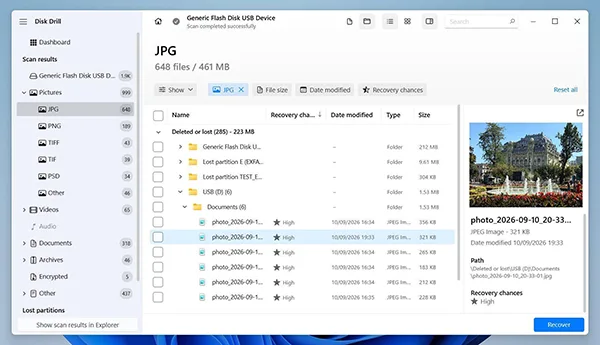
Disk Drill allows users to scan and preview files for free. Its Windows version also offers up to 100 MB of free data recovery, while larger recoveries may require a paid license.
There are limits, though. If a file’s data has been overwritten, recovery software can’t recreate it. And if the USB hardware doesn’t provide access to its storage, the software won’t be able to scan it.
After recovering your files, you can decide whether to reformat the flash drive for continued use or replace it with a more reliable device.
When Your USB Drive Is Beyond a Software Fix
Not every USB problem can be solved through Windows settings or recovery applications.
Some symptoms point to the flash drive’s physical components rather than its file system.
One warning sign is No Media in Disk Management, particularly when the drive also reports zero accessible capacity on multiple computers. This can mean the USB controller is unable to communicate with the underlying flash memory.
Other warning signs include a connector that is visibly damaged, a drive that becomes unusually hot, or a device that repeatedly disconnects during basic read operations.
When these symptoms appear, avoid running multiple recovery scans, formatting the drive, or using commands such as diskpart clean. None of these actions can repair a physically failed memory chip or controller.
Even if someone reports similar symptoms in a data recovery discussion, the underlying problem may be different. A proper diagnosis is especially important when hardware failure is suspected.
If the files are valuable, consider contacting a professional data recovery service. Specialized laboratories may be able to diagnose controller or memory failures and, in some cases, access data through hardware-level recovery techniques.
Professional recovery isn’t guaranteed, and the cost may exceed the value of the flash drive itself. If you don’t need the files and the device consistently fails across multiple computers, replacing it is usually more practical.
What If Your USB Won’t Show Up on a Mac?
A USB stick not recognized on a Mac can have many of the same underlying causes as on Windows. However, macOS uses Finder and Disk Utility instead of File Explorer and Disk Management.
Start with these checks.
Step 1. Check Finder settings
Open Finder > Settings. Under General, enable External disks if you want mounted USB drives to appear on your desktop.
Then open the Sidebar tab and enable External disks there as well.
If the USB is mounted but simply hidden from Finder’s usual locations, these settings may make it visible.
Step 2. Look for the USB in Disk Utility
Open Applications > Utilities > Disk Utility.
Select View > Show All Devices to display available physical disks and their volumes.
If your USB appears here but not in Finder, macOS can detect the hardware, but the volume might not be mounted or readable.
Step 3. Try mounting the volume
Select the USB volume in Disk Utility and click Mount, if available.
If the volume is encrypted, macOS may ask you to unlock it first. After mounting, check whether the drive appears in Finder and whether you can open its files.
Step 4. Use First Aid if the file system has errors
Disk Utility includes First Aid, which checks and can repair certain file system problems.
Because repairs may modify file system structures, protect important files before proceeding whenever possible.
Select the affected volume, click First Aid > Run, and follow the instructions. For devices with multiple volumes or containers, follow Apple’s recommended order for checking them.
First Aid can’t repair every problem. If the USB is physically damaged or repeatedly disconnects, further software repair attempts may not help.
You can also open Terminal and enter diskutil list to see which storage devices macOS detects. This command lists disks without modifying them.
Finally, remember that a drive formatted as NTFS may be readable on macOS but not writable through macOS’s native support. That is a compatibility limitation rather than a detection failure.
Conclusion
When a USB flash drive isn’t detected, the first step is to determine whether your computer can see the hardware, the storage volume, or neither.
Connection problems often respond to port checks and driver troubleshooting. Missing drive letters and file system issues require a different approach.
Most importantly, don’t sacrifice your files just to make the flash drive usable again. Recover important data before formatting or rebuilding partitions, and seek professional help when the device shows signs of physical failure.
FAQs
Why Is My USB Flash Drive Not Detected but Its Light Is On?
How to Fix USB Device Not Recognized Errors in Windows 11?
Start by disconnecting the USB device, restarting Windows, and trying another port. If the error persists, open Device Manager and check the device status. Reinstalling the affected driver may help with a software-related error, while problems involving multiple USB devices may require checking the host controller or chipset drivers.
Can I Recover Files From a USB Drive That Doesn’t Appear in Disk Management?
Standard recovery software generally requires the system to detect the physical storage device and provide access to its capacity. If the USB doesn’t appear in Disk Management, test another port and computer first. If no system can access the storage, professional data recovery may be necessary.
Will Formatting Fix a USB Flash Drive That Isn’t Recognized?
Formatting can restore usability when the flash drive’s hardware is functional but its file system needs rebuilding. However, formatting won’t repair damaged hardware or a device with no accessible storage. If the USB contains important files, attempt recovery before formatting it.
Why Does My USB Drive Work on One Computer but Not Another?
Differences in USB ports, drivers, operating systems, security settings, or file system support can explain why a flash drive works on one computer but fails on another. If the drive works elsewhere, copy your files first. Then investigate the original computer’s ports and settings before making changes to the USB itself.