To make an AI photo of yourself, upload a reference image to Copilot and then describe the look, style, or scene you want.
How to Use an AI Image Generator on Your iPhone or Android to Create Stunning Photos in 2026

Updated On July 8, 2026
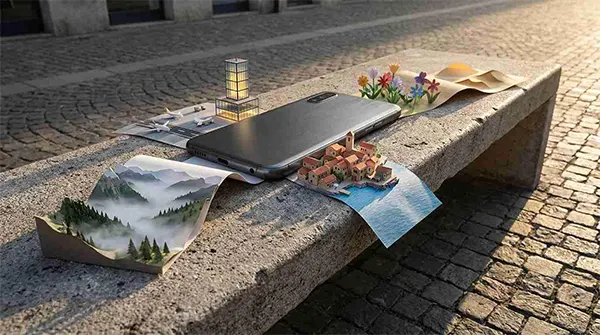
AI image generation has become one of the most popular things people want to try on their phones in 2026.
Despite the fact that there are many manuals guiding you through it, the simplest approach is still a question.
The simplest approach, and the one that works equally well on any iPhone, any Samsung, any Android device, and without downloading a single file, is a browser-based AI Image Generator on Higgsfield.
This approach is particularly known because it does not require any new hardware or app installations.
Read ahead to know how this guide explains how it works, what you can create, which model to choose, and how to write prompts that produce results worth keeping.
Key Takeaways
- Browser-based AI image generators let you create high-quality images on iPhone and Android without the need to download apps.
- Choose the proper AI model and create concise, descriptive prompts to produce improved wallpapers and social media graphics.
- With cloud-based AI image generation, there’s no need to store large files on your device, and nearly any smartphone user can create images.
- For most everyday users, free AI image generation tools are perfectly fine, with paid plans offering higher generations limits.
Table of Contents:
- What Are the Different Ways to Use an AI Image Generator on a Phone?
- Does an AI Image Generator Work on Both iPhone and Android?
- What Can You Create with an AI Image Generator on Your Phone?
- How Do You Use Higgsfield's AI Image Generator on a Phone Browser?
- Which Higgsfield AI Image Generator Model Should You Use on Your Phone?
- How Do You Write a Prompt That Gets Great Results on the First Try?
- What Are the Advantages of a Browser-Based AI Image Generator Over a Phone App?
- How Does an AI Image Generator Compare to Your Phone's Built-In Camera and Editing Tools?
- Is a Free AI Image Generator Good Enough for Most Phone Users in 2026?
- Conclusion
- FAQs
What Are the Different Ways to Use an AI Image Generator on a Phone?
Before choosing an approach, it helps to know what the actual options are.
There are three distinct ways to use AI image generation on a smartphone in 2026, and they differ significantly in what they require from the device.
The first approach is on-device local generation.
The quality can be high, but Hardware specifications are stringent , typically a Snapdragon 8 Gen 1 chip or newer, at least 6GB of RAM, and 1 to 4 gigabytes of free storage for each model downloaded.
This approach is Android-only, does not work on iPhones at all, and requires a compatible high-end device to function.
Older phones and budget Android models are typically excluded.
The second approach is dedicated apps. Dozens of AI image generator apps are available on the App Store and Google Play, including Leonardo.AI, NightCafe, and Canva.
These work on both iPhone and Android but require downloading the app, creating an account, and managing a credit system that limits how many images can be generated for free.
The third approach is browser-based cloud generation, which is what Higgsfield provides.
The AI model runs on Higgsfield’s servers, not on the phone. The phone only needs a browser:
- Safari on iPhone
- Chrome on Android
- or any other mobile browser.
There are no hardware requirements beyond what any modern smartphone already has.
There is no app to download and lack of storage used on the device. The free plan provides daily free generations, and the output downloads directly to the phone’s camera roll.
Does an AI Image Generator Work on Both iPhone and Android?
This is the question the majority of smartphone users have when they start, and the answer depends on which approach is being used.
On-device local generation is Android-only.
Dedicated apps are cross-platform but inconsistent.
Most popular AI image generator apps have both an iOS and Android version, but the features, credit allocations, and available models may vary between the two versions. What works in one update on Android may not be available on the iOS version at the same time.
Android users open it in Chrome.
The experience, the models available, the generation quality, and the free plan terms are identical on both platforms because there is no platform-specific version to maintain.
The consistency across platforms is especially relevant for DeviceFixes customers, who span both iPhone and Samsung repair users.
The same guidance applies regardless of which device someone is using.
What Can You Create with an AI Image Generator on Your Phone?
The most common reason users try AI image smartphone generation for the first time is to create something they cannot photograph: a custom image that does not exist in reality, a stylized version of a scene, or a imaginative visual for social media that no phone camera could capture.
Higgsfield’s platform supports all of these from a mobile browser.
| Creative Use | What to Generate | Best For |
| Custom phone wallpapers | Scene, color palette, and mood matching your phone’s aesthetic | iPhone and Android home screen personalization |
| Social media profile images | Professional or creative portrait in a specific style | Instagram, WhatsApp, LinkedIn profile photos |
| Artistic prints and digital art | Illustrative or abstract compositions | Home printing, sharing in creative communities |
| Custom avatar and sticker art | Character or illustrated self-portrait | WhatsApp stickers, messaging app profiles |
| YouTube thumbnails and post graphics | Concept images for content creators | Creator phone workflow |
| Unique greeting and celebration images | Personalized festive or milestone imagery | WhatsApp forwards, Instagram stories |
For phone wallpaper creation specifically, Higgsfield’s AI Image Generator produces images at 4K resolution through the Nano Banana Pro model, which means the output resolution exceeds what most smartphone screens display at maximum pixel density.
This high-resolution output help users unpixelate image, creating sharper, clearer wallpapers with enhanced detail and reduced pixelation on modern mobile devices.
How Do You Use Higgsfield’s AI Image Generator on a Phone Browser?
The workflow from a phone browser is straightforward enough that a first-time user can complete it without any technical background.
Step 1: Open Your Phone Browser and Go to higgsfield.ai/ai-image
On an iPhone, open Safari and type higgsfield.ai/ai-image in the address bar. On Android, open Chrome or your default browser and do the same.
Step 2: Create a Free Account or Start with the Free Plan
Creating a free account on Higgsfield takes under a minute. The free plan provides daily free generations with access to multiple models including Nano Banana Pro, Seedream, FLUX, and more. No credit card is required to start.
Step 3: Choose the Right Model for What You Want to Create
Once logged in, the model selection is a one-tap decision on mobile.
Different models within Higgsfield produce different types of output, and choosing the right one before generating saves the iteration time of generating with the wrong model and getting an output that does not match the intent.
Step 4: Write Your Prompt or Use the Prompt Enhancer
Tap the prompt input field and type a description of the image you want.
On a phone keyboard, shorter prompts that cover the three core elements (what to show, what style, what mood) work better than very long detailed prompts that are difficult to type accurately on a touchscreen.
Higgsfield’s built-in prompt enhancer, available as a one-tap option after writing the initial prompt, automatically expands and refines the description before sending it to the model.
Step 5: Generate and Download Directly to Your Phone’s Camera Roll
After tapping generate, the image appears in the Higgsfield interface within seconds to under a minute depending on the model and server load.
On iPhone, tapping the download button saves the image directly to the Photos app. On Android, it saves to the Downloads folder or Gallery depending on the browser’s download behavior.
Which Higgsfield AI Image Generator Model Should You Use on Your Phone?
Higgsfield provides access to more than 15 AI image models in the same browser interface. For most smartphone users, five models cover the full range of what a phone user typically wants to create.
| What You Want to Create | Best Model | Why It Works |
| Realistic portrait or selfie-style image | Seedream | Ultra-realistic photographic output, native 4K resolution |
| Custom phone wallpaper with bold colors | FLUX | Consistent style, strong color and mood control |
| Image with text inside (quote, name, label) | Nano Banana Pro | Flawless text rendering within image, native 4K output |
| Artistic or illustrated style image | Reve | Stylized illustrative output for creative and artistic content |
| Complex scene with multiple elements | GPT Image | Multi-element scene accuracy and spatial precision |
Seedream is the model most phone users start with because its output looks most like a professional photograph, which is what most people imagine when they first try AI image generation.
Nano Banana Pro is the right choice for any image where text needs to appear inside the generated image and be readable. Generic AI image models frequently produce garbled, misspelled, or visually distorted text within generated images.
FLUX is the practical choice for phone users creating multiple images in a consistent style, such as a series of Instagram posts or a set of social media graphics, because it maintains the same visual language and color approach across multiple generations when a reference image is provided alongside the prompt.
How Do You Write a Prompt That Gets Great Results on the First Try?
The quality of the generated image is almost entirely determined by the quality of the prompt, and for phone users typing on a touchscreen keyboard, the goal is to write the most useful prompt in the fewest words.
A three-element framework works well for mobile prompting.
Write what you want to see (the subject and its main visual characteristics), what style it should be (photorealistic, illustrated, anime, minimalist, vintage), and what mood or feeling (warm and bright, dramatic and dark, playful and colorful, calm and serene).
A weak prompt for a phone wallpaper: “A beautiful landscape.”
A strong prompt for the same intent: “Misty mountain valley at sunrise, pine forest in foreground, golden light breaking through clouds, photorealistic, cinematic, 4K, vertical format for phone wallpaper.”
A weak prompt for a social media portrait: “A woman with dark hair.”
A strong prompt for the same intent: “Head and shoulders portrait of a young woman with dark curly hair, cream blazer, neutral beige studio background, soft studio lighting from the left, professional and confident expression, photorealistic, 4K.”
The strong prompts are longer but each additional word serves a specific purpose. On a phone touchscreen, typing the strong version takes a few more seconds, 20 to 30. The output quality difference justifies that investment.
For phone users who want a shortcut, Higgsfield’s prompt enhancer takes a basic description and expands it automatically before generation.
What Are the Advantages of a Browser-Based AI Image Generator Over a Phone App?
The practical advantages of browser-based generation over downloaded apps are most visible for everyday smartphone users rather than power users.
Storage is the first.
On-device AI generation apps download the model itself, ranging from around 1 gigabyte for compressed models to 4 gigabytes or more for higher-quality ones. On a phone where storage is already managed carefully, a 2-4 gigabyte AI tool can be downloaded at a meaningful cost.
Higgsfield’s AI Image Generator uses zero phone storage because the model runs on servers, not on the phone.
The only storage used is the downloaded output image itself, typically a few megabytes.
Hardware compatibility is the second. Local AI generation on Android requires a Snapdragon 8 Gen 1 or newer chip with at least 6GB of RAM to function reliably. Budget Android phones, older flagship models, and all iPhones are excluded from on-device generation.
Cross-platform parity is the third. As noted above, Higgsfield’s browser-based AI Image Generator is identical on iPhone and Android.
An iPhone 11 user and a Samsung Galaxy S24 user have exactly the same generation options, the same model quality, and the same free plan terms.
There is no platform-specific version with different features or different credit limits.
How Does an AI Image Generator Compare to Your Phone’s Built-In Camera and Editing Tools?
For DeviceFixes customers taking pictures with their phones regularly, the relationship between AI image generation and photography tools is worth understanding clearly.
A phone camera, whether an iPhone 17 camera system or a Samsung Galaxy camera, captures images of real things that are right in front of you of the lens.
iOS editing tools and Samsung’s built-in editing features enhance and adjust those captured photographs.
The output is always anchored to reality: what the camera saw.
The most interesting combination is generating an AI background or environmental scene through Higgsfield and placing a real phone photo into it using a simple editing tool. Take a portrait with the iPhone camera, remove the background using the built-in iOS background removal feature, and place the person into an AI-generated scene produced by Higgsfield. This workflow produces results that neither tool achieves alone.
If you want to know the exact screen dimensions for setting AI-generated wallpapers on specific iPhone models, the iPhone wallpaper dimensions guide on DeviceFixes covers the correct specifications for every iPhone model, which is useful context when generating images at the right resolution and aspect ratio for your specific device.
Is a Free AI Image Generator Good Enough for Most Phone Users in 2026?
For everyday creative use on a phone, yes.
Higgsfield’s free plan provides daily generations across multiple models, which is enough for a phone user want to make custom wallpaper, social media images, greeting visuals, and creative content regularly without any financial commitment.
The free tier output includes the full generation quality of the selected model.
For a phone user generating a few images per week for personal use, the free plan is a genuine practical option rather than a limited preview.
For creators who need higher daily volumes, commercial rights for generated images, or access to advanced features like video generation alongside image generation, Higgsfield’s paid plans provide the appropriate tier. Pricing information is available at higgsfield.ai/pricing.
Conclusion
A global internship isn’t just a chance to work abroad; it’s a chance to develop the mindset you need to succeed in an increasingly connected world.
The confidence that comes from adapting to new cultures, solving real business challenges, and working with diverse teams can’t be matched by any classroom.
FAQs
How to make AI images with your photos?
What is the most realistic AI for images?
Leonardo is trusted by creators for producing photorealistic AI images with consistency.
Can DeepSeek enhance photos?
Upload: Drag and drop your image into DeepSeek’s AI Photo Enhancer interface (supports JPG, BMP, and PNG).
Which AI gives the best quality images?
It’s strongest when you’re starting from a RAW or high-quality camera file with mild blur or noise. Topaz Photo AI enhances RAW images but shows softer fine detail than LetsEnhance.