
MoreLogin Cloud Phone shares a cloud-based Android environment that teams can access remotely for supported workflows.
MoreLogin Cloud Phone for Live Streaming: A Remote Production Runbook
A live-streaming session can simply put you into a chaotic state even before it starts. A traditional app, missing video, unstable network or unclear team duties can hinder a campaign that takes days to set up.
MoreLogin Cloud Phone provide remote access to cloud-based Android devices, making it simpler to prepare and share media. But having access to cloud devices is the main aspect of the job. Above all, teams also need clear responsibilities, tested workflows and a backup plan.
Keep reading to learn how to organize the process before, during and after a live stream.
Table of Contents:
- Treat Every Stream Like a Production
- Before the Stream: Build a Broadcast Package
- Pre-Live Approval Checklist
- During the Stream: Operate a Remote Control Room
- Live Incident Playbook
- After the Stream: Close the Loop
- What to Automate—and What to Keep Manual
- Scaling Across Markets Without Copying Chaos
- A More Reliable Mobile Production System
- FAQs
Treat Every Stream Like a Production
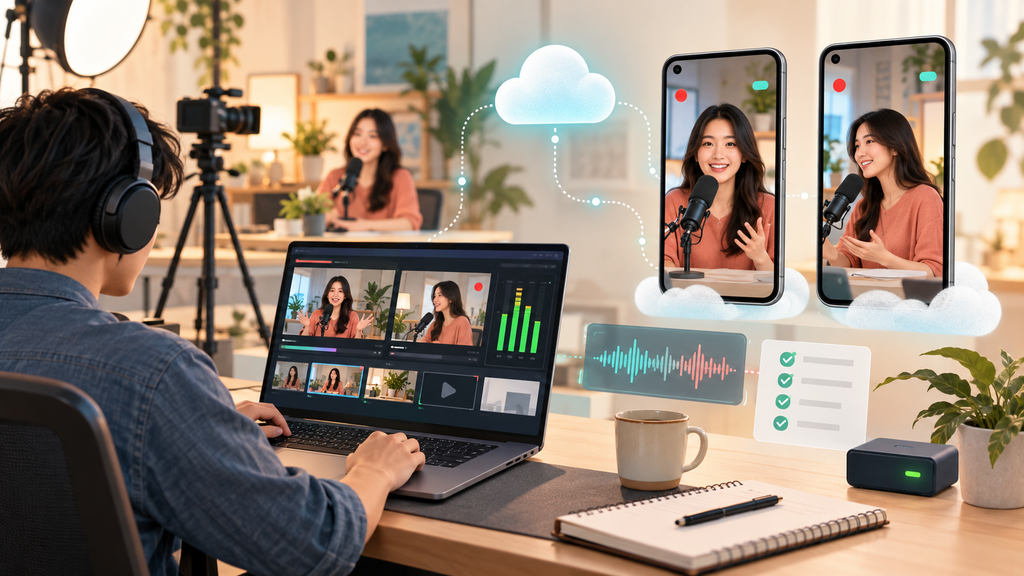
A Cloud Phone for live streaming transforms the Android environment into a shared operating system. The company can name devices by campaign and market, gear up apps centrally, upload selected assets, and give authorized operators access to the ideal environment.
Before the Stream: Build a Broadcast Package
The pre-live phase should yield a complete package that another authorized service provider can identify without asking the original creator for missing files or passwords.
1. Assign the Broadcast Device
Only use one primary Cloud Phone for the stream and designate a backup device if the campaign justifies it. Use a clear slogan such as Brand–Market–Campaign–Primary rather than a generic device numbering system.
Record the Cloud Phone model, designated operator, platform, account handler, proxy region, scheduled window, and final contact. Do not reuse an active production kit for unrelated experiments just before the broadcast.
2. Validate the Application and Session
Install or update the suggested streaming and commerce apps. Open each app, sustain the expected version, and test the designated account session.
Check whether the platform demands identity verification, device confirmation, or a fresh login. Fill out these steps before the production window. A Cloud Phone should not be identified as ready purely because it powers on.
3. Prepare the Network Context
Bind the certified proxy when the workflow mandates a specific operating region. Verify that IP location, timezone, language, and account region are workable together.
Run the same network tests on the backup device. If the primary device fails, exchanging to a backup with an untested route can present a second problem instead of fixing the first.
4. Stage the Media
Upload the chosen videos, product images, overlays, scripts, and example files. Use campaign identifiers and version numbers in filenames, so the operator can differentiate the final asset from a draft.
MoreLogin encourages file transfer to Cloud Phones and gives away Cloud Storage for team file collaboration. Its live-streaming API workflow comprehends an uploaded MP4 on supported Cloud Phone models. Teams should confirm model compatibility, file format, upload execution, and streaming status before the scheduled event starts.
5. Run a Rehearsal
A rehearsal should follow the actual procedure: power on, open the app, affirm the account, load the media, check audio and video, get in the live room, monitor status, and exit quickly.
Pre-Live Approval Checklist
Before the device is moved to production, confirm:
- The actual Cloud Phone and backup are named and assigned
- The authorized account is available in the typical app
- The proxy, timezone, language, and region have been examined
- Final media files are uploaded and prominently labelled
- Camera, microphone, or video-file input has been investigated
- The operator, moderator, monitor, and escalation owner are verified
- The stop procedure and backup path have been studied
- The content meets the target platform’s live-streaming and commerce policies
Also, learn how to factory reset a Samsung TV with tried and tested methods.
During the Stream: Operate a Remote Control Room
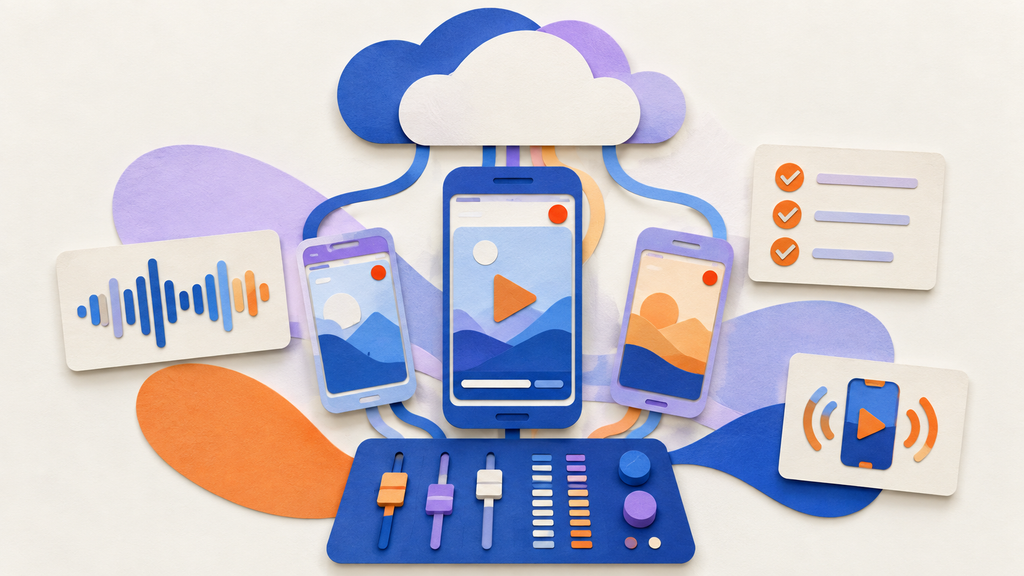
A live session becomes easier to coordinate when the team separates the device role from the human title. One person should not anonymously handle broadcasting, customer questions, technical checks, and campaign decisions at the same time.
The Stream Operator
The stream operator controls the primary Cloud Phone and maintains the run sheet. This person introduces the required apps, sustains the correct account and media, follows the device state, and executes assigned production actions.
The Moderator
The moderator runs comments, product questions, community challenges, and platform tools through the approved workflow. If moderation calls for a separate device or official role, prepare that information before the broadcast.
The moderator should not obtain the main account password from the webinar operator. Use platform-supported permissions and standalone authorized environments where possible.
The Technical Monitor
The monitor verifies stream status, device speed, network behavior, audio, video, and the viewer-facing output. The operator sees the control display; the monitor verifies what the audience actually observes.
For API-based MP4 streaming, a launch request should be accompanied by a status check. A timeout does not directly mean the stream refused to start, so the team should inspect live status before typing a command.
The Escalation Owner
The escalation owner must choose whether to continue, pause, switch devices, or end the session. That authority should be assigned in advance, especially for paid campaigns or banned products.
Live Incident Playbook
When an incident occurs, change one parameter at a time and record what happened.
The Cloud Phone Is Unresponsive
Confirm whether the device is still on and whether another member is already handling it. Check the Cloud Phone connection before resetting the app or device.
The Stream Does Not Start
Make sure that the Cloud Phone model supports the suggested live-streaming method, the device is powered on, and the media upload has finished successfully. For video-file streaming, confirm that the asset uses the mandated MP4 format and was uploaded as live-stream recordings.
The App Shows the Wrong Account
Stop broadcasting before. Examine the device name, account owner, and associated campaign. Do not continue with a singular account merely to save time.
The Network Location Is Wrong
End the problematic login or preparation step according to the platform’s conditions. Correct the proxy and location configuration beyond the live session, then execute the network check. Avoid changing locations while an active broadcast is running.
The Uploaded Media Is Incorrect
Do not rename a draft in order to make it look final. Stop, locate the licensed version, upload it through the defined file process, and analyze playback before returning to production.
After the Stream: Close the Loop
A live session is not full when the video ends. The team still will have to secure the device, collect records, and set aside the next production window.
First, substantiate that the platform and Cloud Phone both show the stream as stopped. Close unnecessary apps and terminate temporary operator access where needed.
Second, save the production log. Save information about the device, operator, campaign, network region, content version, start and stop status, occurrences, and recovery actions.
Third, review reusable items and temporary files. Move approved materials into the correct library or Cloud Storage location and remove drafts relating to the company’s retention policy.
What to Automate—and What to Keep Manual
Automation can reduce regular preparation. MoreLogin APIs can help regulate devices, files, apps, schedules, proxies, and live-streaming status. The Synchronizer can offer assistance with selected batch behaviors across Cloud Phones.
Good automation candidates include:
- Powering on cleared devices before a production check
- Installing or running a standard application set
- Sending approved files to assigned Cloud Phones
- Verifying the device, upload, or streaming status
- Stopping a stream through a regulated workflow
- Collecting identifiers and responses for the production log
Keep content acceptance, account verification, customer interaction, moderation decisions, incident resolution, and final go-live authorization under human control. Automation should make production more understandable, not remove accountability.
Scaling Across Markets Without Copying Chaos
When the team adds markets, replicate the operating standard rather than blindly duplicating devices. Each region should have an operator, authorized account structure, network configuration, content policy, language review, and dispute resolution path.
Use groups and tags to define Cloud Phones by market, campaign, brand, or production status. Keep asset libraries unique when regional content or legal rules differ.
MoreLogin can support flexible access, but team permissions should remain narrow. Operators need the devices for their planned streams, not unlimited access to every market.
Also, learn how to check a CPU temperature.
A More Reliable Mobile Production System
In the end, a reliable live-streaming workflow is based on more than the device itself. Apps, media, monitoring and team responsibilities all need to work together.
MoreLogin Cloud brings remote device access, file transfers, APIs and supported streaming features into one workspace. Teams can use these tools to make production defined and repeatable.
Create a free MoreLogin account to set up a minor live-streaming pilot with approved content, assigned roles, and a tested backup procedure.
FAQs
What is MoreLogin Cloud Phone?
How can teams set up a Cloud Phone before a live stream?
Define a device, verify the account, check the network, upload approved media and rehearse the complete broadcast process.
Can MoreLogin automate live-streaming tasks?
Its APIs and Synchronizer can support defined device management, file transfer and workflow tasks. Human oversight should stay in place for content approval.