Ans: To connect your HP printer to WiFi for the first time, you need to download the official HP Smart app through 123.hp.com. After that, ensure that the Bluetooth of your system is enabled, then follow all the instructions given in the application to enable WiFi on your printer and establish a connection.
How to Connect HP Printer to WiFi: Complete Step-by-Step Setup Guide

Updated On July 20, 2026
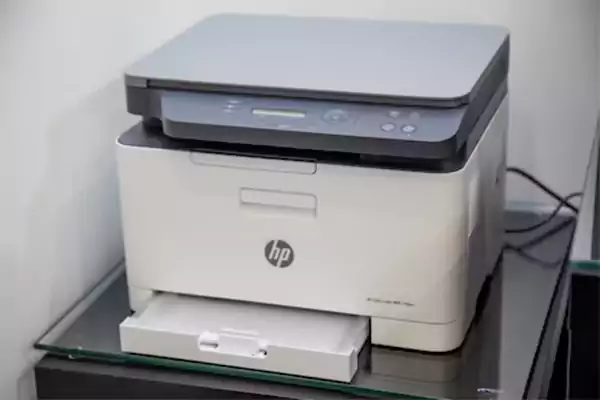
Buying a printer for professional or personal work is very crucial nowadays due to the ever-growing need for drafting documentation, and HP printers are providing affordable solutions in the market for first-time buyers. If you’re looking for more installation and troubleshooting resources, explore our HP printer guides for detailed support.
So if you are also stuck in the same situation, then don’t worry because this detailed guide by Devicefixes has got your back by offering all the simple methods, variations, and accessibility to do this job.
Table of Contents:
- What You Need Before Connecting Your HP Printer to WiFi
- How to Connect HP Printer to WiFi (Step-by-Step)
- How Do I Connect My HP Printer to WiFi on Different Devices
- How to Check If Your HP Printer Is Connected to WiFi
- How to Reset HP Printer Network Settings
- Tips for a Stable HP Printer WiFi Connection
- Frequently Asked Questions
- Conclusion
What You Need Before Connecting Your HP Printer to WiFi
So, before you learn how to connect your HP printer to wifi, first you need to download the HP Smart App, which you can download through hp.com/start/install or 123.hp.com. After that, there are a few things you have to ensure for fostering a stable connection between your devices. Before starting the wireless setup, it’s also helpful to review our complete printer setup guides to understand printer installation, configuration, and troubleshooting basics.
Check WiFi Network Requirements
First of all, check the WiFi requirements of your printer and ensure its driver speed matches what is mentioned in the manual or on the back of the box. Then write down your Wi-Fi’s exact name (SSID) and make sure to have a 2.4GHz connection setup as most HP models do not support 5 GHz internet.
Verify Printer Compatibility
After that, verify the printer’s compatibility with all devices, such as computers, mobile phones, tablets, etc., to ensure full accessibility and prevent it from hindering your workflow during rapid operation. Today, HP printers are much more accessible thanks to their smart app integration.
Gather Necessary Information
Lastly, gather all the information about how your printer works, its model generation, touch utilities (if any), ports, buttons, scanning tech, etc because it helps you a lot in understanding your machine. Also, this allows you to conduct ideal maintenance procedures and ink refills.
Read more: Acer Flickering Screen: Causes, Fixes & Complete Troubleshooting Guide
How to Connect HP Printer to WiFi (Step-by-Step)
Connecting an HP printer to wifi has become easier than ever before, as you can connect your printing systems using the HP Smart app. This app brings connectivity features, printing paper recommendations, modem requirements, and updates for your printers under one roof. To foster a connection, there are two different methods. The first one is for touchscreen models, and the other one is best for non-touch variants. Let’s break them down one by one.
Method 1: Connect HP Printer Using HP Smart App
The first and universal method of connecting an HP printer to your WiFi includes the accessibility of the HP Smart app, which makes the entire setup easy and beginner-friendly. For connecting using this method, you need to follow the steps mentioned below.
- Download the HP Smart app using your device’s official application store.
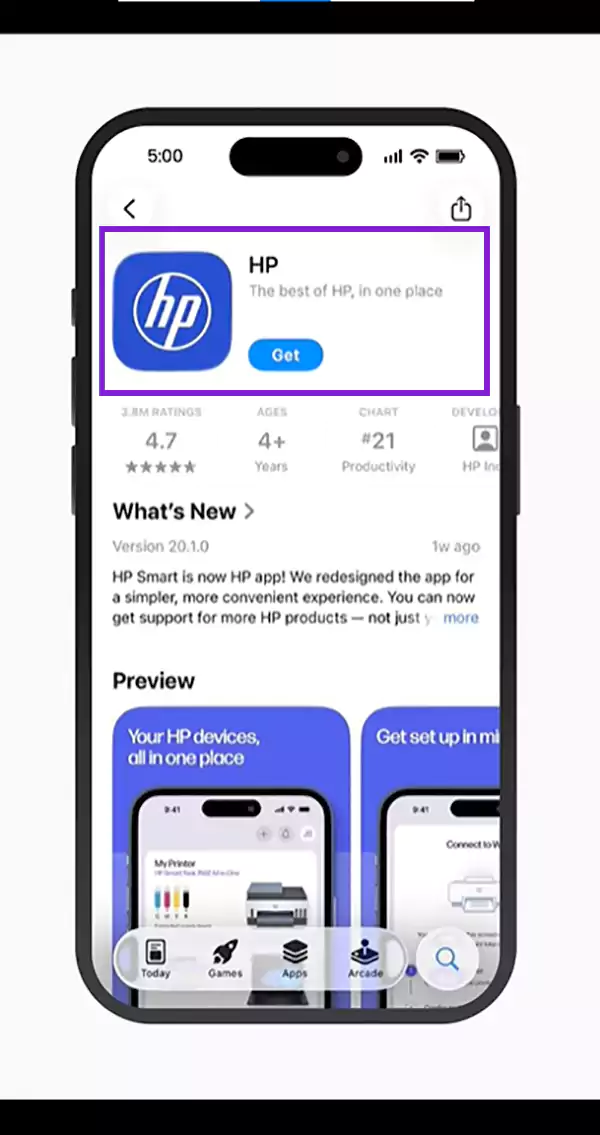
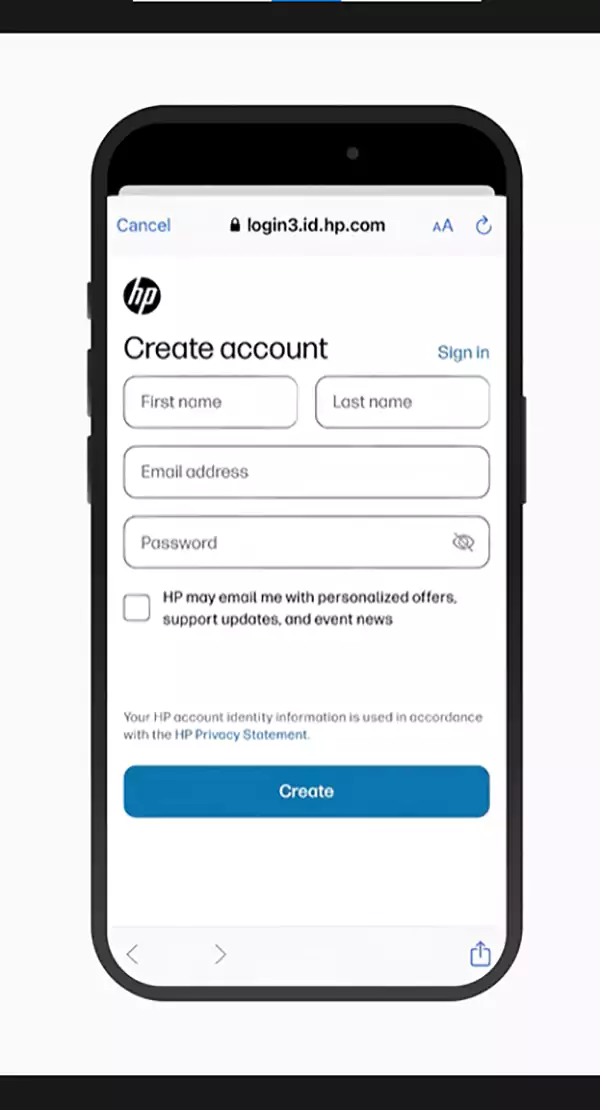
- Create or sign in to your HP account by adding credentials.
- Then, if you have a touchscreen HP printer model, first tap on its settings icon.
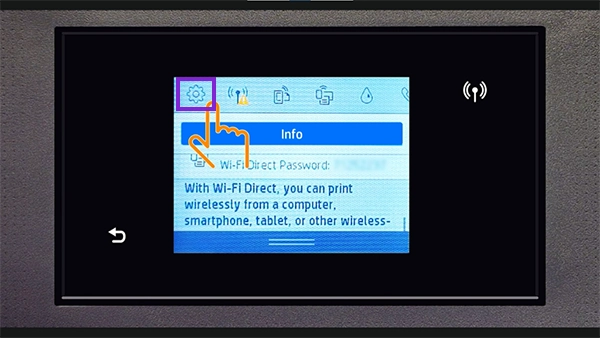
- Tap on Network Setup.
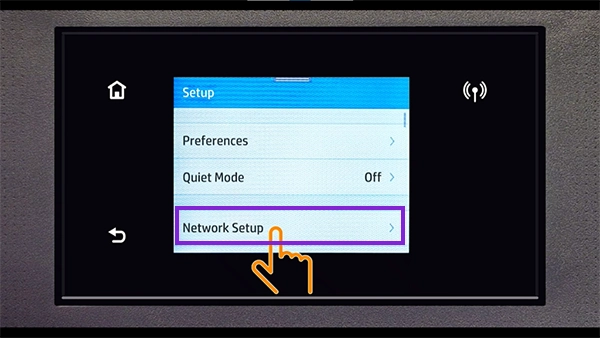
- Tap on Wireless Settings.
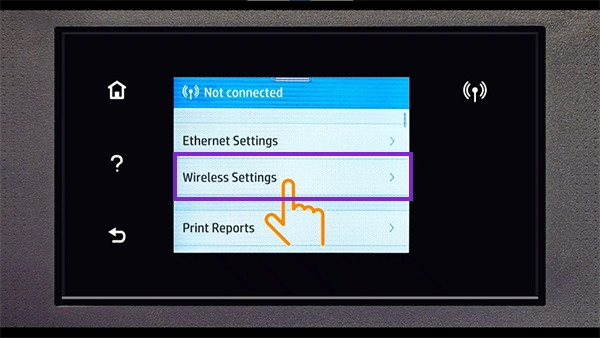
- Tap on Wireless Setup Wizard.
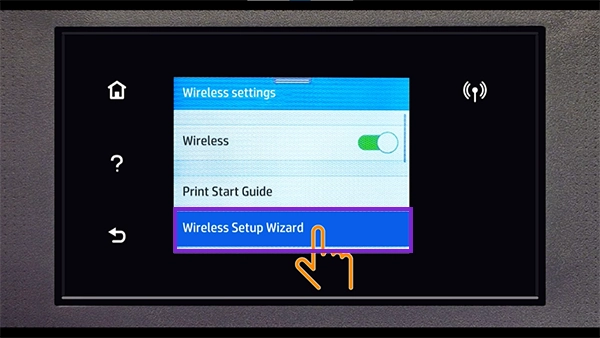
- Tap on the WiFi network.
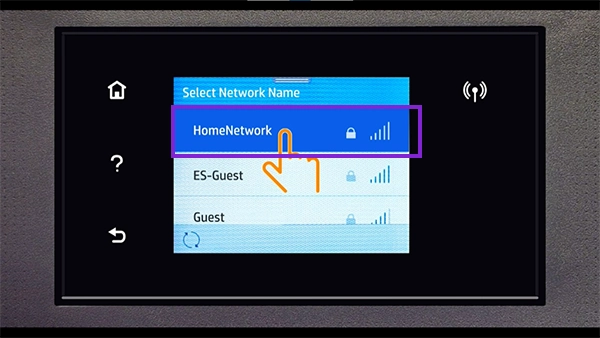
- Now, when you enter the password, your WiFi connection with the printer will be established.
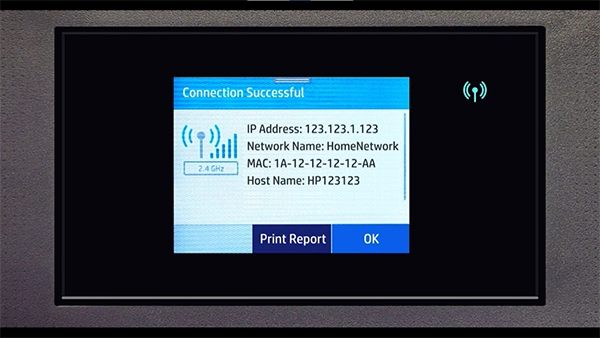
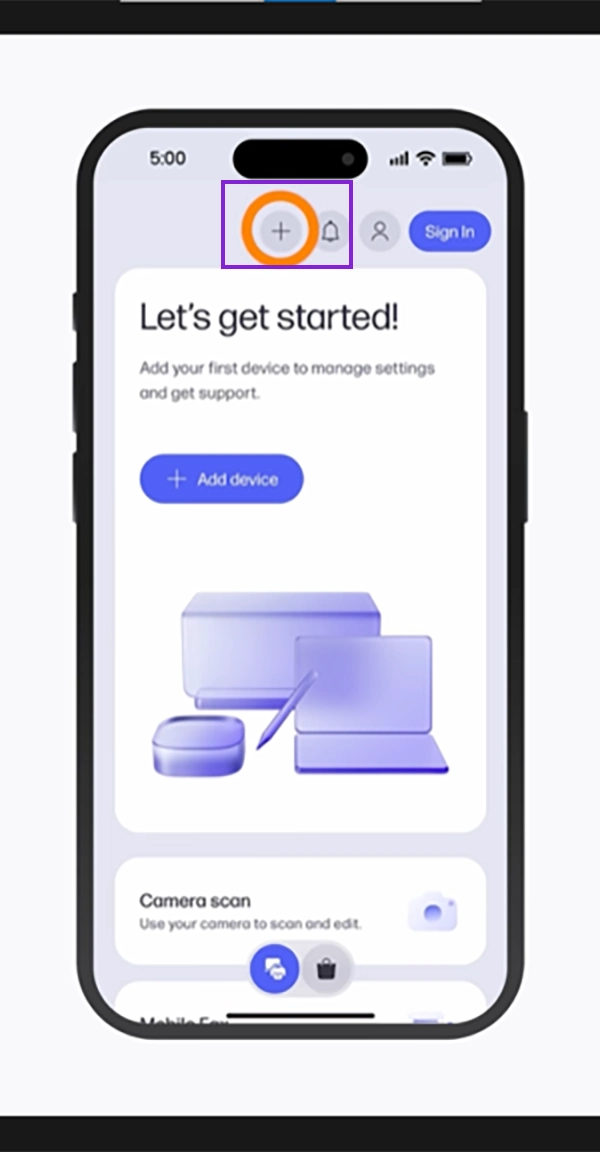
- Come back to the HP Smart app for pairing your printer and click on the “+” icon.
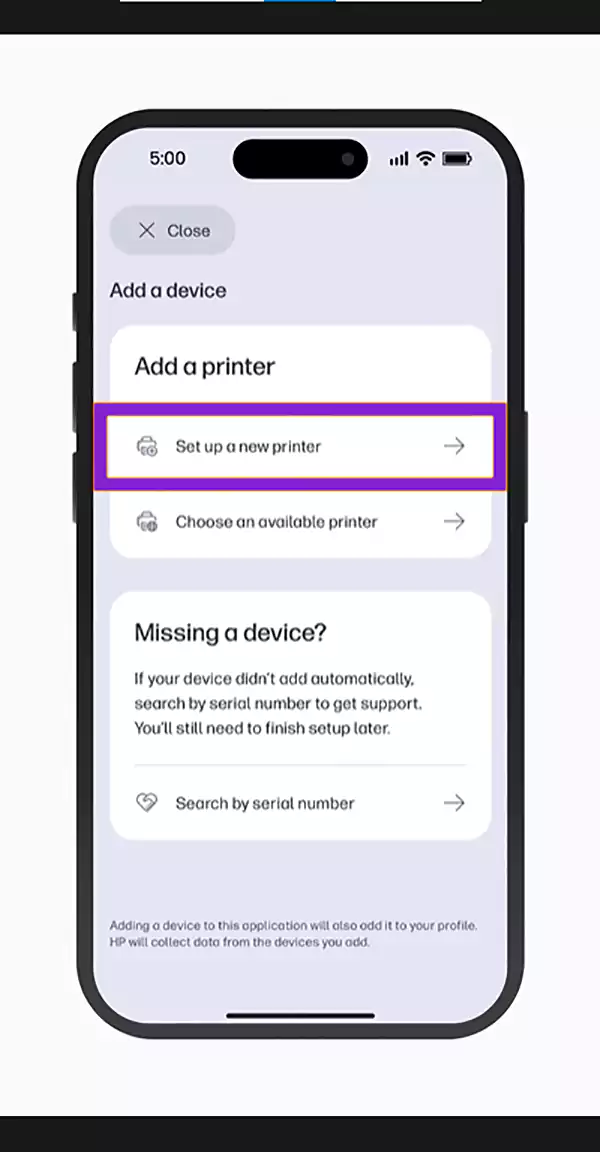
- Tap on Set up a new printer.
- Tap on the available printers.
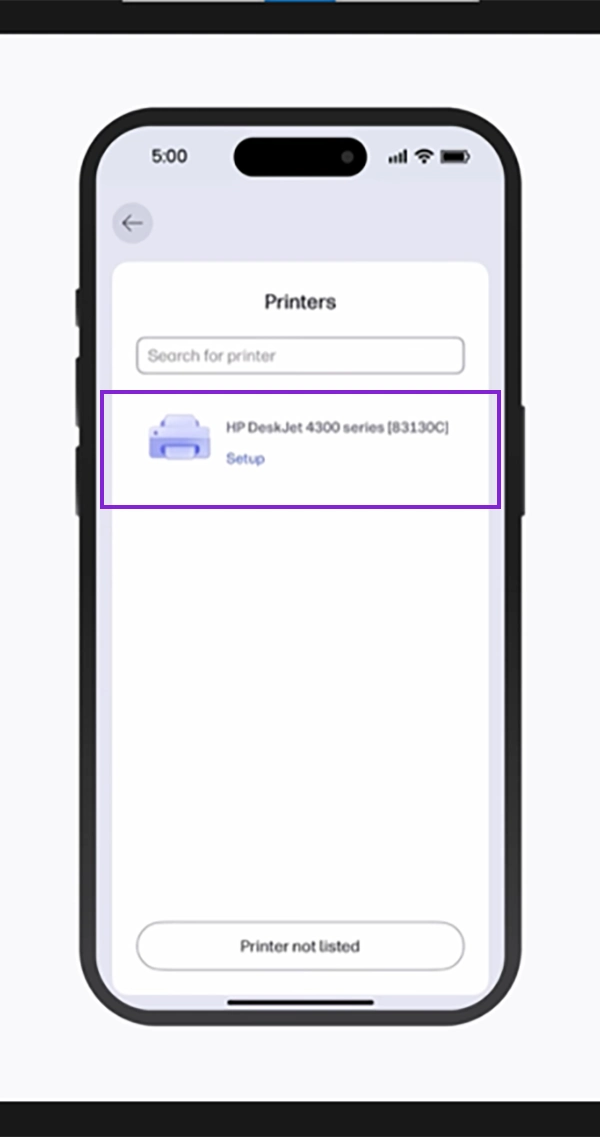
- After everything, your setup will be completed.
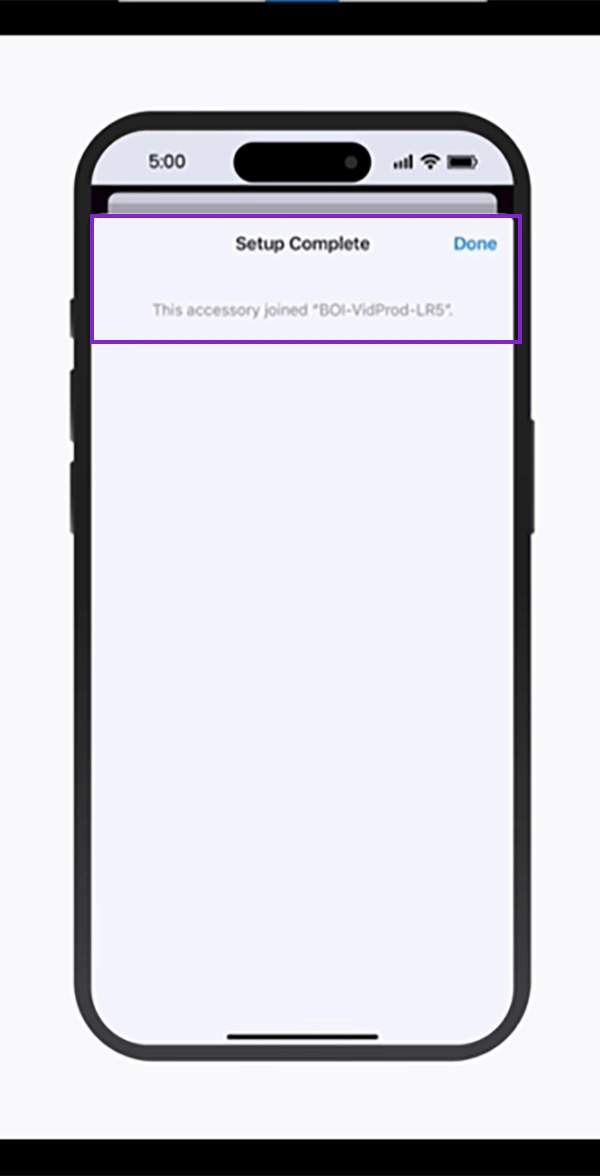
Method 2: How to Connect HP Printer Without a Touchscreen
- Locate the Wireless and Cancel buttons in your printer.
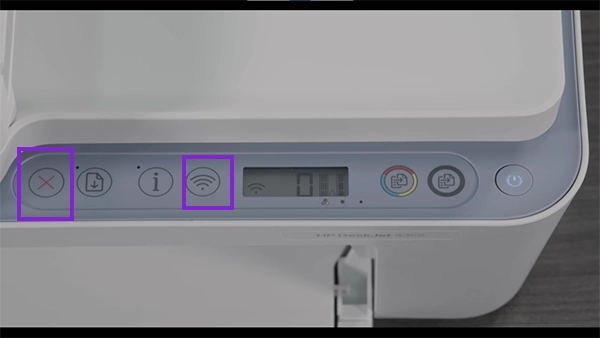
- Then enter the WiFi Setup Mode by pressing those buttons for 5 seconds
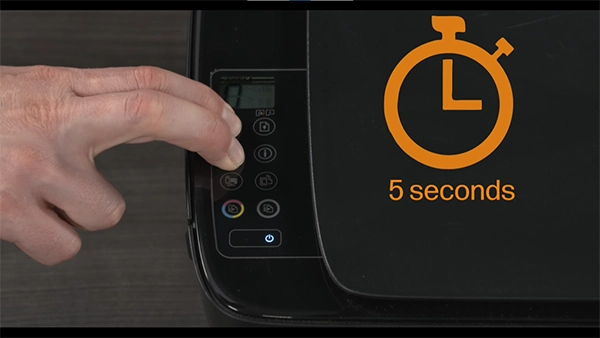
- Come back to the HP Smart app for pairing your printer and click on the “+” icon.
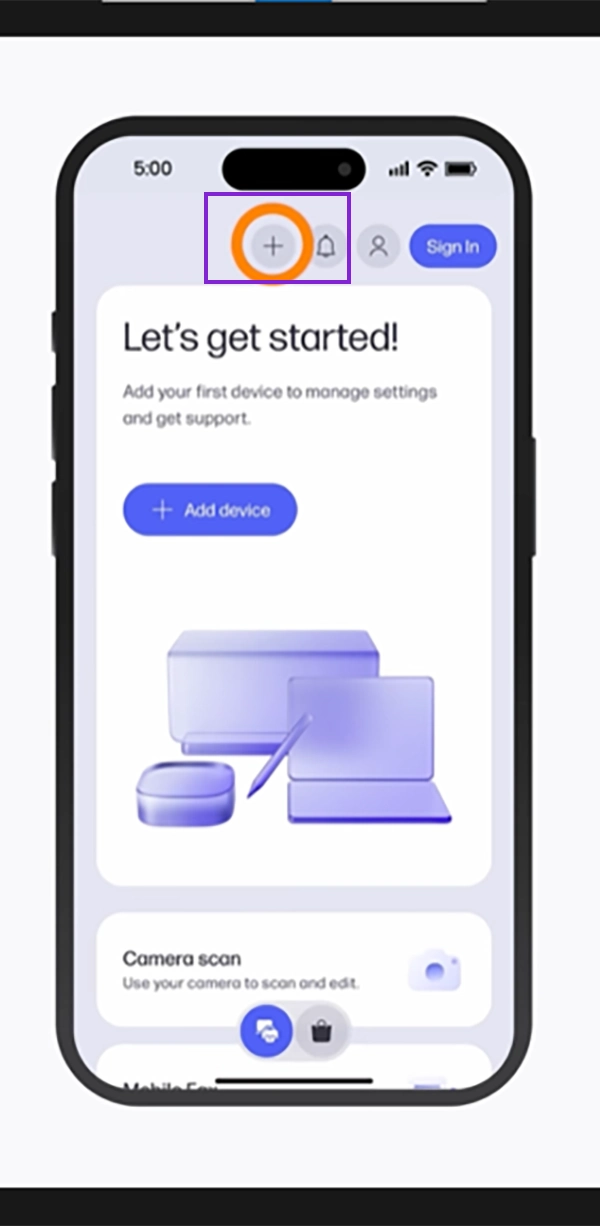
- Tap on Set up a new printer.
- Tap on the available printers.
- After everything, your setup will be completed.
Read more: Google Storage Cleanup: How to Free Up Space in Google Drive, Gmail, and Photos
How Do I Connect My HP Printer to WiFi on Different Devices
Connecting your HP printers on different devices has become very convenient nowadays due to the availability of the HP Smart app (download with this link https://start.hp.com/us/en/ ), which allows you to establish a connection with your printers from any device.
This app is available for all operating systems and can connect your devices with touch and non-touch buttons easily. Also, you can connect multiple printers with this same app, which can improve your productivity and documentation work significantly.
How to Connect HP DeskJet Printer to WiFi?
To connect your HP DeskJet Printer to WiFi, you have to first configure whether you have a touch or non-touch variant. After that, you need to connect to the printer using the same procedures mentioned above, which requires HP Smart App integration. Make sure to have a 2.4GHz network, as most DeskJet printers do not have 5GHz drivers.
How to Check If Your HP Printer Is Connected to WiFi?
To check the connectivity of your HP printer, you can follow some easy steps and indicators will ensure the status and stability of your printing operations. Here are some common ways to identify an ideal connection between your printer and router:
- Wireless Indicator Light: In many HP printers, there is a wireless indicator light that ensures the connection of Wifi with your machine.
- Network Configuration Report: Check the network configuration report of your router in your device settings to know the performance and stability of your WiFi connection. It also notifies you whether a printer repair service is needed or not.
- HP Smart App status: The best way to confirm WiFi connectivity of your printers is by checking the real-time status present in your HP Smart App, as it is direct between two devices and a bilateral connection.
- Print a test page: For certainty, print a test page from your printer by following steps like
Go to the Wireless, Network Settings, or Setup menu to locate and print the report.
Common HP Printer WiFi Connection Problems and Fixes
The main culprits of connectivity issues in HP printers are nothing but the common problems that occur in your day-to-day life, and most of them are human errors that can easily be fixed. Let’s see some casual ways to identify and resolve them:
HP Printer Not Finding WiFi Network
Sometimes your HP printer is not finding the WiFi network it has been connected to for a while due to some external or internal software error, which might actually stop the printing mid-work, and you are left with incomplete outputs. So to fix your printer, reconnect it by entering the password and SSID again.
Incorrect WiFi Password
There is a high chance that you might be entering the wrong passwords in your printing system, which are leading to connection failure. Always write down your important WiFi password if they have complex elements or creative additions in hard copies to avoid these minor frustrating issues.
Weak Wireless Signal
A weak wireless signal often disrupts the network connection between your system and printer, which will eventually result in connection failures and other implications that will ruin your experience. Always keep your signal strength intact and check your router regularly.
Printer Keeps Disconnecting from WiFi
If your printer is placed away from your WiFi router or in another room, there is a high possibility that it will constantly disconnect during the printing process, which will mess up your pages and precious time. Instead, place your router and printer in proximity to avoid such incidents and to foster a smooth-functioning unit.
HP Smart App Cannot Detect Printer
At times, the HP Smart app cannot detect the printer due to errors, bugs, or hardware faults, which are hard to identify at first glance, but there is a solution for that too, which is used by many users. All you need to do is restart your printer or print a report after a disconnection and solve the problem mentioned in its diagnostics. If your printer still won’t connect after trying these solutions, visit our HP printer troubleshooting guide for more advanced fixes and repair solutions.
How to Reset HP Printer Network Settings
In some cases, resetting HP printer network settings can do the job of fixing so many recurring issues that came with your initial setups or device integration, which get eliminated after this hard reset. Doing this is very easy; all you need to do is:
- Restore network settings and re-enable them according to the latest preferences and supported modems.
- Reconnect your printer using manual settings or app support for rebuilding a bridge between two devices.
- Always keep a thing in mind that resetting is needed only when the printer is frequently losing its connection or not connecting to WiFi at all.
Tips for a Stable HP Printer WiFi Connection
Last but not least, you need to have a stable HP Printer WiFi Connection for conducting all your printing operations for optimum efficiency of your machines and fast production of printing pages, as with an unstable connection there might be so many loose ends which will affect your productivity. Here are quick ways to improve your internet connection with printers. If you also own other printer brands, check out our Canon printer guides and Epson printer guides for setup instructions, Wi-Fi connection help, and troubleshooting tips.
- Nearby Placement: If you place your printer near your WiFi router, then the chances of signal loss significantly drop. Many printing machines have weak drivers, which can cause instability in production if you place them far from your router.
- Using 2.4 GHz For Stability: Most HP printers work best with a 2.4 GHz internet connection, and using it for connection between two devices makes the perfect integration for sustainable printing practices. This happens because many variants do not support 5 GHz internet modems; thus, it leads to breaks in connectivity during procedures.
- Update Printer Firmware: Updating printer firmware and software security patches of your HP printers allows you to experience optimized performance, new-age integration of the latest features, and elimination of some bugs and glitches that are disrupting your WiFi connection.
- Restart the Router: When the lights of your WiFi are blinking uncertainly, and you are constantly facing speed changes, then restarting your router can fix this entire situation and stabilize its performance with printers.
- Avoid Network Interference: If your WiFi is connected to multiple printers that are operating in the same room, then it will mess up everything, as secondary devices can break the flow for all machines. Always consider using the printer at the same time as your router for a stable connection and performance.
Frequently Asked Questions
How do I connect my HP printer to WiFi for the first time?
Why won’t my HP printer connect to WiFi?
Ans: Sometimes, due to a poor Wifi connection, improper functioning of Bluetooth drivers, and technical faults in your personal devices, it can disrupt forming a connection with the HP printer.
Can I connect my HP printer to WiFi without a touchscreen?
Ans: Absolutely, you can connect your HP printer to WiFi without a touchscreen using different options like the HP Smart app, the WPS (WiFi Protected Setup) button, or a temporary USB cable connection.
How do I reconnect my HP printer after changing WiFi?
Ans: In reconnection, nothing much changes; you just have to download the HP Smart app through 123.hp.com, ensure your printer is in “Setup Mode,” and follow all the instructions given on the app.
Can I connect my HP printer using the HP Smart app?
Ans: Yes, you can connect your HP printer using the HP Smart app, as it allows you to create a connection between two connectivity drivers and suggests methods according to your model or generation of printer.
What is WPS on an HP printer?
Ans: The WPS on an HP printer stands for “WiFi Protected Setup,” which lets you connect your printer directly to the router without the hassle of manually entering the passwords and ensures complete security protocol.
How do I know if my HP printer is connected to WiFi?
Ans: To check whether your HP printer is connected to WiFi or not, make sure its WiFi light is turned on completely. If it is flickering or not present, then it means there are instabilities.
Do all HP printers support wireless printing?
Ans: No, not all HP printers support wireless printing. Most modern versions have high-gen Wi-Fi drivers, but in legacy versions there is no support for such technologies.
Why is my HP printer showing offline after WiFi setup?
Ans: Well, this error can happen due to multiple reasons like VPN interruptions, driver failures, or unstable internet connection.
How long does HP printer WiFi setup take?
Ans: A HP printer WiFi setup can take up to 5-10 mins to completely operate wirelessly without any disruptions.
Conclusion
HP printers provide phenomenal accessibility to their users and help beginners easily adapt to the framework of their printing engine through the smart app, which has amazing utility and customization options. It also provides real-time updates about the hardware health of your printer.
Always make sure to follow the methods according to the specific device or printer generation (which is also mentioned in the official app) to avoid unstable outputs. Also ensure that your Wifi is intact and your personal computer or phone has been disabled from interruptions like VPN or port problems for the smoothest experience. Follow Devicefixes for more such captivating guides.
Sources:
HP printer setup (Wi-Fi network) by HP Support
How to Connect Your Printer to WiFi: The Complete Guide by HP