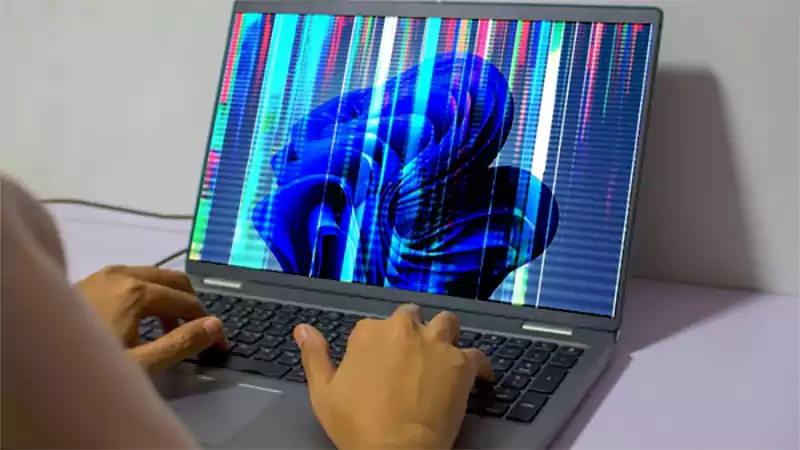
Ans: The most common causes include incorrect display settings, outdated graphics drivers, faulty cables, or incompatible adapters preventing the monitor signal from being detected.
Fix Laptop Monitor Issues: Complete Troubleshooting Guide

Updated On April 10, 2026
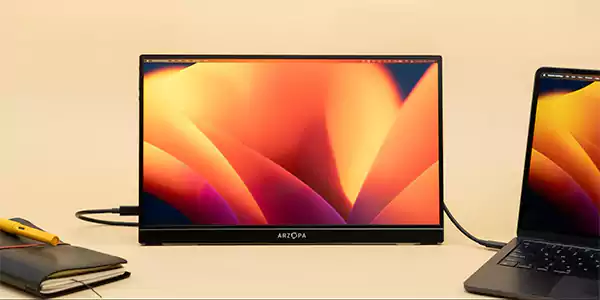
When seeking assistance to fix laptop monitor issues, the largest cause of this type of problem is often the display settings, graphics drivers, cable compatibility, or hardware limitations, especially in devices that may already require professional laptop repair services.
Hence, we will find detailed information about the most common problems regarding laptop monitors and appropriate troubleshooting techniques that can assist users when attempting to set up an external display, similar to resolving issues handled under computer repair solutions.
Table of Contents:
- Common Laptop Monitor Display Problems
- Can I Use a Monitor With My Laptop?
- How to Connect a Laptop to a Monitor?
- Why Won’t My Monitor Connect to My Laptop?
- Laptop Not Detecting Monitor
- External Monitor Works on Other Devices
- PC Not Detecting 5th Monitor
- Brand-Specific Laptop Monitor Issues
- Laptop Monitor Not Displaying at All: Software or Hardware?
- When Laptop Monitor Troubleshooting Doesn’t Work
- Repair vs Replace: What’s the Smarter Choice?
- How to Prevent Laptop Monitor Connection Problems
- Conclusion
- FAQs
Common Laptop Monitor Display Problems
When it comes to laptop monitor problems, the following are generally the three types of situations that you will see when looking at your laptop’s display. The identification of the problem will help you to determine how to fix it more quickly, much like diagnosing faults in PC and laptop repair systems
1: LAPTOP IS NO LONGER DETECTING EXTERNAL MONITOR
When you connect your laptop to an external monitor, but your operating system does not recognize that the monitor has been connected, it might give you a “No Signal” error.
2: LAPTOP EXTERNAL MONITOR DOES NOT DISPLAY
Your system recognized your external monitor, but nothing is showing on the monitor’s display. In this case, you are often experiencing a display mode or resolution settings issue.
3: MONITOR IS POWERED, BUT NO SIGNAL FROM LAPTOP
The external monitor is turned on, but no signal is sent from your laptop. This could be due to a bad cable or an unsupported type of adapter.
4: NO SIGNAL RECEIVED BY EXTERNAL MONITOR
The external monitor has a good connection to the computer but does not show anything on its display.
The above scenarios detail the most frequent issues that users experience with their laptop monitor when attempting to display information on an external monitor.
Can I Use a Monitor With My Laptop?
Most new laptops can connect to external monitors via dedicated ports such as HDMI, USB-C with DisplayPort Alt Mode, DisplayPort, Mini DisplayPort, Thunderbolt, etc.
Your laptop’s graphics card will dictate how many monitors you can connect to your computer based on graphic capabilities. Integrated graphics can usually support two external displays, while higher-performing video cards can support three or four (or more) external monitors, especially in high-end machines like those requiring Mac repair services.
In addition to hardware limitations, different operating Systems provide different options for how the monitors can work together.
- Duplicate display: The same image is shown on both screens (laptop/monitor).
- Extend display: Laptop and monitor form one large extended desktop workspace (i.e., you can move items back and forth between the screens)
- Second-screen: Only the external monitor is in use while the laptop’s screen is not.
Understanding these hardware, software, and display configuration limitations will assist in the overall planning of any laptop-to-external-monitor setup configurations. In many cases, it also fixes a slow computer if you have knowledge about its components.
How to Connect a Laptop to a Monitor?
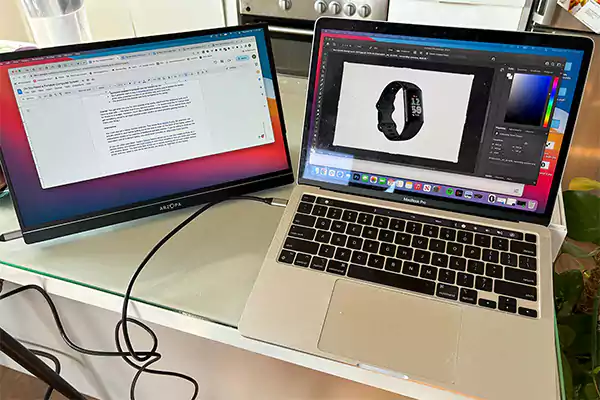
Be sure to set up the exterior monitor correctly to have the system identify the display as soon as it is connected. Here’s how to connect laptop to monitor:
Check Ports and Cable Compatibility
Make sure there are the appropriate ports on each (HDMI being the most common) and that you’re using a cable (or adapter) that is compatible with the devices, just like ensuring compatibility in tablet repair services when dealing with display connections.
Common types of display connections are:
- USB-C Display Port Alt Mode (Commonly found on new laptops)
- HDMI (Most common type of display/output)
- DisplayPort (Higher refresh rates than HDMI)
- Adapters (convert from USB-C type A to HDMI).
Cable quality is important. Old cables may not support high resolutions and/or high refresh rates. If the cable/adapter does not match, the laptop will not see the monitor.
Configure Display Settings Properly
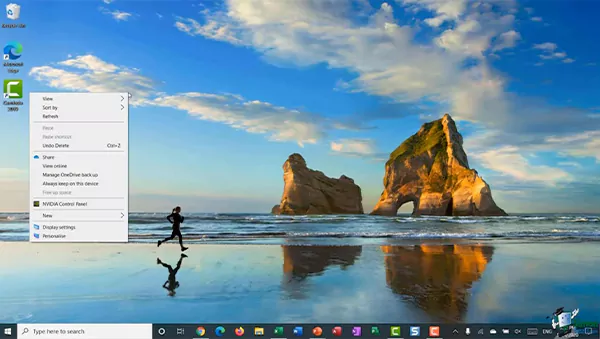
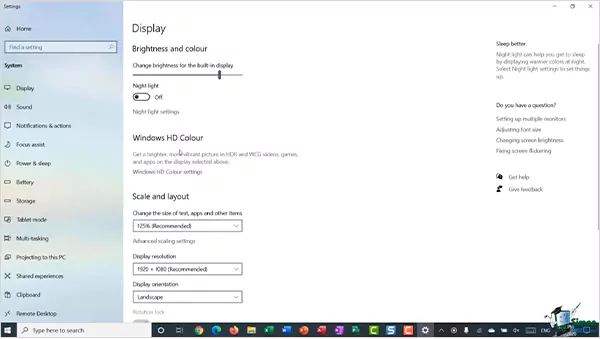
Once you plug in your cable, you will need to configure your settings through the operating system. Here’s how to do it on a Windows machine:
- Right-click on the desktop and select “Display Settings.”
- Adjust the settings, like resolution, brightness, etc., according to you.
Why Won’t My Monitor Connect to My Laptop?
External monitor connection problems typically occur for a few identifiable reasons, often similar to connectivity issues seen in smartphone repair cases where ports or hardware components fail.
| Possible Cause | Explanation |
| Faulty cable or adapter | Incompatible or damaged |
| Outdated graphics driver | Display not recognized |
| GPU output limit | Too many monitors connected |
| Incorrect display settings | Monitor disabled |
| Hardware damage | Port or GPU failure |
These issues are the most frequent causes of why your monitor won’t connect to your laptop.
Laptop Not Detecting Monitor
If your laptop does not recognize the monitor or has PC screen lines, follow some basic troubleshooting steps before assuming it is a hardware issue. Sometimes, simply reconnecting and restarting the devices will lead to laptop monitor fix, but persistent issues may require deeper inspection like data recovery services when system errors are involved. Here are some basic software tweaks to fix laptop monitor:
Basic Software Fixes
- Restart your laptop and your monitor.
- Re-check all cables are properly connected to the monitor and laptop.
- Use the “Detect Display” option in your system settings (Windows 10/11).
- Try a different connection port (e.g., if you are using HDMI, try VGA instead).
Sometimes, simply reconnecting and restarting the devices will lead to laptop monitor fix.
Driver & OS Fixes
If the monitor is still not recognized, you should update the system’s software. To do this, perform a few simple steps:
- Update the video drivers from the manufacturer’s website
- Roll back your video drivers if you updated them recently and experienced problems because of it.
- Reset Display Settings/Display.
- Configuration Check for OS Update
The most common reason a laptop monitor has issues is due to conflicting drivers.
External Monitor Works on Other Devices
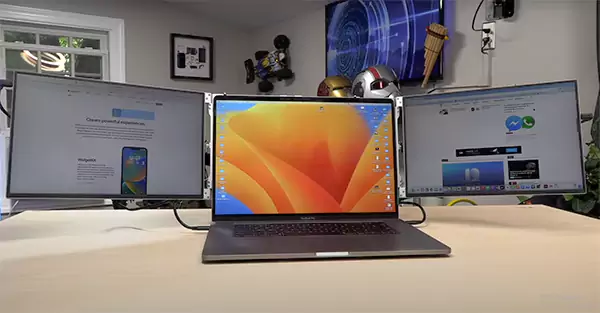
When you can successfully use your monitor on another device but not on your laptop, you can be reasonably certain that the problem is with the laptop.
To determine whether or not this is true, you should perform some troubleshooting:
- Connect the monitor to another laptop or computer.
- Use a different cable.
- Test a different port on your laptop.
If your monitor works with other computers, the problem could be with the port on your laptop or with the software configuration of your laptop’s operating system.
In case the monitor is not functioning, then make sure that you have performed any necessary BIOS or firmware updates to allow the operation of your external monitor.
ALSO READ: How to Fix Phone Speakers? Speaker Repair Guide of 2026
PC Not Detecting 5th Monitor
GPU limitations are the primary reason for the failure of high-monitor setups.
A variety of GPUs are available that limit the number of displays able to be used simultaneously. When a PC is unable to detect a 5th monitor, it may have already reached its hardware limits.
Some potential causes may be:
- The GPU has reached its maximum possible display output
- A user is experiencing limitations with their docking station
- The adapters being used provide limited bandwidth
- Incorrect monitoring configuration
Certain professional GPUs may add more monitors by daisy-chaining via DisplayPort connections.
Brand-Specific Laptop Monitor Issues
Not all laptop models behave the same when connecting to an external monitor.
HP EliteBook Monitor Connection Problems
Some HP EliteBooks have monitors that use USB-C and docking stations as their primary means of connecting.
Common issues:
- You may find that some won’t support video output from the USB-C port.
- The firmware of the docking station may not support the USB-C port
- HDMI ports may only support very low resolution.
You can solve many of these issues by checking the HP documentation to get a complete list of docking stations that can be used with your laptop.
Laptop Monitor Not Displaying at All: Software or Hardware?
When dealing with computer screen problems laptop, it is necessary to determine if there is a hardware or software issue. Several potential causes of display problems are configuration issues, such as:
- Display settings are turned off
- The display mode is configured incorrectly
- Resolution is invalid or not supported by the monitor
Alternatively, there are potential hardware causes such as:
- An HDMI or USB-C port is damaged
- A failed graphics chip
- Failed connections on the motherboard
Once correctly identified, these issues will allow you to determine how to fix your laptop’s monitor.
ALSO READ: How to Copy and Paste on Mac? 8 Must-Use Methods for Mac Users
When Laptop Monitor Troubleshooting Doesn’t Work
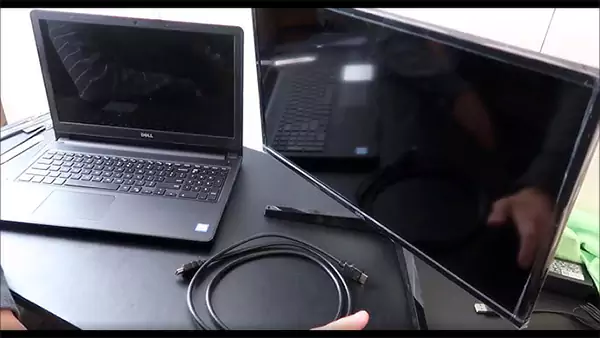
There are certain instances when additional diagnostics are needed.
Ongoing issues may reflect:
- Damage to physical connectors
- Failure of the graphics processor
- Internal motherboard problems
Professional diagnostics may be needed if system diagnostics does not indicate a problem or if a repair was unsuccessful to fix laptop monitor.
Repair vs Replace: What’s the Smarter Choice?
Now let’s take a look at whether you should opt for repair or replace to fix laptop monitor.
| Factor | Repair | Replace |
| Type of Issue | Minor issues like faulty HDMI cable or USB-C portMajor issues like damaged GPU or motherboard | Major issues like damaged GPU or motherboard |
| Cost | Low to moderate | High upfront cost but long-term investment |
| Repair Complexity | Quick and simple fixes | No repair needed, just setup new device |
| Time Required | Usually fast | Immediate use after purchase |
| Performance Impact | Restores original performance | Improved performance with newer hardware |
| Risk Factor | Risk of recurring issues if internal damage exists | Minimal risk |
| Best For | Newer laptops with minor port/cable issues | Older laptops or severe internal damage |
How to Prevent Laptop Monitor Connection Problems?
To fix laptop monitor issues or prevent failing connections you need to follow certain things.
Helpful habits consist of:
- Do not bend or stress cables
- Use a certified high-quality adapter
- Update your graphics drivers regularly
- Try not to plug and unplug from a port more than once per use
By properly maintaining cables and keeping system drivers up to date, you can greatly reduce the number of issues between your laptop and monitor.
Conclusion
Laptop monitor issues are typically caused by driver compatibility issues, incorrect display settings, or bad cables. Troubleshooting can fix laptop monitor issues.
It is usually a simple matter to check all connections, update drivers, and verify the display settings in order to resolve laptop monitor issues without the need for extensive repair.
Troubleshooting also helps to identify any potential major problems early, thus preventing small problems from becoming serious and expensive hardware failures.
FAQs
Q: Why won’t my laptop detect my monitor?
Q: Can a laptop connect to multiple monitors?
Ans: Yes. Most laptops support multiple monitors, but the number depends on the GPU capability, available ports, and operating system configuration.
Q: Does every USB-C port support video output?
Ans: No. Only USB-C ports with DisplayPort Alt Mode or Thunderbolt support video output for connecting external monitors.
Q: How do I know if my laptop port is damaged?
Ans: If multiple cables and monitors fail to work on the same port while working elsewhere, the laptop port may be damaged.
Q: Is it a laptop issue or a monitor issue?
Ans: Test the monitor with another device. If it works elsewhere, the issue likely originates from the laptop hardware or configuration.
SOURCE:
Troubleshoot external monitor connections in Windows by Microsoft