
Ans: The easiest way is to use Command Prompt or a trusted key finder tool. Digital licenses may not display a key.
How to Find My Windows 10 Product Key? 3 Methods
If you’re wondering how to find my Windows 10 product key, you can quickly retrieve it using Command Prompt or PowerShell or by checking the Registry. The product key is essential for reinstalling Windows and fixing issues related to the license and activation.
The product key is either embedded in your system or stored digitally, and there are reliable ways to find it without any struggle. The practical methods to finding the product key is mentioned in the write-up, so pay attention.
Table of Contents:
What Is a Windows 10 Product Key and Why Does It Matter?
The product key for Windows 10 is a code that is 25 characters long, which you use to activate your operating system. It validates that your copy of Windows is real and allows you to receive updates and benefits from all of Windows’ features.
- The product key guarantees that you have legally activated your version of Windows.
- When reinstalling or transferring Windows, a product key is an essential part of the process.
- To prevent activation errors, a product key can help.
- A product key links your license to either a certain Microsoft account or to a specific piece of hardware.
If you do not have either a valid product key or a digital license, then you may not be able to use certain customization features, and you may have activation notification pop-ups.
ALSO READ: Android Latest Version: Current Android OS & Complete Version History
How to Find My Windows 10 Product Key Using Built-in Methods?
Windows has various built-in options for retrieving your product key without downloading additional programs, and it is as easy as fixing a slow computer. These options are safe and should be your first method of choice.
1. How to Find Your Product Key with the Command Prompt?
Command Prompt can be used to find your Windows 10 product key from within your system’s firmware.
To do this:
- Search CMD on your Windows logo.
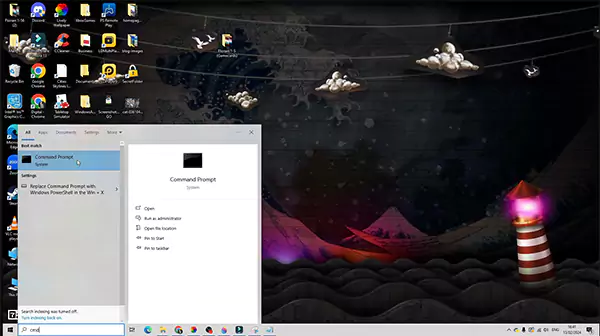
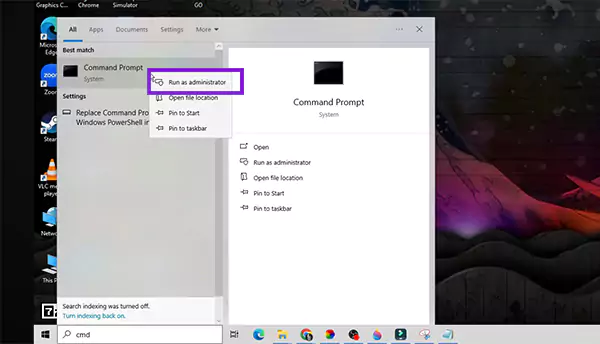
- Right–click on the Command Prompt search result and select “Run as Administrator.”
- Enter the following command: (wmic path softwareLicensingService get OA3xOriginalProductKey).
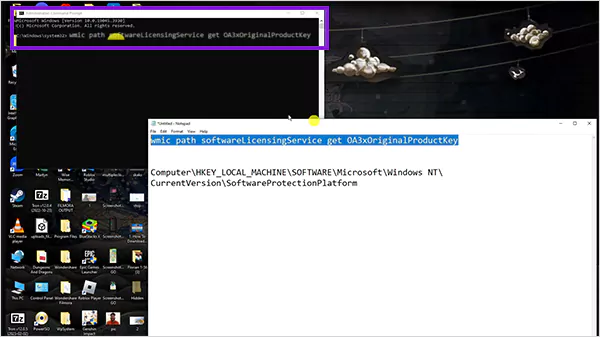
- Now, press Enter.
Your product key will be displayed on the screen if it is stored on the BIOS/UEFI chip.
This option is useful mainly for computers purchased with preinstalled Windows. If there is no output, the product key may have been digitally linked rather than saved in a traditional manner.
2. How to Find the Windows Key Using PowerShell?
Another way to get your Windows license key is by using PowerShell’s system scripts; you can follow these steps:
- Open Windows PowerShell.
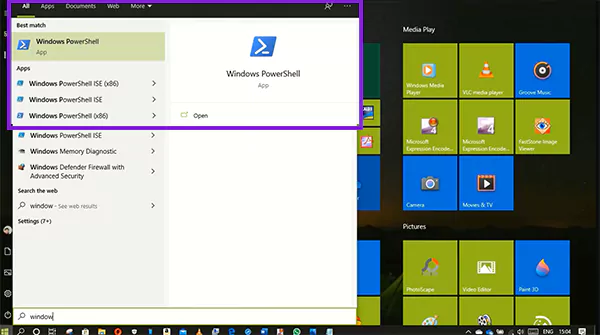
- Cut and paste the script to decode the Windows Registry Key (Get-WmiObject -query ‘select * from SoftwareLicensingService’).OA3xOriginalProductKey).
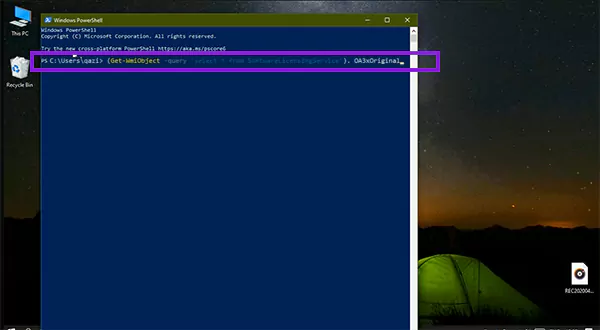
- Press Enter, and your product key will be displayed.
Because PowerShell can give much deeper system-level data than the command prompt, you may find it very useful when the command prompt cannot be used. You may need a little more technical knowledge to use the PowerShell method.
3. Find Windows 10 Product Key in Registry (Manual Method)
You can access license data in the Windows Registry by manually encoding the key to find your keys.
To do this:
- Press the Windows key + R and type regedit.
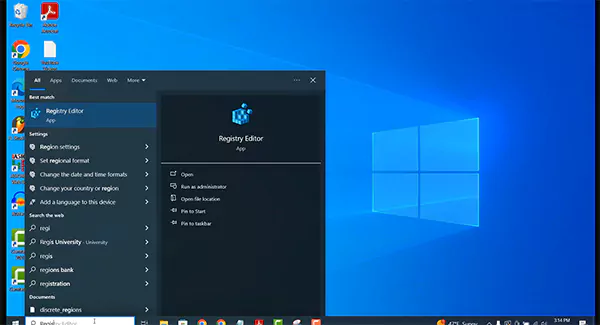
- Next, enter the prompt in search: (Computer\HKEY_LOCAL_MACHINE\SOFTWARE\Microsoft\Windows).
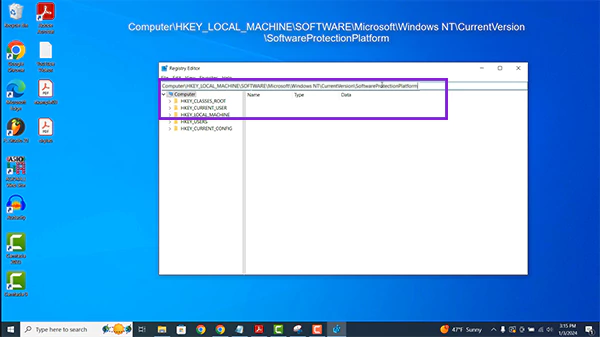
- Then locate the BackupProductKey and next to it, your Windows 10 Product Key will be mentioned.
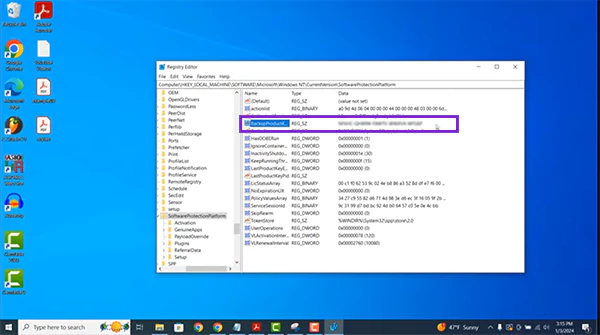
Note that the value stored in this field is encrypted and requires an additional process or a script to decode it. Thus, this will best suit the experienced user.
How to Find My Windows Product Key Using Third-Party Tools?
Third-party tools are known for providing simple and efficient ways to find the Windows 10 product key; these are very useful when built-in methods fail to identify the product key. There are a number of third-party applications that can be used to find the product key. Some of the best are the following:
- Magic Jelly Bean Keyfinder
- ProductKey
- Belarc Advisor
Now the question is how do you use these tools and are they complicated? Well, it’s very easy, here’s what you need to do.
- Download the app from their official site or any other trusted source.
- Install it in your system.
- Open the application and it will show your product key.
Easy, right? It’s like you were learning how to copy and paste on a Chromebook? You should use these apps when built-in methods fail to display the product key or you are using an older version of Windows. These tools make how to find my Windows 10 product key quicker and more accessible without complex steps.
Common Issues When Trying to Find Windows Product Key
Many users have problems obtaining their product key due to modern-day Windows operating systems generally relying more heavily on digital licenses rather than physical product keys.
- You received a blank response from the command utility: If your system is activated using a digital license, then no physical product key will be stored on your machine. Command line utilities do not have access to display your product key because your license information was never associated with your BIOS or Windows registry.
- You observe that components of the registry seem encrypted: Windows stores the product key in encoded form in the Windows Registry to prevent illegal usage of the product key. Unless a decoding script or tool can decode the information, it cannot be read.
- You see a generic product key instead of the activation key: The generic or default product key may be visible to you during setup but the genuine activation product key is stored in the Microsoft database and cannot be user-accessible.
- Issues from your activation will not be resolved: Often, the reason for unsuccessful activation is due to hardware modifications, improper edition or license for your installation or volume license product key that does not correlate to the installed version of Windows.
Conclusion
If you were wondering how to find my Windows 10 product key, now you’ve got your answer. Methods like Command Prompt, PowerShell, Registry or trusted third-party tools can do it for you.
Some systems intend on using the digital licenses and with these methods, you can still easily identify the Windows 10 product key. Now you can ensure smooth reinstallation, activation, and troubleshooting without any confusion.
ALSO READ: How to Copy and Paste on Mac? 8 Must-Use Methods for Mac Users
Frequently Asked Questions
Q: How do I find my Windows 10 product key easily?
Q: How do I find my Windows product key using CMD?
Ans: Run Command Prompt as administrator and use the WMIC (wmic path softwareLicensingService get OA3xOriginalProductKey) command to retrieve the key stored in the BIOS.
Q: Can I find the Windows license key after reinstalling Windows?
Ans: Yes, if your license is linked to your Microsoft account or embedded in firmware, it activates automatically.
Q: Is the Windows 10 product key stored on my computer?
Ans: Yes, it can be stored in the BIOS, the registry, or linked digitally, depending on how Windows was installed.
SOURCE:
Find your Windows product key by Microsoft