

Ans: Printer streaks are commonly the result of either a clogged printer head, low ink or toner level, dirty rollers, or a worn component of the printer (drum or fuser).
How to Fix Printer Streaks: Causes and Solutions
Has it ever happened to you when you printed something really important only to see stripes over the paper? Or perhaps you’re left with a streaky print that looks blurry and uneven? This may lead to thoughts that the printer is no longer functioning.
Printer streaking is a very common and irritating printing issue. Luckily, it does not generally indicate that your machine is about to break down. Normally, streaks appear due to a simple reason: a blocked print head, low amounts of ink or toner, dirty rollers, or broken components. Once you understand why printer streaking occurs, figuring out how to fix printer streaks becomes much faster.
So let’s figure out what we are dealing with.
In Summary
- Look at the type of streak: Lines, gaps, marks or smudges will help determine the cause.
- Perform cleaning routine: Carry out the maintenance routine as per the printer manufacturer. Clean accessible printer rolls: Clean accessible printer rolls as per the maintenance instructions.
- TO check ink or toner: Replace empty, dried, leaking
- Apply printer-specific fixes: Instructions for troubleshooting differ between the various types of printers, such as inkjet printers, laser printers, and thermal printers.
- Use correct dry paper and set paper and settings: Use appropriate dry paper and choose the correct paper type & quality.
- Replace worn parts if needed: If there are streaks after the printhead has been cleaned and the cartridge replaced, it may be a problem with the printhead, drum, fuser, transfer component, or another component.
Table of Contents:
What Do Printer Streaks Look Like?
Printer streaks do not all look the same. Some people notice horizontal lines, vertical lines, missing pieces of text, dark stains on the page or smudges repeating in the same place. Each pattern of printer streaking indicates a certain problem.
Horizontal Streaks
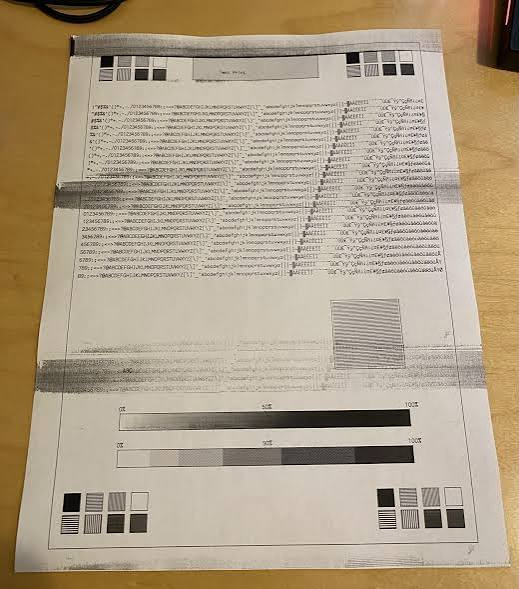
Horizontal streaks stretch from one side of the paper to the other. This type of streaking is a special characteristic of inkjet printers and can happen when the print head is blocked, there is not enough ink, or the print head needs adjusting. If you see the streaks mostly on photographs and areas with solid colors, you should check the print head and nozzles for being blocked or misaligned.
Utilize the printhead cleanup and alignment features on your machine.
Vertical Streaks
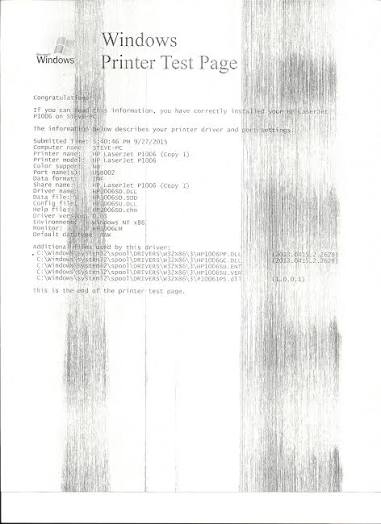
Vertical streaks are seen running from the top to the bottom of the document, which may be due to dirty components of the printer or due to toner cartridge problems or problems with the imaging drum in case of a laser printer.
If the streak is the same on all pages, pay attention to the cartridge, drum, rollers, or other components that are in contact with the paper.
White Lines, Gaps, or Missing Print
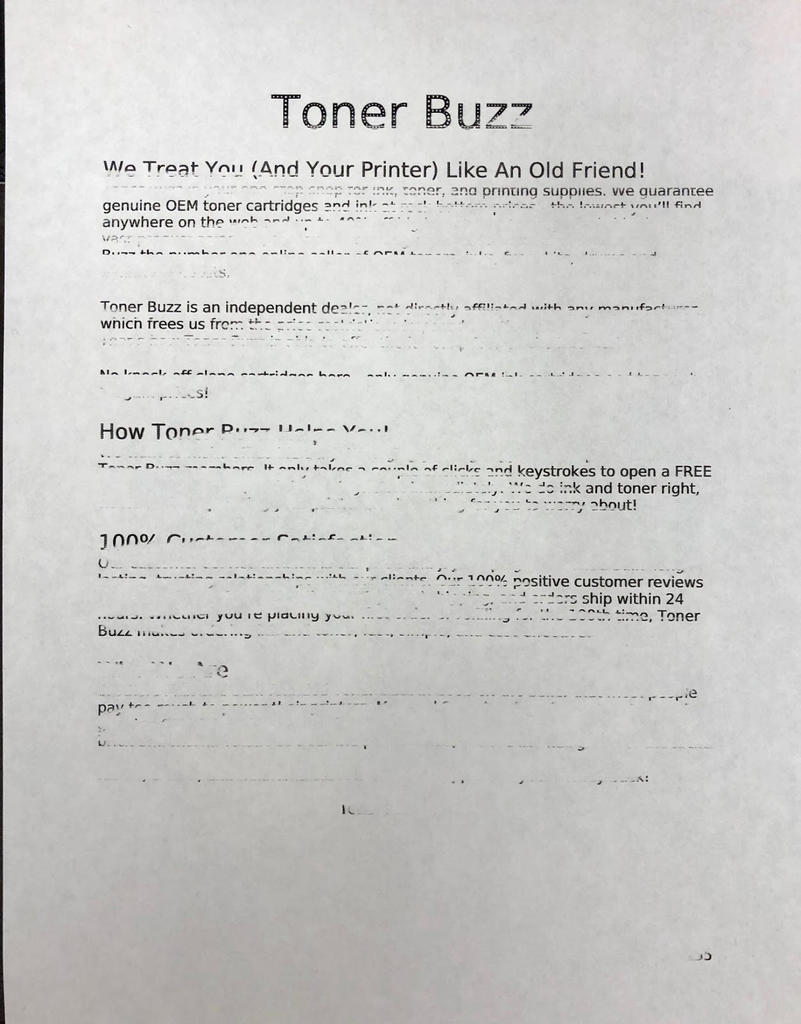
Not every streak is black; there can be white stripes or blank spots instead. This indicates that the printer does not deposit a sufficient amount of ink in some places. In case of an inkjet printer, blocked printhead nozzles are usually responsible.
Black and Dark Streaks
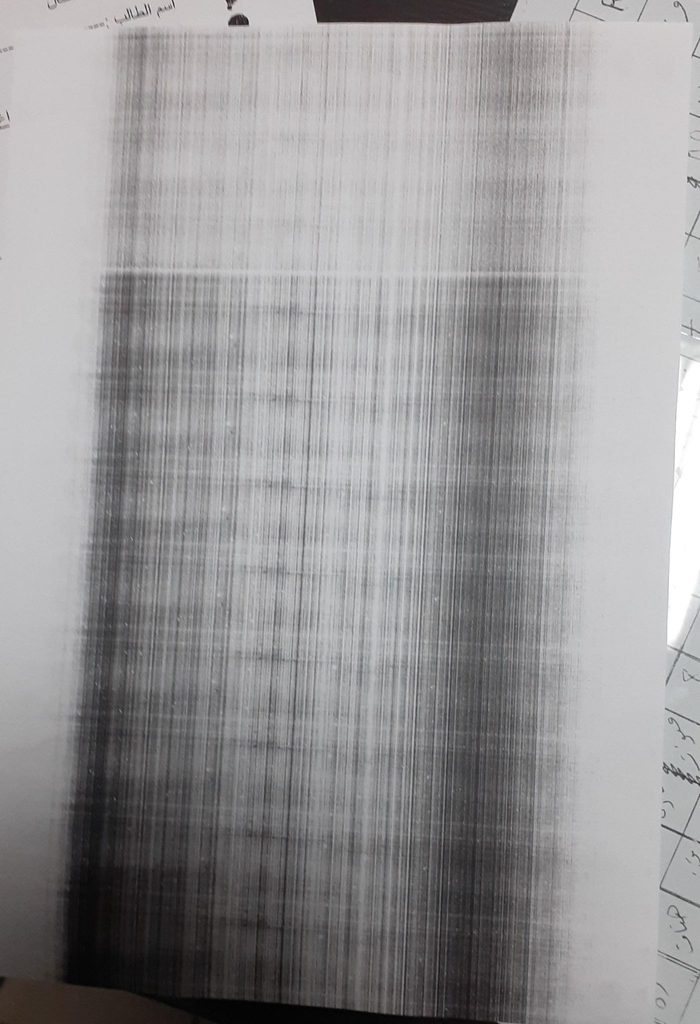
Dark or black streaks can ruin a page that would otherwise be perfectly clean. This problem is noticeable in documents with a lot of white space. With laser printing, dark streaks are usually caused by the drum, toner, or internal contamination.
In inkjet printing, dark streaks may be a result of too much ink or dirty parts.
Smudges or Marks
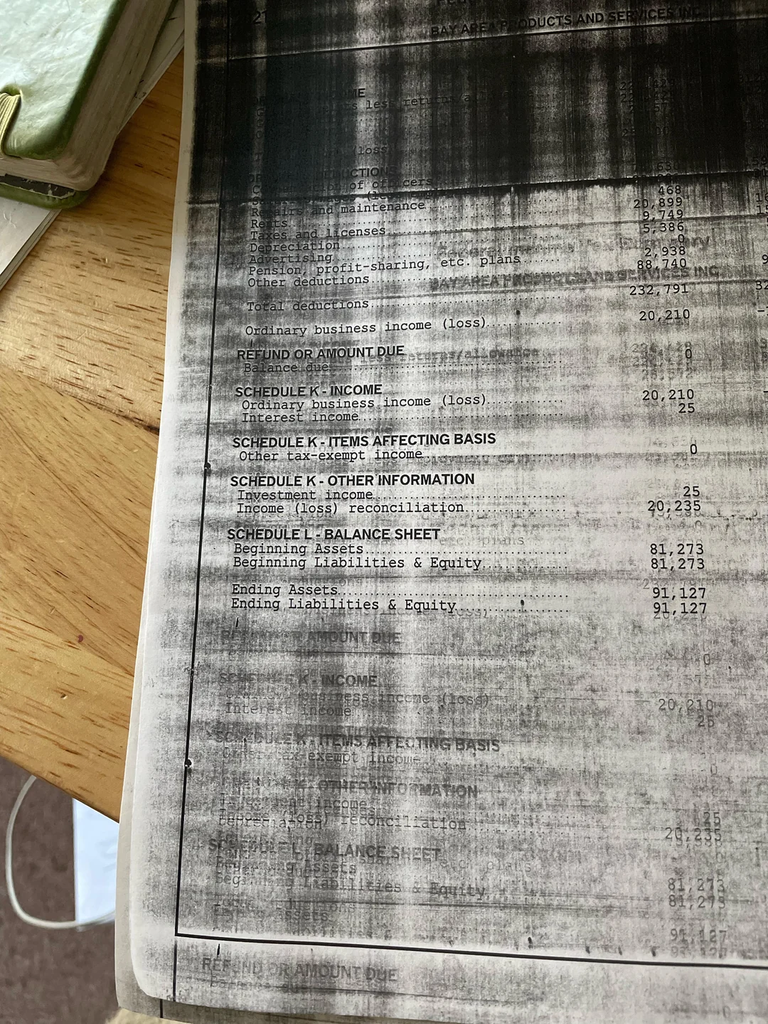
If your pages show smudges, marks, or blotches instead of clean lines, it means there is too much ink or toner, dirty rollers, wrong paper, or moisture at work. Inkjet printing can lead to smudges, especially when the ink is still wet or the printhead touches the page.
Common Causes for Print Streaking
Streaks are hardly observed without cause, as in most cases one of the issues below is the underlying problem. Knowing the cause makes it easier to understand how to fix printer streaks
1. Blocked or Unclean Printhead
Inkjet printers have some tiny holes for spraying ink on paper. When even a few of them get clogged with ink, dust, or paper pieces, then there will be no dots, no ink bands, or spaces. This is one of the most common causes of streaking.
2. Inadequate Levels of Ink/Toner
When the cartridge gets low, there will be an uneven coating of ink. This will lead to light streaks, empty lines, or even incomplete text. Many printers will continue to work while the cartridge is not empty.
3. Dirty Mechanics
Rollers, paper paths, and other mechanisms get clogged with dust, ink leftovers, and toner. As a result, they provide an uneven ink coating.
4. The worn-out or damaged cleaning blade, fuser, or drum
In laser printing, the fuser applies heat for the bonding of toner with the page while the drum carries it from the cartridges. Any scratches, wear, and dirt on those parts can cause dark streaks, recurring lines, and smudged toner. The worn cleaning blade can make lines on the entire page.
5. The misaligned printhead
If the printhead is misaligned, the ink will land in the wrong place, resulting in horizontal stains, blurring of the edges, and irregular lines. This can happen especially after the printer has been moved around or the cartridge has been replaced.
6. Incompatible cartridges or cartridges of poor quality
Cheap refills, copies or cartridges that do not match the printer may leak or clog the nozzles or give ink unevenly. If you notice these streaks in printing right after you changed your cartridges, you may have discovered the culprit.
7. Wrong paper type or wrong settings
Using the wrong paper or using the right paper with wrong settings can lead to smudging and poor ink absorption. A typical example can be a glossy photo paper used with regular settings.
Fixes for Inkjet Printers
Inkjet printers are often plagued by white streaks on the page, loss of colors, and banding due to blocked printhead nozzles or inadequate ink supply.
- Print a nozzle test page: Print a nozzle test page to determine if colours are missing in specific printhead nozzles.
- Run the printhead cleaning cycle: Use the printer’s maintenance operation when you see print streaking or white spaces due to faint ink.
- Check the ink cartridges: Change cartridges that are leaking, empty, dried up, dysfunctional, or damaged. Make sure the seals on the cartridge have been removed before use.
- Aligning the printhead: Use the alignment feature once you see that text does not look clear or that the vertical edges are not even.
- Cleaning the printhead: Follow your manual to see if the cleaning process is allowed. Do not fill the printer with cleaning fluids or use fluids that are not manufacturer-approved.
- Clean the paper path: Foreign bodies like dust or ink remnants can cause many problems in the paper path. Follow your manufacturer’s instructions when cleaning.
Fixes for Laser Printers
Laser printer stripes usually point to the toner cartridge, drum, fuser, or dirt inside the machine. Unlike inkjet printers, laser printers do not rely on liquid ink. This means you need to look for streaking causes in different areas. Culprits that can cause print issues include the toner cartridge, the photo drum, the fusing assembly, and dirt or debris inside the printer. Fortunately, troubleshooting the issues with laser printers is usually easy – all you need to do is follow the steps in order and print a test page after each of them.
Be careful: make sure to always turn the printer off, unplug it and let it stand for 20 – 30 minutes before opening it. The fuser heats up to very high temperatures.
- Check the toner: Having low toner is one of the most widespread reasons for the occurrence of streaks and lines that look pale on paper. To check the toner level, check the information given on the screen or via the program installed on your computer. If you see that the toner is low, remove the cartridge and shake it gently from side to side several times.
- Reseat the Toner Cartridge: Improper seating of the toner cartridge can lead to uneven printing results. First, take the cartridge out and inspect it for any damage or leaks, then put it back properly and press until it clicks. While the cartridge is out, make sure you have removed any adhesive tape or seal from the new cartridge.
- Run the Printer’s Cleaning Cycle: Most laser printers feature a cleaning cycle, a built-in function that removes excessive toner from the drum and transfer parts. Check in the settings menu for “Cleaning Page,” “Clean Drum,” or “Maintenance” option. Run it a couple of times and print a test page. If the streaks are gone, the issue is resolved.
- Clean the Inside of the Printer: Toner dust and other debris accumulate over time and leave streaks and specifications on printouts. You need to clean the printer with it turned off, cooled, and unplugged.
- Clean the Rollers: Dirty pickup, transfer, and feed rollers can cause streaks, repeated marks, and uneven paper feeding. Use the cleaning method and solution recommended in your printer’s manual. Avoid applying liquid directly to the printer, and allow the rollers to dry thoroughly before closing the printer.
- Examine the Drum Unit: The cylindrical drum is sensitive to light and provides toner on the paper. Remove it and check its surface for any scratches, dents, or blemishes.
Fixes for Label and Thermal Printers
Label and thermal printers use a thermal printhead and heat-sensitive media. Thermal-transfer models also use a ribbon. If you have a printer stripes problem or labels contain white lines, check the following:
- Clean The Print Head: The presence of dust, glue, or remnants on the print head may lead to streaks and faded areas. Clean it carefully according to the procedure recommended by the producer.
- Inspect The Labels: Use the proper labels or thermal paper. Change damaged, curled, dusty, or moist media.
- Change The Print Darkness: If the labels are too light, adjust the setting for darkness or heat a bit. Don’t use too much heat, as it may lead to the presence of dark spots on the media.
- Clean The Rollers: Dirty rollers may lead to incorrect printing or spots on the surface. Clean them on a regular basis and change the rollers when they are worn out.
- Analyze The Pressure Of The Print Head: Non-uniform pressure may result in streaking and lighter spots. Check the pressure and alignment, and change the settings according to the manual.
- Change the Printhead: If the outer streaking remains even after the thermal printhead has been cleaned and adjusted, then it might be malfunctioning and need replacing.
When to Replace Your Printer Toner or Ink
If the printer starts streaking the printouts, consider replacing the ink/toner cartridges, but keep in mind that streaking may happen for reasons other than being out of cartridges. Determine the suitability of cartridge replacements by looking at the following indicators.
Signs Your Cartridge Needs Replacing
- The output is faded or colored unevenly. If the printouts do not improve in spite of printing head cleaning and alignment, then it might be possible that the cartridge is either running low or dried out and unable to print.
- Your printer displays low ink/toner signs. Slightly more advanced printers will inform the user how low their cartridges are functioning. In such cases, cartridge replacement is recommended when streaks are present.
- When persistent streaks or gaps exist in printing, cleaning the device and running a few test pages may not be sufficient. An old or nearly empty cartridge may be behind the streaky print.
- Replacing the cartridge with a new one may restore good printing quality. The cartridge may have dried up, gotten damaged, or even run out. If the cartridge remains unused for long periods, ink can dry in it, while any damaged or leaking toner cartridge tends to create poor-quality prints with streaks or graphic marks.
If Replacing the Cartridge Doesn’t Fix the Streaks
If streaks still appear in your printer, even after replacing the cartridge, avoid changing the cartridge periodically and inspect the printer.
For inkjet printers: The ink from the cartridge may fail to reach the paper because the printhead is not working properly. When having any issues with inkjet printing, it makes sense to clean, align, or even have the printhead repaired.
For laser printers: The presence of any lines or streaks of toner indicates that the drum, fuser, transfer roller, or anything similar is not working properly, even if toner may seem to be OK.
If cleaning the printer and changing the cartridge do not solve the streaking issue, a technician may have to examine the printer components to fix the problem. For brand-specific issues, an HP printer repair service can also be considered when the affected printer is an HP model.
How to Prevent Printer Streaks and Lines
There are simple printer maintenance steps you could take to avoid streaks, spots and lines on paper and have your printer work in an optimal way.
Use Good Quality and Compatible Paper: Use clean and dry paper compatible with your printer. Poor quality or wet paper contributes to streaks and spots.
Store Paper, Ink and Toner in the Right Way: Store paper, ink, and toner in a cool and dry area away from moisture. Proper storage ensures stable print quality and prevents issues with supplies.
Run Cleaning and Maintenance Procedures: Use the printer’s built-in cleaning and maintenance processes regularly to avoid stuck paint and clogged nozzles.
Clean Rollers and Accessible Areas: Periodically wipe dust, paper, and debris from rollers and the printer’s accessible areas to prevent unwanted marks on paper that might appear due to accumulation.
Avoid Material That Can Affect the Quality of the Print: Refrain from printing on sticker labels or other materials not designed for use with your specific printer since adhesive and residue can accumulate inside the paper pathway.
Update the Drivers and Firmware: Remember to check your printer manufacturer’s website for the latest driver and firmware updates. Such updates act as a solution to software-based printing problems and maintain the printer’s optimum functionality.
Print as Often as You Can: When it comes to using an inkjet printer, make sure to use it often enough to avoid ink drying in the printhead and the nozzles. Doing so also prevents white stripes and other print defects on the printer.
Still Streaking: Time to Call a Technician
If you have already cleaned the printhead, tried some cleaning cycles, changed the cartridge, and wiped the rollers, but the printer stripes problem continues, it’s time to stop making unsuccessful attempts and contact an expert. A professional printer repair service can inspect components such as the printhead, drum, fuser, and rollers when basic troubleshooting does not resolve the issue.
- Streaks continue after performing normal maintenance of the printer. If you have applied all known maintenance parts and nothing has changed, then the probable reason is that one of the components is either damaged or worn out.
- Marks appear on the paper regularly: If you notice that there is a line or a spot on the paper every time, then the reason behind it is most likely a damaged printhead element, a scratched drum, or a faulty fuser.
- Marks appear regularly at fixed points. This is a good indication that one of the rollers, drums, or fusers might be damaged. A technician can determine which one of these components is damaged based on the marks.
- There is physical damage or leaking. If you notice that the cartridge is broken, there is an ink pool inside the printer, or a toner spillage, you should perform proper cleaning and inspect the printer.
Conclusion
Streaked prints can be annoying; however, most of the time, they are simple to fix by doing some troubleshooting. Most cases of the printer stripes problem are caused by a clogged print head, low ink or toner, dirty rollers, or a worn component (drum or fuser) Keeping your printer well-maintained, replacing the toner cartridge when necessary, and using quality paper will keep your printer in good working order and prevent further problems from occurring. Being able to identify the issue early will help get you back to producing professional-looking printed materials and prolong the life of your printer. In this guide, we have got you covered with all the fixes for how to fix printer streaks.
FAQ
What causes my printer to print streaks?
How do I fix streaks on my inkjet printer?
Ans: Begin by running the printer’s cleaning cycle and checking the ink levels and print head alignments. If the issue continues, then manually clean the print head.
What causes my laser printer to print black lines?
Ans: Black lines are often caused by: a dirty or damaged drum unit, a leaking toner cartridge, or a faulty fuser assembly.
Can low ink cause streaks when printing?
Ans: Yes. If your printer has low or no ink in cartridges, it can cause faded text, missing colors, and uneven vertical or horizontal lines on your printed pages.
How often should I clean my printer?
Ans: If you use the printer regularly, then clean your printer after a few months to keep it maintained and working. When you print frequently, you must do maintenance more often to prevent dust and debris from building up on the printer.
What contributes to printer streaking?
Printer streaking is mainly caused by clogged printheads, low ink or toner levels, dirty rollers, or damaged printer components such as the drum or fuser.
How do I remove streaks from an inkjet printer?
Start by running the printer’s built-in cleaning cycle and checking the ink levels and printhead alignment. If streaks remain, manually cleaning the printhead may help.
What can make my laser printer print black lines?
Black lines can result from a dirty or damaged drum unit, leaking toner cartridges, dirty rollers, or problems with the fuser assembly.
Does low ink lead to printer streaks?
Yes. Low ink or toner can cause faded text, missing colors, uneven printing, and horizontal or vertical streaks on printed pages.
At what intervals should my printer be cleaned?
If you print frequently, clean your printer regularly to prevent dust, ink, toner, and debris from building up. The exact cleaning frequency depends on how often you use the printer.
Why is my printer still printing lines after cleaning?
Printer with lines may continue to show them if there is a problem with the printhead, cartridge, rollers, drum, fuser, or another internal component.
Will cleaning solve printer line problems?
Not always. Cleaning can resolve problems caused by dust, debris, or clogged printheads, but worn cartridges, damaged drums, rollers, fusers, or other faulty components may need to be repaired or replaced.
What causes horizontal or vertical lines on printed pages?
Horizontal or vertical lines can be caused by clogged printheads, defective cartridges, dirty rollers, damaged drums, or other imaging-unit problems. The direction and pattern of the lines can help identify the underlying issue.