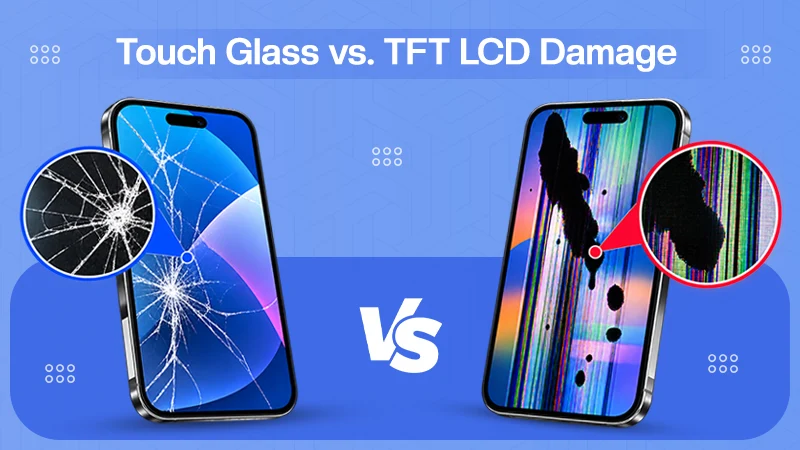
Split screen on iPad can be done using multiple methods, but the easiest way to do it is by dragging the second app from the menu options while simultaneously keeping the first app open.
How to Split Screen on iPad: Step-by-Step Guide to Use Two Apps at Once

Updated On August 27, 2026
Working in a professional ecosystem or preparing for an academic comeback requires a lot of multitasking, which makes tasks more precise, rapid, and effective. Daily utility devices like new-gen iPhones and Apple tablets are full of features that can improve productivity, but among them, split screen offers the best user experience for working on different applications at the same time.
So if you are an employee or a student juggling multiple tasks, you need to learn how to split screen on iPad to keep pace with multiple tasks at the same time.
Table of Contents:
- What is Split Screen on iPad?
- Which iPads Support Split Screen?
- How to Split Screen on iPad (Step-by-Step Guide)
- How Do You Split the Screen on iPad Using the Multitasking Menu?
- How to Use Split Screen on iPad Effectively
- How to Switch Apps in iPad Split Screen?
- How to Get Rid of Split Screen on iPad?
- Split Screen vs. Slide Over on iPad
- Common Problems With iPad Split Screen
- Frequently Asked Questions (FAQ)
- Conclusion
What is Split Screen on iPad?
Split screen on iPad is an accessibility feature that is present on almost every iOS device, like iPhone, MacBook, Mac mini, etc., which lets users view multiple tabs on the same screen without switching between different applications. Basically, it is there to improve productivity and overall user experience for iOS users by letting them use multiple windows at a time.
Mostly, the iPad split screen is used by working professionals and students because it helps them in so many practices like note-taking, managing multiple spreadsheets, documenting various papers, researching different topics at the same time, etc.
Which iPads Support Split Screen?
In the chart below, you will see the exact variants that support split screen on iPad.
Supported iPads for Split Screen:
- iPad mini (all after the 5th generation)
- iPad (All after the 6th generation)
- iPad Air (all after the 3rd generation)
- iPad Pro 10.5-inch
- iPad Pro 11-inch (all generations)
- iPad Pro 12.9-inch (2nd generation and later)
Read more: Does Apple Pencil Work on iPhone? Compatibility & Best Alternatives
How to Split Screen on iPad (Step-by-Step Guide)
Splitting screen on iPad requires only a few steps, which we have mentioned here. The only thing that you have to make sure of is the sequence to avoid failures or errors. Let’s move to the process of how to do split screen on the iPad.
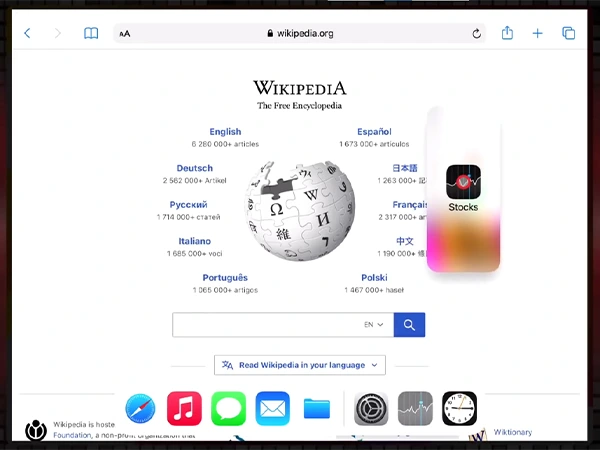
- Open the first app on your iPad.
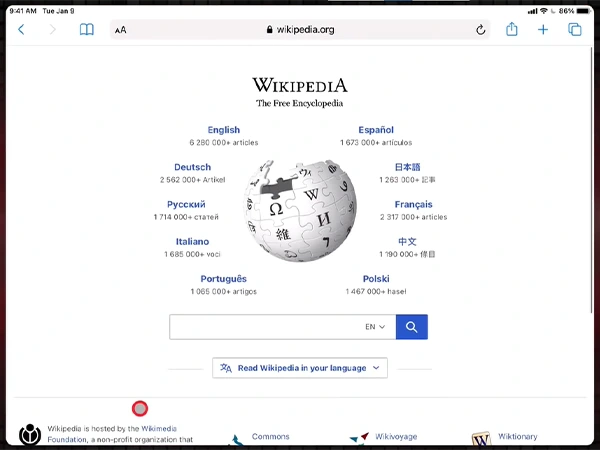
- Now open the app dock by sliding on the bottom of the screen.
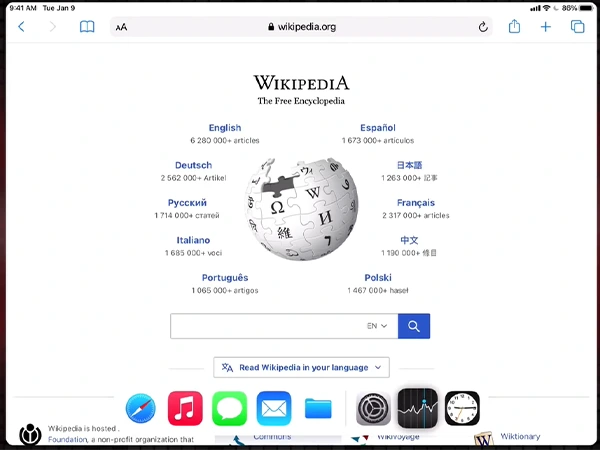
- Then select the second app.
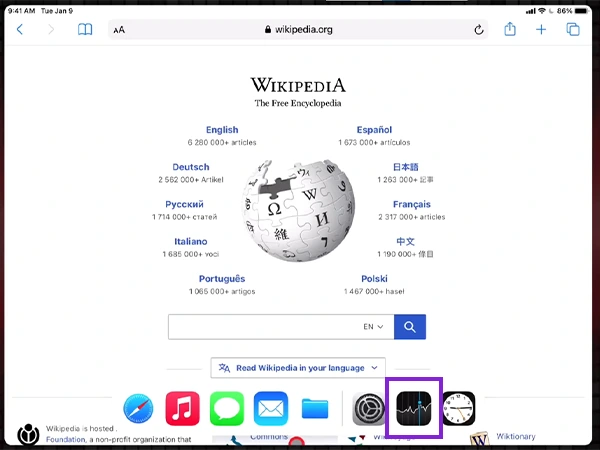
- Drag the app to one side of the screen.
- After that, you can access the split screen and adjust the size of each app with this sidebar.
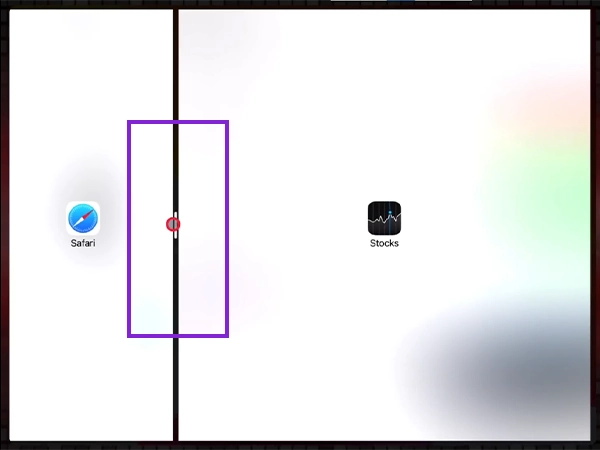
How Do You Split the Screen on iPad Using the Multitasking Menu?
Another way of splitting the screen on an iPad includes a special toggle menu setting called the multitasking menu, which allows you to use features like split screen and slide over at a glance. Here we are going to learn how to divide screens into two halves using this option present in the settings.
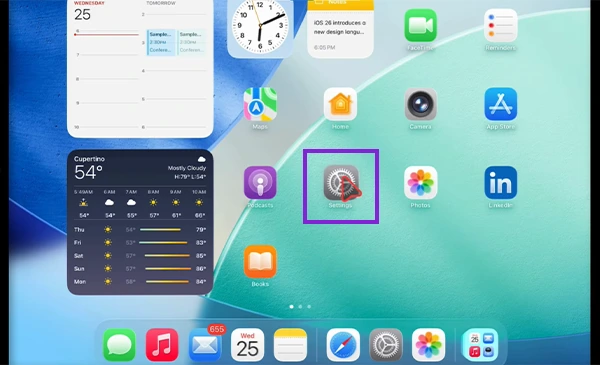
- Open Settings on your iPad.
- Tap on Multitasking and Gestures.
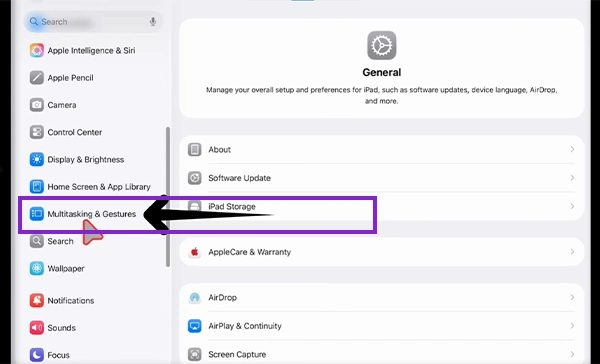
- Enable split view by clicking the Windowed apps option.
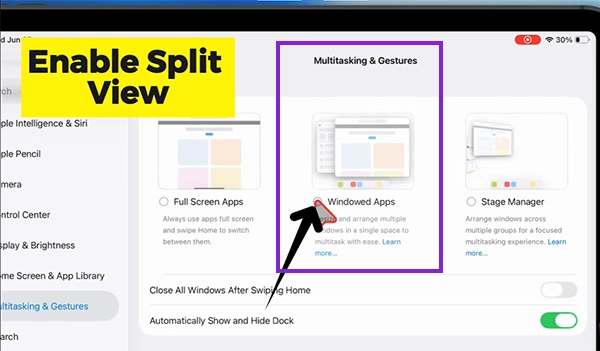
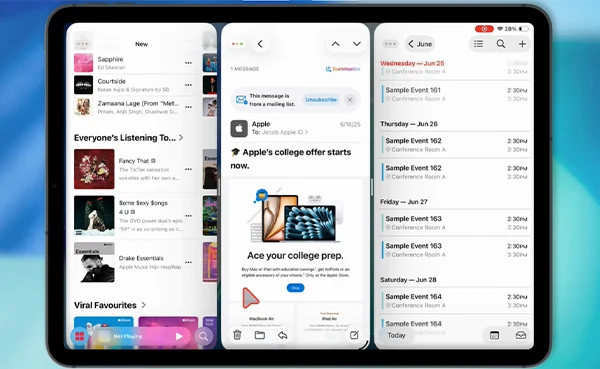
- Now you can easily use multiple apps on screen.
How to Use Split Screen on iPad Effectively
Split screen is one of those features that can speed up or improve all your productive tasks by enabling multitasking capabilities. The best things that can be done using this accessibility feature are
Browse Web and Take Notes
While studying, you have to take a look at different websites and research papers to gather insights about the topics coming in the exams, and after that, note-making comes into play.
This process seems hectic, but the burden can be slightly decreased if you use the split screen iPad feature. It allows you to research on different tabs using Safari on one tab and lets you write points in the other simultaneously, making the work efficient and more precise.
Watch Videos While Working
There are times when you might get bored while working on documents or accounting sheets and want to enjoy snippets of your favourite shows; the best part is you can actually do this using this feature.
Split screens can play multimedia apps like Netflix and Apple TV along with professional tools like Canva, MS Excel, and Docs without any delay in frames or internet fluctuations.
Compare Documents
Comparing documents is an integral practice for both academic and corporate institutions to ensure the authenticity of facts, numbers, and credentials or to verify these details to maintain integrity. This complex procedure can be simplified if you use a split screen, which allows you to view multiple tabs at a time and makes the collection of information easier than ever before.
How to Switch Apps in iPad Split Screen?
Switching apps in iPad split screen is pretty simple as well; in fact, you can do it by closing the app you don’t want and selecting the new app from the home screen to launch. Also, you can repeat the steps for split screen if the switch is not working properly so that you won’t limit your multitasking interaction on various projects.
Read more: Seven Most Valuable Vintage Apple Products Worth Thousands Today
How to Get Rid of Split Screen on iPad?
If you want to learn how to get rid of split screen on iPad because you no longer have a purpose for using it, then you can do it using three easy methods. Each procedure does the same job, so choose the one that you think is the easiest.
- Close the split screen by simply removing one app from any side.
- Use a divider to hide an app or website that is not in use.
- Or simply disable multitasking and gestures on the iPad, which was mentioned above.
Split Screen vs. Slide Over on iPad
Well, the iPad carries both options in multitasking utilities; one is split screen, and the other is slide over. Both serve unique abilities for different purposes, which we are going to understand through the table below.
| Benefits | Split Screen | Slide Over |
| Ideal For | Long multitasking sessions. | Quick overview of recent apps. |
| Layout | Fixed side-by-side split (50/50 or 70/30) | Brings a floating overlay. |
| Visibility | Make two apps visible on each side of the display. | The floating window becomes sort of invisible when not being used. |
| Availability | Present in almost every iPad after the 6th generation. | Present in almost every iPad after the 6th generation. |
Common Problems With iPad Split Screen
Regardless of the multiple benefits that split screen provides, there are also some drawbacks that can disrupt your important tasks and ruin your overall working experience in just a few seconds.
Most of them are caused by system instabilities, while some are caused by improper use. Here we are going to break down some common problems.
Split Screen Option Not Working
Sometimes, even after drag-and-drop or using the manual three-dot method, the split screen on your end can frustrate you during a crucial procedure. Well, in most cases, it is not a technical software glitch; instead, it is a setting that you have not enabled yet. To use multitasking without any issues, just follow the steps below.
| Go to Settings—Select Multitasking and Gestures—Enable Windowed Apps / Allow Multiple Apps. |
This way, the split-screen option will become operational for any app you like.
Apps Won’t Open Side-by-Side
In some cases, the split-screen works, but apps won’t open side by side, which makes things even more miserable. You see, this feature was added because people wanted to use two apps at a time, but because of this, one side of the screen, which is presenting media or a file, gets stuck or blurred, sending users into complete confusion.
It mostly happens because of an overload on the CPU, system instability, bugs, and glitches. To avoid this situation, you must refresh apps regularly, clear the cache, remove unnecessary things from your iPhone that are consuming a lot of storage, and keep the device updated. If the problem persists, then you can look for a reliable iPad repair service near you.
Split Screen Keeps Opening Automatically
If your split screen keeps opening automatically whenever you drag an app from Recents to remove it or while normally using your device, then there are two potential reasons that are causing this problem. First, there are some air spaces or dust particles beneath the tempered protector of your iPad that are disrupting the touch-responsive sensor and hampering the display.
To remove them, clean your device with an alcohol-based solution and apply a new screen protector. But if the hardware is fine, then the problem lies within the software in the form of a glitch, which should be repaired after a restart or a patch update.
Frequently Asked Questions (FAQ)
How to split screen on iPad?
Why is my iPad split screen not working?
If the split screen is not working on your iPad, then there are two potential reasons. Either your iPad is experiencing bugs or glitches and needs a patch update for resolution, or it doesn’t support this feature at all due to an older version of iPadOS.
How to get rid of split screen on iPad?
To get rid of the split view, just make sure to drag the divider between apps completely to one side or choose and switch to the full-screen menu afterwards.
Can all iPads use split screen?
Most of the iPads have the split-screen option through iOS updates, but some older variants do not support this accessibility feature due to the unavailability of the latest iOS versions.
Conclusion
These are some effective ways to use your iPad with the split-screen feature and maximize your productivity in a few easy taps or drag-and-drop utilities. Undoubtedly, it is beneficial for professionals who have to deal with multiple projects frequently or students who have to study various notes simultaneously. Likewise, the general audience can also use this accessibility to enjoy different platforms at the same time to enhance their viewing experience without wasting their time switching multiple tabs.
Also, it is useful for checking facts and constructing important documents at the same time, making it an extensive utility for documentation. In most Apple devices, this feature is available, but if it’s not present, then it means either your device has an older iOS or is facing some glitches that should be fixed with a patch update. And if you want to learn more insights, tips, and troubleshooting methods for all types of tech pieces, then make sure to follow Devicefixes.
Sources:
Multitask on iPad with iPadOS 26 by Apple Support
Work with multiple windows at once on iPad by iPad User Guide