Ans: Yes, you can use your laptop, but there are some conditions. As laptops do not really have input and output ports, it needs to have a special pairing feature or an adapter card to establish seamless connections.
Can I Use My Laptop as a Monitor? A Complete Guide

Updated On September 7, 2026
While managing multiple sheets or researching thoroughly, you might think of something that can effortlessly improve your multitasking without needing a separate screen for your work PC. In fact, you don’t need to because your laptop can make your job easier without any hassle.
So, if you are thinking, can I use my laptop as a monitor to extend my viewing experience? Then you are in the right place, as this guide offers all the easy methods to achieve it along with some expert tips. Let’s get started!
Table of Contents:
- Can I Use My Laptop as a Monitor?
- How to Use a Laptop as a Monitor With Windows
- How to Use a Laptop as a Monitor With a Cable?
- DIY Laptop Screen Monitor: What You Need
- Laptop as Monitor vs External Monitor
- Common Problems When Using a Laptop as a Monitor
- Tips for Using a Laptop as a Second Display
- Frequently Asked Questions
- Conclusion
Can I Use My Laptop as a Monitor?
Yes, you can absolutely use your laptop as a monitor for enhancing your multitasking experience with both software-based options and cable based format depending on the situation or preference. If you are sitting in an area where WiFi is readily available, then going with a default Windows screen mirror option makes a lot of sense, as here you will get the best outcome in terms of resolution and frame rates.
But if you are not able to access the internet and still want to connect the external laptop as the monitor, then there are some wired methods also. In the next few sections, we are going to explore the steps of the methods of these two categories.
How to Use a Laptop as a Monitor With Windows
First, we will understand how to use laptop as monitor. Here you just need to make sure that your system and laptop are installed with the same Windows version (10 or above). Without this factor, connection is impossible. But if you have the right match, then follow the steps below:
- First, open Windows Settings on your laptop.
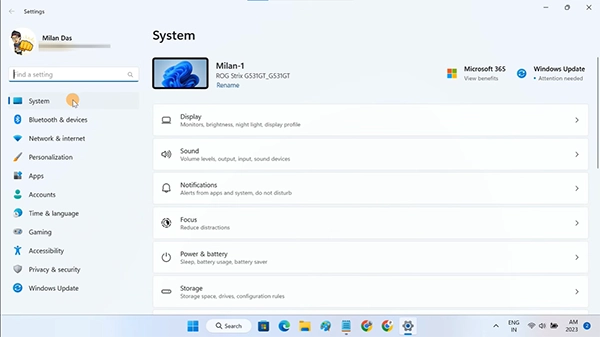
- Now, in the System area, select Projecting this PC.
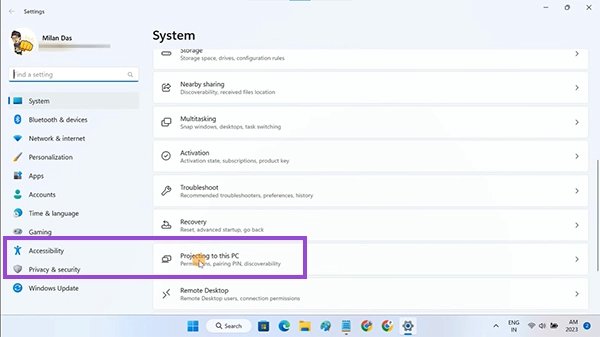
- Click on Optional Features.
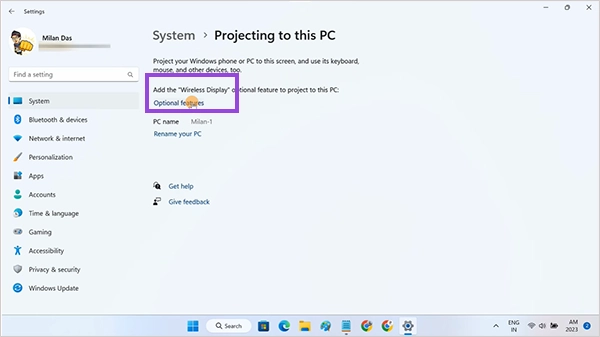
- Click on View Features
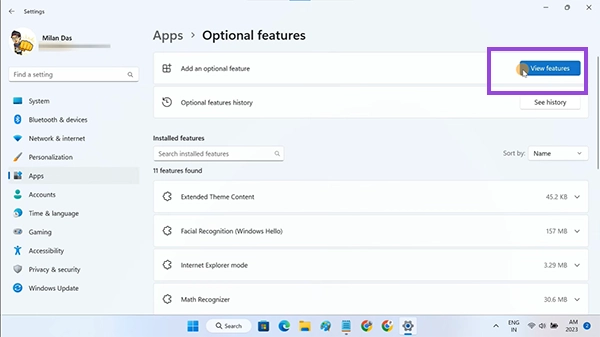
- Click to download Wireless Display.
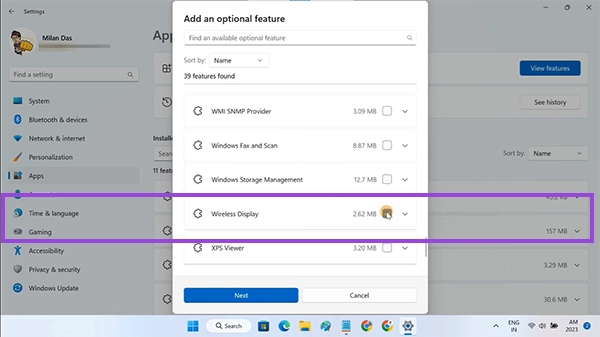
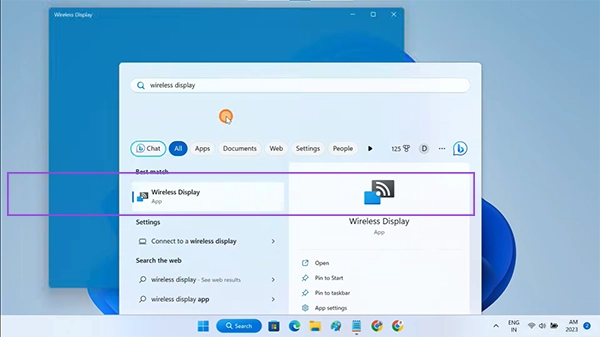
- Now, after it completes the download, launch the Wireless Display option from the home screen.
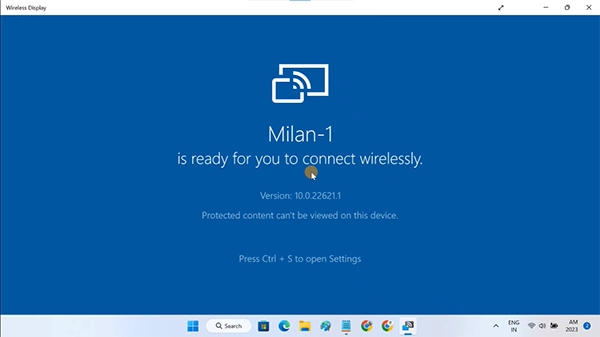
- Keep this Window Open.
- Now open the desktop.
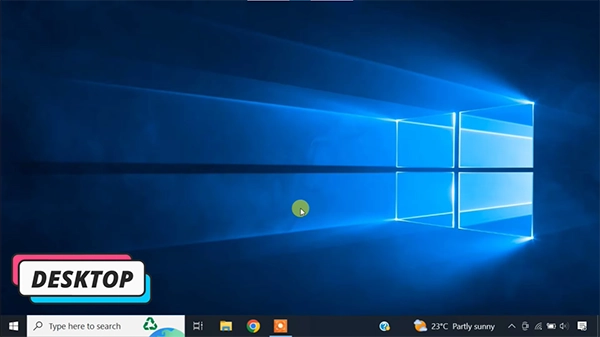
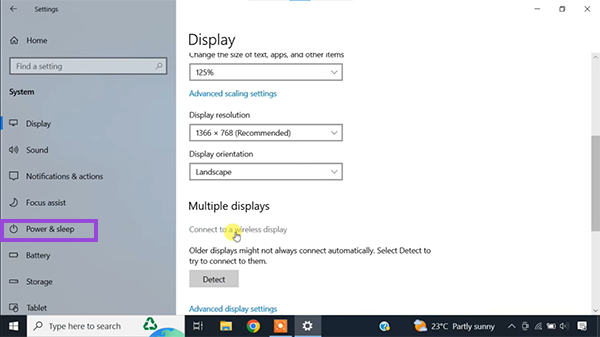
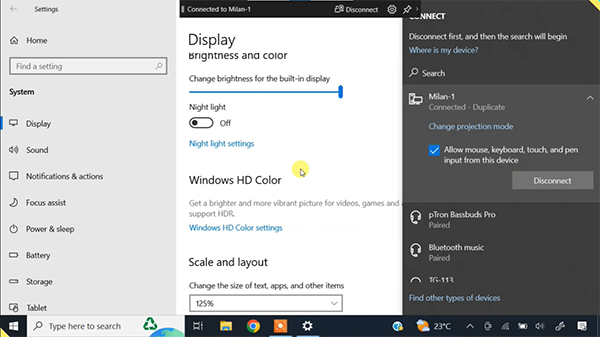
- Open Settings and go to Display.
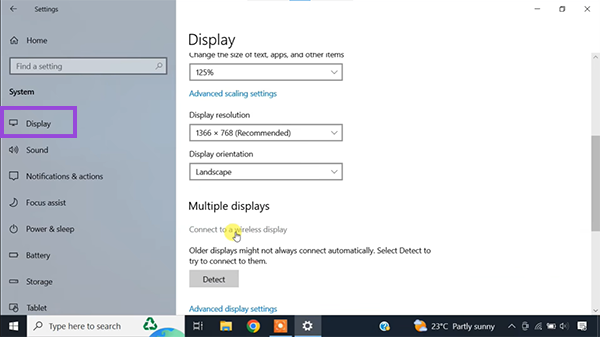
- Click on Connect to Wireless Display.
- Click on your laptop’s name.
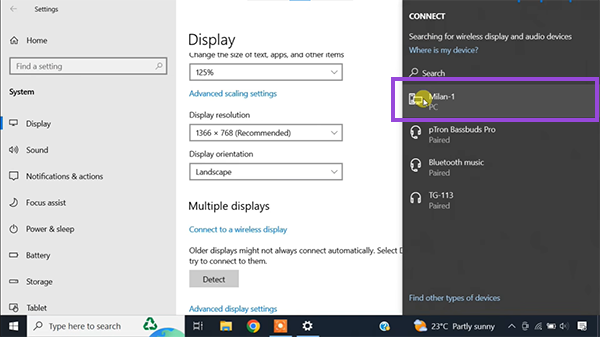
- After all this, both devices are connected.
Read more: How to Connect Printer to WiFi (Step-by-Step, All Devices)
How to Use a Laptop as a Monitor With a Cable?
First things first, before going any further, you must understand that laptops don’t have an HDMI port for video input and output, so you need an HDMI video capture card.
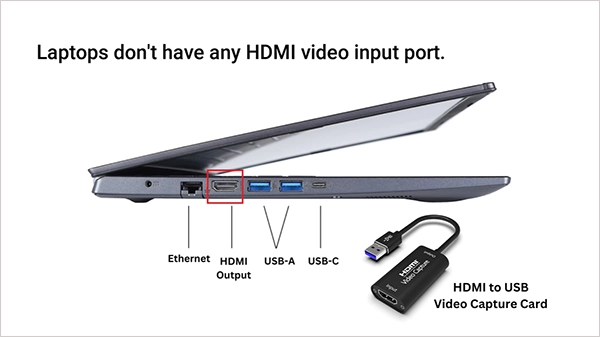
Now, if you have it, then connect one end of the HDMI cable to the laptop and connect the desktop with the video capture card.
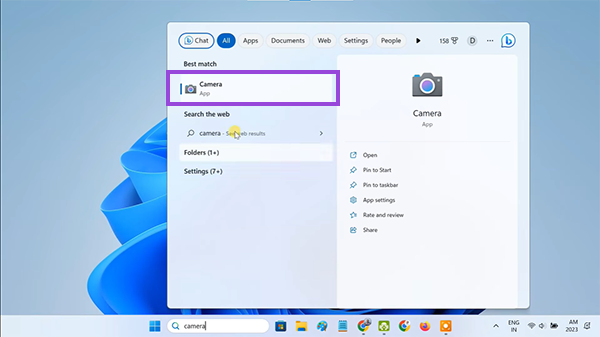
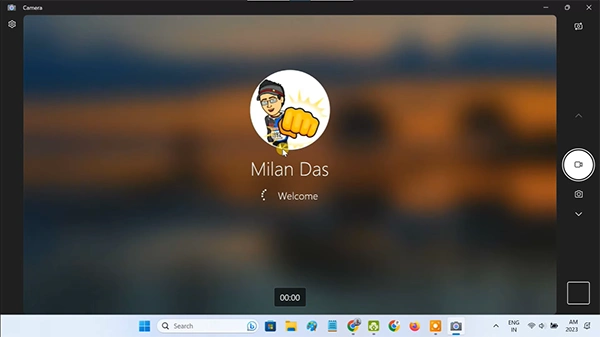
- Now Open Camera
- Click on the small camera switch icon; it will start rendering the HDMI output.
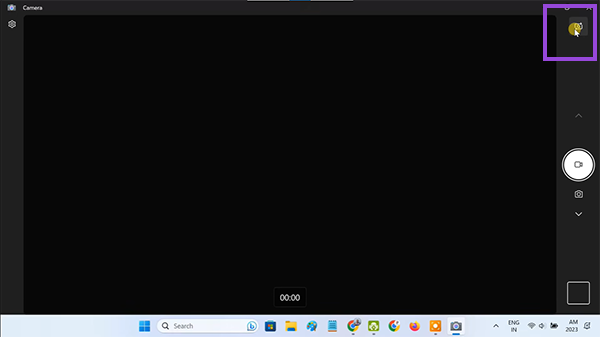
- Now you can use your laptop as a secondary desktop monitor.
Read more: iPhone Charging Port Repair: Common Problems, Fixes & Repair Costs
DIY Laptop Screen Monitor: What You Need
To make a DIY laptop monitor from scratch, all you need are five essential elements to make things work and save a couple of hundred dollars, which are mentioned below:
- Laptop LCD Screen: Buy a laptop screen from a broken laptop market or use the screen of your old laptop.
- LCD Controller Board: Next, purchase a driver board that matches your specific screen model number and pin count (often 30-pin or 40-pin).
- Power Adapter: Essential for supplying constant power to the motherboard.
- Video Cable: A good-quality video cable, along with a capture device to support input and output using HDMI.
- Button Keyboard: Lastly, a button keyboard for functionality.
Laptop as Monitor vs External Monitor
Now, for more clarity and a reality check, we are going to uncover a brief comparison between a laptop as a monitor and a separate monitor. Here, we will judge the various parameters that will help you determine what option is best for you according to your preferences.
| Features | Laptop as Monitor | External Monitor |
| Connectivity | Might consist of a laggy capture card. | High-end HDMI/USB ports for fast input and output. |
| Latency | High | Low |
| Cost | Free (if you have a laptop) | $500-$5000 according to your budget. |
| Best For | Temporary tasks. | Permanent Setup. |
Common Problems When Using a Laptop as a Monitor
When connecting your laptop as a secondary display, you are likely to encounter recurring issues that can frustrate you or ruin your experience. This is why, to provide clarity and minimize the odds of these issues, here are some common issues that you must try to avoid.
- Sometimes the laptop does not support video input because HDMI ports in most laptops are only capable of output. Without a video card, you can’t use the feature of an external monitor on laptop.
- Wireless display connections between two devices depend on a WiFi connection, so any fluctuation in it can disrupt the screen experience in real time and won’t let you multitask properly.
- Lag or poor image quality is an issue that almost every user faces during screen casting for many reasons, like slow cable input or output, weak WiFi strength, or insufficient device capabilities.
- Problems in device compatibility are often very hard to solve, as you might need to upgrade some hardware units like RAM, SSD, etc in order to achieve the quality and frame rate you desire.
- An incorrect LCD controller board can cause a blank screen, distorted images, or permanent damage to your panel due to mismatched voltages or pinouts.
Tips for Using a Laptop as a Second Display
Last but not least, we have to talk about some of the best tips for using a laptop as a second display without any interruptions or major failures. These methods will provide a drastic change in overall experience, and most of them are easy to implement. Let’s take a closer look at them.
- Stable WiFi Connection: Ensure that both your system and your laptops are connected to a stable network, as most users experience issues with online screen casting and mirroring using third-party or official features.
- Lossless Plug-in: Always check that the power supply of both units is intact and has no loose ends because, in a wired connection of a display, even small gaps between ports can cause sparking or hardware failures, which won’t let you use the laptop as a monitor.
- Try Different Wired Solutions: Never use old or rotten cables for connecting your laptop as a second display, as it can cause havoc mid-function due to their unstructured frameworks.
- Check Hardware and System Compatibility: Sometimes connection failures happen not because you are doing something but due to alarming scenarios of system incompatibilities. Before moving any further in the process, check the system requirements for your PC and laptop to see whether they are an ideal match for a display mirror.
- Adjust resolution: If you are experiencing video fluctuations or constant pixelation during casting, the best thing you can do is adjust the resolution through the mirroring features on your PC. This way, the load on both devices will be minimized, and you can achieve an ideal experience.
Frequently Asked Questions
Can I use my laptop as a monitor?
Can I use HDMI to display another computer on my laptop?
Ans: In most cases, you cannot use HDMI to display another computer on your laptop because the HDMI port of the laptop is made for output only and cannot receive input signals.
Can I use my laptop as an external monitor?
Ans: You can use your laptop as an external monitor using the screen mirroring feature or casting tools, which are third-party software to turn a laptop into an extra display.
Conclusion
That’s how you can connect the laptop as a monitor to your system without any interruptions using the official Windows ScreenCast or the HDMI cable trick that will allow you to improve your multitasking.
The best part is that you can choose the preferred option according to the situation, and either way you can enjoy the multi-screen experience without any major problems. However, you can face some common issues like screen rendering or frequent disconnections, which you can easily fix using the expert tips mentioned above. Also, make sure to follow Devicefixes for more such content.