Ans: Vertical lines usually appear due to LCD panel damage, GPU rendering issues, faulty cables, or outdated graphics drivers.
PC Screen Lines: Causes, Fixes & When You Need Professional Repair

Updated On March 23, 2026
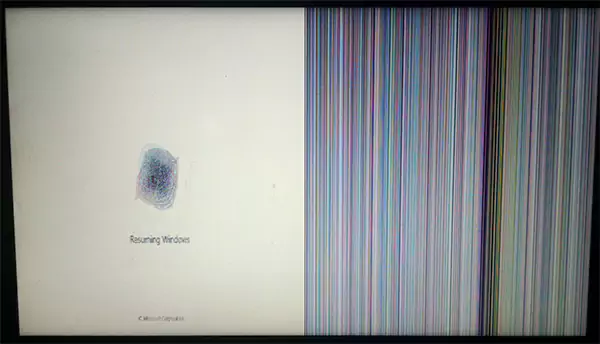
PC screen lines can occur from an inability of the display panel, the graphics card, or a video connection to create an appropriate image for display on a PC screen. Issues like these are commonly handled under professional PC & Laptop Repair services.
If you know what caused your problem, it will let you properly troubleshoot the issue and avoid total loss of the display. Hence, I have elaborated on some of the common causes and my personally tried and tested solutions that can resolve this issue in one go.
Table of Contents:
- Types of Screen Lines on a PC
- What Causes Lines on a PC Screen?
- How to Fix Lines on a Computer Screen? (Step-by-Step)
- When Fixes Don’t Work: Hardware Failure Signs?
- Repair vs Replace: What Makes Sense?
- Can Monitor Screen Lines Spread Over Time?
- Common Myths About Fixing PC Screen Lines
- Best Practices to Prevent Screen Line Issues in the Future
- Conclusion: Don’t Ignore PC Screen Lines
- FAQs
Types of Screen Lines on a PC
Now here are a few types of screen lines that usually appear on PC, including:
Vertical Lines on Computer Screen
If you see vertical lines on your monitor, it may be caused by the failure of the LCD panel part (the column) or if the display signal is malfunctioning. In some cases, deeper diagnostics through Computer Repair can help identify internal faults.
Examples of common vertical line abnormalities include:
- Black vertical lines display on the monitor
- White vertical lines display on the computer screen
- Vertical line stripes are displayed on the monitor
- Thin or thick vertical lines are displayed on the computer monitor.
If only one vertical line is displayed on your monitor, the cause may be due to one of the following reasons:
- Complexity failure of the LCD panel part (column)
- Internal display cable is loose
- GPU signal processing failure
- Pressure applied to the LCD screen causes a blank spot on the screen
Vertical lines displayed on all programs will usually mean the LCD panel itself is failing, which may require expert Laptop Repair if you’re using a portable device.
Horizontal or Streaking Lines
Distortion of graphics signals or refresh rates can result in horizontal lines or monitor flicker. Like:
- Monitor streaking
- Flashing horizontal lines
- Moving display lines
Lines will appear out of proportion in only one part of the screen during video playback.
Some possible causes for these symptoms are:
- Overheating GPU
- Damaged HDMI or DisplayPort cables
- Improper refresh rate settings
- Graphic driver conflicts.
Sometimes horizontal lines go away after restarting your system, then come back under heavy load. This behavior is also seen in high-performance systems handled under Mac Repair.
Colored Lines on PC Screen
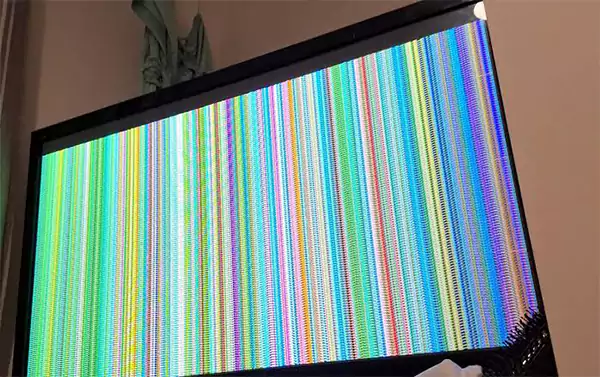
Typically, colored lines (black and white sometimes) will indicate some type of artifacting or display signal corruption from your graphics card.
The following are some frequently experienced reasons why this occurs:
- Memory Failure (GPU Memory Failure)
- GPU Overheating
- Corrupted graphics drivers
If you see red lines while gaming or editing videos, your GPU may be under stress. In extreme cases, crashes may require Data Recovery to restore lost files.
ALSO READ: How to Fix a Slow Computer: Simple Fixes That Actually Work
What Causes Lines on a PC Screen?
It’s important to know why PC screen lines appear in the first place and how you can get them fixed quickly. So take a look at the table below:
| Cause Category | Description | Risk Level | Common Signs | Quick Fix |
| Display Panel Damage | Physical LCD/OLED failure | High | Permanent lines | Screen Replacement |
| GPU Issues | Graphics card malfunction | High | Flickering | Update/replace GPU |
| Cable/Port Fault | HDMI/DisplayPort damage | Medium | Lines appearing/disappearing | Replace cable/change port |
| Driver Problems | Corrupt or outdated drivers | Low | Lines after update or boot | Update/reinstall drivers |
| Overheating | Thermal stress on the GPUMediumLines during heavy use | Medium | Lines during heavy use | Clean fans, improve cooling |
How to Fix Lines on a Computer Screen (Step-by-Step)
Fixing lines on the computer screen issues requires systematic troubleshooting to identify whether the problem is software, cables, or hardware.
Basic Checks (Safe)
Before determining that the computer has physically damaged hardware, you will want to perform safe troubleshooting steps.
1. Reboot the computer.
2. Check by looking at the BIOS to see if any lines are visible.
3. Take a screenshot of the screen to check for display output from the graphics card.
4. Connect an external monitor to test.
These steps help determine whether the issue is with the display or internal hardware. If the issue persists, broader Device Repair Services may be required.
Cable & Port Fixes
Cabling that has been damaged will create visual distortions or line issues on your monitor.
Below are potential resolutions to consider:
- Replace the HDMI cable.
- Change the DisplayPort or HDMI connection type.
- Use another monitor to test.
- Clear any debris from the ports and connectors.
These issues are also common in external devices like tablets handled under Tablet Repair.
Driver & Software Fixes
Display drivers are responsible for rendering images properly on your display. The following steps are recommended to resolve display driver problems:
- Update the driver for your video card.
- Uninstall the latest driver.
- Reset your display resolution.
- Adjust your refresh rate to its lowest value.
- Try testing in Safe Mode.
Driver-related display issues are also frequently seen in Smartphone Repair cases.
ALSO READ: How Much Does It Cost to Repair a Phone Screen? Average Repair & Replacement Costs
When Fixes Don’t Work?: Hardware Failure Signs
Lines on the screen that are persistent typically indicate an internal hardware failure that requires either repair or replacement. Signs of a problem are:
- Lines that are visible when the BIOS starts, and lines that show up gradually.
- There are increasing vertical stripe lines.
- When first powered on, there is display distortion.
Possible defective components could be:
- LCD display panel.
- Laptop display ribbon cable.
- Graphics card.
Professional repair is recommended, especially for gaming devices like Xbox Repair or PlayStation Repair.
Repair vs Replace: What Makes Sense?
The type of part that is affected and how old the device is will determine whether you should repair or replace it.
Use repair when:
- The PC screen can be replaced at a low cost.
- The GPU (graphics processing unit) can be removed from the desktop and replaced.
- The internal cable to the display is loose.
Use replace when:
- The monitor panel is damaged beyond repair.
- The device is very old (6+ years).
- The repair of the GPU is more expensive than the cost of replacing the GPU.
Ignoring early signs can make the device unusable, similar to long-term damage seen in devices requiring Samsung Phone Repair or iPhone Repair.
Can Monitor Screen Lines Spread Over Time?
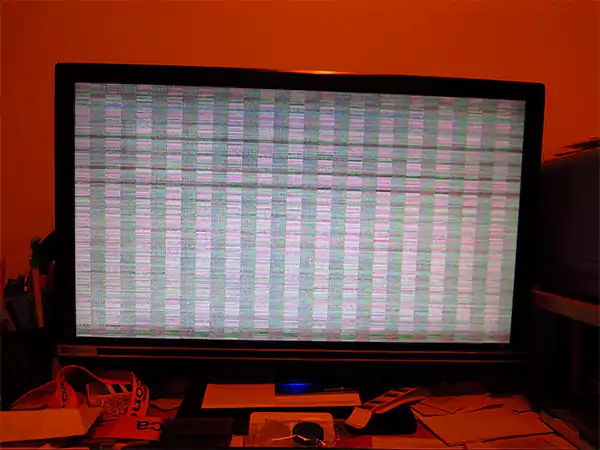
Generally speaking, vertical lines on your computer monitor also become worse as your LCD panel continues to deteriorate. Common causes for vertical line spreading are:
- Electronic column driver failure.
- Continued pixel column damage.
- Thermal stress on internal components.
If you don’t respond to early indications of vertical line symptoms on your computer monitor, you could eventually render the monitor unusable.
Common Myths About Fixing PC Screen Lines
Numerous online options profess to be able to repair line defects on screens; however, most of these solutions do not work or carry health risks.
Some common misconceptions are:
- Screen Pressure Correction: Applying pressure may cause additional damage to internal elements.
- Software to Fix Dead Pixels: Software cannot repair columns of pixels that are poorly functioning on an LCD panel.
- Self-Repairing Displays: In nearly every case, failing hardware components in a display will continue to fail until repaired.
Best Practices to Prevent Screen Line Issues in the Future
Screen problems can be avoided through proper handling and care.
Examples of good handling include:
- Don’t put your hands directly onto the screen; use a paper towel when wiping the screen.
- Use high-quality video cables.
- Keep plenty of airflow around GPU coolers.
- Don’t close the lid of your laptop too often or with too much force.
- Using a surge protector can help prevent vertical line-related computer screen issues.
By performing preventive maintenance on your systems, you can greatly reduce the likelihood of developing vertical lines on your laptop or desktop computer screens.
Conclusion: Don’t Ignore PC Screen Lines
Lines on a PC screen can be indicative of deeper underlying display or graphics problems, rather than simply being cosmetic in nature. Whether it is specific problems like vertical lines down the monitor, red lines on the PC screen or streaks on your monitor.
Identifying the cause of the problem as soon as possible can help you avoid extensive and expensive repairs. In the beginning, perform basic troubleshooting; however, if the lines persist, the problem is likely to be hardware damage, which will require professional repair.
FAQs
Q: Why do I see vertical lines on my computer screen?
Q: Can a GPU cause vertical lines on a monitor?
Ans: Yes. GPU overheating, memory failure, or driver corruption can create vertical lines, colored artifacts, or screen distortion.
Q: Are screen lines fixable without replacing the display?
Ans: Sometimes. Driver updates, cable replacement, or GPU troubleshooting may remove lines if the display panel itself is not damaged.
Q: Do monitor lines mean the screen is dying?
Ans: Not always, but persistent lines often indicate failing display hardware that may eventually require replacement.
Q: Is it safe to keep using a monitor with lines?
Ans: Yes, temporarily, but worsening lines may indicate hardware damage that could lead to complete display failure.
SOURCE: