The best ink is the genuine Epson ink recommended for your specific printer model. It is designed to provide reliable performance, accurate colors, and consistent print quality.
Easy Tips to Get the Most Out of Your Professional Epson Ink

Updated On August 25, 2026
Table of Contents:
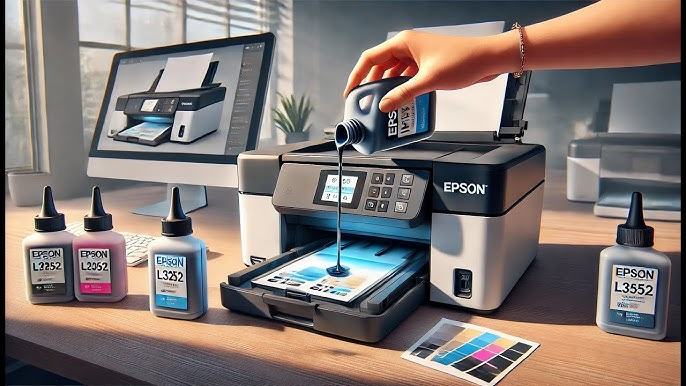
Have you ever wondered why printing costs rise quickly after some particular printing events? Well, the cost is directly related to certain factors, including settings, maintenance, and storage. Whether you print documents, photos, or related materials, inefficiency in usage may lead to unnecessary wastage of the resource.
Through this blog, we will understand and highlight the importance of optimizing Epson ink, list the habits that save your ink, and much more.
Why Epson Ink Optimization Matters
Optimizing your Epson printer ink usage helps control printing costs and prevents unnecessary cartridge replacements. It also supports consistent print quality and reduces problems caused by dried ink, clogged nozzles, or excessive ink application. Small adjustments to settings, paper selection, and maintenance can make a noticeable difference over time.
Choose the Right Print Settings for Every Job
To choose the right print settings for every job, avoid using the highest-quality setting for every print. Match your settings to the purpose of the document. Reserve professional Epson ink cartridges for photo printers, presentations, and other materials that require sharper detail.
Here’s everything you need to know:
- Draft mode: Ideal for internal documents, notes, and everyday text.
- Standard mode: Suitable for regular business documents and reports.
- High or Fine quality: Best for photos, presentations, graphics, and other materials where sharpness matters.
- Black-and-white printing: Use this when color is unnecessary to conserve colored ink.
Draft Mode vs. Fine Print: When to Switch
| Parameters | Draft Mode | Fine Print |
| Purpose | Best for quick, everyday, and internal documents. | Designed for professional documents, graphics, and detailed prints. |
| Speed | Faster printing with shorter processing time. | Slower because more ink and detail are applied. |
| Quality | Basic quality with lighter ink coverage. | Higher quality with sharper text, richer colors, and finer details. |
| When to Use | Use for rough copies, notes, emails, and internal documents. | Use for presentations, photos, marketing materials, and final copies. |
Note: Use draft mode when speed and ink savings matter more than appearance, such as for rough copies and internal documents. Switch to fine print when you need sharper text, richer colors, or detailed images for presentations, photos, reports, or final documents.
Paper Type Selection: Avoiding Ink Over-Saturation
- Choose the paper setting that matches the paper you are using.
- Incorrect settings can cause the printer to apply too much ink, resulting in smudging, slow drying, and wasted ink.
- Use compatible, high-quality paper to produce sharper and cleaner results.
Maintenance Habits That Save Your Ink
A few simple habits can help extend your ink supply and keep your Epson printer working reliably.
These are:
- Keep the printer covered when not in use.
- Remove dust from accessible areas.
- Use the printer regularly instead of leaving it idle for long periods.
- Follow Epson’s recommended maintenance procedures.
The Secret to Preventing Clogged Printhead Nozzles
One of the easiest ways to prevent clogged nozzles is regular use. Printing a small document or test page periodically can help keep ink flowing through the printhead. Avoid repeatedly switching the printer on and off, as startup and maintenance cycles can consume ink.
How Often Should You Really Run Head Cleaning Cycles?
Run a head cleaning cycle only when you notice symptoms such as missing lines, faded colors, or uneven printing. Running cleaning cycles unnecessarily can consume a considerable amount of ink. If quality problems continue after a normal cleaning, follow your printer model’s troubleshooting instructions.
Smart Storage & Handling Tips
Store unused Epson ink cartridges in their original packaging until needed. Keep them away from direct sunlight, excessive heat, and moisture. Handle the cartridges. carefully and avoid touching sensitive contacts or ink outlets. Proper handling helps protect the cartridge and maintain reliable print performance.
Temperature Control: Protecting Ink Viscosity
- Store ink cartridges in a cool, dry place.
- Keep cartridges away from hot cars, heaters, and direct sunlight.
- Follow Epson’s recommended storage conditions to maintain ink consistency and performance.
Expiration Dates & Air Leak Prevention
Check cartridge packaging for expiration or recommended-use information and use older cartridges first when possible. Keep cartridges sealed until installation, as unnecessary exposure to air can affect ink quality. Never use damaged, leaking, or visibly compromised cartridges.
Software & Driver Tricks to Stretch Cartridge Life
Use the right software settings and printer tools to reduce wasting ink. Apart from this, avoid unnecessary reprints to extend the life of your Epson ink.
Here’s a list of tips and tricks to extend your cartridge life:
- Select the appropriate print quality before sending a job.
- Use grayscale or black-and-white printing when color is unnecessary.
- Turn off unnecessary high-quality or photo settings for basic documents.
- Keep your Epson printer drivers and software updated.
- Check the print preview before printing to avoid unnecessary pages.
- Use printer-specific settings rather than relying on generic defaults.
- Monitor ink levels through the printer software to plan replacements.
Troubleshooting Common Epson Ink Issues
You can resolve common Epson ink issues, such as clogged printheads, faded prints, or unrecognized cartridges, by running appropriate maintenance cycles, cleaning the cartridge contacts, or resetting the printer when necessary.
Here’s everything you need to know:
| Some Common Epson Ink Issues | |
| Faded or Uneven Prints | Check the ink levels and printhead nozzles, then perform a cleaning cycle if required. |
| Missing Lines | Run a nozzle check and follow the recommended cleaning procedure. |
| Smudged Documents | Confirm that the correct paper type is selected and allow prints adequate drying time. |
| Unrecognizable Ink Cartridge | Remove and reinstall the cartridge carefully, ensuring it is properly seated. If the issue continues, consult the instructions for your specific Epson printer. |
Final Thoughts: Getting Maximum Value Per Page
Getting more value from your professional Epson ink is not about using less ink at all costs. It is about using the right amount for each printing task.
By choosing suitable print settings, using the correct paper, maintaining the printhead sensibly, and storing cartridges properly, you can reduce waste while maintaining reliable print quality.
FAQs
Which ink is best for an Epson printer?
How do I make my Epson printer print better quality?
Select the correct paper type, use the appropriate print-quality setting, ensure ink levels are sufficient, and run a nozzle check or printhead cleaning cycle when needed.
How to save money on Epson ink?
Use draft mode for everyday documents, print only when necessary, choose black-and-white printing when color is not required, and avoid unnecessary printhead cleaning cycles.
How to know genuine Epson ink?
Buy from Epson or an authorized seller and check the packaging, product details, and security features carefully. Avoid cartridges with damaged packaging or unusually low prices.
How much is the original Epson ink?
Original Epson ink typically ranges from $4 USD to $55 USD per item.