
Ans: Open settings on your Windows device and click on System> About to gather insights about the memory capacity. However, if you own a Mac device, simply click on Settings> General> About and check the installed RAM gigabytes.
How to Check RAM in Windows and MacOS?
Random Access Memory is a cache or volatile memory that serves the purpose of temporarily storing data that your device is currently using for quick access.
As upgrading your RAM can help fix a slow computer, understanding what is the RAM memory in a computer will help you optimise your system’s configuration and gain smoother and lag-free performance.
However, if you are having trouble identifying your RAM size and type, you can simply follow our comprehensive guide below to understand how to check RAM capacity effortlessly.
Table of Contents:
How to Check How Much RAM You Have in Windows?
If your system is experiencing lag and latency issues, and you are wondering how to check RAM for an upgrade, you can simply follow these simple steps to evaluate your system’s memory performance.
How to Know How Much RAM You Have on Windows Using the About PC Tool?
It’s straightforward to search for your RAM memory on your Windows device using the About Your PC tool present in Settings. Here are the detailed steps for this method.
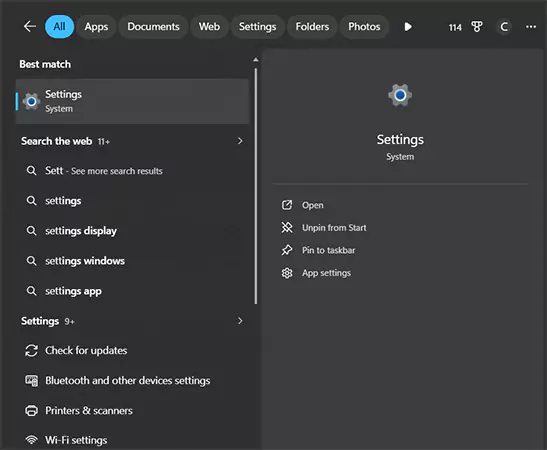
- Open Settings by typing it in the Search box or press Windows + I for instant access.
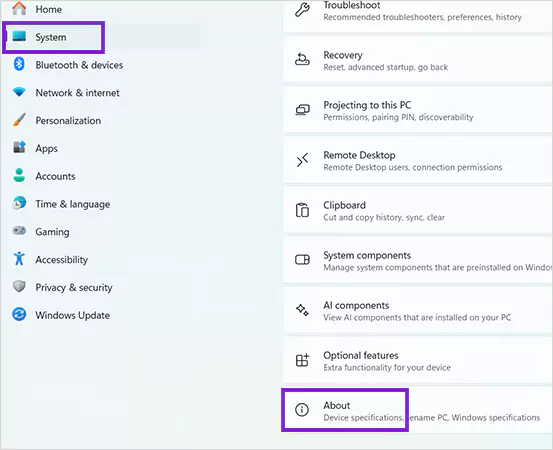
- Click on System and scroll down to find the About section.
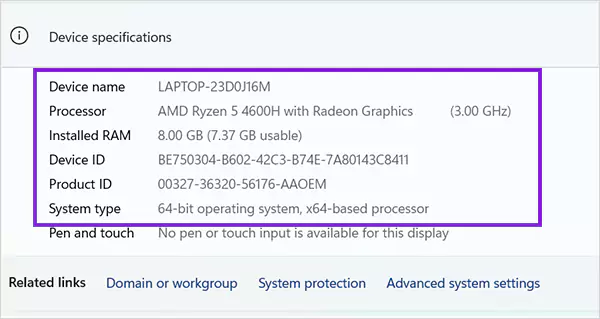
- You can check your installed RAM, processor, and system type under Device Specifications in the About PC section.
How to Know How Much RAM You Have on Windows Using Task Manager?
Another easy method for finding RAM details on your Windows device is through the Task Manager application. Just follow these easy steps to check RAM usage and system details.
- Type Task Manager in the Search tool or simply press Ctrl + Shift + Esc to open Task Manager.
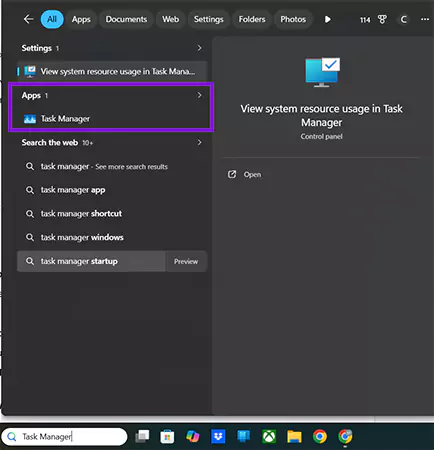
- Click on the Performance and select Memory.
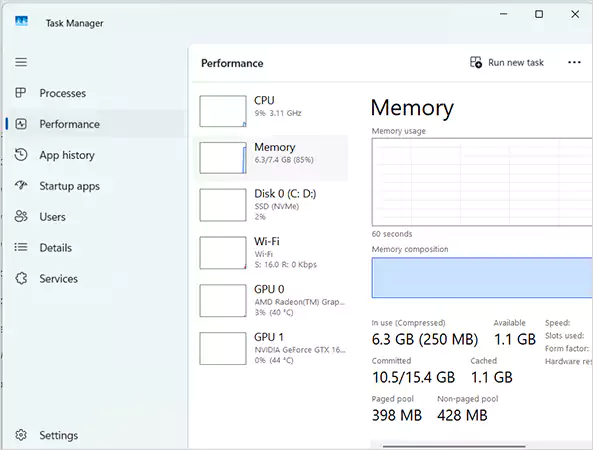
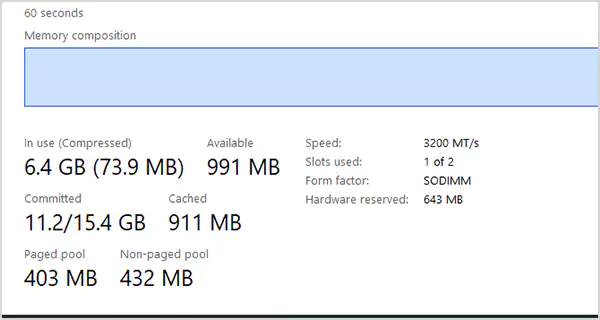
- You will be able to check the entire details of RAM on your device, including RAM speed, usage, and total memory.
How to Know How Much RAM You Have on Windows Using Command Prompt?
Beyond the above-mentioned methods, you can also find your answer to how to check RAM on pc with the help of Command Prompt. Below are the step-by-step instructions to guide you.
- Click on the Search tool and type Command Prompt. Afterwards, right-click to Run as Administrator.
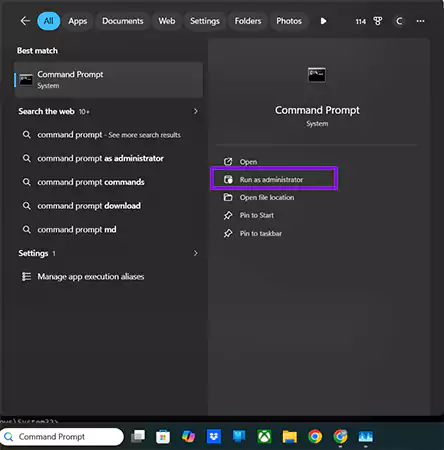
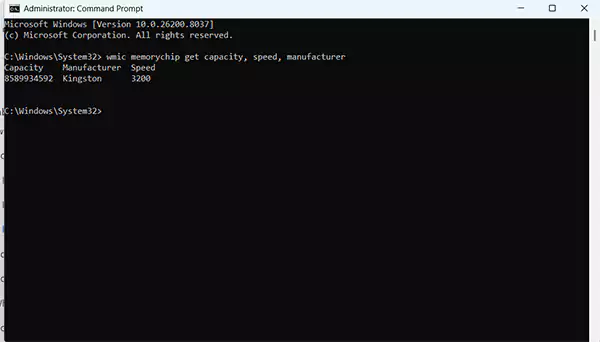
- Enter the following command-line utility: “wmic memorychip get capacity, speed, manufacturer”.
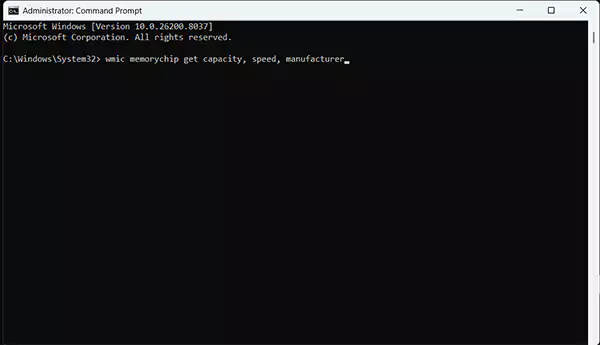
- It will showcase your memory’s manufacturer, capacity, and speed.
Also Read: Fix Laptop Monitor Issues: Complete Troubleshooting Guide
How to Check RAM on Mac Devices Without Hassle?
System performance issues, unresponsive apps, and challenges while handling heavy tasks are the common problems that you will face on your macOS when RAM is fully utilised.
However, to gain an understanding of how to check RAM on macOS, simply follow these easy steps mentioned below.
- Open Settings from the macOS dock at the bottom and click on General.
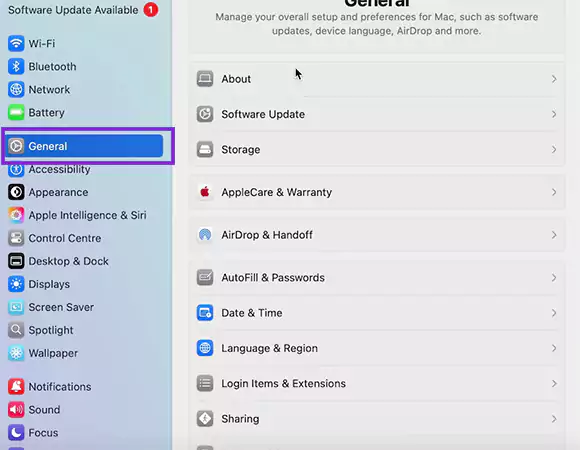
- Click on About, and you will be able to find your device’s RAM capacity in the memory section.
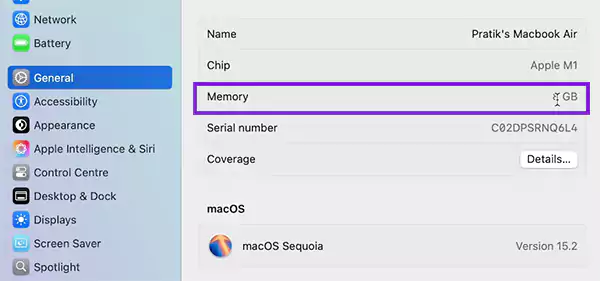
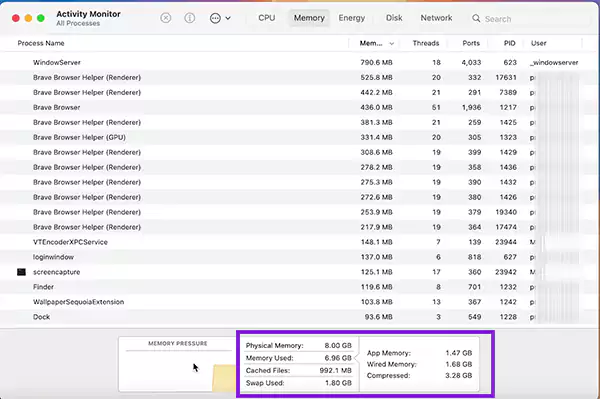
Beyond this, macOS provides built-in tools to easily check how much RAM has been used on your device. To check RAM usage and performance, follow these step-by-step instructions.
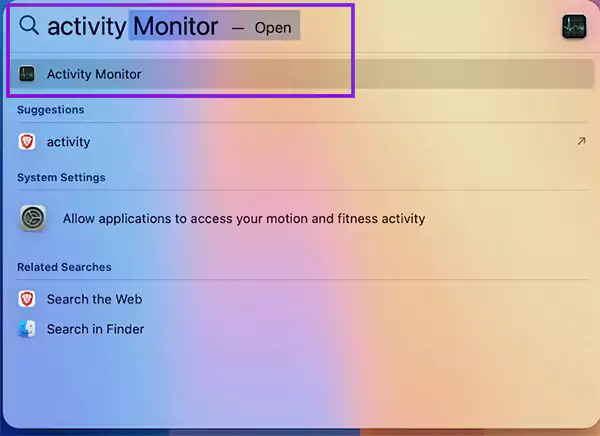
- Press Command + Spacebar to open Search, and type Activity Monitor.
- Click on the Memory tab, and it will show the used memory, cached files, and physical memory details at the bottom right.
How to See What RAM I Have and Upgrade RAM on PC?
If you are willing to improve your system’s performance and processing speed through a RAM upgrade, but are unable to determine whether you have a DDR3, DDR4, or DDR5 RAM.
Don’t worry, just refer to the step-by-step guide below to check your device memory type and specification.
How to Check What RAM I Have on Windows?
As a developer, I often search for what kind of RAM do I have on different Windows devices, which helps me in determining the performance capabilities for relevant upgrades.
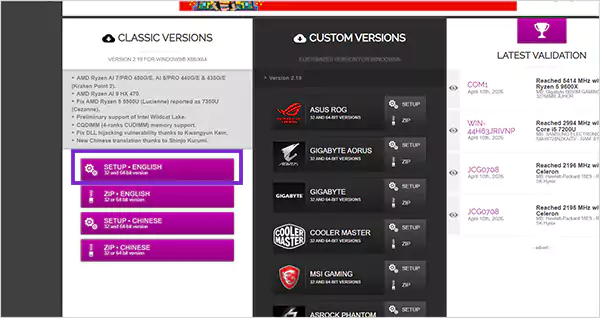
The easiest method of finding RAM type on Windows is using the CPU-Z third-party software.
- Visit the CPU-Z website to download and install the software on your device.
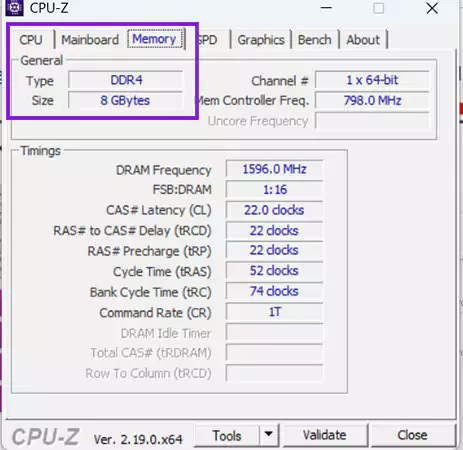
- Open the CPU-Z application and click on theMemory tab. You will be able to find your device’s RAM type, size, and channel in the section.
How to Check What RAM I have on macOS?
Analyzing memory type, size, and category is effortless on Mac devices, as macOS provides system information in its hardware specifications section. Here are the key steps that you must follow to gain insights about memory type on macOS.
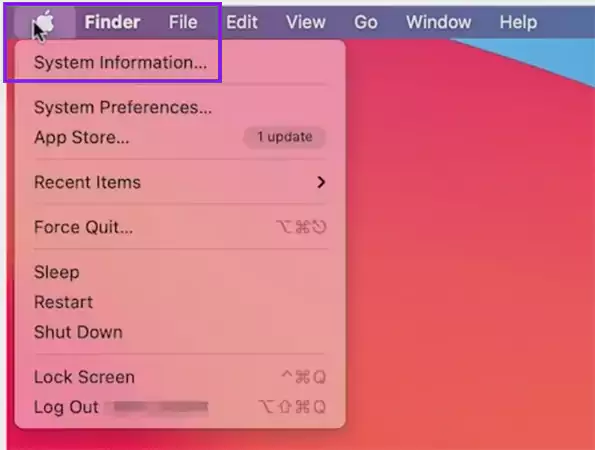
- Click on the Apple Menu present in the top right corner and select System Information.
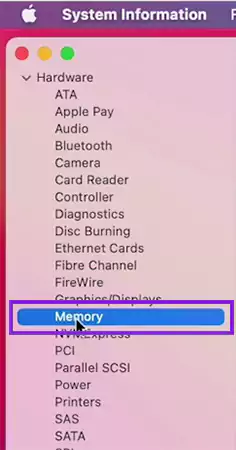
- Navigate to the Memory tab under the Hardware Menu.
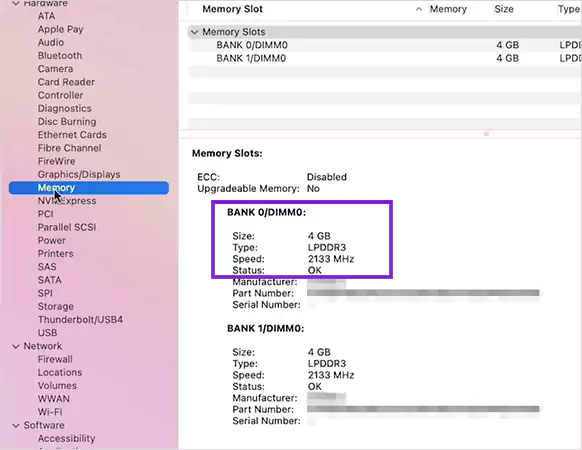
- Check comprehensive details of memory slots present in your device, including the type, speed, manufacturer, part number, and serial number.
Also Read: Android Latest Version: Current Android OS & Complete Version History
What are the Best Methods to Troubleshoot RAM Problems?
While exploring how to check how much RAM you have, also search for troubleshooting methods that can help you in better multitasking and a streamlined workflow.
RAM or graphics card malfunction can also cause PC screen lines, which you will have to fix by replacing or updating the memory or the GPU. However, you can use these tips if you encounter RAM issues in your device.
Utilise Built-in Memory Diagnostics Tools
You can use the Windows Memory Diagnostic tool or the Apple Diagnostics feature to scan your system memory for errors and resolve minor issues.
- Press Windows + R and type “mdsched.exe”.
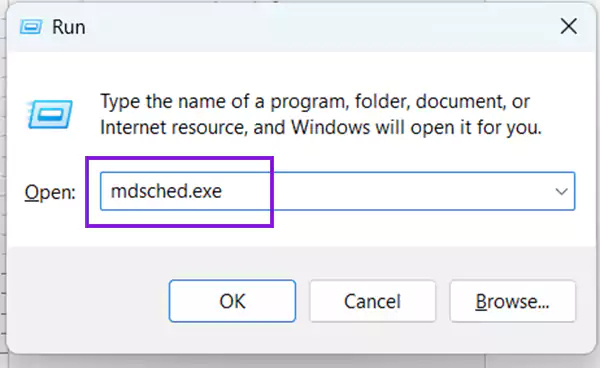
- Restart your system and scan for memory errors.
For Mac devices, you have to use the Apple Diagnostics tool by restarting your macOS and holding D during startup.
Update Drivers and Operating Systems
As outdated drivers often contribute to the slower performance of your PC, ensure that you update chipset drivers, along with installing updates for macOS and Windows.
This helps in enhanced memory management and consistent performance, as these updates include bug fixes and security patches, which allow your RAM to operate efficiently.
How much RAM do I need in my PC?
Your daily requirement of GPU usage determines how much RAM you actually need in your PC. While most laptops and PC’s offer 4-16 GB of memory, you can purchase the ideal one based on system resource usage.
You can refer to the table below, which will help you understand the recommended RAM capacity.
| Usage Type | Recommended RAM | Best for Tasks |
| Everyday Basic Usage | 4GB – 8GB | It will easily handle tasks like web browsing, emails, document editing, and light multitasking. |
| Multitasking & Productivity | 8GB – 16GB | Serves best for heavy multitasking, large spreadsheets, programming, and working on productivity software. |
| Gaming and Content Creation | 16GB -32GB | If you play AAA titles and GPU-intensive games, or you work on graphic design and video editing, then you must opt for at least 16 GB of memory. |
| Professional Workspaces | 32GB -64GB | Ideal for 3D rendering, large-scale data processing, heavy programming, and advanced development workloads. |
Also Read: How to Fix Phone Speakers? Speaker Repair Guide of 2026
Wrapping Up
Understanding how to check RAM is straightforward and convenient, as you can use the About PC tool on Windows by pressing Windows + I and then clicking on System> About section.
However, for Mac users, simply go to Settings and click on General> About to know about the RAM capacity. You can also utilise the Activity Monitor tool on macOS to check the memory usage and cached files.
FAQs
Q: How do I check how much RAM I have?
Q: Is 32 GB of RAM good, and 256 GB of RAM overkill?
Ans: Yes, 32 GB of memory is significant for resource-intensive tasks, such as gaming, 4K or 8K video editing, and more. However, 256 GB is definitely overkill, as you don’t need that much memory for daily usage, and it is primarily used by large-scale organisations.
Q: How can I check if my RAM is ok?
Ans: You can use the Windows Memory Diagnostic feature to check the RAM condition. Utilise this tool by searching for Windows Memory Diagnostics and restarting your PC. Then click on Event Viewer> Windows Logs> System to see the results.
Q: How do I check if my RAM is 4GB, 8GB, or 16GB?
Ans: Start by typing Task Manager in the search bar, and then click on Performance> Memory. Afterwards, you will be able to check whether your device has 4 GB, 8GB, or 16 GB of RAM.