

Ans. Open Settings, go to Security or Passcode, enter your current password, then create and confirm a new password to update.
How to Change the Password of a Phone on Android and iOS?
How to change the password of phone? It’s simple; the first step is to access your phone’s settings, then find the security or passcode option. Once you have located the appropriate section, enter your current passcode and create a new one. If your device has issues accessing settings or security features, you can also explore smartphone repair services to ensure your phone works properly.
The process for both Android and iOS is very similar, but the specific steps may vary based on the type of device that you have. Below, you will find detailed directions to how to change the password of phone, as well as information about common problems and best practices for resetting a phone password quickly. If you’re using a specific device like an iPhone repair service or Samsung phone repair, settings may
Table of Contents:
How to Change the Password of Phone on Android?
If you’re wondering how to change the password of phone (Android). These steps apply across most devices including brands like OnePlus repair services,Google Pixel repair, and Motorola repair services:
- Open Settings on your phone

- Search Security and Privacy or Lock Screen (varies by device)
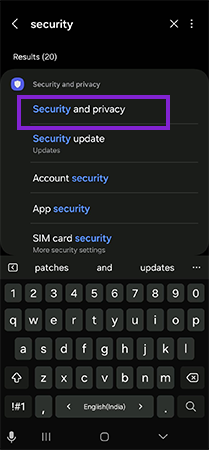
- Select Screen Lock Type
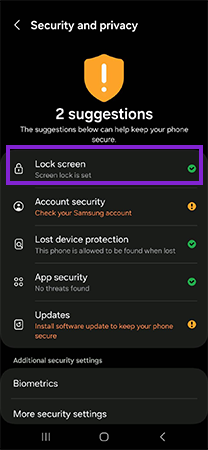
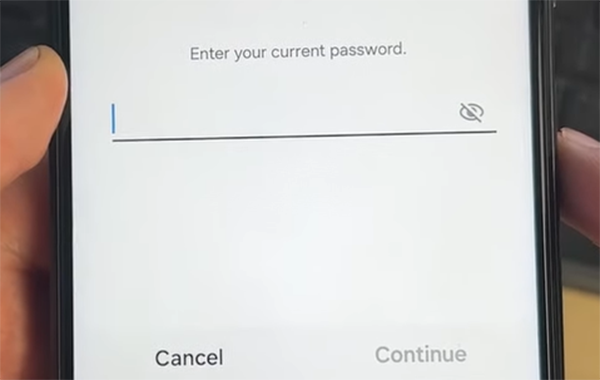
- Enter your current phone password
- Choose a new option (PIN, pattern, or password)
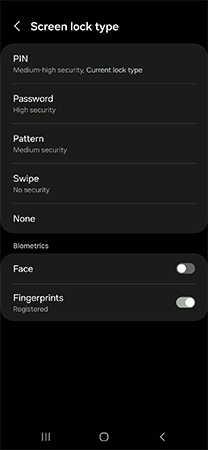
- Enter and confirm your new password
Important points:
- Sometime when you change password in Android, it may have “Security & Passwords” instead of “Passwords & Security.”
- You can enable either fingerprint or face recognition to unlock your phone, in addition to your password.
- You must remember your current password to make any changes to it.
- The steps outlined are used for changing passwords on Android devices.
- In Android latest version, biometrics has become a permanent feature. You can set a fingerprint scan or face scan, along with a password, increase security and make it more convenient for the user.
- If your phone storage or data gets affected during resets, you may also consider data recovery services to restore important files.
How to Change the Password of Phone on an iPhone?
To learn how to change the password of phone (iPhone), follow these steps:
- Go to Settings
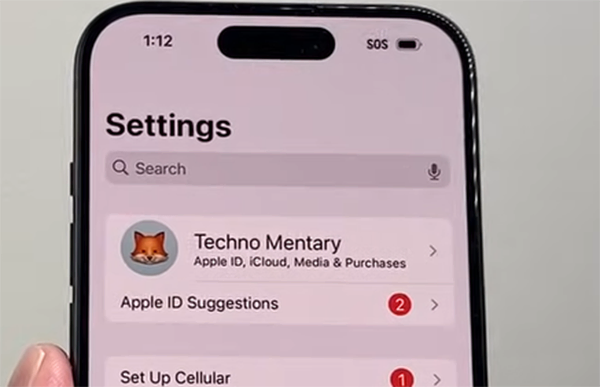
- Scroll down or search Face ID & Passcode
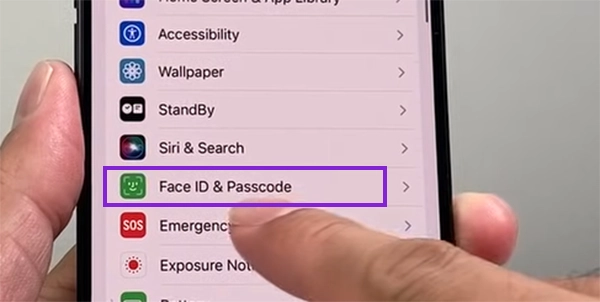
- Enter your current password
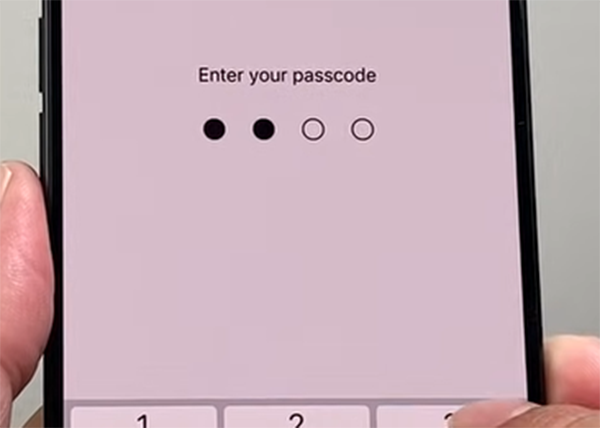
- Right after that, scroll down and click on Change Passcode.
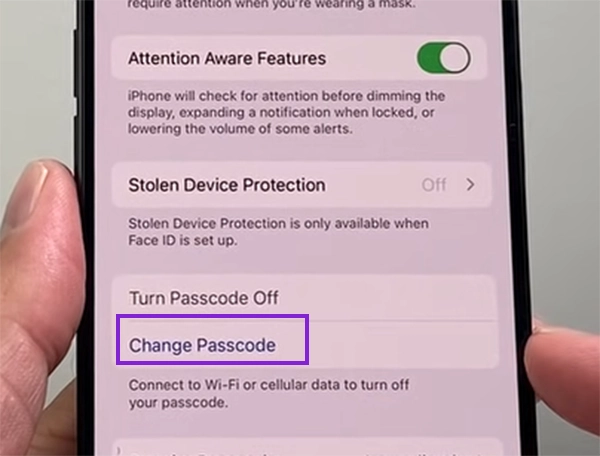
- Enter your current passcode again
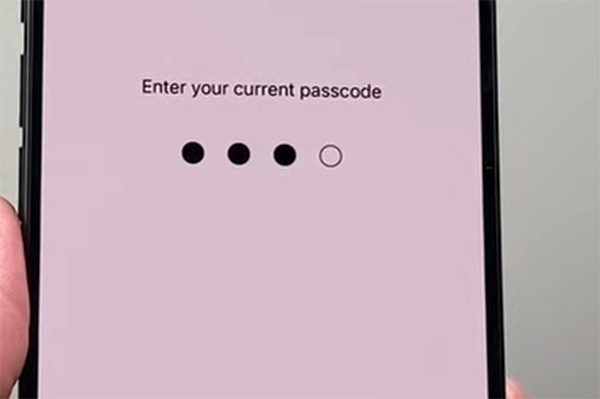
- Create a new password and re-enter it again
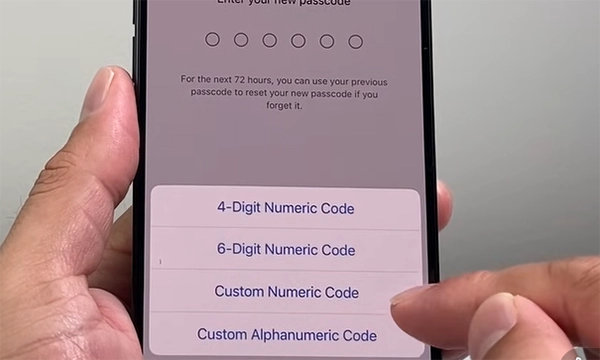
- Your new password is saved
Optional Settings:
- You can choose between a 6-digit code, a 4-digit code, or an alphanumeric password.
- Change auto-lock time for increased security.
This method of how to change my password is also applicable to iPads; iPAD OS uses the same procedure. If you use gaming devices alongside your phone, like Nintendo repair services,PlayStation repair, or Xbox repair services.
ALSO READ: Nintendo Joy-Con Repair: Complete Guide to Fixing Joy-Con Drift
Tips for Creating a Strong and Secure Phone Password
Now that you have learned how to change the password of phone, there’s something else that you should know. Avoid using common or predictable combinations when selecting your phone password. When changing your phone password, make sure to follow these guidelines:
1. Your password should contain 6-8 characters
Short and simple passwords can easily be compromised through brute force attacks (hacking). Increasing the number of characters will add complexity to your password, making it much harder for an unauthorized user or program to guess.
2. Use a Combination of Letters, Characters, Numbers, and Symbols
It will provide a stronger defense than using all numbers or letters. Whenever possible, use alphanumeric passwords instead of simple PIN’s or numbers. This way, people won’t be able to guess your password, as it consists of various symbols, digits, and characters.
3. Do not use Predictable Patterns When Selecting your Password
Patterns and repetitions like “1111,” “123456,” or birthdays are the first sets of combinations that hackers try. You have to come up with something that you can remember, but is also not easy to guess. By setting up predictable passwords you are putting your security at risk.
4. Avoid Using the Same Passwords Across Different Apps/Platforms
If you use the same password across multiple platforms, then all of your personal data is vulnerable to hackers if there is a security breach on one of those platforms. Your phone password should be entirely unique and should not match your email, banking, or social networking passwords.
5. Change Your Passwords Regularly
Updating your password regularly lowers the overall long-term risk of your password being compromised. Even if your current password does not appear to have been compromised, changing your password regularly will help protect you from future threats and attacks to your device and information.
4 Common Issues When Changing Phone Password and Fixes
Sometimes when you wonder how can I change my password, it can be tricky to navigate. Here are a few common issues with solutions you can try:
1. You Forgot Your Current Password
- If you are on an Android phone, you can use your Google account to reset access or do a factory reset of your phone if recovery options fail.
- On an iPhone, your access can be recovered through iTunes or Finder using your Apple ID to reset your device securely and restore your data afterward.
2. You Cannot Find the Settings Option
- Explore the Security, Privacy, or Lock Screen areas of your Android phone, since different brands of Android phones may organize their password settings in slightly different places.
- Because the software and custom user interface (UI) skin you are using can change how navigation occurs through the Settings search bar, use its search function to find your password or passcode options.
3. Your Password is Not Accepted
- Make sure that you enter the password in the correct format (PIN, pattern, alphanumeric), as entering it in the wrong format often leads to multiple failed attempts.
- After confirming that you have entered the password correctly, you can reboot your device to clear temporary glitches and then re-enter your password. Also, check for typing errors or pressing the caps lock.
4. You are Locked Out of Your Device
- You may want to use the official recovery methods, such as logging into your Google account or restoring your Apple ID, to gain access to your device, as it does not put your data at risk of being stolen or tampered with. This also is helpful when you factory reset your device to turn off the safe mode.
- Do not use third-party unlocking tools to unlock your device, because they can put your privacy at risk, damage your device, and may even permanently lock you out of your own device due to security settings.
ALSO READ: How to Record a Phone Call on iPhone Without Hassle?
Conclusion
It’s safe to say you have learned how to change the password of phone. It takes only about 60 seconds and greatly increases the security of your cell phone. If you’re wondering how to reset your passcode or how to change your password on your cell phone, then the solution is easy.
You go into settings, then verify that you have entered your current passcode correctly, and then you enter the new passcode. Use strong passcodes and frequently change your passcodes to continue to protect yourself from anyone accessing your cell phone, your applications, and your private information.
FAQ’s
Q. How do I change my password on my phone (Android)?
Q. How to change phone password if I forgot it?
Ans. Use account recovery options like Google or Apple ID, or reset your device through recovery mode if access cannot be restored.
Q. How do I change my passcode on iPhone?
Ans. Open Settings, tap Face ID & Passcode, enter your current passcode, select Change Passcode, and then set and confirm your new passcode.
Q. What is the best phone password?
Ans. A strong password includes letters, numbers, symbols, avoids patterns, stays unique, and is regularly updated to improve device security protection.
SOURCE:
Set screen lock on an Android device by Google