Ans: In most cases, the pressure marks on a laptop screen rarely go away on their own unless they are very fresh and caused by a mild, temporary disruption to the liquid crystals or backlight layers.
Pressure Spots on Laptop Screen: What Causes Them and Can You Fix Them?

Updated On November 12, 2026
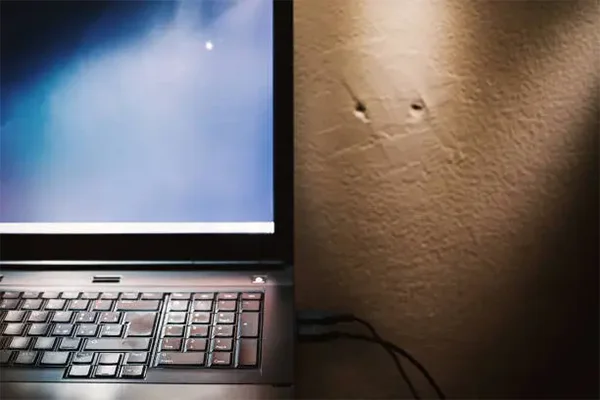
If you constantly put excessive force while opening or closing the display, then it is highly likely you can get pressure spots on laptop screen, which can ruin your entire user experience.
They can be in different colors, patterns, and line structures, as their appearance is based on the cause of the accident. So, to avoid them happening regularly and find the best ways to deal with them, read this detailed guide by Devicefixes till the end.
Table of Contents:
- What Are Pressure Spots on Laptop Screen?
- What Causes Pressure Damage on a Laptop Screen?
- Temporary vs Permanent Pressure Marks
- Can You Fix Pressure Spots on a Laptop Screen?
- Repair Options and Cost
- How to Prevent Pressure Marks on Your Laptop Screen
- What to Do Right Now If You Spot a Mark (Quick Action Plan)
- Frequently Asked Questions
- Conclusion
What Are Pressure Spots on Laptop Screen?
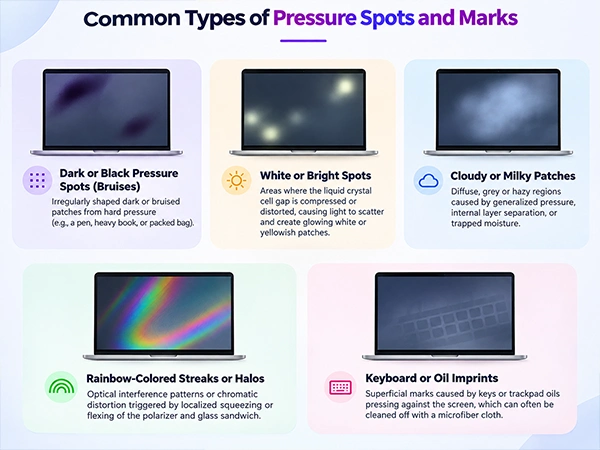
Pressure spots on a laptop screen are areas of discoloration and dark or bright patches resulting from pressure applied to the screen. They usually appear when harsh pressure is applied to the laptop while closing it. The formation of these color spots can be of different types; some of the most common ones are:
- Black Pressure Spots: Bruises and black patches are the most common variety of pressure spots, which can appear on your laptop screen. They are caused when an object is pressed between the lid and the bottom of the laptop, causing tension in the display.
- Bright Spots: When an object or excessive force has crushed or deformed the internal LCD diffuser and backlight layers, these patches appear. They are glowing white spots that are visible all the time and are hard to ignore.
- Halo Patches: Halo Patches are rainbow-spots which occurs on the screen mostly when display panels are slightly pinched from the body of the laptop which alters how light refracts. However, in most cases, they are fixed easily by replacing connectors.
- Oil Patches: Smudges or imprints left on the screen surface from the keyboard or oils from skin when the lid is closed, which can look like pressure spots but can often be wiped away with a microfiber cloth.
In most cases, they entirely damage the display, giving no room for repairs, DIY troubleshooting methods, or visual enhancement software if the liquid crystal layer, polarizer, or internal glass is physically distorted.
What Causes Pressure Damage on a Laptop Screen?
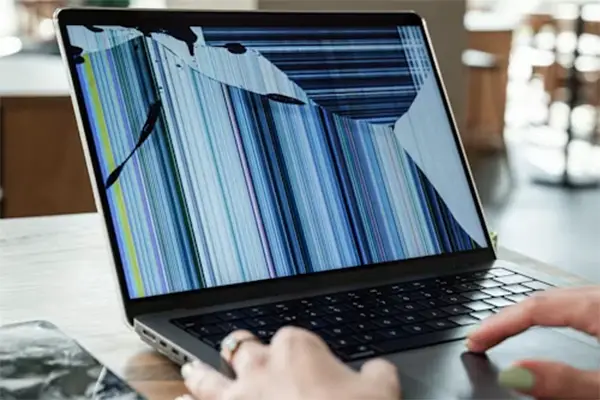
Damage marks like bright white patches, bruise-like dark blotches, and colorful lines can appear due to excessive external pressure caused by various elements and situations. Most of the time, they are caused by accidents, but in a few cases, you might be causing them unknowingly.
That’s why we have mentioned all the probable factors that can completely damage the screen and body of your laptop.
- Placing the laptop in tight bags or packing it with heavy objects can bend its chassis or put extreme force on its screen, making it prone to unrepairable damage.
- If you think paper is harmless on hard plastic and can’t damage display panels, then you are completely wrong. Scrubbing or pressing heavily with paper towels or fingers can permanently warp the microscopic layer spacing inside displays.
- Constantly stacking books or other heavy items can put your system in a vulnerable state, causing so many internal parts to break down. Also, in some cases, it can cause damage to hinges and essential wires that are responsible for connecting hardware to the screen.
- Accidentally leaving pens, earbuds, USB cables, or webcam covers on the keyboard forces and crushes the display from the centre, making dark bruises, colorful lines, and bright white patches visible.
Read more: How to Transfer Photos From iPhone to PC? (Windows and Mac)
Temporary vs Permanent Pressure Marks
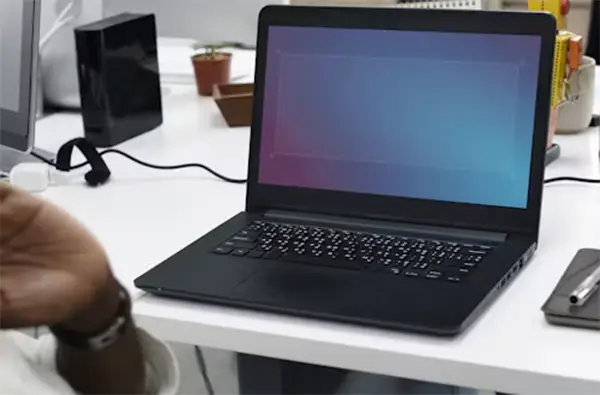
Most people are unaware of the visual difference and cause of temporary or permanent marks and start panicking, thinking they now have to pay for expensive display replacement, but there’s a catch. You see, sometimes pressure marks are completely soluble; it’s just that you are unaware and don’t know how to identify them. So, to completely eliminate your confusion forever, we have created this brief explanation chart to describe various attributes of permanent and temporary damage.
| Attributes | Temporary Pressure Marks | Permanent Pressure Marks |
| Causes | Caused by light taps, spills, or nail marks. | Happens due to accidental drops, putting heavy objects on the surface of the laptop, or closing the lid while any object is present on the keyboard. |
| Appearance | Brief color shifts or ripples that disappear | Dark blobs, bright white patches, yellow spots, or colorful lines which are not disappearing. |
| Duration | Fades away after a normal cleaning session. | Does not go away. Can only be fixed with a complete display replacement. |
Read more: Can I Use My Laptop as a Monitor? A Complete Guide
Can You Fix Pressure Spots on a Laptop Screen?
Honestly, in the majority of scenarios, pressure spots on a laptop screen cannot be fixed at home via software enhancement, DIY methods, or troubleshooting guides.
This is because pressure spots appear due to physical deformation of the internal LCD layers and liquid crystal alignment. So looking for a professional as soon as possible makes a lot more sense.
Although, for removing minor scratches, dust marks, smudges, and spill marks, you can use some useful tricks using things available in your house, like
- Use a high-quality microfiber cloth to remove smudges from the laptop’s screen, dust marks present on the body, and spaces between keys.
- It has often been seen that many users try to apply pressure to the affected areas of the laptop, thinking that it will undo the damage marks. Well, this is a terrible idea. You must instead go for a normal tissue swipe, fix removed parts using screwdrivers with proper tutorial assistance, or gently rub the display with a microfiber cloth and alcohol-based solutions.
- If the white, dark, or bruise-like patch remains visible on bright or plain backgrounds after a restart, then the LCD unit or liquid crystal of the display has been crushed. Here you need to contact an expert, professional service, or authorized brand centers as soon as possible.
Repair Options and Cost
When you want to get rid of the pressure spots on a laptop screen, replacement is the only permanent and sensible option. Everything except that will be temporary, so find out how much it costs to replace a screen according to the quality of your laptop mentioned in this chart.
| Laptops | Average Repair/Replacement Cost |
| Chromebooks | $100 to $200 |
| Standard Laptops (LCD Panels) | $150 to $300 |
| Premium Laptops and MacBooks (OLED and Touch Panels) | $250 to $600+ |
Note
These display replacement costs can vary due to different factors like region, availability, and amount of damage dealt to the hardware except the display. To find accurate costs, you must contact a professional laptop repair service nearby or talk to the brand’s consumer representatives to obtain warranty claims.
Read more: Can You Play PlayStation Games on a Modded Switch? What Actually Works
How to Prevent Pressure Marks on Your Laptop Screen

If you are frustrated with expensive repairs to fix pressure marks on your laptop, consider these preventive measures while using or storing your laptop. Read them carefully.
- First of all, never put heavy items on top of your laptop when it’s closed, like books, notebooks, trays, handbags, etc as it can severely damage it.
- Don’t put your laptop in small, stuffed bags, as it can bend the edges, put pressure on the keys or touchpad, and even cause serious damage.
- Always check for stray items like earbuds, pens, USB drives, or paperclips before shutting the lid.
- Buy backpacks specifically designed to carry a laptop. They have padded compartments that help protect against accidental drops, scratches, and, to some extent, raindrops and water splashes.
- Wipe the display and clean your keyboard keys with a light touch using a soft, lint-free cloth rather than scrubbing or pushing down with your fingers. Also place a soft microfiber cloth between your keypad and display to prevent dust buildup.
What to Do Right Now If You Spot a Mark (Quick Action Plan)
The moment a pressure mark appears on your screen, or you accidentally squeeze the display and bottom of your laptop when something was present inside, then instead of panicking, you should follow this quick action plan for the best support.
- Firstly, if you are laptop is plugged in then immediately plug it out and close all the nearby switches.
- Wipe the area gently with a dry or slightly damp microfiber cloth. Also ensure you never use ammonia or harsh chemical cleaners during the process.
- Let the laptop rest powered off for 15 minutes, as temporary heat or mechanical pressure can sometimes slightly recede after cooling.
- If the mark is visible everywhere and hard to ignore, contact authorized consumer executives through helpline numbers (only if the laptop is under warranty) or reach out to professional services as soon as possible.
Frequently Asked Questions
Can pressure marks on a laptop screen go away on their own?
Why is there a black spot on my laptop screen?
Ans: A black spot on your laptop screen usually indicates hard external or internal damage to the display panel. Most likely, they happen because of heavy pressure from closing the lid with an object left on the keyboard, a failing backlight component, trapped dust, or a cluster of dead pixels.
Can I fix an LCD pressure mark at home?
Ans: Fixing an LCD pressure mark at home is generally not recommended and is mostly considered useless. While some online guides suggest gently massaging the screen with a microfiber cloth to undo the pressure mark, this can easily worsen the damage, crack the glass, or ruin the delicate display layers
Is a pressure spot the same as a dead pixel?
Ans: No, pressure spots are not the same as a dead pixel, as a dead pixel is the invisibility of some colors in some parts of the device. In contrast, a pressure spot affects a broader area, often looking like a hazy, discolored patch or bruise caused by external physical force squeezing the internal screen layers and distorting the liquid crystals across multiple pixels simultaneously.
Does the warranty cover pressure marks on a screen?
Ans: No, most manufacturers generally do not cover pressure marks on a screen in their warranty programs. They are only eligible to protect against factory defects, hardware failures, and dead pixels that occur naturally.
Can pressure marks spread or get worse?
Ans: Yes, pressure marks can spread or get worse. If the internal layers or polarizing films remain under continuous stress.
How much does it cost to fix pressure marks on a laptop screen?
Ans: The cost to fix pressure marks on a laptop screen typically ranges from $100 to $400, because in most cases it is fixed by a complete screen replacement. Prices vary widely based on your laptop brand, screen size, resolution, and whether it is a standard LCD or an advanced OLED or touch display.
Conclusion
Reaching here, we have discussed the various reasons why white spots or discolored areas on your screen appear, which are called pressure spots, and in the first place, you should prevent them as soon as you see signs. If your screen has been broken internally, you’re going to be in line for a full LCD replacement.
Instead, try to adopt some preventive measures like not putting heavy materials on top, keeping away all heavy objects, using high-quality bags for carrying the laptop, etc. Don’t stop here because Devicefixes has a complete lineup of more such intriguing topics; make sure to stick with us for the latest tech updates and troubleshooting guides.