Ans: Yes, it is absolutely safe to clear RAM on a Mac, but in most cases, macOS manages memory automatically.
How to Clear RAM on Mac (5 Methods That Work)

Updated On October 28, 2026
Sometimes you do everything perfectly on your MacBook and use it within its limits, but you still face issues like buffering, bugs, and glitches during basic tasks. In some cases, these problems are caused by third-party files and device cache, which disrupt the overall performance of the device.
To get rid of this issue and get back smoother performance, in this detailed guide from Devicefixes, you’ll learn how to clear RAM on Mac and stabilize your laptop in five easy steps.
Table of Contents:
How to Check Your Mac’s RAM Usage?
Checking the RAM usage on the Mac is pretty simple, as you just need to press a shortcut and do some clicks to reach Activity Monitor, where you can view every background function and its system usage. Follow the exact steps carefully.
- Open your MacBook and press Command+Space.
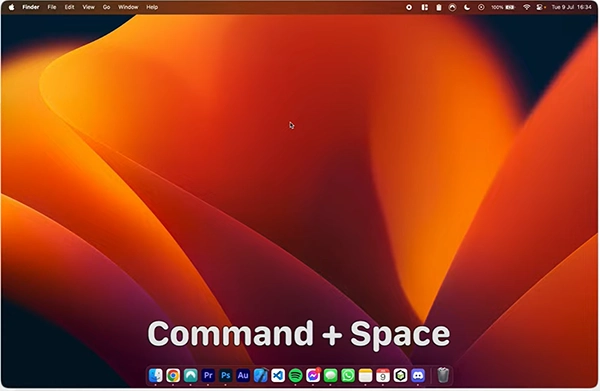
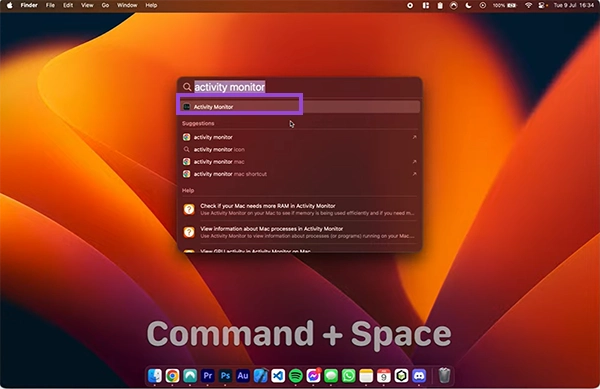
- Now, in this pop-up menu, click on Activity Monitor.
- Click on Memory.
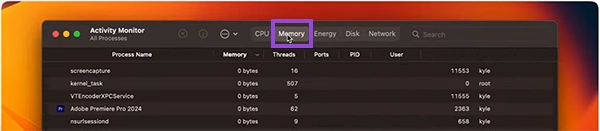
- Now, here you can view all the software programs, applications, and browser activities that are consuming the memory of your device.
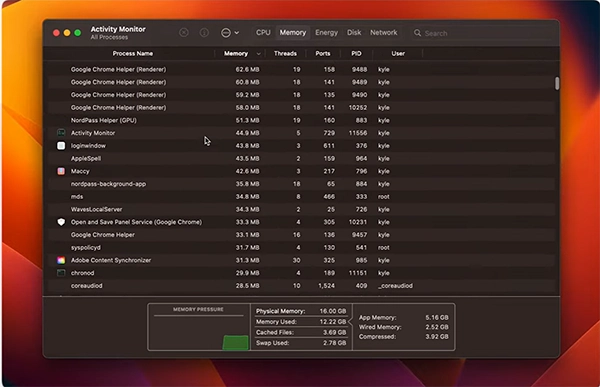
How to Clear RAM on Mac: Quick Fixes

MacBook’s RAM cannot be cleared manually, as macOS manages memory automatically by removing unwanted data files, browser data, logged-in credentials, and other trash elements when they are no longer in use.
But if your device is struggling to work effectively and you are dealing with UI-based problems, then these five methods can definitely make things better for your device. Read and implement them as per your preferences.
Restart your Mac
Restarting your Mac is the first thing that you should do to eliminate all the unwanted files, caches, browser cookies, and all in-app trash. This boot gives your MacBook a fresh start by removing all the previous activities (not the user data) and takes the device back to its actual state.
Close Unused Apps and Browser Tabs
While doing your basic tasks or researching a fresh topic, make sure that you are not opening too many browser tabs at once. Background memory usage of Chrome or Safari tabs is significantly high, and they use the entire RAM capacity, stressing the core of your MacBook. Close all the unwanted ones or the ones you are no longer using to get a better and faster user experience.
Quit Memory-hungry Processes in Activity Monitor
When your Mac runs out of physical RAM, it starts using your SSD as temporary virtual memory (called swap usage). So the constant usage of storage drives can result in overheating, lags, or, in worst cases, complete PC failure. This is why it is recommended to quit all the memory-hungry processes in Activity Monitor.
Remove Unnecessary Login Items
Background and open login items consume RAM (memory) and CPU resources from the moment you log in. This sometimes slows app opening and closing speed, making your system slower or unresponsive. Always make sure to log out of your credentials from the application, software, and browsers when the work is done to reduce stress on the RAM department.
Update macOS and Apps
Updating macOS and applications is sometimes the best thing that you can do to eliminate all the bugs, glitches, and malicious files that are draining your MacBook’s RAM frequently. Also, you will enjoy new OS features, and security patches will help your device to stay protected from malicious files and app-based entities.
Read more: How to Delete a Gmail Account: The Complete Step-by-Step Guide
Does Clearing RAM Actually Help? (Myths vs. Reality)

In the market, there are countless discussions about MacBook performance improvement on the internet where thousands of people daily present new ways to make them faster or smoother. But the sad part is most of them are vague or pointless. So in this section, we have busted all the myths and countered them with real solutions, which you must read in detail
| Myths | Reality |
| Freeing up RAM on a Mac is a manual process, and doing it from time to time is necessary to keep the performance intact. | Clearing RAM in MacBooks is not generally helpful, as a MacBook doesn’t struggle when RAM is filled with unnecessary background caches or temporary files; in fact, it clears them automatically when they are no longer needed. |
| Using third-party tools for clearing RAM on Mac is actually useful and makes a lot of difference in overall usage. | Even if you try to use third-party tools or cloud-based software to clear the RAM, then it will be useless too because macOS will immediately fill it back up. This happens due to their inefficient behavior of putting unwanted data into inactive memory or disk cache only. |
| Upgrading RAM or storage solutions is the only solution to improve the efficiency of MacBooks. | You should always rely on troubleshooting methods instead, like restarting the MacBook, removing apps you no longer use, and updating macOS and other necessary software programs, as they will help to stabilize the system more. |
Read more: How to Clean Keyboard Keys: The Ultimate Step-by-Step Maintenance Guide
When It’s Time to Upgrade (Older Intel Macs vs. Apple Silicon Unified Memory)?

MacBooks that are powered by both new-gen Apple processors and older Intel chips are dependable laptop units that are used by masses across the globe. But due to evolving software programs and new-gen apps, some Macs are becoming unable to keep up with these advancements.
If you witness any of these problems happening with your device frequently, then it’s high time to switch to a new or a refurbished latest-gen MacBook:
- Updates to the latest operating systems and security patches are integral for maintaining the protection and optimization of any device. So, if your MacBook is not supporting them anymore, then chances are you might face some malicious online attacks while surfing the internet and will be using a laptop with limited experience or no new features.
- Essential workspace tools, web browsers, or software programs might stop launching, run too slowly, or require a newer operating system version that your hardware cannot handle. And sadly, you cannot make enhancements in MacBook models that were launched after 2013.
- Sometimes, because of aged CPU components and faded thermal paste, the device starts using cooling fans too often at maximum speeds, even in basic tasks like opening a browser or a presentation, so it doesn’t overheat.
- Now, if you are seeing sudden device freezes, lags while booting a pc or app crashes more than ever before, then you know it’s high time for an upgrade. If possible, go for adding better hardware units, like increasing the RAM type or increasing storage capacity.
- Screen flickering, dead pixels, vertical lines, a broken keyboard or trackpad, or grinding noises from internal components are also indications that your MacBook is not capable enough now to run properly.
Read more: Seven Most Valuable Vintage Apple Products Worth Thousands Today
Conclusion
Running out of enough RAM capacity can ruin your entire experience because your device might start lagging severely, along with crashing basic apps or randomly rebooting your device over and over again.
Freeing up memory, a quick system restart, or clearing out background processes using Activity Monitor can help you to make your MacBook faster and more power-efficient. That’s not the end; you can explore more such topics and information about thousands of devices on Devicefixes.
FAQs
Is it safe to clear RAM?
How much RAM do I need?
Ans: Looking at the evolution of legacy tools, applications, and new-gen graphics, 16GB of RAM is the recommended minimum baseline, while 24GB to 32GB (or higher) is ideal for heavy multitasking, creative work, and future-proofing.
Why is my Mac using so much memory when idle?
Ans: Well, it’s pretty normal Mac behavior that it uses so much memory even when it is kept idle because macOS is designed to keep RAM full of cached files and compressed data rather than leaving it empty.
Sources:
How to free up RAM on a Mac? By Apple Community