
Ans: You can disable the Windows Update service or use the Group Policy Editor to completely stop automatic updates.
How to Disable Windows Updates in Windows 10 & 11 (Step-by-Step Guide)
If you’re looking for options on how to disable Windows Update, the best way to accomplish this is by pausing updates for a period of time, disabling the Windows Update Service (through services.msc), and disabling the Windows Update feature through Group Policy settings (using gpedit.msc) or Registry settings (using regedit.exe).
While managing system settings like updates, users often also explore broader device solutions such as PC & Laptop repair services.and they often also look for basic tasks like how to Screenshot on Dell Laptop? But disabling Windows is a bit more complex than that. However, you don’t have to worry, as it can easily be disabled. Let’s take a look at different ways to disable Windows Update.
Table of Contents:
How to Disable Windows Update? 5 Methods Mentioned
Automatic Windows Update can be disabled by temporarily pausing, disabling the Windows Update service, turning off updates using the group policy editor, disabling it by setting the network, or via a metered connection. Here’s how to do it:
Method 1: Pause Windows Updates Temporarily (Quick Fix)
A. Windows 10
If you want a simple way to cancel Windows updates temporarily in Windows 10:
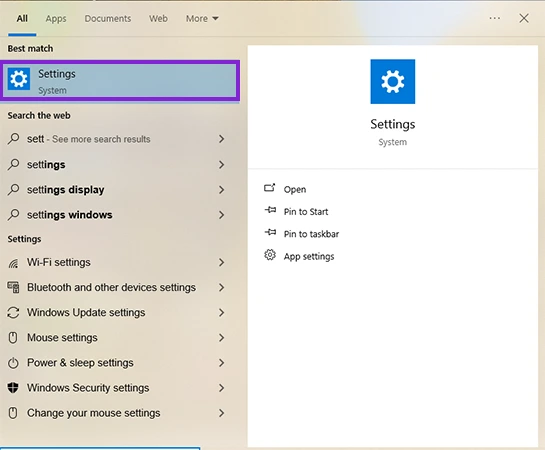
- Go to Settings.
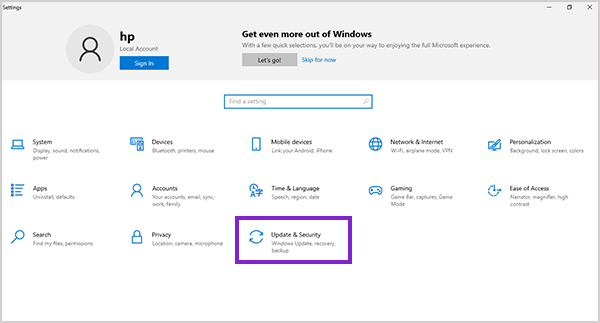
- Go to Update & Security.
- Now, click on Windows Update.
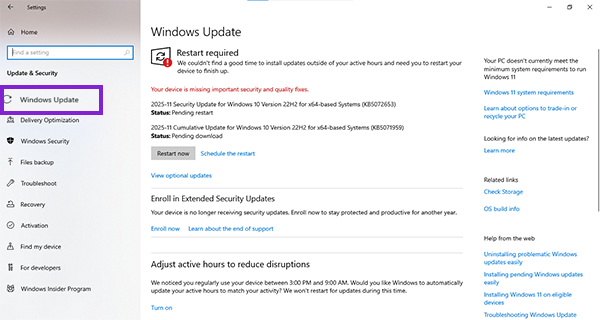
- Click Pause updates.
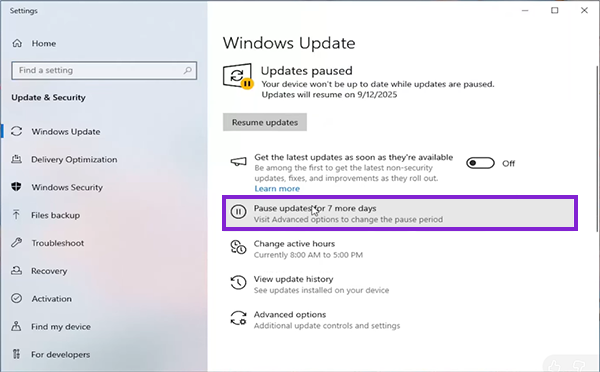
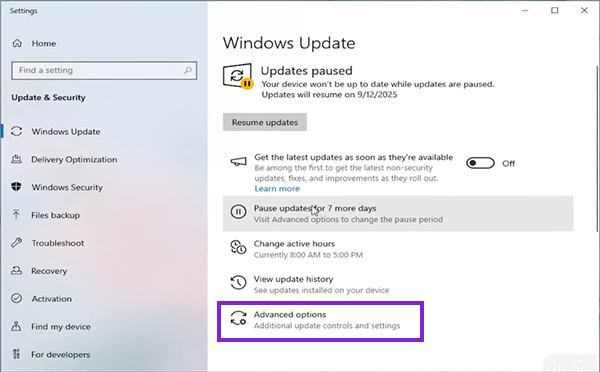
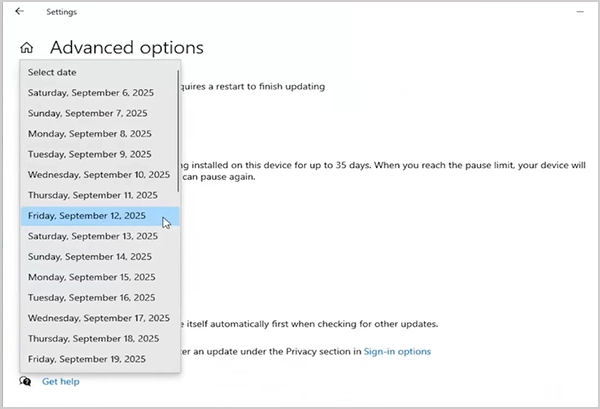
- Go to the advanced option and select a pause duration (up to several weeks).
B. Windows 11
Many users wonder how to disable Windows Update in Windows 11.
While the steps are somewhat similar, the appearance is different. So do this:
- Open Settings.
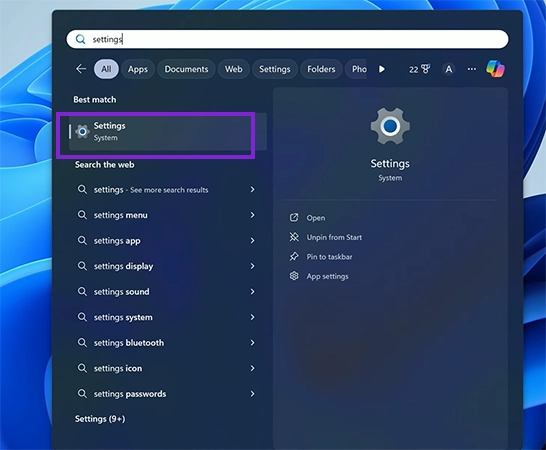
- Go to Windows Update at the bottom.
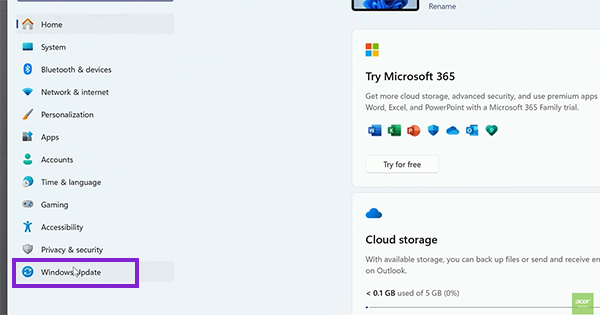
- Click on “pause update” and select for how long you want to pause the updates.
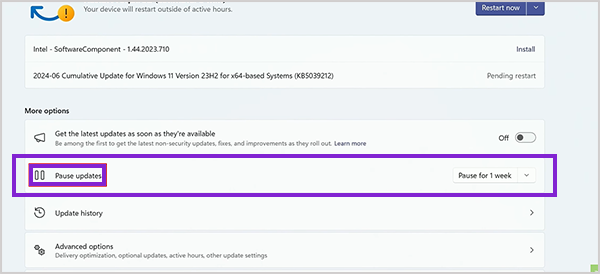
This is a good short-term solution. If your system slows down due to updates, you can also explore computer repair services to improve performance.
Method 2: Disable Windows Update Service (Permanent Method)
You might have a question: how to disable Windows Update permanently? Well, its quite simple, here’s how to do it:
- Press Win + R and type (services.msc)
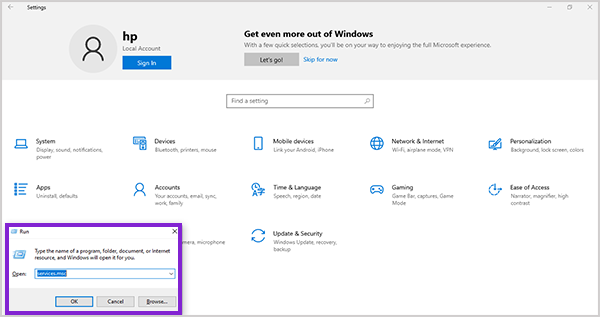
- Find Windows Update.
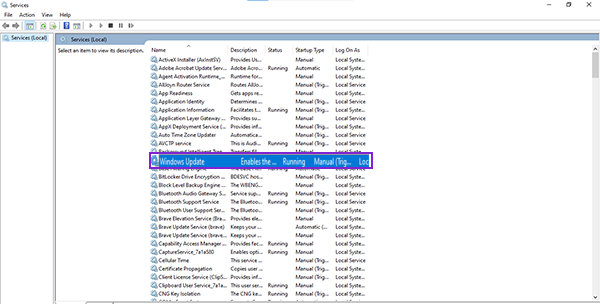
- Double-click and set Startup type -> Disabled.
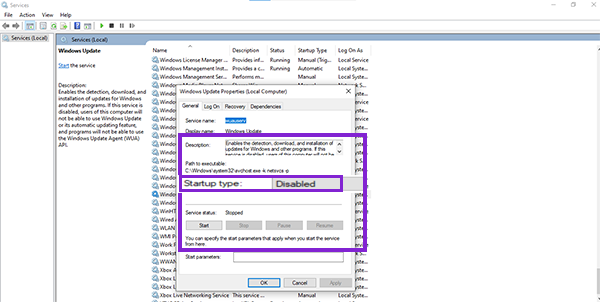
- Click Stop, then Apply.
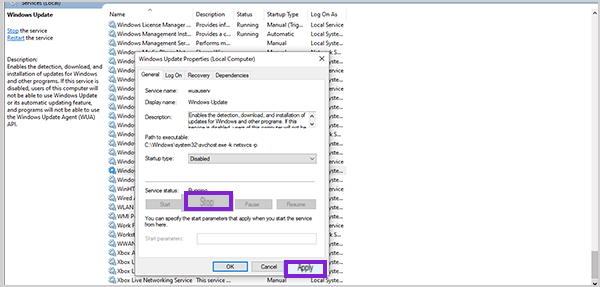
Quick Tip: For Windows 11, the same process is followed to disable the updates.
This method completely stops updates. If your device behaves abnormally afterward, consider laptop repair services.
Method 3: Turn Off Updates Using Group Policy Editor
- Press Win + R, and type (gpedit.msc)
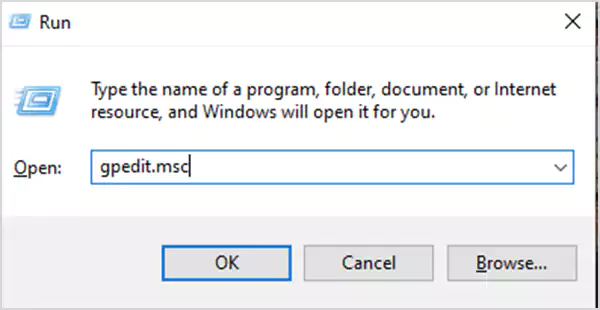
- Navigate to: Computer Configuration -> Administrative Templates -> Windows Components.

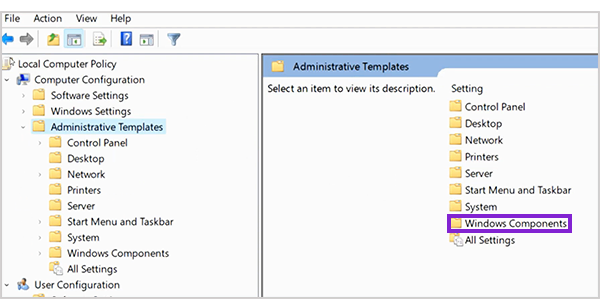
- Now, expand Windows Update.
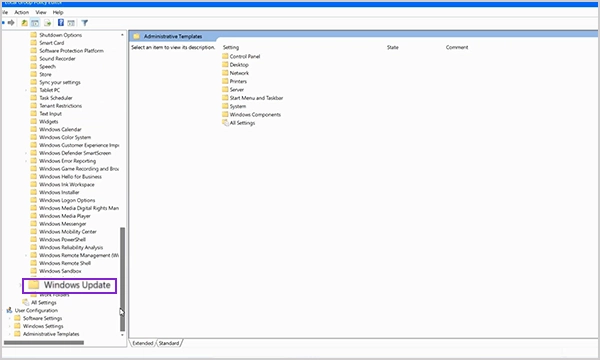
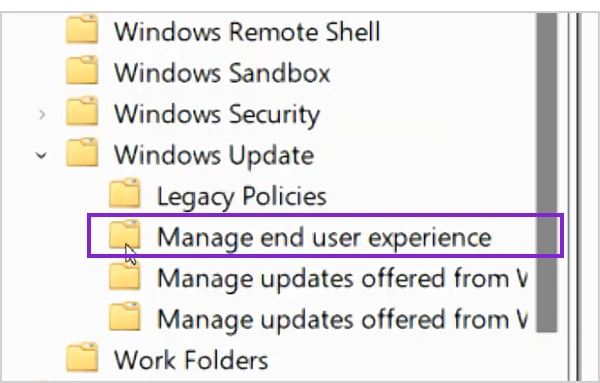
- Go to Manage End User Experience and
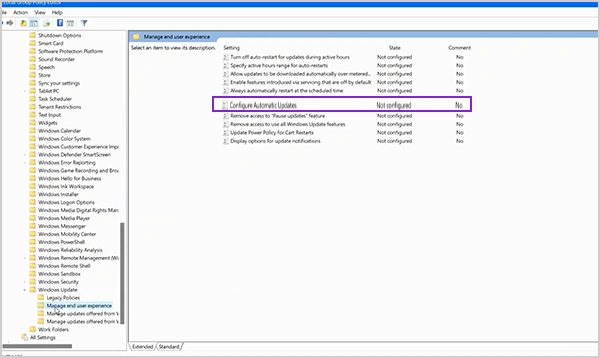
- Open Configure Automatic Updates.
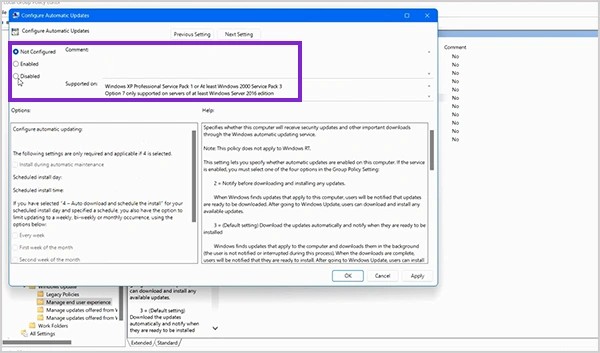
- Set it to Disabled.
This method is commonly used by IT admins. For data safety during such configurations, services like data recovery can be useful.
Quick Tip:
The Group Policy Editor is a premium feature that is only available in Windows 11 Pro, Enterprise, and Education editions. You can’t access this in Windows 11 Home.
Method 4: Disable Automatic Updates via Registry Editor
For advanced users who want to learn how to disable Windows Update they can use Registry Editor, and it works on both Windows 10 and 11:
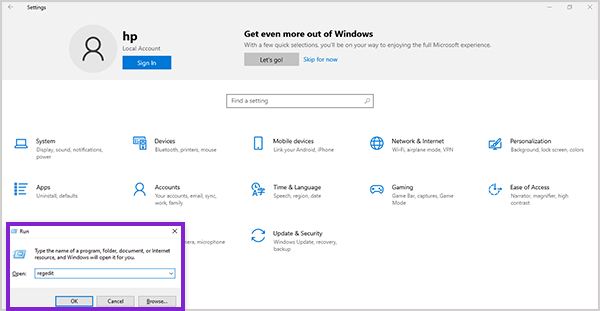
- Press Win + R, type regedit.
- Navigate to:
(HKEY_LOCAL_MACHINE\SOFTWARE\Policies\Microsoft\Windows\WindowsUpdate\AU)
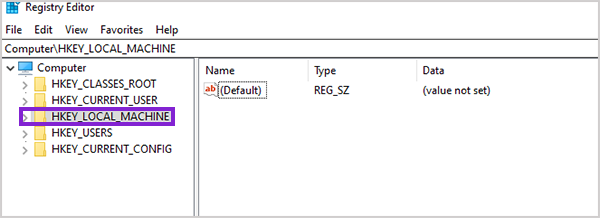
- Click on the Software tab
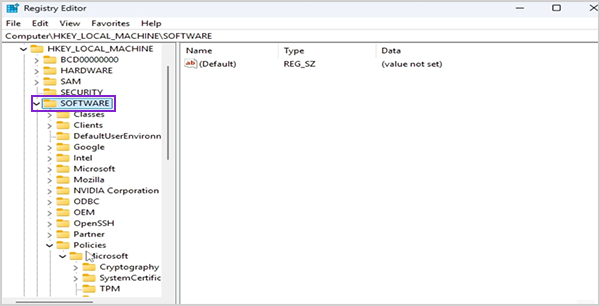
- Now move to the Policies that are given in the Software
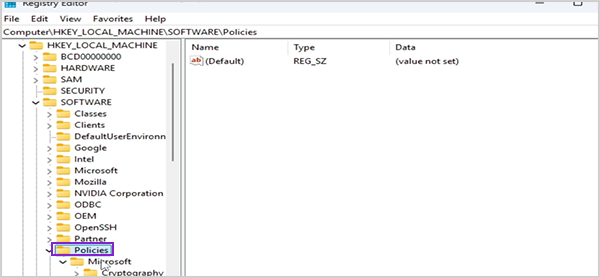
- There you will see a folder for Microsoft, and in that there’s another folder titled Windows.
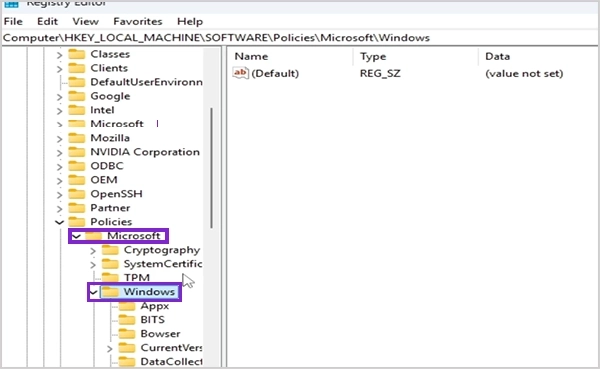
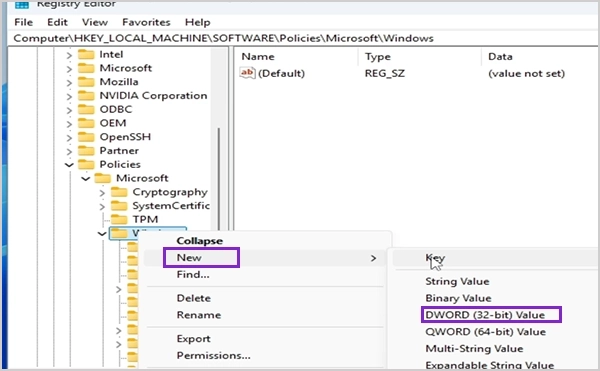
- Right-click on the Windows option and select New.
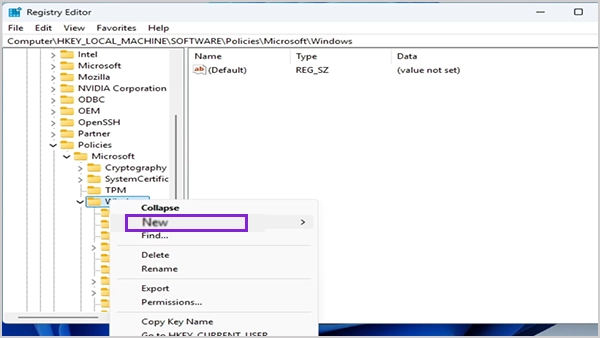
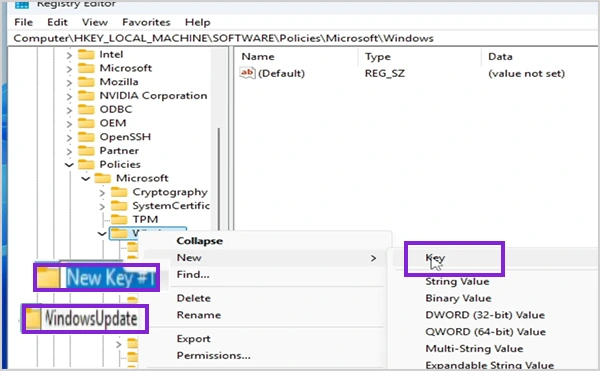
- When you click on the new tab, you’ll see an option as Key, click on it, which will create a new folder, and you have to name it WindowsUpdate.
- Now open the new folder that you created and click on “New”; it will create a new folder that you have to name AU.
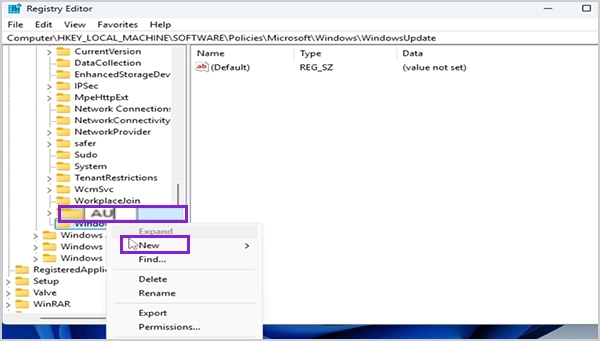
- After creating the AU folder, open it and go to New->DWORD (32 Bit) Value.
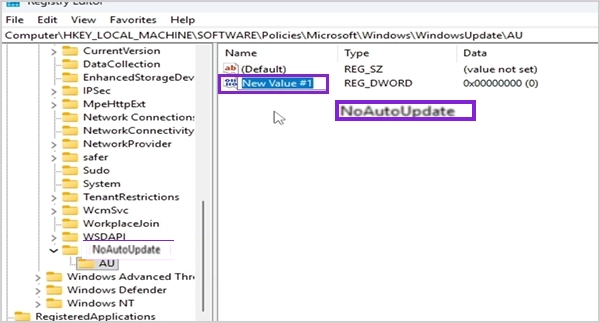
- Now a new value has been created titled “New Value #1” change it to NoAutoUpdate.
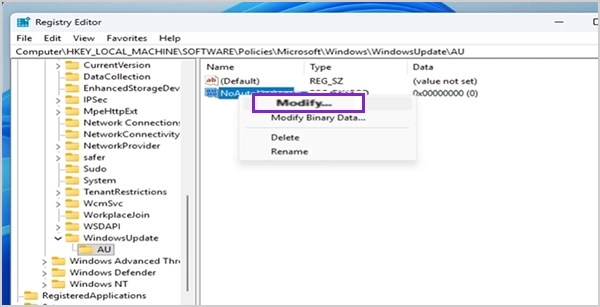
- Right-click on NoAutoUpdate and select Modify.
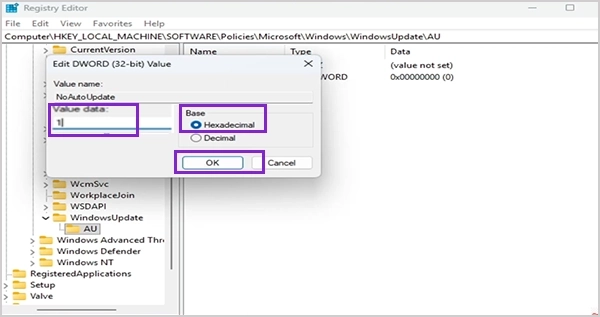
- In the Value Data section, enter 1, and the base should be set to Hexadecimal, and then Ok
Restart your device afterward. Incorrect changes may cause issues, so proceed carefully. For Apple systems, similar recovery needs may require Mac repair services.
Method 5: Set Network as Metered Connection to Stop Updates
A practical workaround to stop Windows Update downloads in Windows 10:
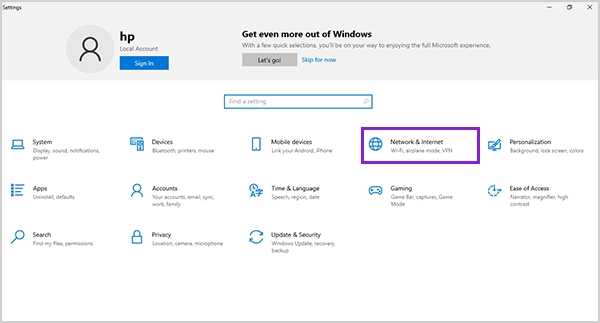
- Go to Settings.
- Open Network & Internet.
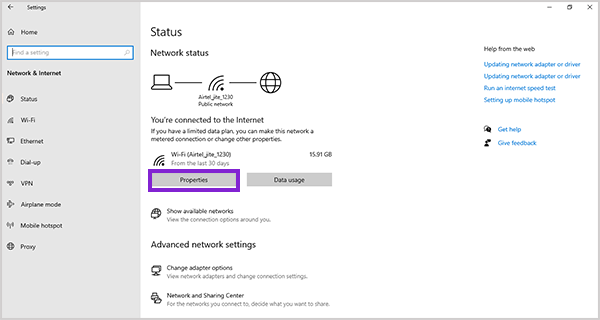
- Select your connection and go to properties.
- Enable metered connection.
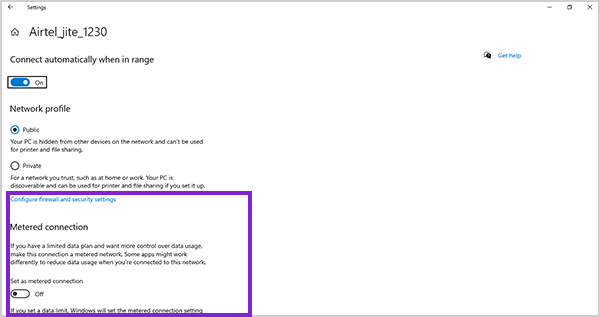
This limits update downloads while keeping essential functions active. Users managing multiple devices may also rely on smartphone repair services for consistent performance.
In Windows 11, the same steps are followed, but instead of properties, you have to click on the Ethernet, and there you will see the Metered Connection option.
ALSO READ: How to Check RAM in Windows and MacOS?
Why You Might Want to Turn Off Windows Automatic Updates
Now that you know how to disable Windows Update, it’s also important for you to know why many users want to search for a way to stop Windows updates. Common reasons include:
- Unpredictable restarts that interfere with work: Automatic Microsoft updates can restart your computer without warning, potentially interrupting work, causing data loss, and reducing productivity.
- Incompatibility after updates: Updates may introduce bugs that affect programs, hardware, and drivers, potentially causing crashes or other system issues.
- Slow internet consumption from background downloads: Background updates can consume large amounts of data, slowing internet speeds and causing issues for users with limited or slow connections.
- System performance drops during updates: Downloading and installing updates can strain system resources, causing lag, slower performance, overheating, and unresponsiveness. These issues are not limited to PCs. Gamers, for example, often face update-related problems and use game console repair services to fix them.
Is It Safe to Disable Windows Updates? (Risks & Considerations)
Before you consider disabling Windows Update for good. You should also think about the following.
- Security Risks: Windows Update is where critical security patches get released, and disabling those automatically makes your system vulnerable to malware, exploits, and other cyberattacks because you won’t have the most up-to-date security patches or protections on your computer.
- Bug Fixes: When an application has an issue that requires a bug fix to be fully functional, it is released through Windows Updates. Skipping these releases/updates will cause your system to experience application crashes, system errors, poorer performance, and greater overall instability over time.
- Software Compatibility: Many applications rely on newer versions of Windows, so disabling updates increases the risk of issues with incompatible software/drivers or missing features.
Before making major system changes, it’s also useful to know how to Find My Windows 10 Product Key? in case you need to reinstall or reactivate Windows. A balanced approach is the best option; therefore, you should very rarely disable Windows Update and rather take advantage of the pause and control functionality to control when Windows Updates are applied to your system. Services like iPhone repair or Samsung phone repair are commonly used in such cases.
How to Stop Windows Updates Using Advanced/Enterprise Tools?
Centralized management tools that provide the flexibility, security, and control over multiple machines are required for organizations as well as power users to control their computers’ updates.
Disable Updates Using Patch Management Tools
Organizations often use tools to manage and stop Windows from updating automatically:
- Centralized control over updates
- Scheduled deployments
- Selective patch approvals
By utilizing these tools, organizations can effectively block Windows updates at scale, guaranteeing the controlled rollout of updates to their end users.
Use WSUS or Centralized Update Management
By using Windows Server Update Service (WSUS):
- Control the delivery of updates to devices
- Approve or delay an update
- Control bandwidth consumed by the entire update
Implementing a structured method for ending automatic updates from Windows across multiple machines will benefit your organization.
ALSO READ: Types of Chargers: Complete Guide to Phone Charger Types and Charging Cable Types
Conclusion
By learning how to disable Windows Update, you can have complete control over your machine, such as putting it on hold while updating or simply stopping it entirely. There are many different methods available to perform this task; each has its own pros/cons.
Using a combination of quick settings and then advanced configurations may be your preferred method for managing updates rather than completely disabling them, since you still want to have control, as well as keep the system and data secure.
FAQs
Q. How can I stop Windows updates permanently?
Q. How to cancel Windows update in progress?
Ans: You can stop the Windows Update service or pause updates from settings to interrupt ongoing updates.
Q. Is there a Windows update blocker tool?
Ans: Yes, patch management tools and enterprise solutions act as a Windows update blocker for controlled environments.
Q. How to stop Windows from updating automatically?
Ans: Use methods like pausing updates, disabling services, or setting a metered connection in controlled environments.
Q. Can I re-enable updates after disabling them?
Ans: Yes, simply reverse the changes in services, Group Policy, or settings to restore updates.
SOURCE:
How can I stop Windows from automatically updating? By Microsoft