
Ans: You can use keyboard shortcuts like PrtScn, Alt + PrtScn, or Windows + PrtScn, or use tools like Snipping Tool and Snip & Sketch.
How to Screenshot on Dell Laptop? (Complete Step-by-Step Guide)
If you want to learn how to screenshot on Dell laptop, there are many different ways to do so. Taking screenshots is a quick and easy method for backing up key information, recording errors, or sharing something displayed on your computer. Whether you use your keyboard, Windows built-in tools or 3rd party apps, you have multiple methods available to easily get screenshots on your Dell notebook.
Table of Contents:
- How to Screenshot on a Dell Laptop Using Keyboard Shortcuts?
- How to Screen Capture on a Dell Laptop Using the Snipping Tool
- How to Screenshot on Dell Laptop Using Snip & Sketch
- How to Screenshot on a Dell Desktop?
- Where Screenshots Are Saved on Dell Laptop
- How to Screenshot on Dell Laptop Without the Print Screen Button?
- How to Screenshot on Dell Laptop Using Third-Party Tools
- Common Problems When Taking Screenshots on Dell Laptop
- How DeviceFixes Helps Resolve Screenshot Issues on Dell Devices?
- Quick Screenshot Shortcut Table
- Conclusion
- Frequently Asked Questions
How to Screenshot on a Dell Laptop Using Keyboard Shortcuts?
If you want to learn how to screenshot on a Dell laptop quickly, the easiest method is by using your computer’s keyboard shortcuts. All of these methods are built right into the Windows operating system; no additional software is needed. And the best part is it’s way easier than fixing PC screen lines.
Use the Print Screen (PrtScn) Key
To capture an image of your entire computer screen, press the ‘PrtScn’ key.
The image will now be saved to the clipboard and must be pasted into an application such as Paint, Word, Email, etc., by using ‘Ctrl + V’ this is also how you copy and paste on Chromebook. This is the easiest way to take a screenshot quickly on any Dell laptop.
ALSO READ: How Much Does It Cost to Repair a Phone Screen? Average Repair & Replacement Costs
Use Alt + PrtScn for Active Window Screenshot
If you only want to capture the current window:
- Press Alt + PrtScn.
- It captures only the active window.
- Paste it where needed.
This is useful when you don’t want background clutter.
Use Windows + PrtScn for Automatic Screenshot Save
Press Windows + PrtScn to:
- Capture the full screen
- Automatically save the screenshot
Steps to Locate the Screenshots:
- Open File Explorer
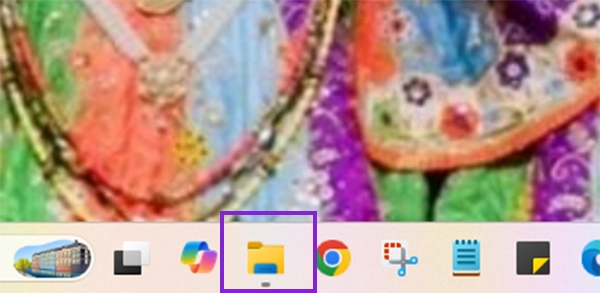
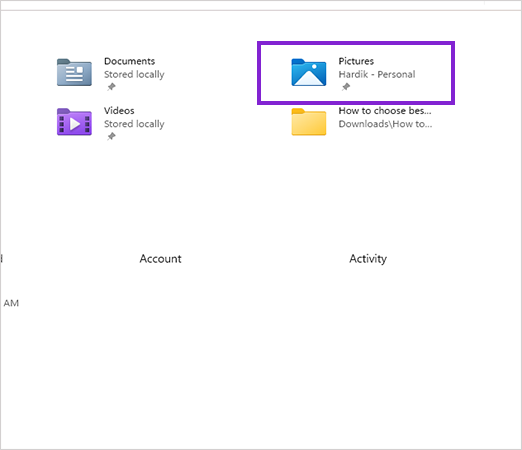
- Tap on Pictures.
- Navigate to the Screenshots folder and search for your screenshot you have just taken.
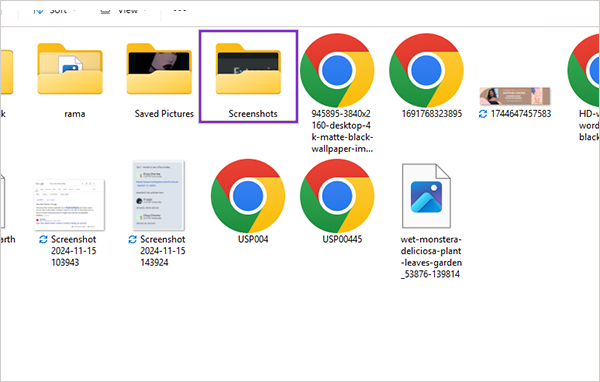
This is how to screenshot on dell laptop. It’s quite easy and straightforward but make sure to check that the screenshot images are being saved in the screenshot folder on the other drive.
How to Screen Capture on a Dell Laptop Using the Snipping Tool
The Snipping Tool is part of Windows and gives users more ability to take screenshots than other screenshot methods. The Snipping Tool lets you take screenshots of specific areas of your screen instead of your whole screen.
How To Open The Snipping Tool?
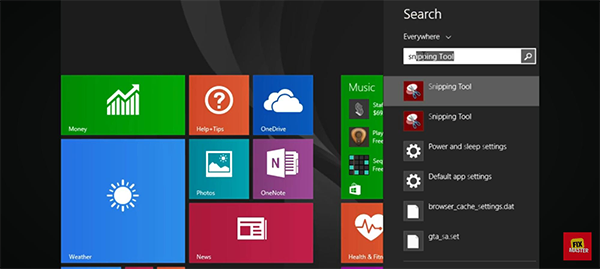
- You can find the Snipping Tool by searching for it in the Start Menu and clicking to open it.
- You will then need to select “New” in order to begin taking screenshots
Rectangular Snip
Take a snapshot of your entire monitor immediately.
Freeform Snip
Use your finger to draw around a desired area on your display.
Window Snip
Grab only one displayed item with one click.
Full Screen Snip
Take a snapshot of your entire monitor immediately.
How to Screenshot on Dell Laptop Using Snip & Sketch
Windows provides users with advanced options for taking screenshots with Snip and Sketch. Here’s how to screen capture dell laptop using Snip and Sketch:
Pressing the following shortcut will trigger the built-in application:
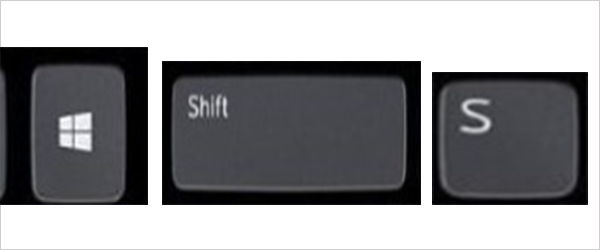
- Windows + Shift + S
When you enter the above shortcut, a toolbar will appear at the top of your computer screen.
How to Capture a Selected Area?
- Select the rectangular snip option.
- Once selected, drag your mouse cursor to capture the area you want to include in your screenshot.
How to Capture the Entire Screen?
Select the full-screen snip option; when you do, your computer will automatically copy the screenshot.
Where Snip & Sketch Saves Screenshots?
Screenshots are saved in clipboard which can further be edited manually or saved to your preferred location.
How to Screenshot on a Dell Desktop?
If you have a Dell computer, the steps for taking screenshots are the same as described above. The same hotkeys will work:
- PrtScn
- Alt + PrtScn
- Windows + PrtScn
- Windows + Shift + S.
Taking screenshots on a Dell laptop or desktop is exactly the same as doing it on a laptop.
Where Screenshots Are Saved on Dell Laptop
Depending on how you take a screenshot, the location will vary as follows:
- Clipboard with PrtScn OR alt+PrtScn
- Screenshots folder with Windows logo key+PrtScn
- Manually saved using the Snipping tool or Snip & Sketch
This is helpful for the purpose of being aware of where to look when you cannot find the screenshot you took.
How to Screenshot on Dell Laptop Without the Print Screen Button?
There are other ways you can take a screenshot of your Dell laptop even if your keyboard does not have a PrtScn key:
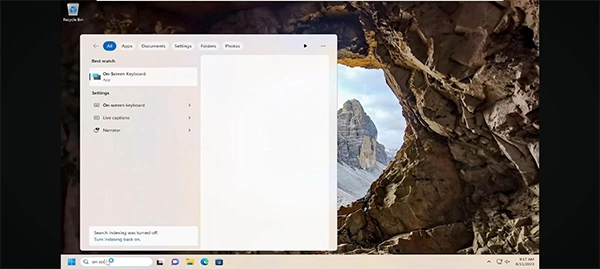
- Use the On-Screen Keyboard
- Use the Snipping Tool
- Use the Windows + Shift + S shortcut
- Use third-party tools
No matter which option you choose, you will be able to take a screenshot of your Dell laptop with ease.
How to Screenshot on Dell Laptop Using Third-Party Tools
Third-party screenshot software can offer additional control and additional editing functionality, and often provide additional advanced capture options, compared to just using the built-in screenshot tool that comes with Windows.
Here are steps for how to screenshot on dell laptop by using third-part applications :
- Install the screenshot software you would like to use.
- Launch the screenshot application.
- Use the default keyboard shortcut (which is usually able to be reconfigured).
- Select the area of your screen to take a screenshot (either the whole screen, a window or free from the desktop).
- Make changes to your screenshot (for example, adding text, highlighting part of the screenshot, etc.).
- Save or share the screenshot file from within the screenshot application.
List of Common Functions:
- Accessible, with a built-in picture editor.
- Instantly share screenshots.
- Take a screenshot of the entire webpage.
- Screenshot and screen record at the same time.
- Save and share images using many cloud storage systems.
When Third-Party Tools Might be Useful:
- Creating guides or tutorials.
- Taking long (scrolling) screenshots.
- Adding notes to clarify a screenshot.
- Sharing a screenshot right away.
Common Problems When Taking Screenshots on Dell Laptop
In certain cases, taking a screenshot doesn’t perform as it is supposed to. The most common list of problems will be:
- The Print Screen button will not work.
- The screenshot will not save to a file.
- Clipboard functionality doesn’t copy files correctly.
- Key combination conflicts with other key combinations.
Tips for a quick fix:
- Restart your computer.
- Verify keyboard drivers are installed.
- Use alternative programs such as Snip and Sketch to create images.
- Verify that your clipboard is functioning.
- Clean sticky or dirty keyboard keys if the Print Screen key feels stuck or doesn’t respond.
How DeviceFixes Helps Resolve Screenshot Issues on Dell Devices?
If you’re having issues taking screenshots on your Dell laptop, DeviceFixes can help troubleshoot the problem. Here are a few ways that DeviceFixes helps you:
Diagnose keyboard/system issues:
- Identify conflicts with Windows shortcut keys.
- Fix input-related problems.
- Assist in resolving screen capture errors.
These types of support are very useful options when the basic troubleshooting steps you take do not work. DeviceFixes can also help fix a slow computer.
Quick Screenshot Shortcut Table
Here’s a table mentioning all the quick methods for how to screen shot a dell laptop:
| Action | Shortcut |
| Full-screen screenshot | PrtScn |
| Active window screenshot | Alt+PrtScn |
| Save screenshot automatically | Windows+ Prtscn |
| Snipe tool shortcut | Windows + Shift +S |
ALSO READ: Spots on Phone Screen: Causes, Fixes, and When to Repair It
Conclusion
Now you know how to screenshot on a Dell laptop with so many different methods. There are quick keyboard shortcuts, built-in tools like Snipping Tool, and advanced third-party applications that will give you a lot of different ways to capture what is on your screen.
If your screenshot features are not working, check out tools like DeviceFixes, which will help you find out what’s wrong and get that problem fixed quickly.
Frequently Asked Questions
Q. How can you screenshot on a Dell laptop?
Q. How do you screen capture on a Dell laptop?
Ans: Use Windows + Shift + S to capture a selected area or use the Snipping Tool for more control.
Q. How to screenshot on Dell computer?
Ans: The same methods apply: use keyboard shortcuts or built-in Windows tools to capture your screen.
Q. How to take screenshot on Dell laptop quickly?
Ans: Press Windows + PrtScn to instantly capture and save a screenshot without extra steps.
SOURCE: