
Ans: Toggle airplane mode, restart your phone, reinsert your SIM, check network settings, or contact your carrier to restore normal cellular service.
How to Get Phone Out of SOS Mode? Here’s How to Fix It on iPhone and Android
You may be wondering how to get phone out of SOS mode. The simple answer is to restore your network connection. This can be accomplished in several ways: restart your device, turn off Airplane Mode, check the SIM card and network settings, and make sure your software is up to date.
“SOS” is displayed when your phone is unable to connect to a mobile carrier, but it will still allow you to make emergency phone calls. To help you troubleshoot further and fix the problem, below is the detailed instruction for both iPhone and Android phone users.
Table of Contents:
How to Get Phone Out of SOS Mode on an iPhone?
If you’re stuck on SOS mode and you are left thinking why is my phone on SOS, use the following solutions:
1. Restart or Force Restart iPhone
If your iPhone is experiencing a temporary glitch causing it to be stuck in SOS mode, a simple restart can ordinarily fix this.
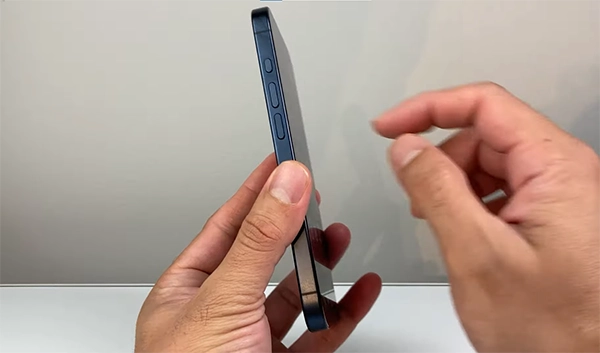
Steps to Restart iPhone:
- Press and hold down both the power button and volume button.
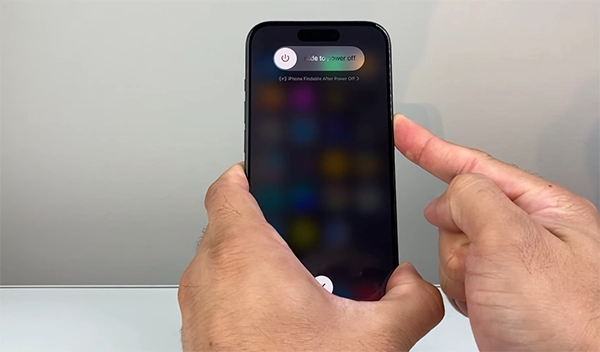
- Slide the slider to the right to turn off the phone.
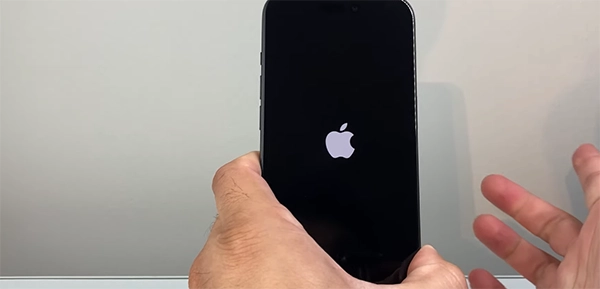
- After waiting 10 seconds, press and hold the power button until you see the Apple logo.
2. How to Force Restart iPhone
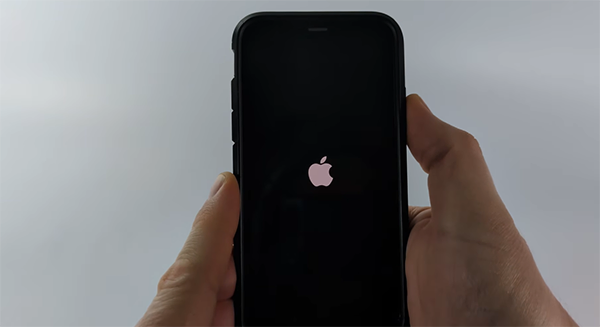
If your phone is frozen, you can force restart using the steps below. This is usually the fastest way to remove SOS from your iPhone.
- Press the Volume Up button.
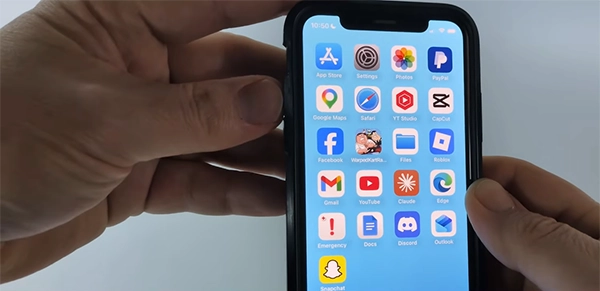
- Quickly press the Volume Down button.
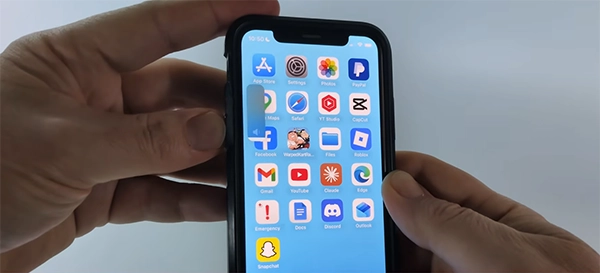
- Hold the power button until you see a slider. Now swipe the slider.
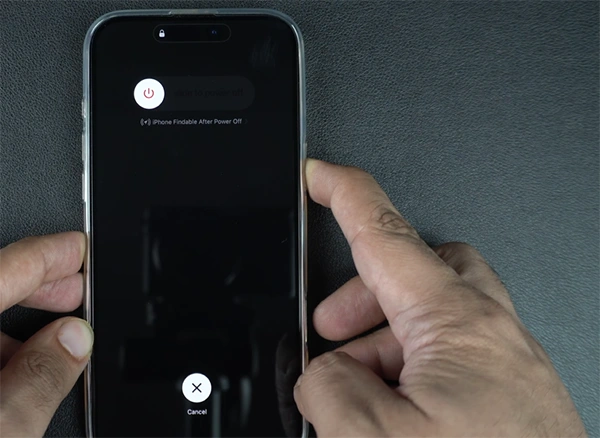
- After swiping, the Apple logo will flash on the screen and after a while, your device will get force restart.
3. Turn Airplane Mode On and Off
Turn your airplane mode ON and off to reset your network connection. Here’s how to do it:
- Open settings on your phone.
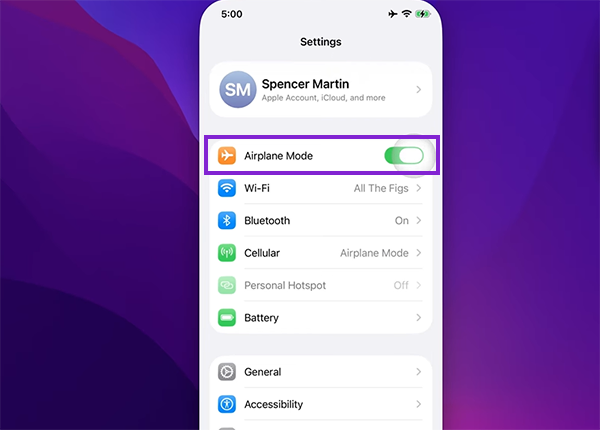
- Enable airplane mode for 10-15 seconds.
- Disable it.
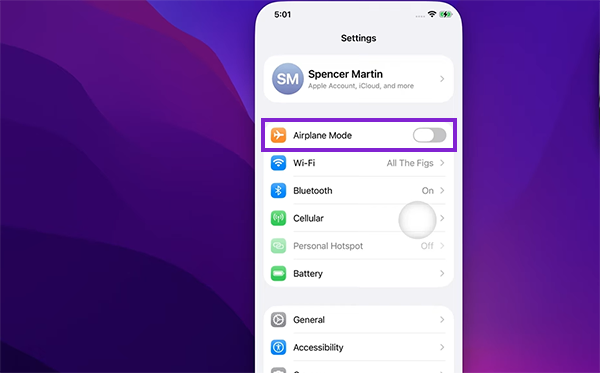
If you’re wondering how to get past “SOS only” with your phone, this quick tip may reconnect your phone signal.
4. Check Mobile Services Settings
If phone stuck in SOS mode the incorrect mobile services settings can be the cause. To fix it:
- Go to Settings.
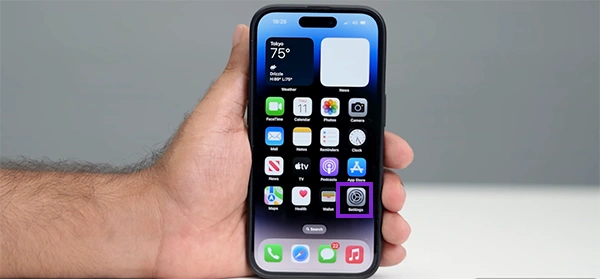
- Open Mobile Services.
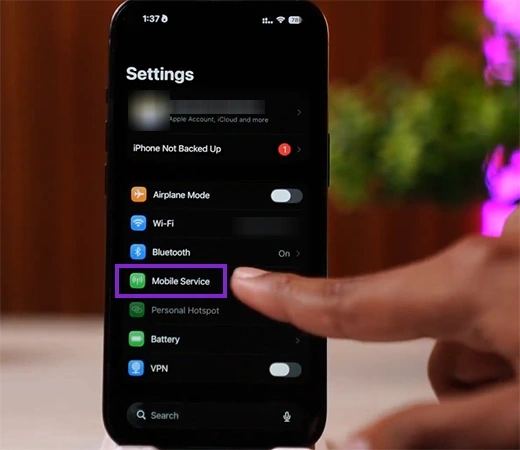
- Click on Mobile Date and choose your service provider.
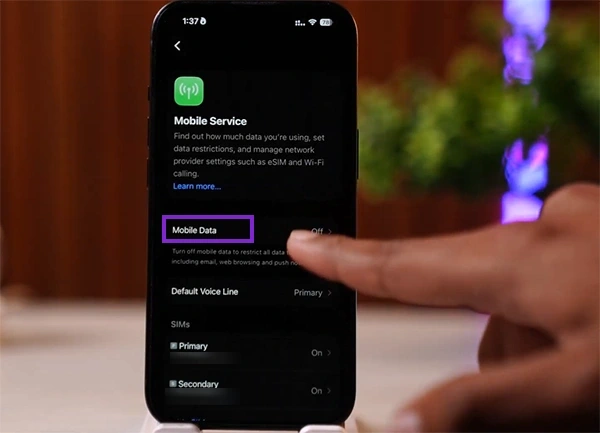
- Make sure your Carrier is being automatically selected.
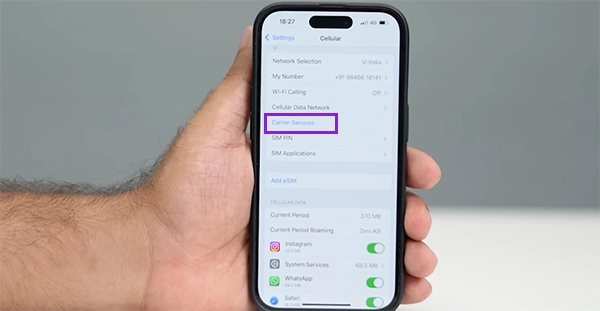
- Try manually choosing your Network.
This should allow you to fix the reason why your phone says SOS repeatedly.
5. Reset Network Settings
Resetting the Network Settings might solve the problem you’re experiencing.
For this, do as follows:
- Open the settings.
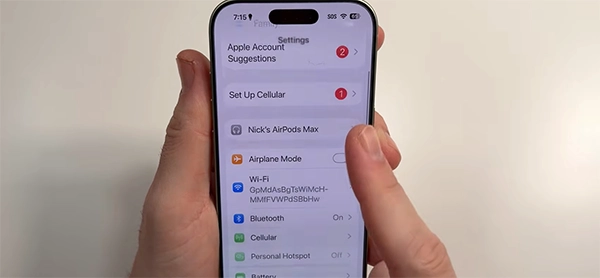
- Tap General
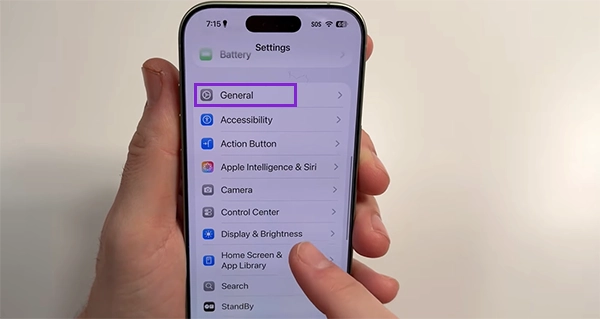
- Tap Transfer or Reset iPhone/Reset
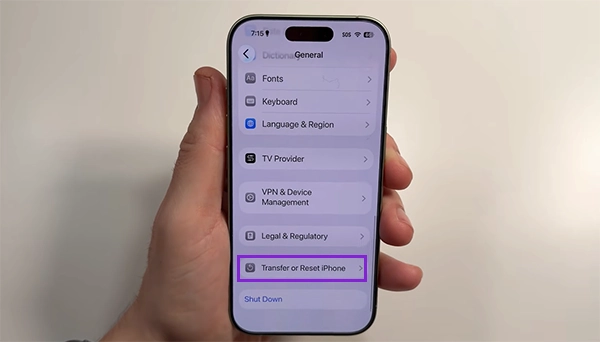
- Tap Reset Network Settings.
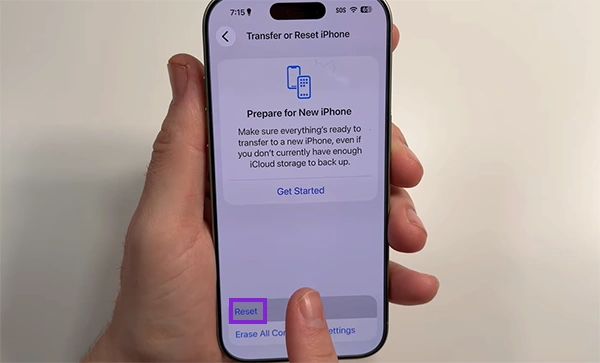
This will remove all saved Wi-Fi and APN settings and carrier settings, which may help with fixing SOS on your iPhone.
6. Update iOS
If you are having problems with connectivity due to your outdated software version, then see the steps below:
- Go to Settings.
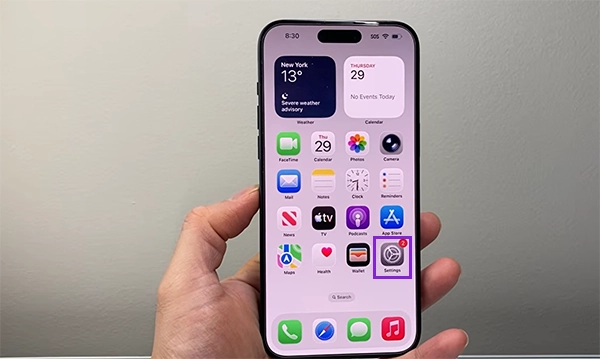
- Select General.
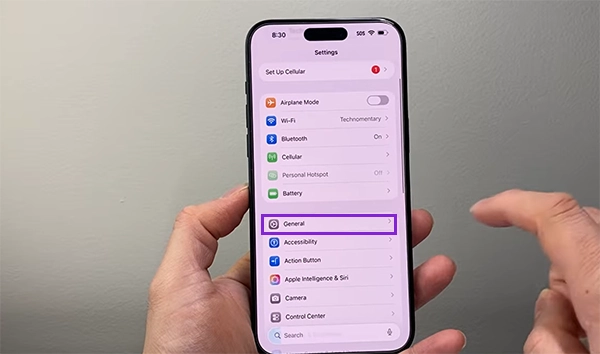
- Select Software Update.
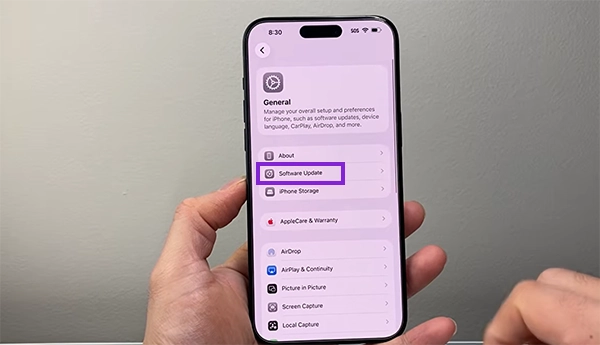
- Update to the current version.
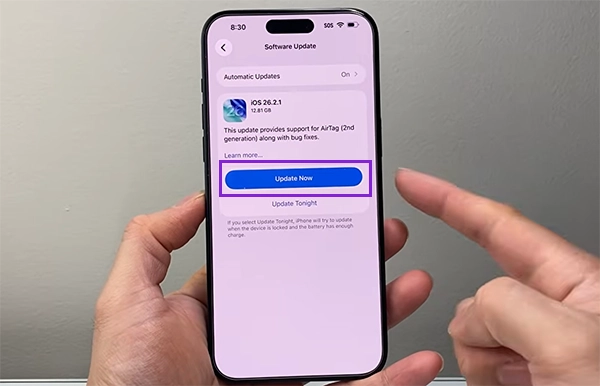
This is a great fix for how to remove SOS from iPhone permanently.
How to Get Phone Out of SOS Mode on Android?
If your Android device has been activated to operate in “SOS” mode, here’s what you can try to get back to normal:
1. Restart Your Android Phone
This should clear out any temporary issues, as restarting will clear that out. It also helps when you want to turn off safe mode on an Android. To Restart Your Android Device:
- Press and hold the Power Button.
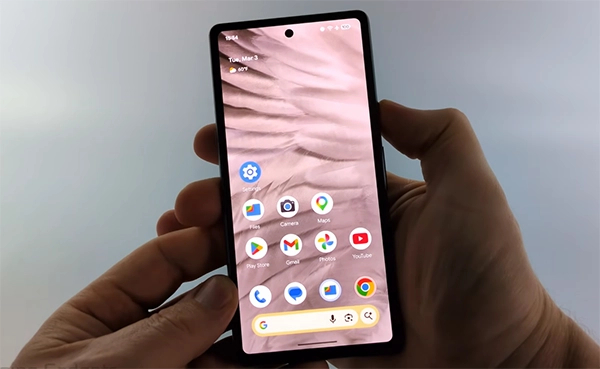
- Tap Restart.
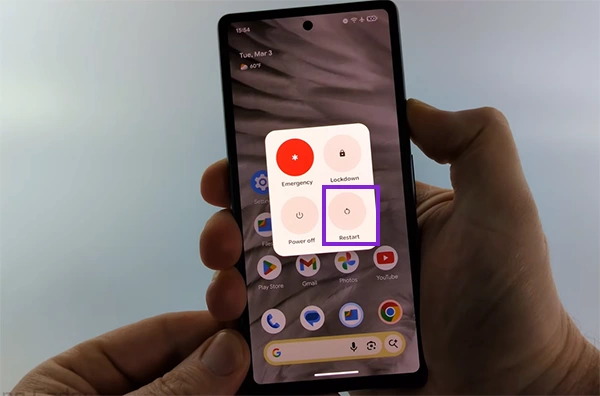
This was one of the solutions to the question “how to get phone out of SOS mode.”
2. Toggle Airplane Mode
Similar to the iPhone, this method resets the wireless connection.
- Swipe down on your main screen.

- Turn on the flight Mode.
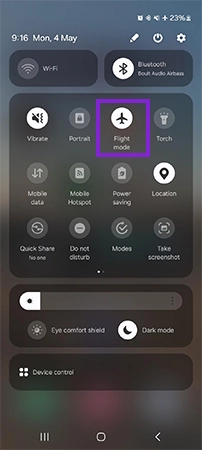
- Wait for a few seconds.
- Turn off the Flight Mode.
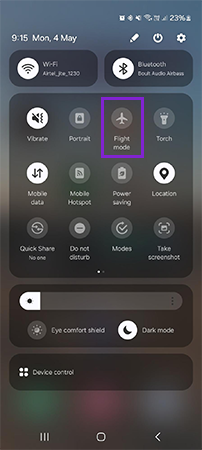
Would be especially helpful for phones that have been stuck on SOS mode.
3. Check Mobile Network Settings
Wrong network settings can trigger SOS on phone.
- Go to Settings.
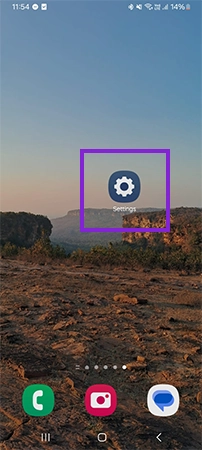
- Open Network & Internet or Connection (depending on device).
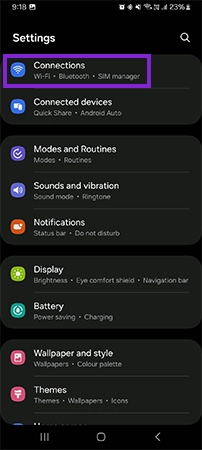
- Tap Mobile Networks.
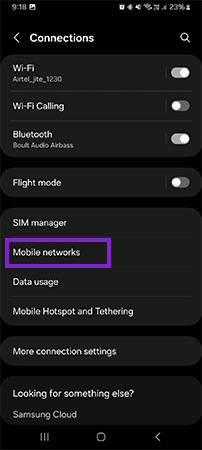
- Ensure the correct carrier is selected.
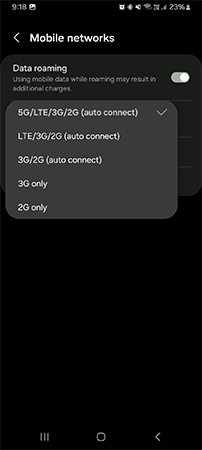
- Enable automatic network selection.
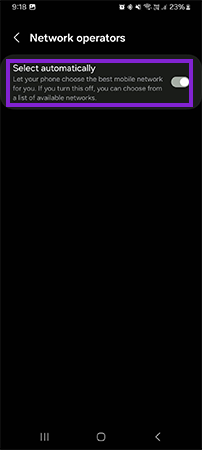
4. Reset Network Settings
If basic troubleshooting steps haven’t fixed the issue, resetting network settings can help resolve deeper network conflicts. To reset the network setting, follow these steps:
- Tap on the settings icon.
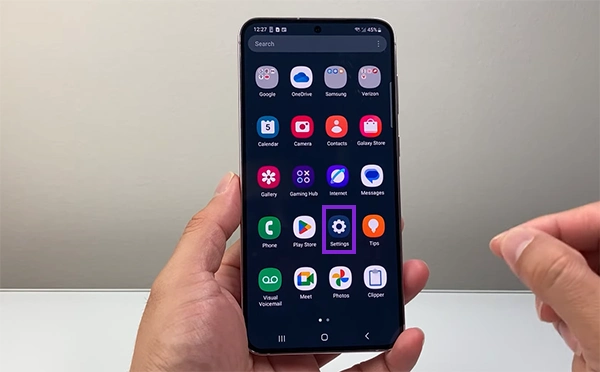
- You’ll see General Management, open it
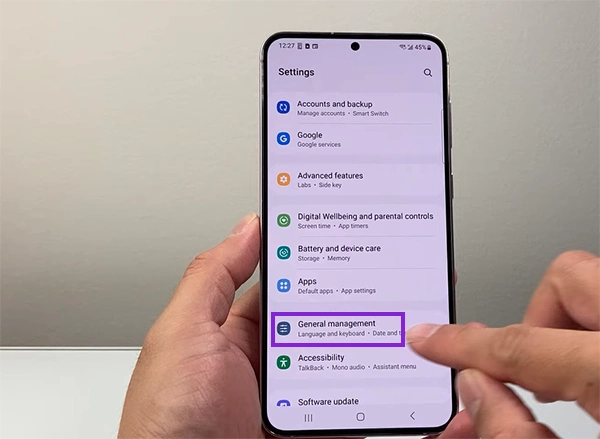
- Look for the Reset Option and click on it
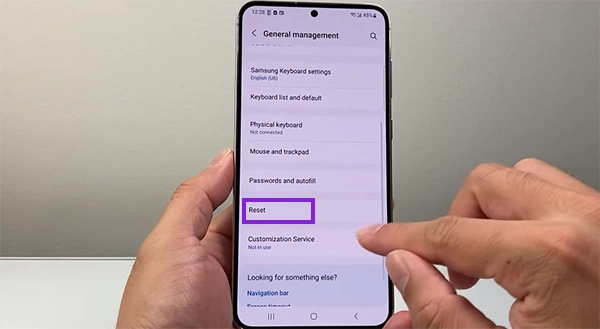
- Tap Reset Network.
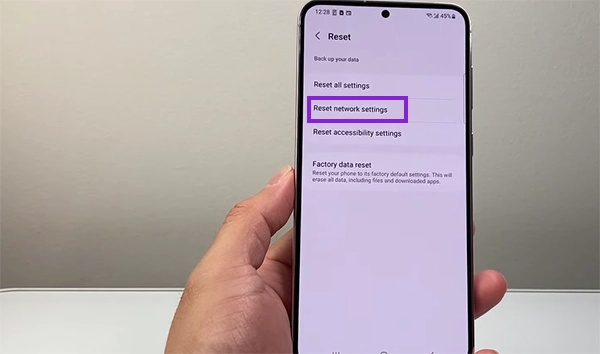
Resetting network settings is often the final and most effective step to get your phone out of SOS mode and restore normal connectivity.
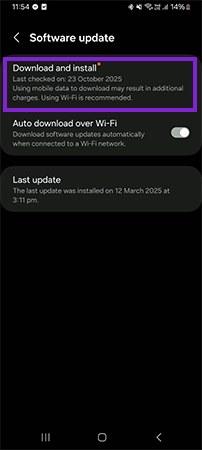
5. Update Android Software
Keeping your device updated is essential for stable performance. Android latest version can fix bugs and improve connectivity.
- Open the device settings.

- Search Software Update or find it manually at the very bottom
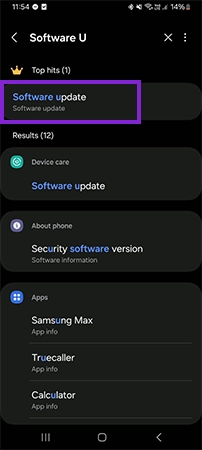
- If a new version is available make sure to install it.
4 Common Causes of SOS Mode Issues
If your phone’s displaying “SOS Only” or “SOS,” the problem is typically caused by issues with the device’s network, SIM card, cellular carrier, or a software problem. Below are explanations of some key reasons:
1. No Network or Weak Signal
One of the primary factors that puts your phone into SOS mode is a lack of coverage due to a weak or an absent network signal.
The signal may not be strong enough when you are away from a cell tower or when the tower is overloaded due to small cell sites with too many users (at the same or nearby locations as yourself) attempting to access them all at the same time.
2. SIM Card Problems
A phone will switch into SOS on phone if the SIM card is installed loosely, damaged, or improperly installed into the SIM card tray. A damaged SIM will also prevent your device from connecting to your carrier, which would result in SOS mode issues occurring frequently.
3. Carrier Restrictions or Outages
It may not always be your phone that’s faulty; there’s also the possibility that the problem lies with your carrier (e.g., due to a billing error or temporary phone service outage).
Therefore, although your phone may show only the SOS function (Emergency Services), you may have no problem with your phone other than an issue with your carrier.
4. Software or System Glitches
There may be some software bugs, outdated software (or systems) that are causing your phone to be “stuck” in the SOS-only mode.
Problems with updates, corrupted settings, and other short-term system glitches may cause interruptions in connectivity to your network (from the carrier), putting your device into the emergency-only mode.
Also Read: How to Check RAM in Windows and MacOS?
SIM Card Fixes for SOS Mode (iPhone & Android)
If your phone says SOS only, a faulty, misaligned, or unrecognized SIM card is often the root cause. You can fix this issue with the following methods.
1. Remove and Reinsert SIM Card
Sometimes a sim card might not be inserted properly and it will cause your device to go in SOS mode. Here’s what you need to do:
- Power off your device.
- Use the SIM ejector tool to remove the SIM card from the device.
- Insert the SIM into its slot properly.
- Power on your device.
If you perform these steps to restore service to your phone, more than likely it will resolve the reason for displaying SOS on your iPhone/Android.
2. Check for SIM Damage or Replacement
- Look for scratches or wear
- Try SIM in another phone
- Replace if faulty
A damaged SIM is a major cause of a phone being in SOS mode.
Also Read: Types of Chargers: Complete Guide to Phone Charger Types and Charging Cable Types
When to Contact Your Carrier or Support
If none of the troubleshooting steps resolve the issue, it’s time to contact your carrier or support for further assistance.
- Phone Stays Stuck In SOS Mode: If your phone is still stuck in SOS mode after restarting, resetting network settings, and checking your SIM Card, it could indicate a deeper issue with either the network (e.g., a carrier outage) or the hardware (e.g., a malfunctioning SIM card reader).
- Phone Has No Recognition Of The SIM Card: If the phone does not detect the SIM card at all, it will have no way of connecting to the carrier network and will remain in SOS mode.
- Suspicion Of A Carrier Outage: If you know other users in your area are experiencing the same issue, it’s likely because of a temporary carrier outage or maintenance on their network.
- Account/Billing Issues: If your account is suspended or has outstanding balances, or if your phone plan has expired, this may prevent the phone from accessing the network and will result in the phone showing SOS mode until all issues are resolved.
Final Words
If your phone is stuck in SOS mode, it typically means there is a problem with your mobile network, and it is likely not due to a fault with the hardware of your phone. But now you are also aware how to get phone out of SOS mode.
Therefore, restart your device, toggle airplane mode, and make sure the SIM is secure. Once these steps have been completed, your device will return to normal network connectivity.
FAQs
Q. How do I get my phone stuck out of SOS mode?
Q. Why did SOS suddenly appear on my iPhone?
Ans: SOS mode appears when your iPhone loses cellular connection due to SIM issues, network outages, or incorrect carrier or network settings.
Q. What triggers SOS mode activation?
Ans: SOS mode activates when no network signal is available, the SIM isn’t detected, or emergency features trigger due to connection or hardware issues.
Q. Why is my SIM showing SOS only?
Ans: Your SIM shows SOS only when it cannot connect to your carrier network due to damage, misplacement, or temporary service outages.
Q. Can SOS be activated accidentally?
Ans: Yes, SOS can activate accidentally by pressing the side buttons repeatedly or due to settings that enable emergency SOS shortcuts on smartphones.
If you see SOS, No Service, or Searching on your iPhone or iPad by Apple Support