
Ans. File manager on Android devices can be located at the home or app screen that is referred to as “My Files”, “File”, or “File Manager”, depending upon the smartphone brand.
Where Are My Downloads on Android?: Find Your Downloaded Files from Google Chrome Or Other Applications
If you have recently switched to an Android device, navigating through the OS might seem tricky at first. One of the biggest perplexing parts is to find where are my downloads on Android.
This kind of issue arises when you download from a third-party site, and the downloads on the notification bar disappear. The best part is that Android devices have an app drawer where all the downloaded files, APKs, and video content are stored. This article is going to give you a walkthrough on how you can access it.
Table of Contents:
How to View Download? (Notification Bar Method)
To view your download or downloading status on Android, just swipe down from the top of the screen to access the notification panel or control center.
You will get clear visuals on your download progress bar with the estimated time remaining.
And if the download has been completed, just simply click on the file to access it.
Android smartphones display a user-friendly UI irrespective of device brand, but in some cases, the notification might disappear. With this situation, we derive two possible conclusions.
In case you have downloaded an application from the official Play Store, it will be visible on your home screen. However, with the third-party site, things get a bit off track.
There are two other ways to know where are my downloads on Android.
- Visit the “My Files” on your device.
- Track the download from the browser.
Where Are My Downloads on My Phone? (Google Chrome Downloads + Downloads From Applications)
The directory of the downloads from third-party sites can be navigated via two different ways. These can be either browser downloads (commonly via Google Chrome) or downloads from applications.
Let’s check how to view downloads in Android using these methods.
I. Where Do I Find Downloads on My Phone From Google Chrome?
As we mentioned earlier, a downloaded file from third-party websites via Google or any browser is also accessible from the browser only.
Irrespective of the browser you use, each one of them keeps track of it.
- Just simply click on the kebab menu (
), commonly referred to as three dots.
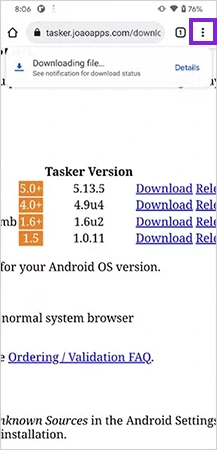
- Tap on “Downloads,” which will redirect you to all the download history, giving you the brief details for all files.
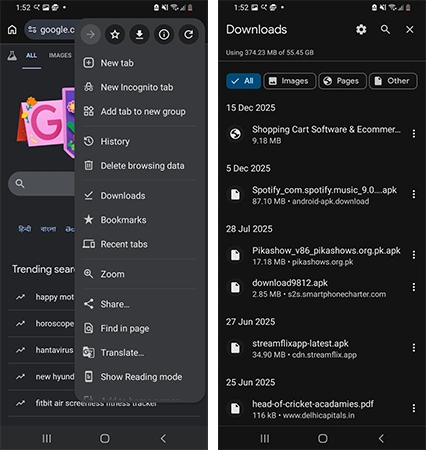
You can view the download status, whether it is completed, being processed, or failed. Just tap on the downloaded file, and you will be redirected to it.
However, with PDF files, it only opens on Chrome to save it on your device. If your safe mode is enabled, the device will restrict the downloading of third-party files, so make sure to turn off safe mode.
But what if the files and media were downloaded from a specific application?
II. Where Do I Find Downloads on My Phone From a Specific Application?
If we specifically talk about applications like WhatsApp, Telegram, Facebook, and others, they use “sandboxing.”
It refers to the technique where an application creates its private folder and stores all the cache and downloaded items there. Because of this, several files may appear on your device across different folders.
To access the storage media, the typical pathway is as follow:
- Open My Files or File Manager on your device and open Internal Storage.
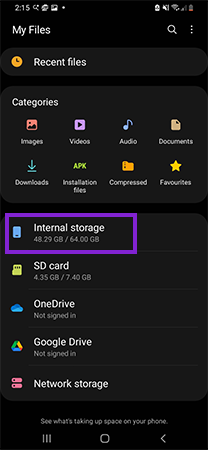
- Locate Android and open that.
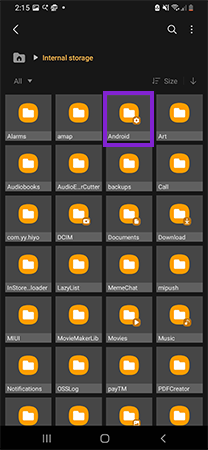
- At last, open the file named Media.
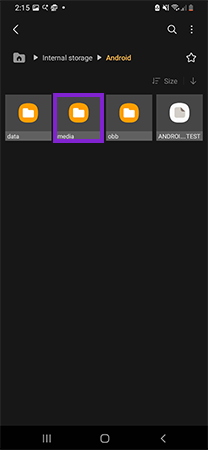
From there, you can access all the media and downloaded content, for example, for WhatsApp,
- Open My Files, navigate to Internal Storage, and open the WhatsApp file.
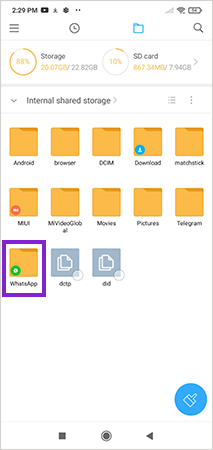
- Now click on Media.
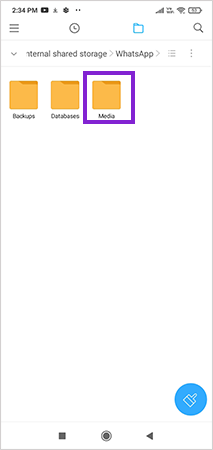
- Now you have access to the images, videos, voice notes, documents, and so on.
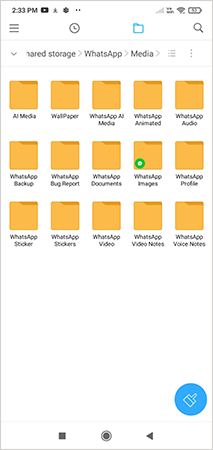
Some applications, like Snapchat, store media in a hidden folder and give users the option to directly import it into the gallery. Android users also can modify the storage media by changing the default setting of internal storage to an SD card.
Where Are My Downloads on My Phone? (As Per Device)
Android OS shares the same layout and theme across different models, but some of the aspects differ from device to device.
Accessing “My Files” or “Internal Storage” might differ from brand to brand. For example,
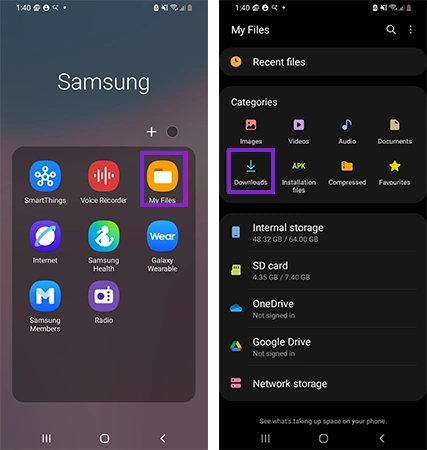
1. Samsung
To access downloaded files on a Samsung phone, go to “My Files” on your home screen and navigate to “Downloads” under the category section.
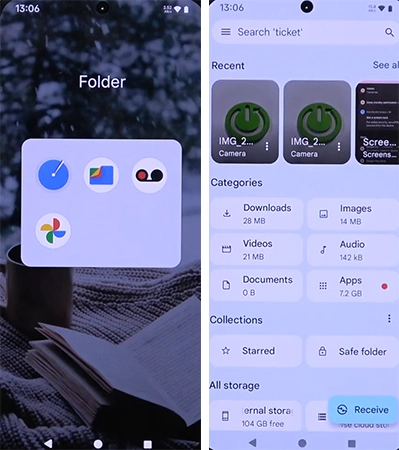
2. Nothing
Nothing smartphones display in-built files where all the downloaded folders are stored. Simply navigate to the Google Files > Download folder, and you are good to go.
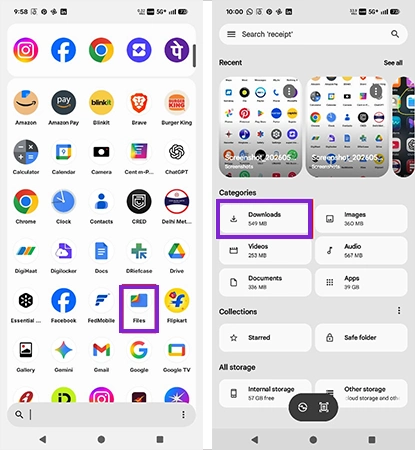
3. Pixel
Now, with Google Pixel smartphones, things are a bit different. Open the File by Google >> Browse >> Download.
More or less, the process to find downloaded files on smartphones is the same across multiple devices, whether you own a phone or a tablet.
The other method is much more straightforward and follows the same process across the devices, irrespective of brand.
So this was the entire method to solve the underlying problem of finding downloaded files. So next time you get confused or miss keeping track of downloads in the notification bar, you know exactly where your downloads are on your latest Android version devices.
Troubleshooting: Why Are Downloaded Files Not Showing Up?
Even after adhering to all these pointers mentioned above, if you are not able to locate your downloaded file, there are some common issues responsible for it.
- First and foremost, ensure that the downloaded file wasn’t downloaded from the incognito mode session. Your browsing history might get deleted once the session is removed.
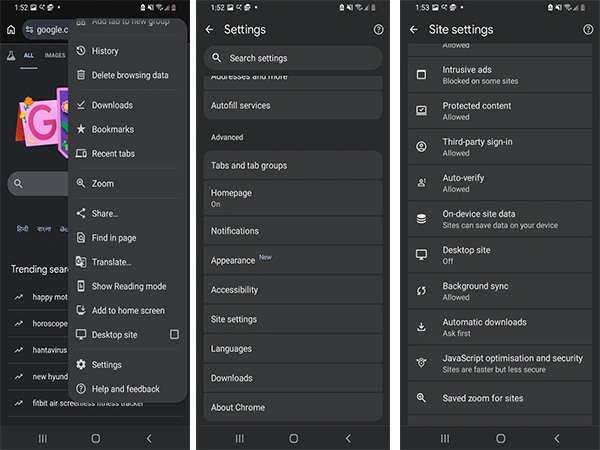
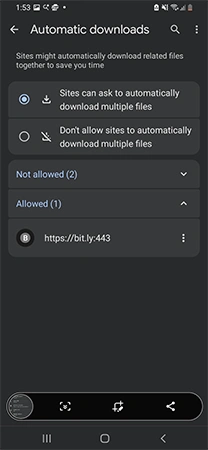
- Google’s policy safeguards your device from suspicious or malicious files from being downloaded onto your device. To enable this, go to your browser >> three dots >> Settings >> Site Settings >> Automatic downloads >> enable automatic download file.
- In some cases, the Download Manager gets glitches, stopping your download progress. In such cases, clear the cache and try downloading again.
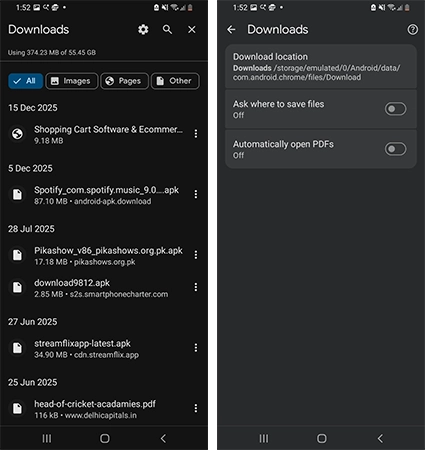
- If your file has been downloaded and you are unable to detect it in internal storage or the download section, try SD card storage. You can also customize your default storage settings on Chrome by going to Chrome >> kebab menu >> Downloads >> Downloads location.
- Also, make sure that you have an ample amount of storage to download the file; if storage is full, the file might not get downloaded.
How to Organize Your Downloaded Files?
So the main agenda of where are my downloads on Android might have been clear to you. Many of the users misplace their files just because they ignore one of the crucial elements of file management, and that is organizing them.
For Android users, it is essential to:
- Create sub-folders and rename them accordingly.
- Sync download with cloud storage.
- Set the specific download location and don’t change it too often.
- Rename the downloaded files as per your preference.
Wrapping Up
Compared to iOS, Android users can leverage the benefit of downloading third-party applications and files from unknown websites. With the clear instructions on how you can navigate downloads on your Android phone.
This gives you better control over your navigation and facilitates seamless access to files or media that are hidden beneath your huge pile of folders.
Read Next: iPhone vs Samsung: Which Smartphone Is Better for You?
FAQs
Q. Where is the file manager on Android?
Q. How do I access my downloads?
Ans. You can effortlessly access your downloaded files under the “Internal Storage” or at the “Download” menu located in “My Files.”
Q. Where can I see downloads?
Ans. You can view your downloads at the notification panel by swiping down or navigating to the downloads section in Google Chrome or any other browser.
Q. Why are my download files not showing up?
Ans. There might be multiple reasons why this happens; it might be due to low storage space, files being saved in the SD card instead of internal storage, or the system might have blocked suspicious files.
Q. Why can’t I find my downloads on Android?
Ans. The reason why you can’t find the downloads on your Android device might be due to a download failing, an app-specific directory, a hidden media folder, or a file getting blocked by Android security settings.
Sources:
How do I Open Download File – Google Support