Yes, if the GPU is malfunctioning, then green lines, flickering, graphical artifacts, and odd colors can result. Professional diagnosis is necessary in this case.
How to Fix Laptop Green Screen? 7 Tested Methods and How to Identify the Problem

Updated On November 26, 2026
When a laptop suddenly turns green, it can be frustrating, particularly when working, watching videos, or having an online meeting. In some cases, the entire screen will become green, while in others, you can see green lines, glitches, or a screen that is entirely green.
The problem with a green screen may be caused by outdated graphics drivers, improper display settings, software conflicts, or a dislodged display cable or LCD screen damage.
Thankfully, there are a number of ways to resolve the green screen without replacing the laptop screen. We will discuss how to fix laptop green screen, the common causes of the problem, and how to troubleshoot to correct this problem in this blog!
Table of Contents:
What is a Computer Monitor Green Tint?
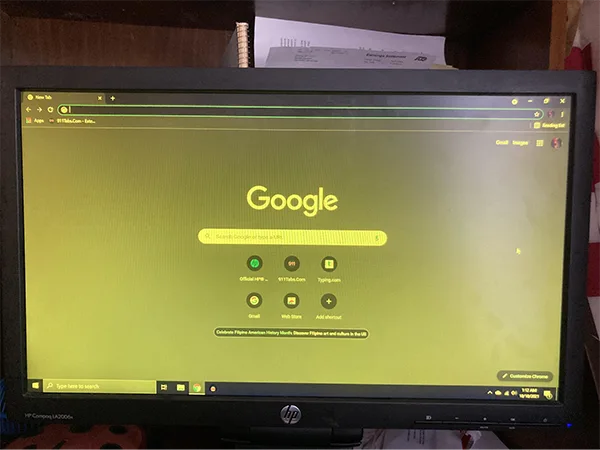
The problem with getting a green screen is that your laptop does not display the colors properly. Images are created on the laptop display using 3 main colors: red, green, and blue (RGB). The screen may turn into an unwanted green tint or green lines if there is a problem with the graphics processing or display components.
You can only learn how to fix laptop green screen if you know the common symptoms, which include:
- Green tint on the entire display
- A screen with green lines or patches.
- Green flickering when playing movies or videos.
- A full green screen when starting up.
- Shows issues that vary with laptop lid movements.
- Recognizing symptoms can assist decision-making to identify if the problem is software or hardware-related.
Why is My Computer Monitor Green?
Laptop screens get green for various reasons, such as:
- Outdated Graphic Drivers: The incompatible or corrupted graphic drivers can lead to wrong color rendering and display flickering.
- Loose or Damaged Display Cable: If the cable between the screen and the motherboard is damaged, then green lines and strange colors can be displayed.
- Faulty LCD Panel: Any damage or defect in the LCD panel may result in green patches, or the entire screen may become green.
- Graphic Processing Problems: Some video playback may result in green screens (due to hardware acceleration issues).
- Errors in the Windows System: Corrupted system files or possibly problematic updates may disrupt graphics performance.
How to Fix Laptop Green Screen? – Troubleshooting Methods
You don’t have to replace the screen on your laptop right away if the screen has turned green. It could be due to software glitches, outdated graphics drivers, or incorrect display settings. Use the following troubleshooting tips for how to fix laptop green screen.
1 Restart Your Laptop
Restarting the laptop can solve the temporary graphics glitches and errors of the operating system.
Here’s how to do it:
- Save your work first.
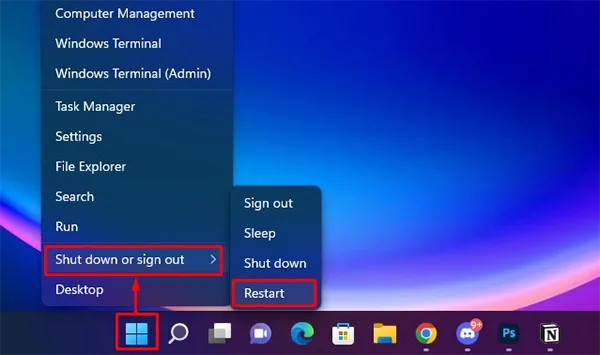
- Press the Windows key and click on the Start button.
- Click on Power, then restart it.
- Wait for Windows to boot up and see the screen.
- If the laptop freezes, it may be necessary to power it off, but unsaved work may be lost.
2. Disconnect External Device
Peripherals connected to the display sometimes cause display issues.
Unplug USB drives, external monitors, docking stations, and other unnecessary add-ons. Try turning the power to your laptop back on to see if the green screen goes away.
Disconnect them one by one to see if any accessory is causing the problem.
3. Update Display Drivers
Display abnormalities are often due to outdated or damaged graphics drivers.
To update your graphics driver:
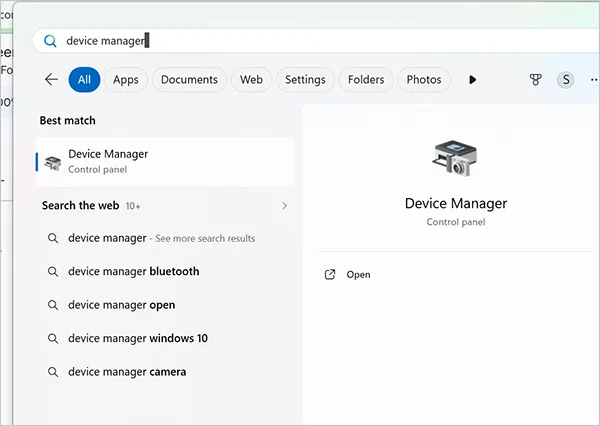
- Right-click on the Start button.
- Open Device Manager.
- Expand Display adapters.
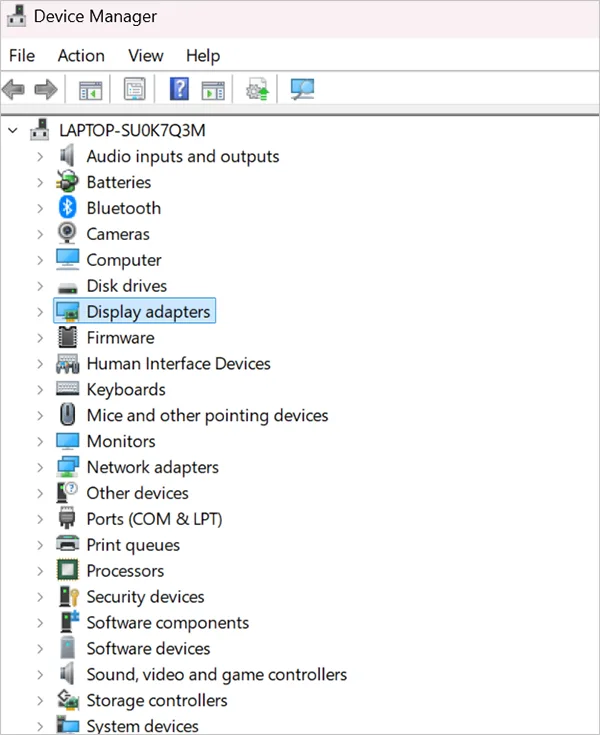
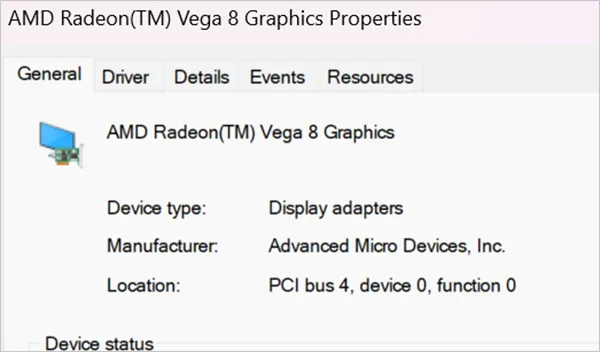
- Right-click on your graphics device.
- Select Update driver.
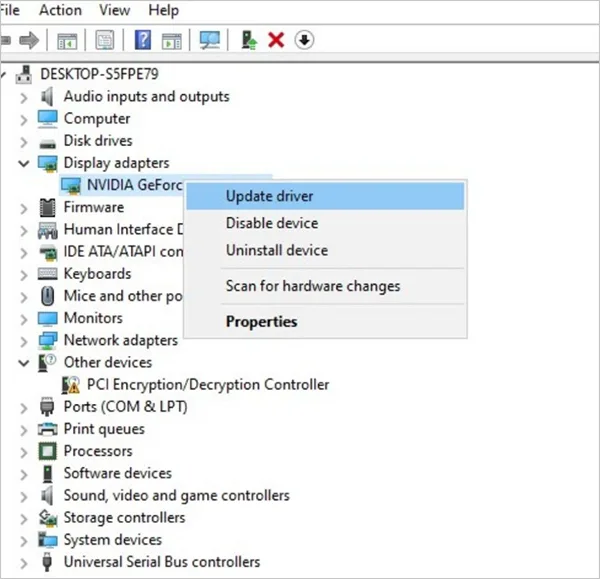
- This will update the graphics driver for your computer.
If this does not resolve the issue, remove the graphics device driver and reboot the laptop. A compatible driver can be automatically reinstalled by Windows. If not, get the right driver from the official laptop provider’s website.
4. Disable Hardware Acceleration
Hardware acceleration enables programs to run on the GPU and manage things like video playback and graphical rendering. Sometimes, however, due to incompatible drivers or GPU-related problems, green screens or distorted colors during video playback can occur.
Disabling the hardware acceleration in the application that causes the problem can help.
If you use Google Chrome, follow these steps:
- Open Google Chrome.
- In the top-right corner, click on the three dots.
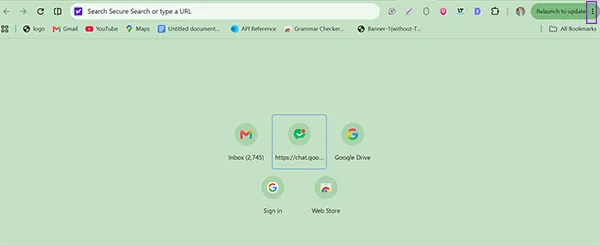
- Select the Settings menu.
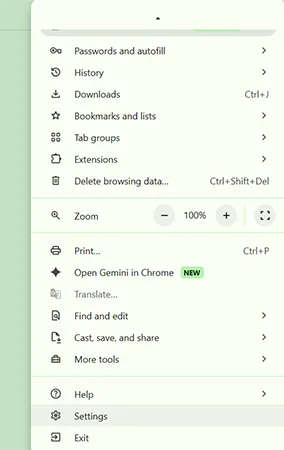
- Click on System in the Settings menu.
- Set the graphics acceleration to off when available (different in various versions).
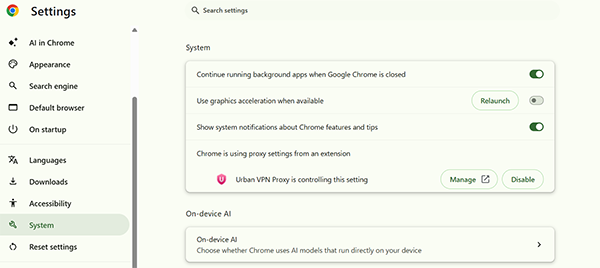
- Restart the Chrome browser and test to see if the videos play back as normal.
If the green screen only shows when viewing video in one browser or app, then this method should be tried. It can’t correct a green tint on the laptop’s display screen.
5. Go Through Display and Color Settings
If the screen is green, it may be the result of incorrect display settings or enabling color filters. This is helpful when the display appears to be tinted, but without signs of physical damage, especially if it is on the entire display.
To see how your Windows are set to look, follow this:
- Click Windows + I to access Settings.
- Select Accessibility.
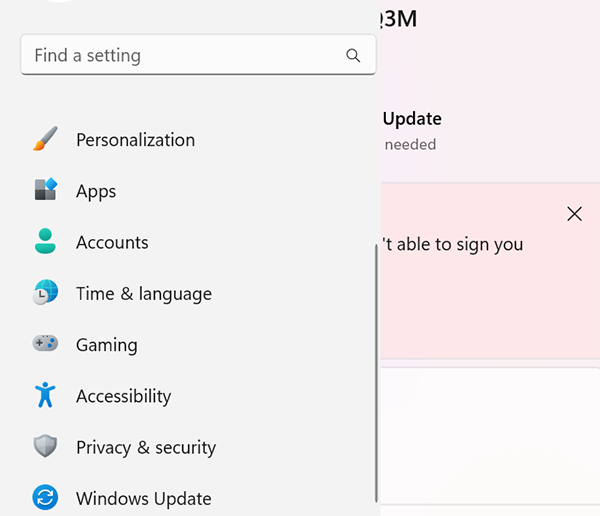
- Click Color Filters.
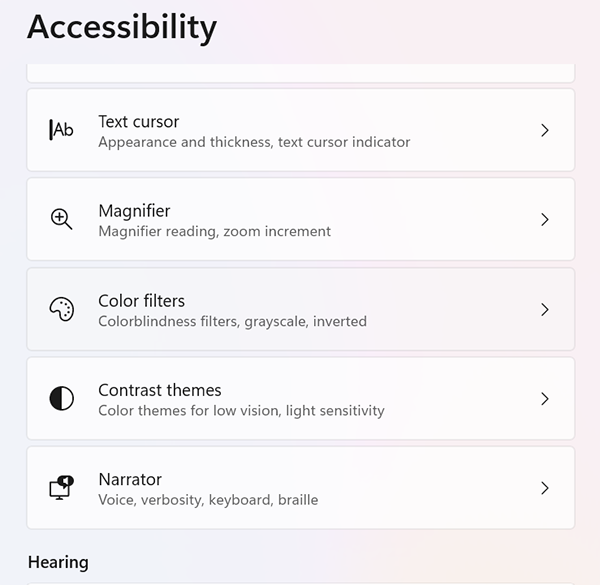
- Test to see if color filters are turned on. If they are, turn them off.

- Go back to Settings and select System > Display.
- Look at the color mode and temporarily turn it off to see if the color changes.
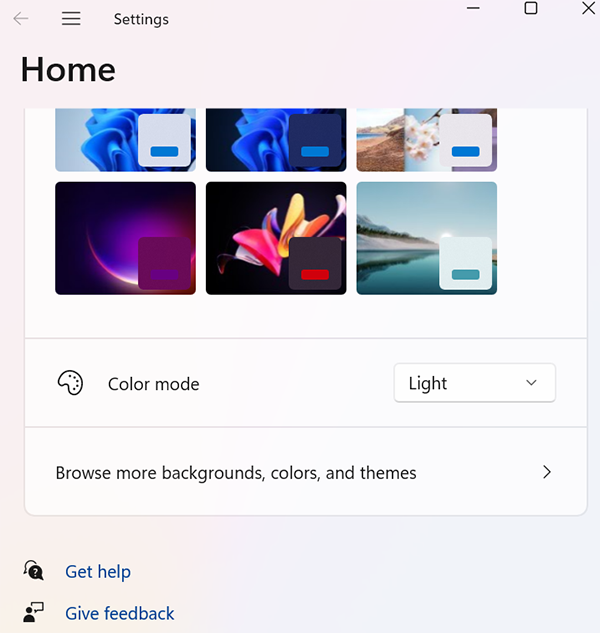
You can also view the color profile:
- Click on Start and type in Color Management.
- Click on the Devices tab and choose which laptop will display.
- Examine the color profile that is attached.
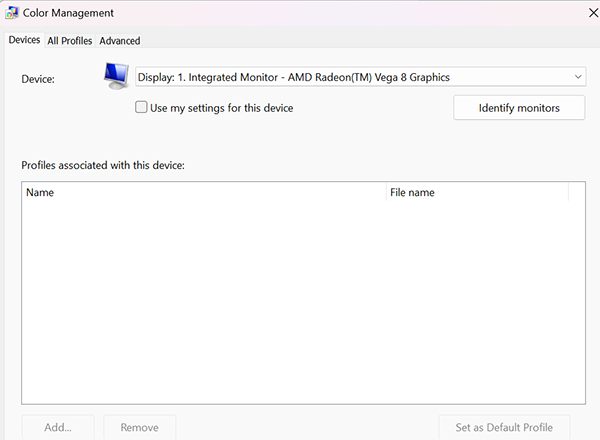
If the wrong profile is picked, please read the advice of your laptop manufacturer or restore the correct default profile.
Once these changes have been made, see if the laptop screen shows colors as they should.
6. Update Windows
Sometimes, graphics drivers and display components don’t work well when using an outdated Windows version or a faulty system update.
These software-related issues may be resolved by updating Windows.
Follow these steps to do the same. Please note that the steps for Windows 10 and 11 are similar, with differences in visuals and prompts.
- Click on Windows + I to open the Settings menu.
- Select Update & Security.
- Click on Windows Update.
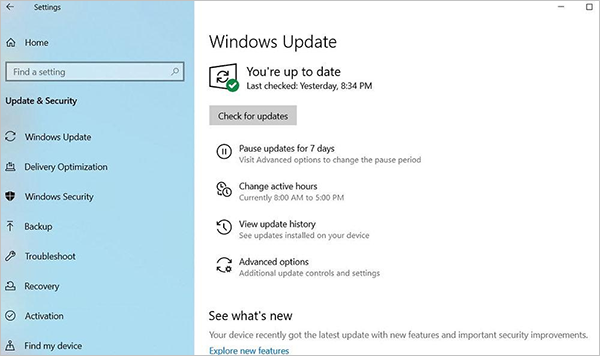
- Click on Check for updates.
- Install any updates that are available.
- If the computer restarts, restart it.
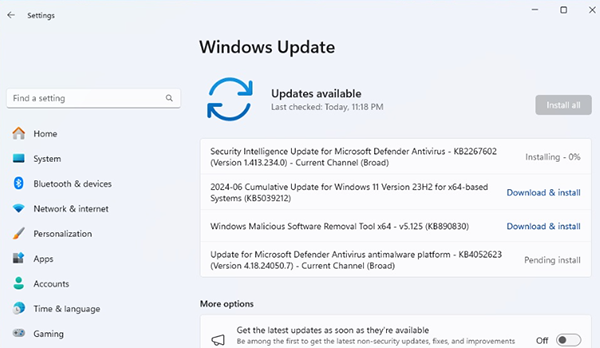
If the green screen began as soon as you installed a Windows update, you may also want to determine if a recent update is causing it.
Navigate to Windows Update > View Update History and review recently installed updates in the Settings > Update & Security section. Use the recovery options provided if needed to remove a problematic update.
Make sure you have a backup of important files before performing major system changes.
7. Connect Your Laptop to an External Monitor
If you have an external monitor, you can connect it to your laptop to see if the issue is with the laptop’s screen or its graphics card.
Here’s how to do it:
- Use an external monitor or TV with a compatible HDMI, USB-C, or other supported display connection.
- Both devices should be switched on.
- Now, press Windows + P and select Duplicate or Extend.
- Look for a green tint or green lines on the external display as well.
The outcomes can be used to identify the problem to a greater extent:
If the colors on the external monitor are normal, the issue might be due to the laptop’s LCD panel, display cable, or connector.
If the external monitor is green-tinted, it can be because of graphics driver, processing, or GPU issues.
This test will not be a definitive diagnosis but may help determine which components should be further explored to fix the issue.
Check Out: How to Get Water Out of Phone? Effective Ways and When to Visit Professional Services
How to Identify Whether a Laptop Green Screen Problem is Software or Hardware Related?
It is crucial to first determine if the issue of your green screen laptop is software or hardware related before you consider various solutions. Whether the green screen appears, if it changes while using the product, and what it does may be helpful in narrowing down a cause.
The following signs can help you determine the potential problem:
- Green Tint All Over the Screen: It is likely that outdated or corrupted graphics drivers, incorrect color settings, or software-related issues are to blame.
- Green Screen When Playing Back Video: This could be because of a problem with video decoding, incompatible graphics drivers, or problems with hardware acceleration.
- Flickering Lights When Laptop Lid is Moving: Usually, it means a loose or broken screen display cable or connector.
- Green Screen When Windows Starts: More likely to be an issue with the graphics hardware, such as an LCD panel, display cable, or graphics processing unit (GPU).
- Green Patches or Flickering: May be a problem with the display panel or a problem with the display connection.
- Graphics Driver or Graphics Card Problem: Can be a graphics driver or a problem with the graphics card.
These symptoms can be helpful to determine the source of the issue. They do not always provide a definitive diagnosis, though. If after trying to troubleshoot the software, the green screen persists, you may need to have your laptop inspected by a qualified laptop repair tech.
Conclusion
There can be multiple causes for a green screen in a laptop: old graphics drivers, wrong screen settings, software conflicts, screen cable damage, and a broken LCD panel.
You must try troubleshooting methods like restarting and updating the graphics drivers, adjusting the display settings, and plugging in an external monitor. If the screen is still green before Windows starts up or is physically damaged, professional computer diagnostics may be required.
FAQs
Does a faulty GPU cause a green screen?
What is a green screen laptop problem before Windows starts?
If the screen turns green while the manufacturer logos are showing or before Windows loads, the problem is more likely to be caused by the hardware. The display panel, cable, connector, or GPU may need to be inspected.
Are laptop green lines on screen dangerous?
A green screen is no cause for alarm unless it is accompanied by a display or graphics issue. Take the laptop to be inspected if there is overheating and repeated system crashes.