

Ans: You can simply record a conversation on an iPhone using the call recording tool present in the Phone application. While on call, tap on More in the bottom left corner and select the call recording option to capture and pause/stop.
How to Record a Phone Call on iPhone Without Hassle?
Apple’s latest policy and system updates have finally introduced native call recording and transcription features into the ecosystem.
Whether you are recording calls for your personal use, business purposes, interviews, or content creation, you can simply record your audio calls with just a few steps.
For a complete understanding of how to record a phone call on iPhone without alerts and announcements, refer to our comprehensive article below. If you face device-related issues, you can explore game console repair services for additional technical support insights.
Table of Contents:
Can You Record a Phone Call on iPhone?
Yes, it is possible to record your calls on an iPhone through its built-in call recording feature. While Apple previously restricted call recording due to privacy and security considerations, it is now possible with the latest iOS updates.
However, before you explore how to record a phone call on iPhone, it is important to understand that this feature works only on iOS 18.1 and later.If your device is running an older version, you may need assistance through iPhone repair services or general smartphone repair solutions.
Also Read: Nintendo Joy-Con Repair: Complete Guide to Fixing Joy-Con Drift
How to Record a Phone Call on iPhone with a Few Simple Steps?
With the iOS 18 update, recording your phone calls on an iPhone is effortless and straightforward. Apple has now built dedicated call recording functionality into its dialer, which you can easily access through the More section.
To easily understand how to record call on iPhone, simply follow the detailed instructions.
- Begin by placing a call to the individual you wish to record.
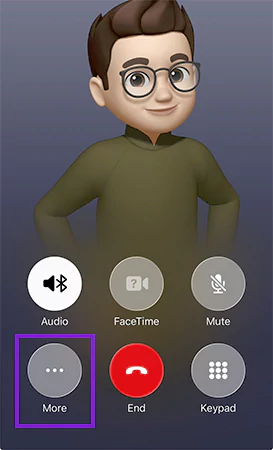
- Tap on the More icon (…)present in the bottom left corner of your Phone app.
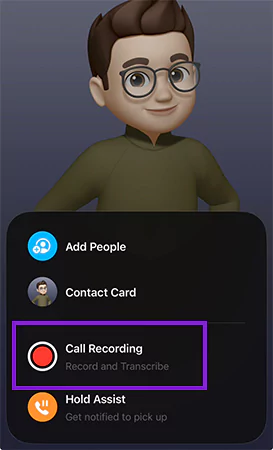
- Select call recording, and now your call will be captured by notifying both participants with an audible alert that “The conversation is being recorded”.
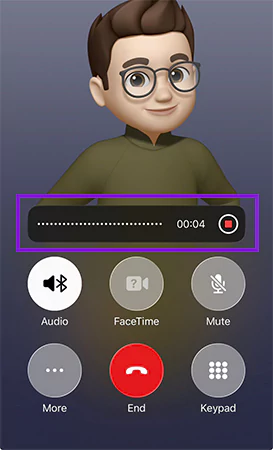
- To pause or stop the voice conversation capture, simply tap on thecall recording again.
If your device lags during recording, you can explore related fixes through Samsung repair services or Google Pixel repair services.
Where Can You Find Your iPhone Call Recording?
Once you end the call and capture your conversation using the iPhone telephone recorder, you can access the recording through the Notes app. With the recent updates, Apple introduced voice-to-text transcription that allows you to turn your calls into searchable, readable, and editable notes.
As it is powered by Apple Intelligence, the full transcription and summary system generates transcripts in real time. It also equips you with the feature to search for a particular word within the notes for better accessibility.
To locate iPhone call recording easily, refer to the comprehensive pointers below.
- Open the Notes application on your iPhone and tap on the Call Recordings.
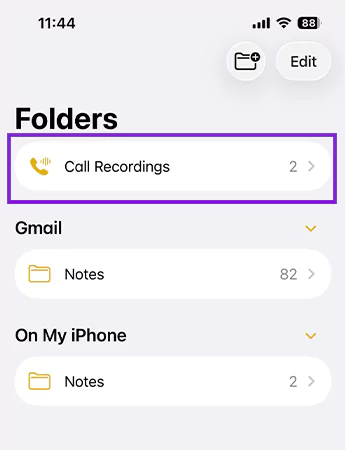
- Choose the recording, and you can tap on the Play button to listen to the complete conversation.
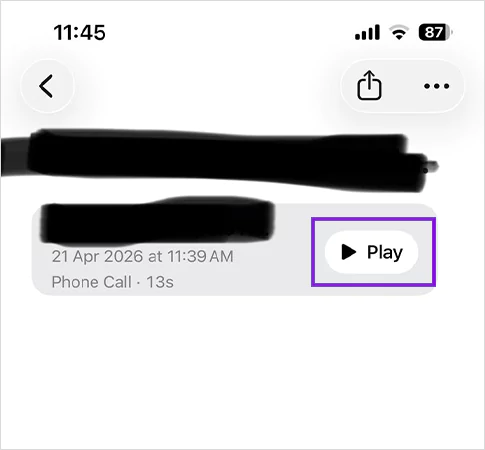
- For voice-to-text transcription of your conversation, tap on the name of the recording and then select the transcript option available at the bottom left of the screen.
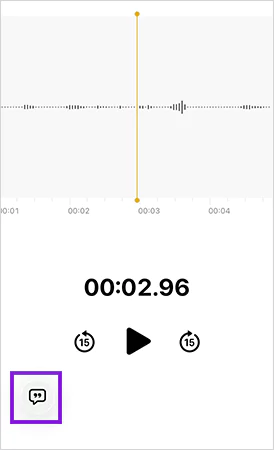
- Wait for a few seconds, and it will generate a written transcript or a readable note of your conversation.
- You can also search for a particular word in the generated transcript by tapping on three dots at the bottom right of the Notes app.
- Tap on Find in Note and search for any specific word to save time and enable quick access. If recordings are missing or corrupted, consider checking data recovery services or Apple ecosystem fixes through Mac repair services.
Also Read: Acer Flickering Screen: Causes, Fixes & Complete Troubleshooting Guide
How to Record Phone Call on iPhone Without Alerts or Notifications?
From external applications to hardware recorders, check out the two primary methods that you can use to record calls and save conversations with ease.
Using a Third-party Application
A reliable third-party software is among the best solutions that will assist you in capturing your conversations without notifying the other participant. It works by 3-way calling or conference calling a recording service number to capture your audio.
However, it is advisable that you avoid using third-party applications for call recordings, as it breaches Apple’s legal standards. You can still use trusted software like Google Voice, TapeACall Pro, or Rev Call Recorder. If these apps affect performance, you can review fixes via OnePlus repair services or Motorola repair services.
Using Hardware Recorders
Like a significant iPhone Recovery Software, the hardware recorders allow you to get the audio file of your conversation without an audible alert to the other participant.
Bluetooth recorders, call-recording adapters, and in-line recorders are the primary categories of hardware solutions. Here’s how you can use them efficiently without hassle. If you manage recordings across devices, consider maintaining performance with laptop repair services or computer repair solutions.
Also Read: How Do You Turn Safe Mode Off on an Android? (Step-by-Step Guide)
Wrapping Up
Analysing how to record a phone call on iPhone is now straightforward, as recent Apple updates have simplified the process. You can simply capture your conversations with anyone using the call recording tool present in the Phone application.
However, if you want to avoid notifications, third-party apps or hardware solutions are required. If you use multiple Apple devices, you can also explore support like tablet repair services or iPad repair solutions.
FAQs
Q: How to record a phone call on iPhone?
Q: Can you record a phone conversation on an iPhone?
Ans: Yes, you can record your calls and conversations on an iPhone. However, you can only perform this action if your device is operating on iOS 18 or iOS 26, as the call recording tool is not supported on previous iOS versions.
Q: How do I record a phone call on iPhone without an announcement?
Ans: Due to the privacy and security policies of Apple, you can not capture your telephonic conversation on an iPhone with an alert or announcement. However, you can use third-party software or hardware solutions like Bluetooth or in-line recorders to avoid alerts and notifications.
Q: Where can I see my iPhone call recording?
Ans: You can check your recordings on iPhone in the Notes application. Simply visit the Notes app and then tap on the Call Recordings section to select your preferred audio files.
Q: How to turn iPhone calls into texts and generate call transcripts?
Ans: In order to turn your conversations into readable and workable texts, simply open the Notes app> tap on Call Recordings> select the recording> tap on the transcripts option available at the bottom left of the screen.