Connecting the Nintendo Switch to a TV is very easy, as you just have to keep your TV and console in proximity, plug in your television and console, and afterwards establish a connection using an HDMI cable. After doing all this, you are good to go.
How to Connect Nintendo Switch to TV: Methods, Tips and Quick Error Fixes

Updated On September 26, 2026
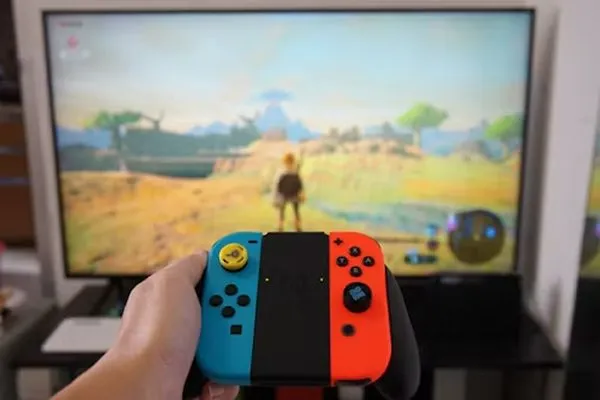
People who are new to gaming don’t know how to use the Nintendo Switch and set up this device to its full potential to achieve an ideal gaming experience. That’s why we have compiled this guide, where you will learn how to connect Nintendo Switch to TV using multiple methods, along with the best tips to make your sessions even smoother.
Let’s get started!
Table of Contents:
- What You Need to Connect Nintendo Switch to TV
- How to Connect Nintendo Switch to TV?
- How to Connect Nintendo Switch to TV Without a Dock?
- Nintendo Switch Has Sound but No Picture
- Why Do Issues like Nintendo Switch Not Charging or Connecting to the TV Occur?
- Can You Connect Nintendo Switch Lite to a TV?
- Tips for the Best Nintendo Switch TV Setup
- Frequently Asked Questions
- Conclusion
What You Need to Connect Nintendo Switch to TV
Before starting the connection procedure for the Nintendo Switch to a TV, you need to ensure that some essential in-box contents are available on your table along with the console so that you won’t face disruption in your gaming experience. Follow the must-have checklist below.
Checklist:
- Nintendo Switch console with complete patch updates.
- Nintendo Switch dock that comes inside the box.
- AC power adapter (present within the box)
- Original box HDMI cable (or any cable with HDMI 1.4 or higher configuration).
- TV or monitor with an available HDMI port.
How to Connect Nintendo Switch to TV?
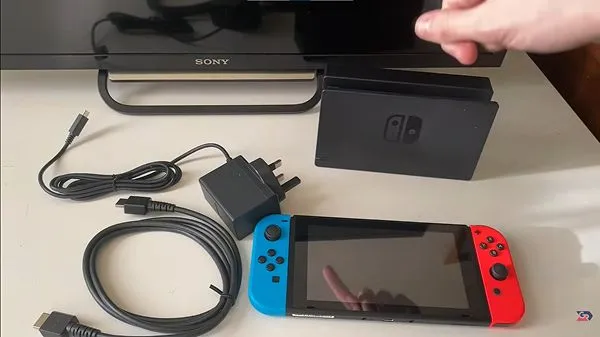
First, take out all the essential elements present in the box, like the adapter, dock, Nintendo Joy-Con, HDMI cable, user manual, etc. Follow the sequence of instructions to establish a connection.
Place the Nintendo Switch dock near your TV or monitor.
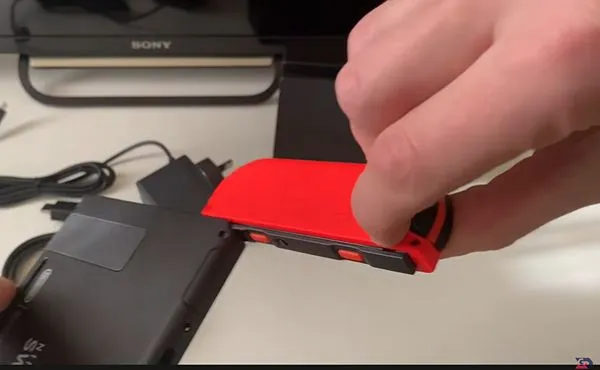
Then remove the Nintendo Switch controllers from both ends.
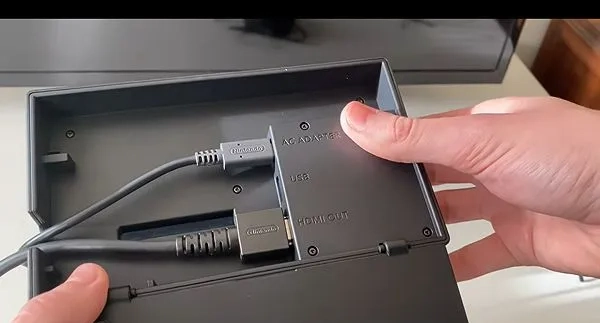
Open the dock and carefully check the port info; here you will find exact markings for connecting each utility.
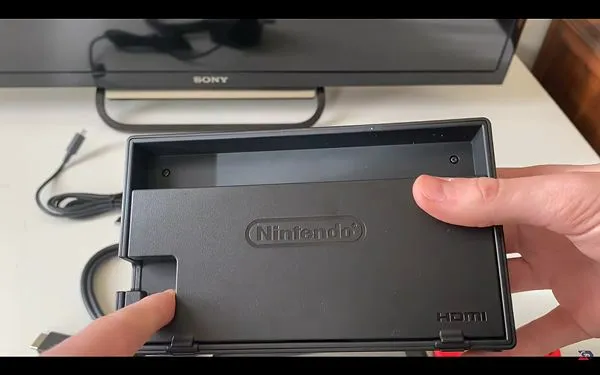
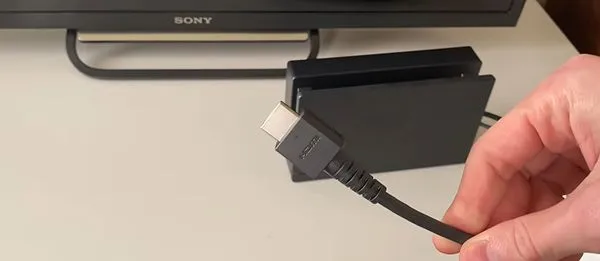
Connect one end of the HDMI cable to the HDMI Out slot of the dock.
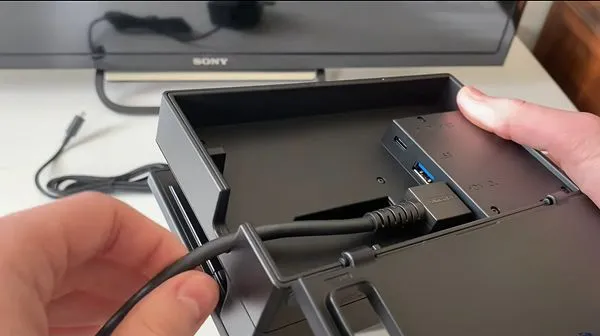
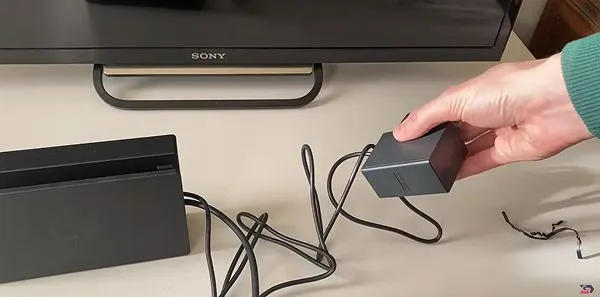
Now, connect the AC adapter to its designated port.
Connect the AC adapter to your power supply.
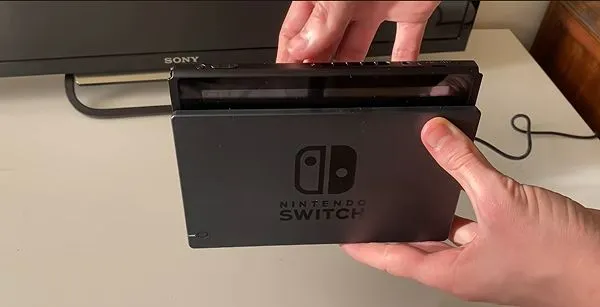
Place the Nintendo Switch in the dock.
Select the correct HDMI input on your TV.
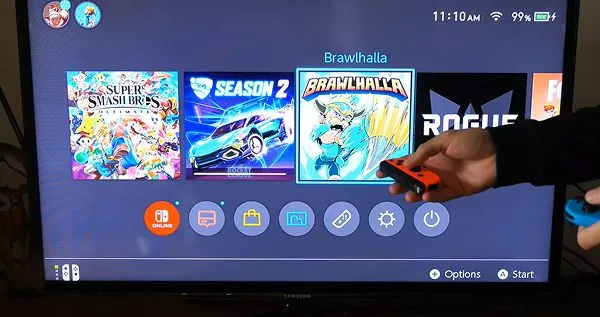
Turn on the Nintendo Switch, along with your TV, to enjoy gaming.
Read more: Best Budget Smartphones in the USA for Daily Use and Gaming.
How to Connect Nintendo Switch to TV Without a Dock?
If you want to connect your Nintendo Switch without the official dock to your TV, then you have to follow this tricky method that works well in most cases. Here are the steps.
First, you will need a good-quality HDMI to USB-C cable.
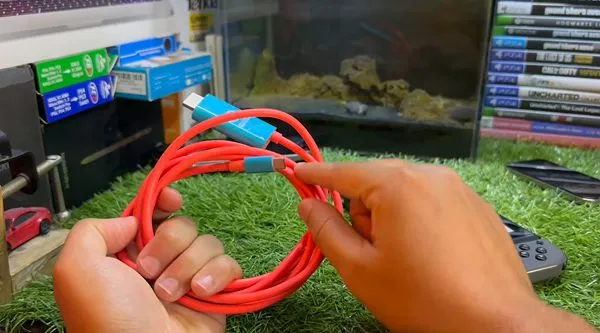
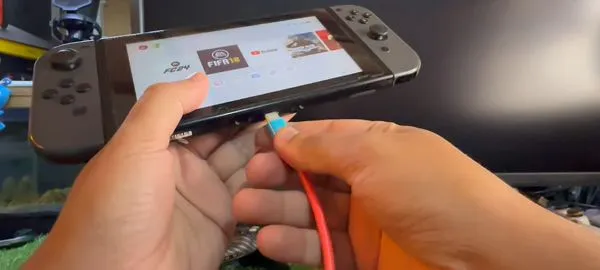
Now, connect the USB cable to the console.
Then connect the HDMI end of the cable to your TV.
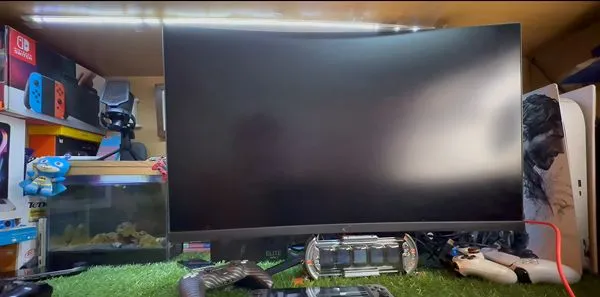
Now, you can play Nintendo Switch on your TV without its original dock.
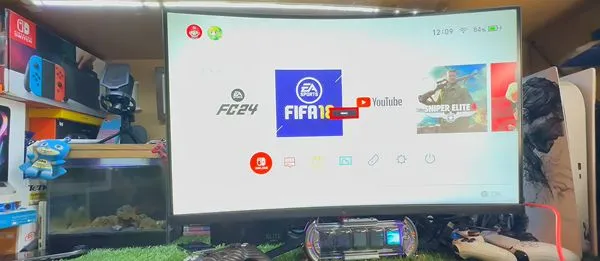
DeviceFixes Advice:
We don’t recommend this method for connecting a Nintendo Switch to your TV, as third-party adapters and cables are not ideal for handling the frequency of rendering console gameplay pixels well. Also, some of them have a faulty internal framework, which can affect your Nintendo Switch also.
Nintendo Switch Has Sound but No Picture
Sometimes your Nintendo won’t show any visuals even if it is powered on, and that’s a frustrating scenario. But don’t worry, as it happens to many people, and it’s mostly caused by improper setup techniques or loose ends in wiring. Check the solutions for a quick fix.
- Check that the TV input and HDMI cable are in good condition and not damaged.
- Try to use a different HDMI cable if the original is not working well.
- Restart both the console and the TV.
- Check the TV’s display settings and adjust the resolution.
Read more: How to Factory Reset Samsung TV? Tried and Tested Methods that Works in 2026
Why Do Issues like Nintendo Switch Not Charging or Connecting to the TV Occur?
Charging and connectivity issues on gaming consoles like the Nintendo Switch are very common due to their cloud-based hardware architecture. The major causes are faulty wires, poor internet strength, dirty ports, etc., which we often don’t focus on. To fix them, follow the instructions below:
- Clean the ports of your consoles regularly and keep them away from areas that have a lot of dust and debris.
- Update your console with the latest security patches.
- Use an Ethernet cable to improve internet strength.
- Restart both the console and the TV.
Can You Connect Nintendo Switch Lite to a TV?
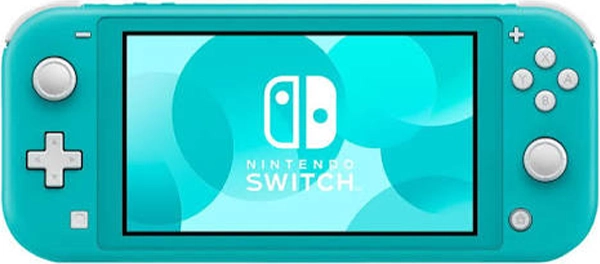
No, you cannot connect the Nintendo Switch Lite to a TV because it is a completely different console from the Nintendo Switch, a toned-down version, to be precise. It does not feature input/output HDMI processing units for video or audio to other devices.
This gaming device comes under the handheld category, which means it is ideal for rendering games on its own display. But you can still connect it to your TV using the screen-mirroring feature, and all major functions of the device will be performed using the device. Also, you cannot split the controllers away from its display like the Nintendo Switch.
Tips for the Best Nintendo Switch TV Setup
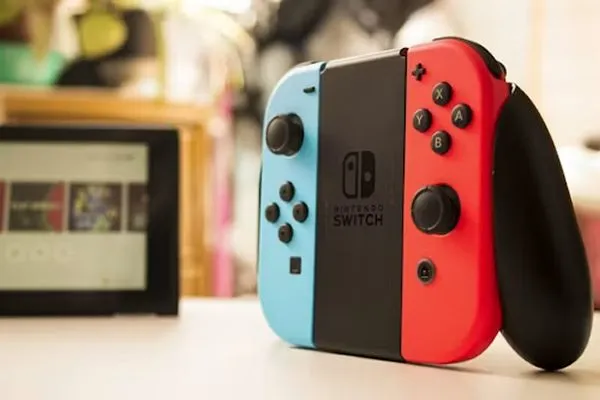
Having reached here, you have covered all the basics of setting up the Nintendo Switch with and without a dock, but here we are unfolding some of the best tips to make your experience even more immersive.
- Always prioritize using the original Nintendo cable that comes in the box for the fastest and most seamless input/output. Never try to use old or faux cables, as they can hinder connectivity.
- To ensure uninterrupted internet streaming, you should connect the Ethernet cable to the Nintendo dock because a wireless connection can fluctuate and cause lag or delays.
- If you are facing pixel jittering or too many frame drops, then most probably it is happening because of the quality preferences of your television. To fix this, adjust the resolution.
- During a gaming session, facing audio connectivity issues is pretty normal due to software bugs and glitches. Here, you just have to give the console a steady restart, and if this won’t fix it, you should consider checking your headsets.
Frequently Asked Questions
How do I connect a Nintendo Switch to TV?
How do I connect the Switch to a TV without a dock?
If you want to connect the Nintendo Switch without a dock, then you will require a power adapter with multiple ports. After that, connect one end of the HDMI cable to the power adapter on both devices, and connect the other end to the TV. Finally, plug in the adapter, and your devices are connected without a dock.
Why is my Nintendo Switch not showing on my TV?
This situation can happen because of some common errors like a loose power connection, an inappropriate power supply, or a selected TV port that is not ideal for the Nintendo Switch dock.
Can I connect a Nintendo Switch Lite to a TV?
No, you cannot connect a Nintendo Switch Lite directly to a TV. The console lacks the internal video output chip and hardware required to send a video signal to an external screen.
What HDMI cable do I need for Nintendo Switch?
Well, a standard HDMI which has an HDMI 1.4 or higher configuration does a great job of fostering the connection of Nintendo Switch.
Can I connect Nintendo Switch to any TV?
Yes, you can easily connect the Nintendo Switch to any TV using either the Nintendo dock or the dockless method.
Conclusion
These are some easiest and most effective ways for connecting the Nintendo Switch to your TV using the official dock and power adapter. Both methods tend to provide a seamless experience. We emphasize the official dock method more because it’s more advanced, credible, and fast.
Also, ensure you never use third-party accessories with your console, as they can affect the ideal gaming experience and can even damage it to a certain extent. Remember, if you ever face problems with WiFi, then immediately connect the Ethernet port to the gaming dock to retain your fun session without any complaints. For more such informative content, make sure to follow Devicefixes.